Settings that are still there tomorrow
AppStorage and SceneStorage
You will buildThe Settings tab's choices kept in UserDefaults with @AppStorage, so that the traveler's name and the highlight survive a restart — and the tab you were on kept for the window with @SceneStorage, with the harness showing when the system brings it back and when it does not. Then Part 10's interview problem.
TimeAbout 50 minutes, then the interview problem
WhyLesson 33 put the trips in a file and lesson 35 put the packing lists in SwiftData. Small things need somewhere too: a preference the person chose, the tab they were on. SwiftUI has a property wrapper for each. @AppStorage keeps a value in UserDefaults, the same place NSUserDefaults kept it in your UIKit apps, and redraws the views that read it when it changes. @SceneStorage keeps interface state for one window, for the system to restore — the job of encodeRestorableState(with:) and restoration identifiers in UIKit.
Open your project
Open your
Tripsproject as lesson 35 left it: double-clickTrips.xcodeprojin Finder, or use File ▸ Open… (⌘O) in Xcode.If you did not finish lesson 35, or would rather start from a known state, download Trips-lesson-35.zip instead. It is the project exactly as it stood at the end of lesson 35. Unzip it and open
Trips.xcodeproj.Run it (⌘R) to check that it builds. You should see where lesson 35 ended:
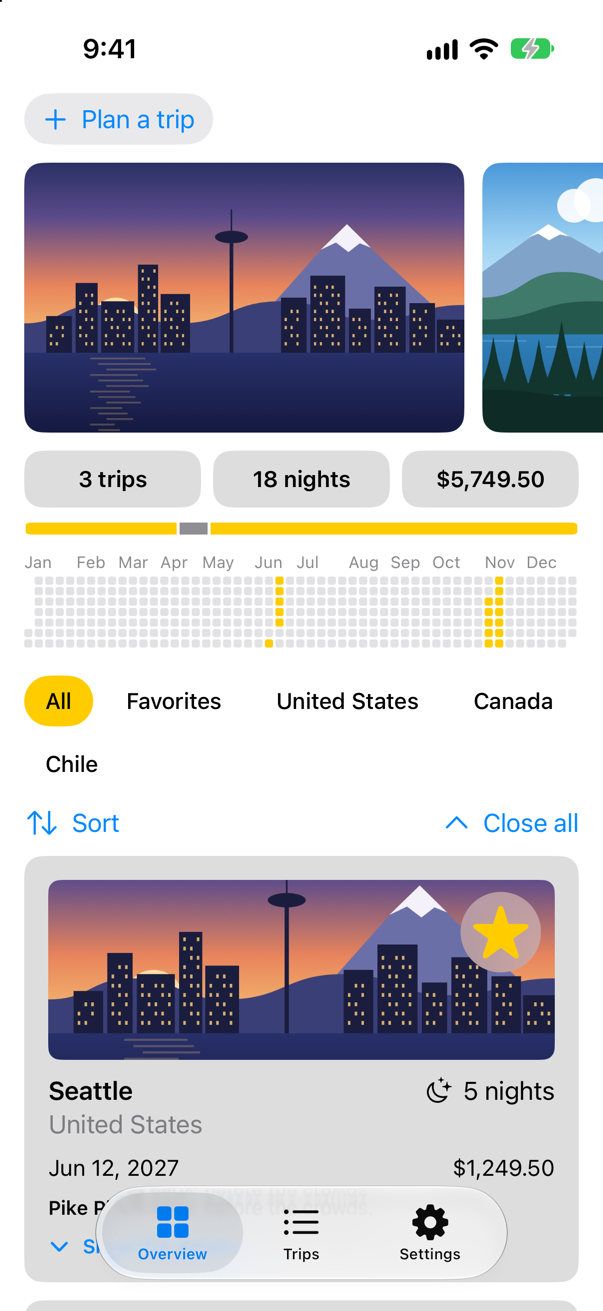
Trips, as it stood at the end of lesson 35Screenshot · iPhone 17, iOS 27.0
Forgotten at every launch
Run the app, open the Settings tab, type a name — Kim, say — and choose the mint highlight. Then stop the app in Xcode (Stop, ⌘.), run it again (⌘R), and open Settings:
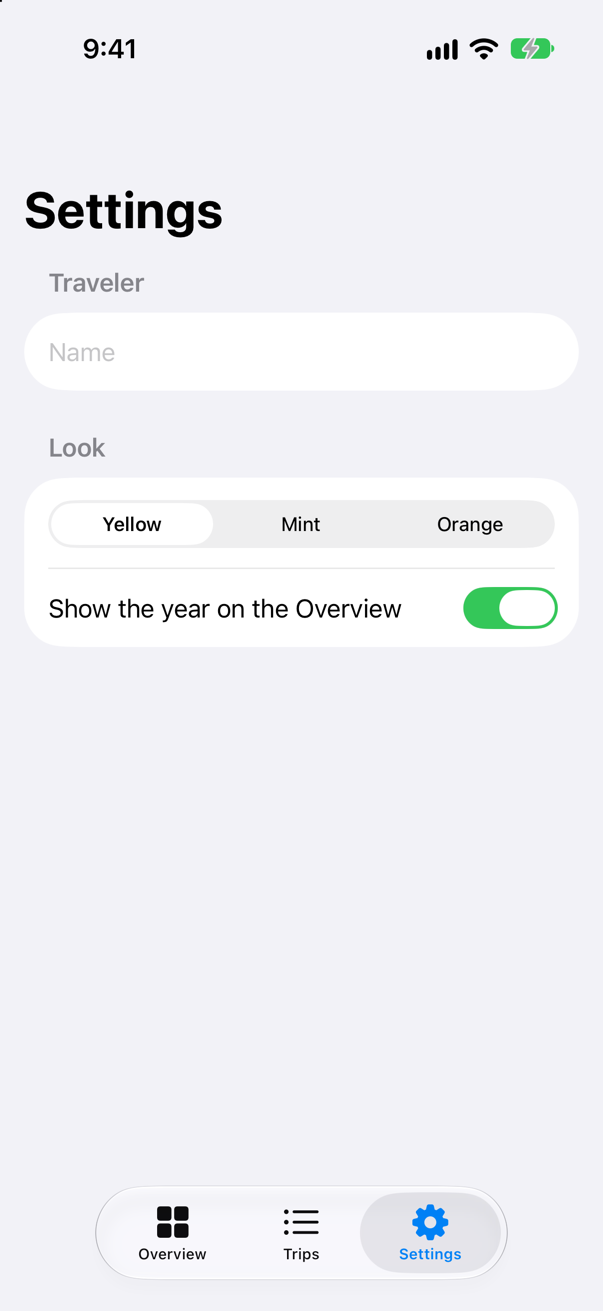
Everything is back to how it started. Since lesson 30 the settings have lived in an @Observable object made when the app starts, and nothing ever wrote them anywhere.
The look, kept in UserDefaults
@AppStorage is "A property wrapper type that reflects a value from UserDefaults and invalidates a view on a change in value in that user default." You give it a key and a default — @AppStorage("showsYear") private var showsYear = true — and from then on reading it reads UserDefaults, setting it writes there at once, and every view that uses the same key redraws. It holds a fixed list of types — Bool, Int, Double, String, URL, Data, Date, their optionals, and enums whose raw values are strings or integers, such as the highlight. SwiftUI declares an initializer for each, and nothing else.
Which settings belong there? Apple's page for UserDefaults is plain about it: "Don’t store personal or sensitive information as settings. The defaults system stores information on disk in an unencrypted format. Store personal or sensitive information in the person’s Keychain instead." The highlight and the year on the Overview are preferences, and go to @AppStorage. The traveler's name is personal: it stays where it is, in the Settings object, for this session only. (The keychain has an API of its own, which this course does not cover.) So the Settings class keeps the name, and gains the two keys, written once so that no view can misspell one. In Settings.swift:
import SwiftUI/// The choices made on the Settings tab, shared by every screen that uses them. `@MainActor`: the/// screens read them./// The choices made on the Settings tab. The look is kept in UserDefaults by @AppStorage, under the keys below;/// the traveler's name is personal, so it is not. `@MainActor`: the screens read them.@MainActor@Observablefinal class Settings { var travelerName = "" var highlight = Highlight.yellow var showsYear = true /// The keys of the choices kept in UserDefaults, in one place, so that no view misspells one. static let highlightKey = "highlight" static let showsYearKey = "showsYear" /// The colors the app can be drawn in. `Sendable`: plain data — and a type nested in the class /// does not take the class's actor, so it says so itself. enum Highlight: String, CaseIterable, Identifiable, Sendable { case yellow, mint, orange var id: Self { self } var color: Color { switch self { case .yellow: .yellow case .mint: .mint case .orange: .orange } } }}import SwiftUI
/// The choices made on the Settings tab. The look is kept in UserDefaults by @AppStorage, under the keys below;
/// the traveler's name is personal, so it is not. `@MainActor`: the screens read them.
@MainActor
@Observable
final class Settings {
var travelerName = ""
/// The keys of the choices kept in UserDefaults, in one place, so that no view misspells one.
static let highlightKey = "highlight"
static let showsYearKey = "showsYear"
/// The colors the app can be drawn in. `Sendable`: plain data — and a type nested in the class
/// does not take the class's actor, so it says so itself.
enum Highlight: String, CaseIterable, Identifiable, Sendable {
case yellow, mint, orange
var id: Self {
self
}
var color: Color {
switch self {
case .yellow: .yellow
case .mint: .mint
case .orange: .orange
}
}
}
}The Settings screen binds the picker and the toggle to @AppStorage properties of its own, with $ as with @State; the name field still binds to the object. In SettingsView.swift:
struct SettingsView: View { @Environment(Settings.self) private var settings @AppStorage(Settings.highlightKey) private var highlight = Settings.Highlight.yellow @AppStorage(Settings.showsYearKey) private var showsYear = true var body: some View { @Bindable var settings = settings NavigationStack { Form { Section("Traveler") { TextField("Name", text: $settings.travelerName) .textContentType(.name) .submitLabel(.done) } Section("Look") { Picker("Highlight", selection: $settings.highlight) { Picker("Highlight", selection: $highlight) { ForEach(Settings.Highlight.allCases) { choice in Text(choice.rawValue.capitalized) } } .pickerStyle(.segmented) Toggle("Show the year on the Overview", isOn: $settings.showsYear) Toggle("Show the year on the Overview", isOn: $showsYear) } } .navigationTitle("Settings") } }}struct SettingsView: View {
@Environment(Settings.self) private var settings
@AppStorage(Settings.highlightKey) private var highlight = Settings.Highlight.yellow
@AppStorage(Settings.showsYearKey) private var showsYear = true
var body: some View {
@Bindable var settings = settings
NavigationStack {
Form {
Section("Traveler") {
TextField("Name", text: $settings.travelerName)
.textContentType(.name)
.submitLabel(.done)
}
Section("Look") {
Picker("Highlight", selection: $highlight) {
ForEach(Settings.Highlight.allCases) { choice in
Text(choice.rawValue.capitalized)
}
}
.pickerStyle(.segmented)
Toggle("Show the year on the Overview", isOn: $showsYear)
}
}
.navigationTitle("Settings")
}
}
}The app reads the highlight to give every screen its color. In TripsApp.swift:
import SwiftUIimport SwiftData@mainstruct TripsApp: App { @Environment(\.scenePhase) private var scenePhase @State private var store = TripStore() @State private var settings = Settings() @AppStorage(Settings.highlightKey) private var highlight = Settings.Highlight.yellow var body: some Scene { WindowGroup { TabView { Tab("Overview", systemImage: "square.grid.2x2") { ContentView() } Tab("Trips", systemImage: "list.bullet") { TripList() } Tab("Settings", systemImage: "gearshape") { SettingsView() } } .environment(store) .environment(settings) .environment(\.highlight, settings.highlight.color) .environment(\.highlight, highlight.color) .task { // On the main actor, as the store is: `.task` and the closure take // the actor of the code they are written in. Each value is a [Trip], // handed on because a trip is Sendable. for await _ in Observations({ store.trips }) { store.save() } } } .modelContainer(for: PackingItem.self) .onChange(of: scenePhase) { _, new in if new == .background { store.save() } } }}import SwiftUI
import SwiftData
@main
struct TripsApp: App {
@Environment(\.scenePhase) private var scenePhase
@State private var store = TripStore()
@State private var settings = Settings()
@AppStorage(Settings.highlightKey) private var highlight = Settings.Highlight.yellow
var body: some Scene {
WindowGroup {
TabView {
Tab("Overview", systemImage: "square.grid.2x2") {
ContentView()
}
Tab("Trips", systemImage: "list.bullet") {
TripList()
}
Tab("Settings", systemImage: "gearshape") {
SettingsView()
}
}
.environment(store)
.environment(settings)
.environment(\.highlight, highlight.color)
.task {
// On the main actor, as the store is: `.task` and the closure take
// the actor of the code they are written in. Each value is a [Trip],
// handed on because a trip is Sendable.
for await _ in Observations({ store.trips }) {
store.save()
}
}
}
.modelContainer(for: PackingItem.self)
.onChange(of: scenePhase) { _, new in
if new == .background {
store.save()
}
}
}
}And the Overview reads whether to show the year — so it needs the Settings object no more, and neither do its two previews. In ContentView.swift:
struct ContentView: View { @Environment(TripStore.self) private var store @Environment(Settings.self) private var settings @AppStorage(Settings.showsYearKey) private var showsYear = true @State private var filter = TripFilter.all @State private var closings = 0 var body: some View { @Bindable var store = store ScrollView { LazyVStack(spacing: 12) { TripPlanner() .environment(\.highlight, .mint) PhotoStrip(trips: store.trips) TripSummary(trips: store.trips) if settings.showsYear { if showsYear { YearGrid(trips: store.trips) } FilterBar(filters: filters, selection: $filter) { trips in store.makeFavorites(trips) } .frame(maxWidth: .infinity, alignment: .leading) .padding(.horizontal) HStack { Menu("Sort", systemImage: "arrow.up.arrow.down") { Button("By date") { store.trips.sort { $0.start < $1.start } } Button("By price") { store.trips.sort { $0.price < $1.price } } } Spacer() Button("Close all", systemImage: "chevron.up") { closings += 1 } } .padding(.horizontal) LazyVGrid(columns: [GridItem(.adaptive(minimum: 300))], spacing: 12) { ForEach($store.trips.filter { filter.includes($0.wrappedValue) }) { $trip in TripCard(trip: $trip) } .reorderable() } .reorderContainer(for: Trip.self, isEnabled: filter == .all) { difference in switch difference.destination.position { case .before(let id): store.move(difference.sources, before: id) case .end: store.move(difference.sources, before: nil) } } .id(closings) } } .sensoryFeedback(.success, trigger: store.trips.filter(\.isFavorite).count) } /// All, Favorites, and then a filter for each country that has a trip. private var filters: [TripFilter] { var countries: [String] = [] for trip in store.trips where !countries.contains(trip.country) { countries.append(trip.country) } return [.all, .favorites] + countries.map { TripFilter.country($0) } }}struct ContentView: View {
@Environment(TripStore.self) private var store
@AppStorage(Settings.showsYearKey) private var showsYear = true
@State private var filter = TripFilter.all
@State private var closings = 0
var body: some View {
@Bindable var store = store
ScrollView {
LazyVStack(spacing: 12) {
TripPlanner()
.environment(\.highlight, .mint)
PhotoStrip(trips: store.trips)
TripSummary(trips: store.trips)
if showsYear {
YearGrid(trips: store.trips)
}
FilterBar(filters: filters, selection: $filter) { trips in
store.makeFavorites(trips)
}
.frame(maxWidth: .infinity, alignment: .leading)
.padding(.horizontal)
HStack {
Menu("Sort", systemImage: "arrow.up.arrow.down") {
Button("By date") { store.trips.sort { $0.start < $1.start } }
Button("By price") { store.trips.sort { $0.price < $1.price } }
}
Spacer()
Button("Close all", systemImage: "chevron.up") { closings += 1 }
}
.padding(.horizontal)
LazyVGrid(columns: [GridItem(.adaptive(minimum: 300))], spacing: 12) {
ForEach($store.trips.filter { filter.includes($0.wrappedValue) }) { $trip in
TripCard(trip: $trip)
}
.reorderable()
}
.reorderContainer(for: Trip.self, isEnabled: filter == .all) { difference in
switch difference.destination.position {
case .before(let id): store.move(difference.sources, before: id)
case .end: store.move(difference.sources, before: nil)
}
}
.id(closings)
}
}
.sensoryFeedback(.success, trigger: store.trips.filter(\.isFavorite).count)
}
/// All, Favorites, and then a filter for each country that has a trip.
private var filters: [TripFilter] {
var countries: [String] = []
for trip in store.trips where !countries.contains(trip.country) {
countries.append(trip.country)
}
return [.all, .favorites] + countries.map { TripFilter.country($0) }
}
}#Preview { ContentView() .environment(TripStore()) .environment(Settings())}#Preview {
ContentView()
.environment(TripStore())
}#Preview("Landscape", traits: .landscapeLeft) { ContentView() .environment(TripStore()) .environment(Settings())}#Preview("Landscape", traits: .landscapeLeft) {
ContentView()
.environment(TripStore())
}Run the app and do the same again: a name, the mint highlight, Stop, Run, and Settings:
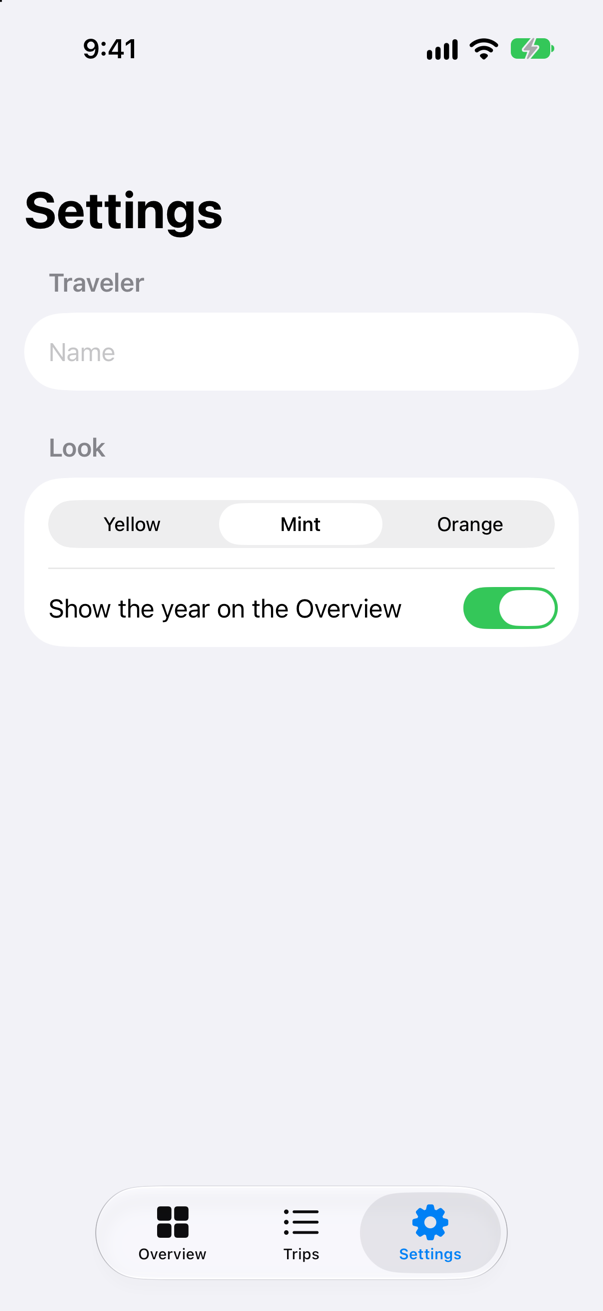
Mint survived — read back from UserDefaults as the app started, by the Settings screen and by TripsApp, which hands it to every view that uses the highlight — and the name did not, as intended. The highlight was stored the moment it was chosen, which is why stopping the app straight away made no difference.
The tab you were on
Which tab is in front is not a preference; it is where the person was. That is scene state: on an iPad with two windows of Trips, each has its own. @SceneStorage is "A property wrapper type that reads and writes to persisted, per-scene storage," and the system restores it: "its initial value is restored by the system if it was previously saved." It belongs in a view of the scene — not in the App — so the tabs move into a view of their own, and the TabView gets a selection: each Tab a value, and the selected value kept in scene storage. Make a new SwiftUI View named MainTabs, and replace everything in it:
import SwiftUI

/// The app's three tabs. The one in front is scene storage: the system keeps it for this window.
struct MainTabs: View {
    @SceneStorage("tab") private var tab = "overview"

    var body: some View {
        TabView(selection: $tab) {
            Tab("Overview", systemImage: "square.grid.2x2", value: "overview") {
                ContentView()
            }
            Tab("Trips", systemImage: "list.bullet", value: "trips") {
                TripList()
            }
            Tab("Settings", systemImage: "gearshape", value: "settings") {
                SettingsView()
            }
        }
    }
}
And the app shows it. In TripsApp.swift:
import SwiftUIimport SwiftData@mainstruct TripsApp: App { @Environment(\.scenePhase) private var scenePhase @State private var store = TripStore() @State private var settings = Settings() @AppStorage(Settings.highlightKey) private var highlight = Settings.Highlight.yellow var body: some Scene { WindowGroup { TabView { Tab("Overview", systemImage: "square.grid.2x2") { ContentView() } Tab("Trips", systemImage: "list.bullet") { TripList() } Tab("Settings", systemImage: "gearshape") { SettingsView() } } MainTabs() .environment(store) .environment(settings) .environment(\.highlight, highlight.color) .task { // On the main actor, as the store is: `.task` and the closure take // the actor of the code they are written in. Each value is a [Trip], // handed on because a trip is Sendable. for await _ in Observations({ store.trips }) { store.save() } } } .modelContainer(for: PackingItem.self) .onChange(of: scenePhase) { _, new in if new == .background { store.save() } } }}import SwiftUI
import SwiftData
@main
struct TripsApp: App {
@Environment(\.scenePhase) private var scenePhase
@State private var store = TripStore()
@State private var settings = Settings()
@AppStorage(Settings.highlightKey) private var highlight = Settings.Highlight.yellow
var body: some Scene {
WindowGroup {
MainTabs()
.environment(store)
.environment(settings)
.environment(\.highlight, highlight.color)
.task {
// On the main actor, as the store is: `.task` and the closure take
// the actor of the code they are written in. Each value is a [Trip],
// handed on because a trip is Sendable.
for await _ in Observations({ store.trips }) {
store.save()
}
}
}
.modelContainer(for: PackingItem.self)
.onChange(of: scenePhase) { _, new in
if new == .background {
store.save()
}
}
}
}Run the app, tap Trips, then stop the app and run it again:
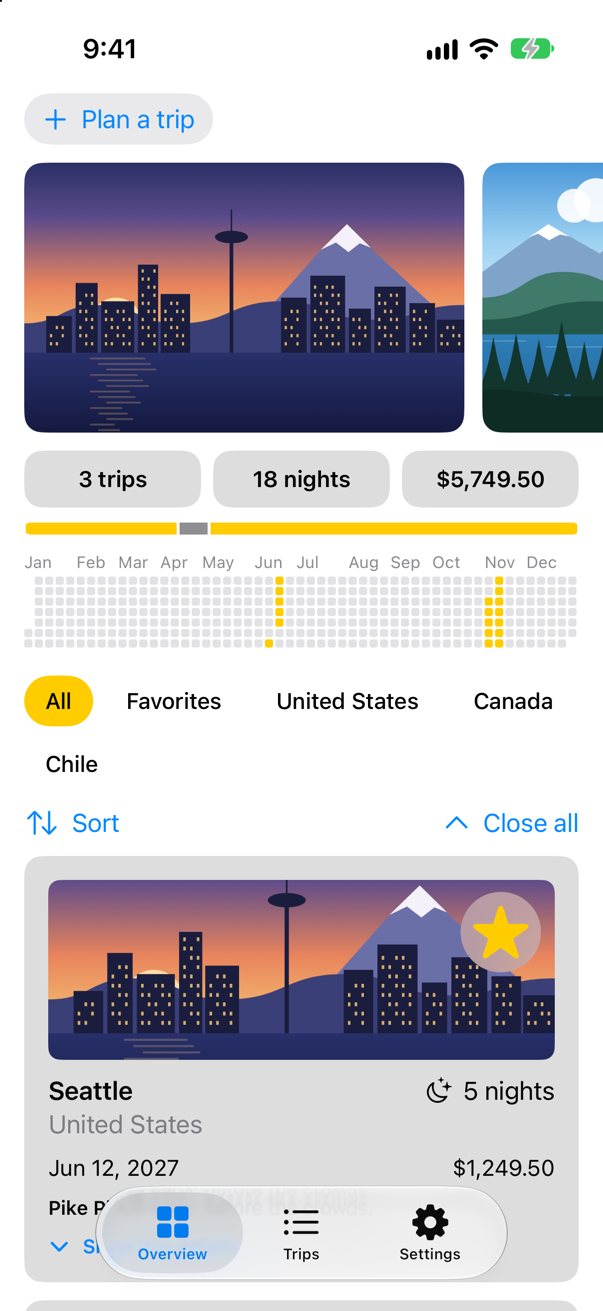
Back on the Overview. Nothing is wrong with the code: Apple says "The system makes no guarantees as to when and how often the data will be persisted," and in practice scene storage is saved when the app goes to the background. A stop in Xcode — like a crash — comes before that.
Run the app, tap Trips, and this time press Home first (in Device Hub, Controls ▸ Home). Then stop the app, and run it again:
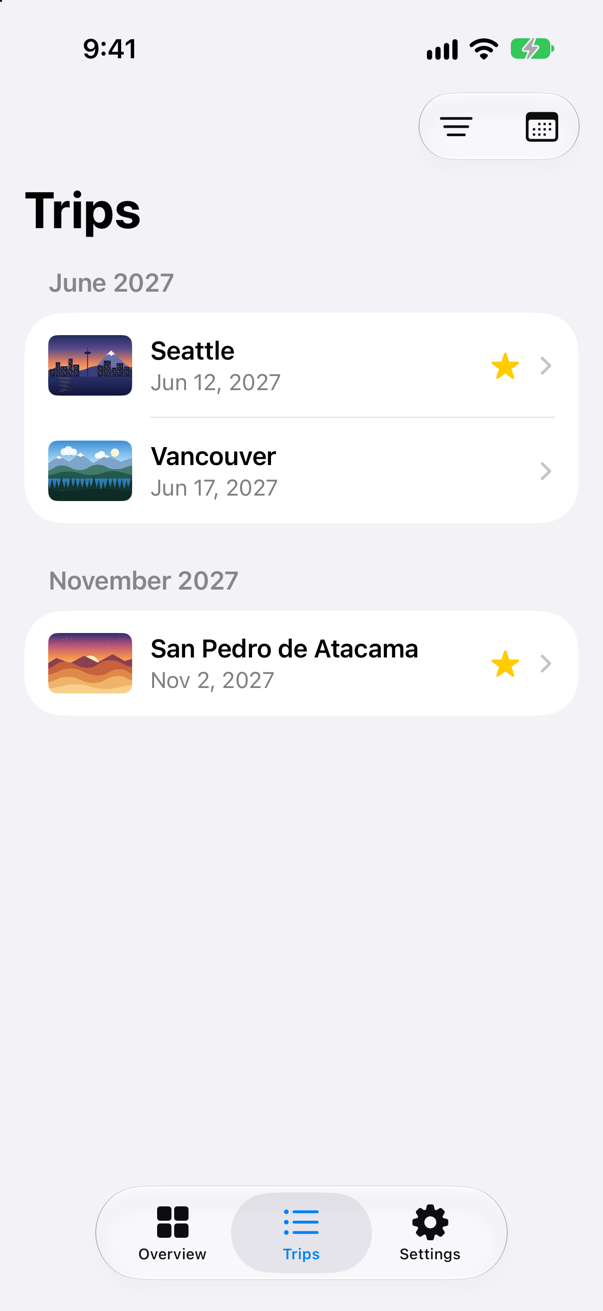
Trips, where you left it. That is the case scene storage is for: the person leaves the app, the system ends it later to free memory, and when they come back it looks as it did. Apple adds one more rule: "If the Scene is explicitly destroyed (e.g. the switcher snapshot is destroyed on iPadOS or the window is closed on macOS), the data is also destroyed." Closing a window on purpose means starting again.
What you built
- The look of the app in
UserDefaultswith@AppStorage: the highlight and the year survive a restart. - The traveler's name kept out of
UserDefaults, because Apple says personal information does not belong there. - The tab in front kept for the window with
@SceneStorage— restored after the app was in the background, not after a stop in the foreground.
That is Part 10. Below the cards and the edge cases is its interview problem. Next, Part 11 begins: Swift concurrency, starting with structured concurrency.
The finished project
Stuck, or want to compare with your own? This is the project as it stands at the end of this lesson, built and run before it was put here.
- Trips-lesson-36.zip — unzip it, then open
Trips.xcodeprojin Xcode.
Flash cards
16 cards for this lesson, each labelled with its topic. 9 ask how you would write something; the other 7 are trick questions, written to catch a misunderstanding. Answer in your head first, then tap the card.
Syntax · @AppStorageKeep a user's preference in UserDefaults, and redraw the view when it changes.

@AppStorage("key") with a default. Bind to it with $, as with @State; each change goes straight to UserDefaults: "UserDefaults says: true".
Syntax · @AppStorageKeep an enum in @AppStorage.

Give the enum a String or Int raw value: @AppStorage stores the raw value — "stored: mint".
Syntax · @SceneStorageRemember which tab was in front, for each window.
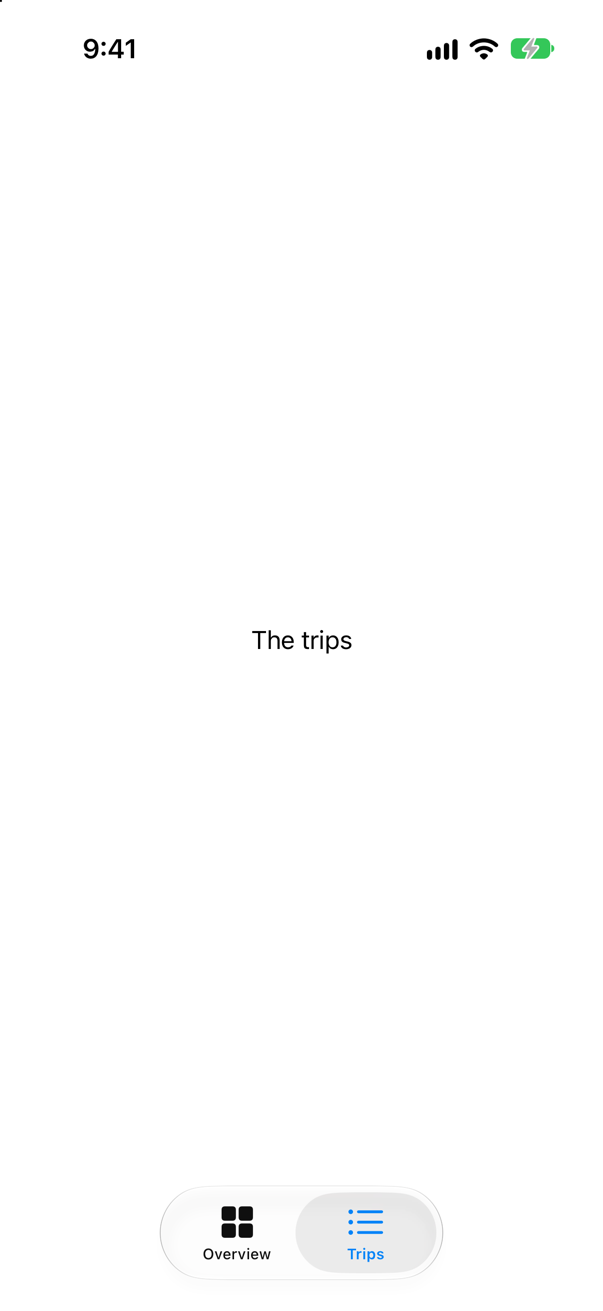
@SceneStorage("key") in a view of the scene, with the TabView bound to it and each Tab given a value. The picture: Trips chosen, the app sent to the background, stopped, and run again.
Syntax · UserDefaultsRead and write UserDefaults without a property wrapper.
set(_:forKey:), and a getter for the type: string(forKey:) is optional, bool(forKey:) gives false for a key that is not there. It printed Kim true and none false.
Syntax · @AppStorageA stored setting that has no value until someone chooses one.
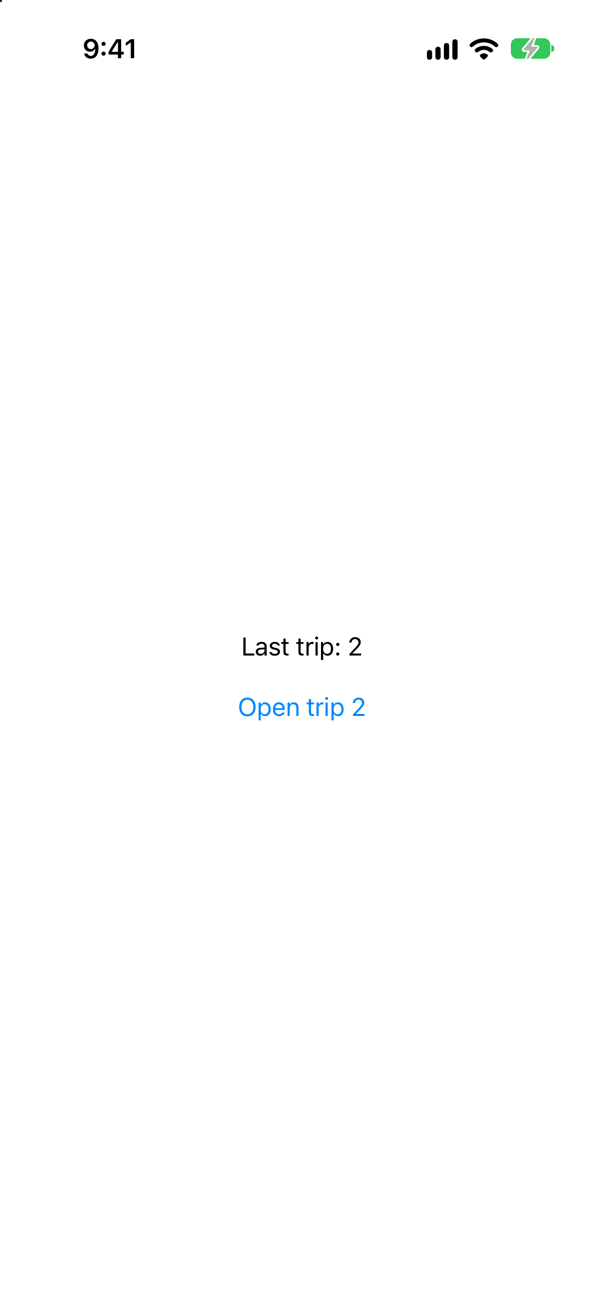
Make it optional and give no default: it is nil until set. @SceneStorage takes optionals in the same way.
Syntax · UserDefaultsKeep settings in a store of their own — such as the one an app group shares with a widget.
UserDefaults(suiteName:) names another store; @AppStorage("key", store: thatStore) reads and writes it. The two stores are separate: "in the group's store: mint", but "in the standard store: nothing". To share one with a widget, both targets need the same App Group.
Syntax · @AppStorageMake every @AppStorage inside a view use another store — an app group's, say — without naming it in each one.

.defaultAppStorage(_:): every @AppStorage below it that names no store of its own uses this one — "the group's store: mint", while "the standard store: nothing". To share it with a widget, both targets need the App Group.
Syntax · @SceneStorageKeep the selected tab in scene storage as an enum, not a string.
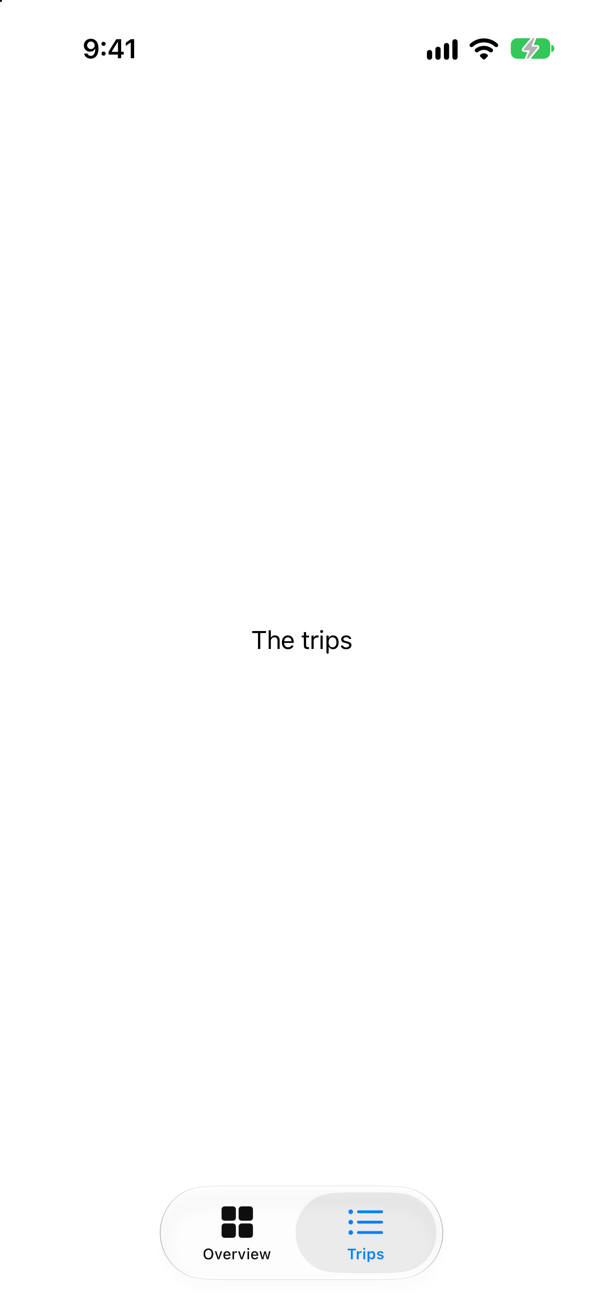
An enum with String or Int raw values works in @SceneStorage just as in @AppStorage: the selection is typed, so a tab value cannot be misspelt. The picture: Trips chosen, Home, the app stopped and run again.
Syntax · @AppStorageRemember when the app was last opened.

An optional Date — @AppStorage has taken dates since iOS 18. The first launch printed "no date stored yet"; after a stop and a run, "a date was stored", and the screen showed the time.
Trick question · @AppStorageCan @AppStorage hold a Codable struct of your own?
No: "no exact matches in call to initializer" It takes a fixed list — Bool, Int, Double, String, URL, Date, Data — and enums with String or Int raw values. For anything bigger, an edge case shows a way through Data, and the right answer is usually SwiftData or a file.
Trick question · @AppStorageA value is set through @AppStorage, and the app is stopped straight after — killed, not sent to the background. Is the value there at the next launch?
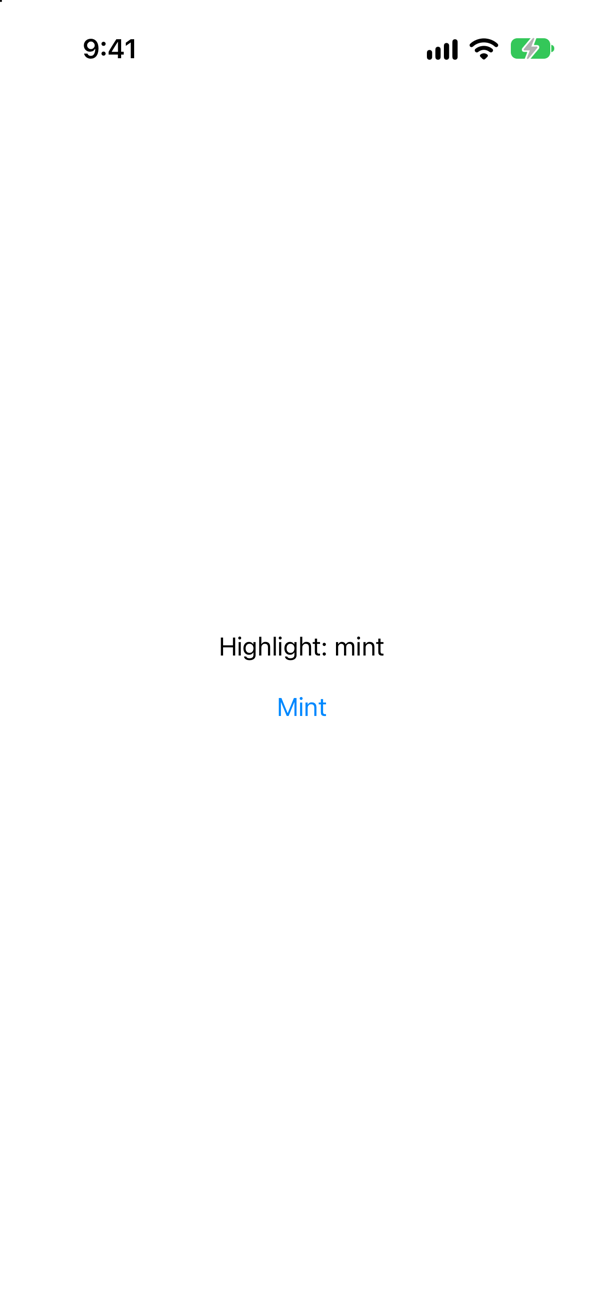
Yes: "launched with mint", with the stop straight after the tap. Apple: a UserDefaults object "updates its in-memory version of that information right away, and writes the value to disk asynchronously" — and the stop did not lose it. Compare this lesson's scene storage, which the same stop lost, and SwiftData's autosave on lesson 35.
Trick question · @AppStorage@AppStorage("name") private var name = "nobody", and nothing has been set yet. What does UserDefaults hold for "name"?

Nothing — "UserDefaults holds: nothing". The default lives in the property wrapper, not in UserDefaults, until the first write. An edge case shows what that does to two views with different defaults for the same key.
Trick question · @SceneStorageA tab is chosen, and the app is stopped at once, still in the foreground. Does @SceneStorage bring the tab back?
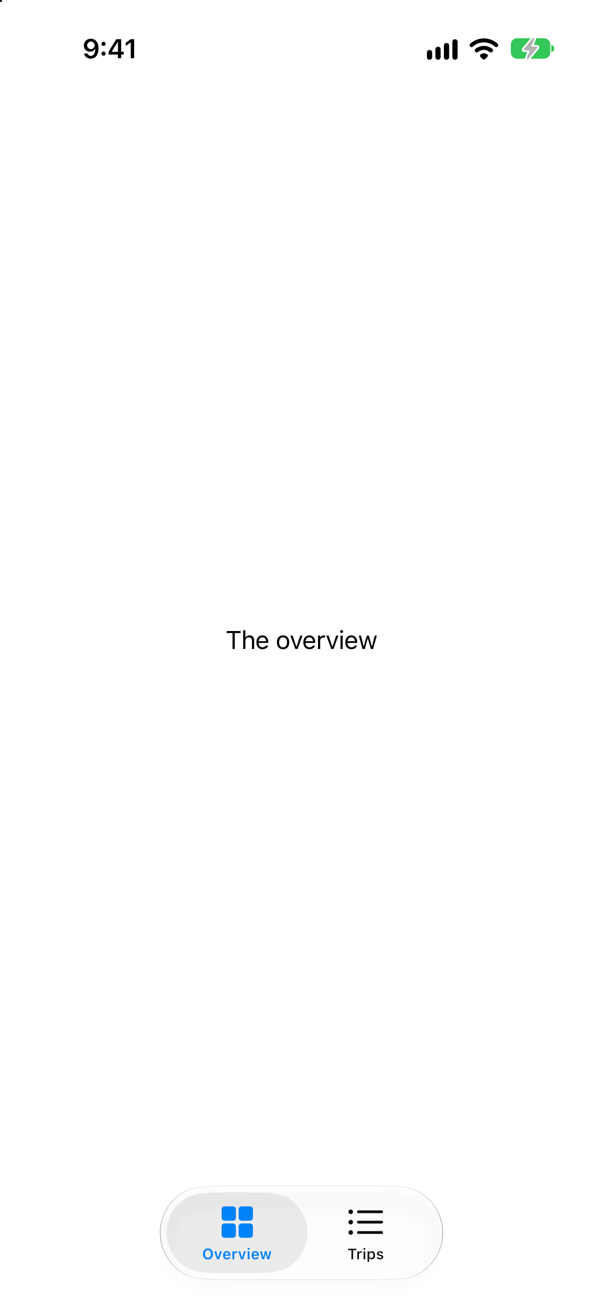
No — the app came back on the Overview. Apple: "The system makes no guarantees as to when and how often the data will be persisted." In practice it is saved when the app goes to the background, which a stop in the foreground never reaches.
Trick question · @AppStorageOne view stores an Int under "count"; another reads "count" as a String. After the first sets 5, what does the second show?
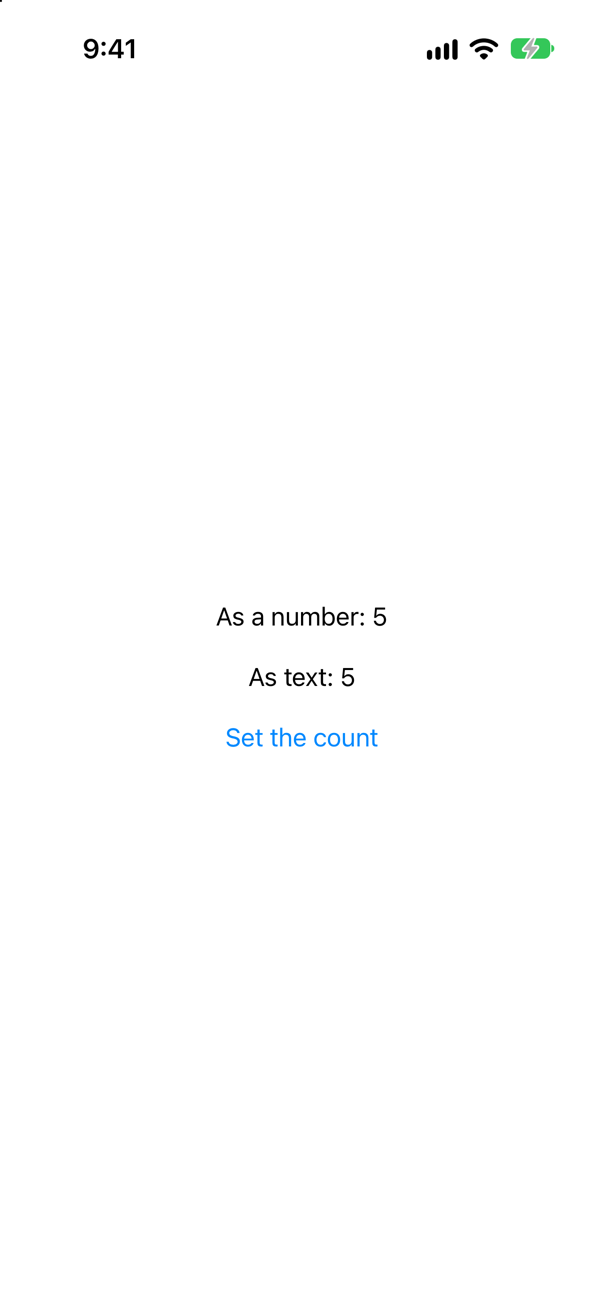
"5". UserDefaults turns a stored number into a string when a string is asked for. No error, no warning — one key, two meanings. Keep each key in one place, with one type.
Trick question · @SceneStorageCan @SceneStorage keep the trip being edited — a Codable struct — so that a half-finished edit is restored?
No: "no exact matches in call to initializer" It takes the same short list as @AppStorage. And Apple's page asks for little: "Ensure that the data you use with SceneStorage is lightweight. Data of a large size, such as model data, should not be stored in SceneStorage". Keep the trip's id there, and the draft with the data.
Trick question · @AppStorageUserDefaults has float(forKey:). Can @AppStorage hold a Float?
No: "no exact matches in call to initializer" @AppStorage has an initializer for Bool, Int, Double, String, URL, Date and Data, their optionals, and enums with Int or String raw values — and nothing else. Use Double.
Edge cases and tricky questions
9 questions of the kind an interviewer uses to find out whether you really know this — the corners, the traps, and the things that changed recently. Each has its source. Wherever the answer is what some code does, that code was compiled and run, and what you see under “Show the answer” is what it really did. Say your answer aloud before you open it.
Three views use @AppStorage("name"), each with a different default. Nothing has been stored yet. What do they show — and after one of them sets the name?
Show the answer
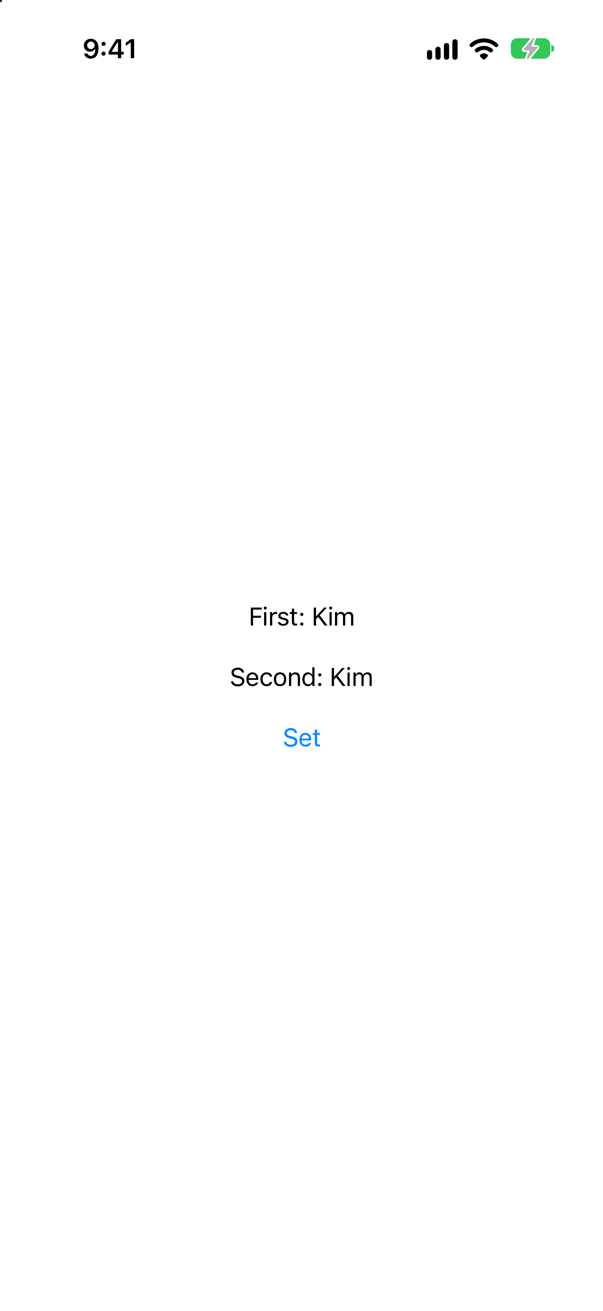
Each its own default — until the first write. Before the tap the two views said "First: first default" and "Second: second default", while UserDefaults held nothing:
UserDefaults holds: nothingA default lives in the property wrapper, not in UserDefaults. Once something is written, every view with that key shows it. That is the second reason to keep keys — and their defaults — in one place: a view that disagrees about the default shows a different setting from the others, with no error.
Where this comes from: AppStorage — Measured on iOS 27.
The app calls UserDefaults.standard.register(defaults: ["name": "registered default"]) as it starts, and a view declares @AppStorage("name") private var name = "inline default". Which one does the view show?
Show the answer

The registered one. UserDefaults has a value for the key — from its registration domain — so the wrapper's own default is never used. Apple: register defaults "shortly after launch", and "The registration domain is volatile, so you must register the set of default values each time your app launches." Registering is one way to keep a default in one place for every view, and for code that reads UserDefaults directly.
Where this comes from: UserDefaults register(defaults:) · AppStorage — Measured on iOS 27.
To keep settings in one object, an @Observable class gets @AppStorage("name") var name = "nobody". Does it compile? And with @ObservationIgnored in front, does a view that shows settings.name update when it changes?
Show the answer
It does not compile. Xcode reports
invalid redeclaration of synthesized property '_name'No: "invalid redeclaration of synthesized property '_name'" — the two macros both want the property's storage.

With @ObservationIgnored it compiles, and the value really is written ("UserDefaults now holds: Kim") — but the view still says nobody. @AppStorage redraws only the view it is declared in; inside a class there is no view to redraw, and Observation was told to ignore the property. Declare @AppStorage in the views that read it, as step 3 does.
Where this comes from: AppStorage · Observable() macro — Measured on iOS 27.
A view shows @AppStorage("name"). A button writes the key with UserDefaults.standard.set(_:forKey:) directly, and another removes it. Does the view keep up?
Show the answer
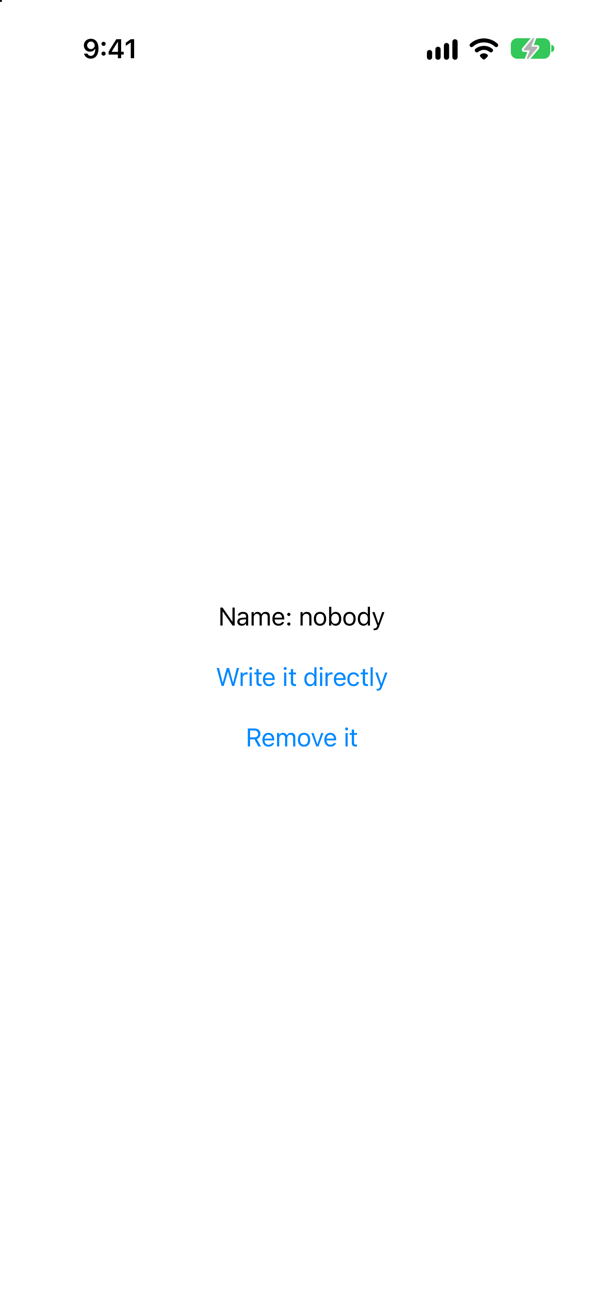
Yes, both ways. After the direct write the view said "Name: Kim"; after the removal, "Name: nobody" — the wrapper's default, because the key was gone. @AppStorage watches UserDefaults itself, not just its own setter, so code that predates SwiftUI and writes the defaults directly stays in step with the views.
Where this comes from: AppStorage · UserDefaults — Measured on iOS 27.
@SceneStorage("tab") is declared in the App struct rather than in a view. Does it compile — and does it work?
Show the answer

It compiles and runs — and SwiftUI says, twice, that it does not work:
What SwiftUI logged
SceneStorage is only for use with SwiftUI App Lifecycle. This will become a fatal error in a future release.
Accessing a SceneStorage value outside of being installed on a View or outside SwiftUI App Lifecycle. This will always return the default value.
Scene storage belongs to a scene, and only a view knows which scene it is in. That is why this lesson moved the tabs into MainTabs.
Where this comes from: SceneStorage — Measured on iOS 27.
@AppStorage refuses a Codable struct. Is there a way to keep one there anyway — and should you?
Show the answer
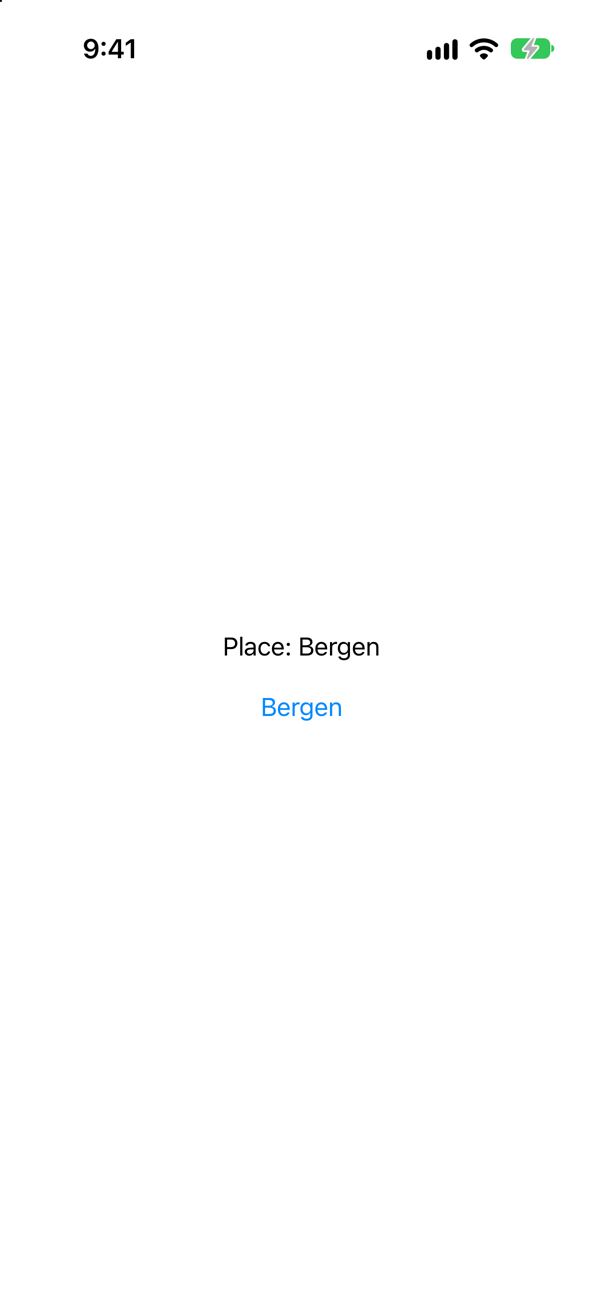
Yes — as Data. Store the JSON in an @AppStorage of type Data, and decode it in a computed property; nonmutating set lets the view's body assign to it, because the real write goes through the wrapper. It survived a restart:
launched with BergenShould you? Apple's page for UserDefaults allows it — "To include other types of objects in the defaults database, archive them to a Data object first and store that object instead" — and adds, "Prefer simple types over custom objects whenever possible." For a small value that really is a preference, such as a sort order made of two fields, it is fine. Anything that grows, or that the app treats as data, belongs in SwiftData or a file (lessons 33 and 35).
Where this comes from: AppStorage · UserDefaults — Measured on iOS 27.
A view sets @AppStorage("travelerName") to "Kim". Where does that end up on the device, and in what form?
Show the answer

In a property list in the app's own folder, as it was typed:
file: Library/Preferences/com.example.Probe.plist
travelerName in it: Kim
Any code that can read that file can read the name. Apple's page for UserDefaults: "The defaults system stores information on disk in an unencrypted format. Store personal or sensitive information in the person’s Keychain instead." That is why Trips, in this lesson, keeps the look in UserDefaults and the traveler's name out of it.
The probe opens the file only to show what is in it. An app should not: the same page says "Don’t access the files of the defaults database directly from the file system. Modifying one of the underlying files directly may cause data loss, a delay in changes being available, or an app crash."
Where this comes from: UserDefaults — Measured on iOS 27. The bundle id is the probe app's; a project of your own has its own.
The Settings screen writes @AppStorage("showsYear"); the Overview reads @AppStorage("showYear"). The setting is switched off. What does the Overview do?
Show the answer
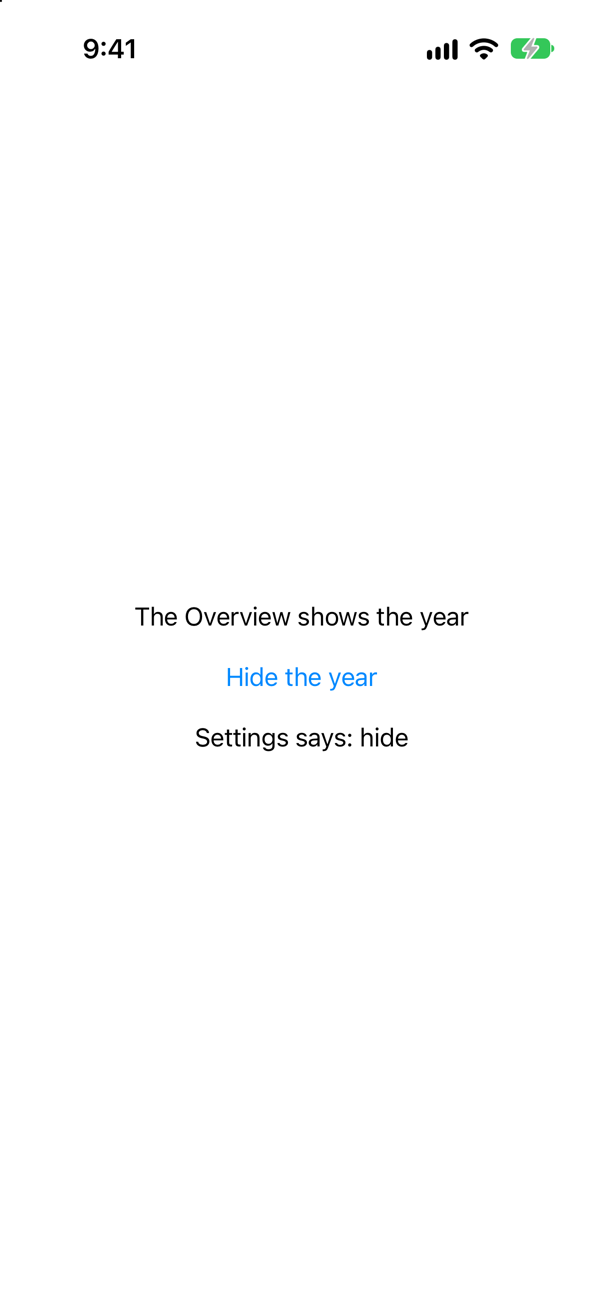
It goes on showing the year, and nothing complains: these are two different settings, each with its own default. A key is only a string, and the compiler cannot check one. Write each key once, as a constant — Settings.showsYearKey in this lesson's Trips — and use the constant everywhere.
Where this comes from: AppStorage — Measured on iOS 27.
Two views in the same window both declare @SceneStorage("draft"). One sets it. What does the other see?
Show the answer
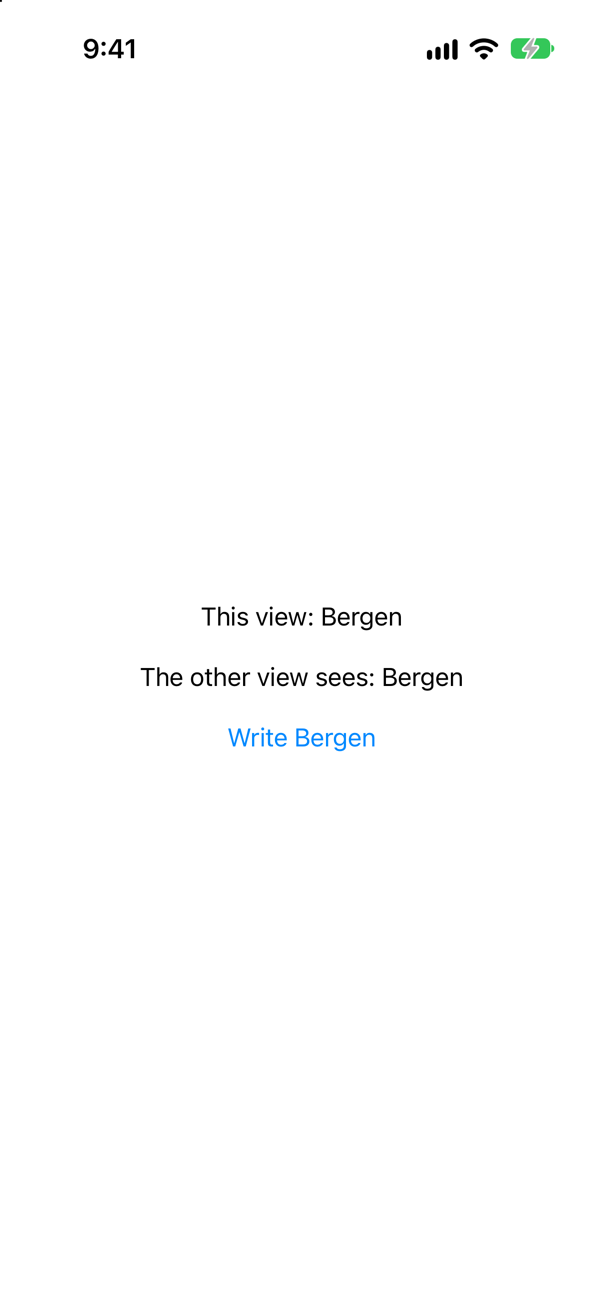
The same value. Apple: "the value is shared with other SceneStorage variables in the same scene." A key is one value per window, wherever it is declared — so two unrelated screens that both pick a short key such as "draft" overwrite each other. Apple's state-restoration sample: "Each scene storage key must be unique, and properly scoped to the area or use within the app."
Where this comes from: SceneStorage · Restoring your app’s state with SwiftUI — Measured on iOS 27.
Further reading
The take-home, in miniature
“Here is items.json. Decode it, show the items in a list with their remote thumbnails, and handle loading and failure properly. Forty minutes. I care more about your decisions than your pixels.”
Where this comes from: DoorDash iOS interview, as reported by candidates (Prepfully) — DoorDash's take-home, as reported: an Xcode project, a JSON sample file and a three-line loader; build the UI, images included
Show the answer
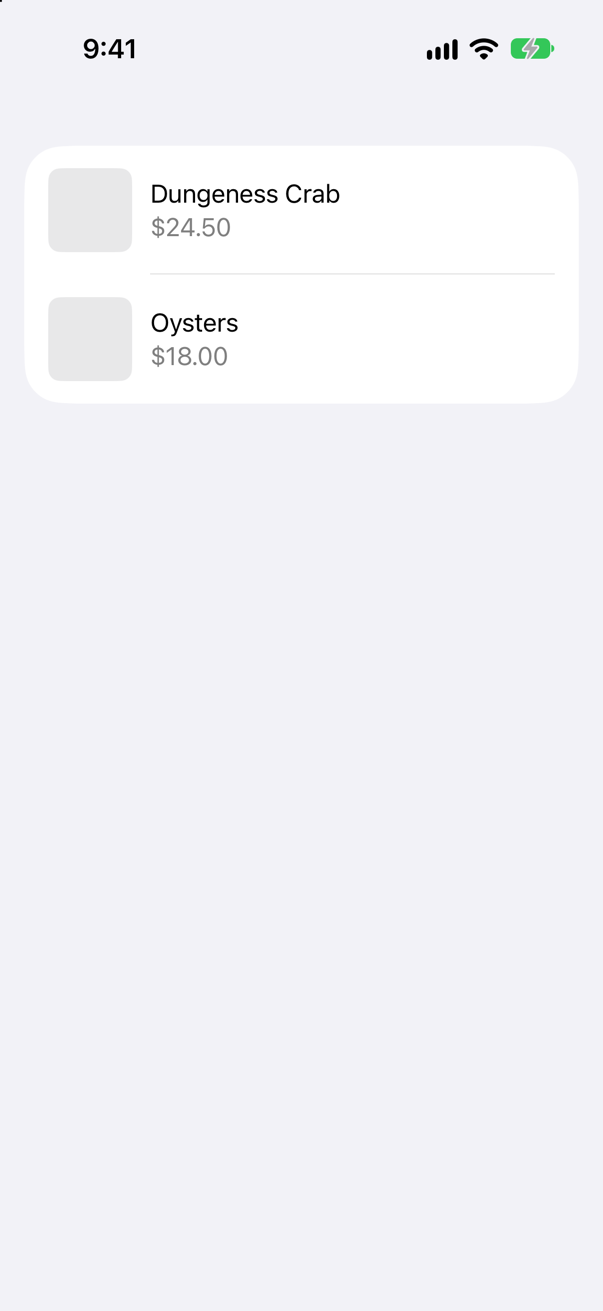
Decisions to say out loud as you go. Explicit CodingKeys, because .convertFromSnakeCase would turn image_url into imageUrl, not imageURL, and the property would quietly fail to decode. An optional URL, so that one null image cannot fail the whole list. One Loadable enum rather than three Booleans that can contradict one another. And the loader passed in as a closure, so the same model reads a bundled file today, URLSession tomorrow, and a stub in tests.
Finish by saying what you would test first: decoding the sample (including the null image), and the model's move from .loading to .loaded and to .failed. None of that needs a view.
What interviewers listen for: That states which cannot happen cannot be represented, that failure is designed rather than ignored, and that you explain your trade-offs instead of typing in silence.