What a view really is
How a view works: body and some View
You will buildTrips gets its first piece of state — a "Favorites only" switch — and you watch, line by line in the console, what SwiftUI does when it is flipped: which views are created, whose body runs, and whose does not.
TimeAbout 75 minutes
WhyThe last lesson ended with a puzzle: ContentView.init ran over and over, and ContentView.body ran once. The answer to it is the idea that separates SwiftUI from UIKit. A UIView is the thing on the screen: you make it once, keep it, and change it. A SwiftUI view is a description of what should be on the screen: SwiftUI makes it, reads it, and throws it away, as often as it likes. Everything that surprises people — why a view cannot change its own properties, why init is the wrong place for work, why body must be cheap — follows from that. In this lesson you see it happen.
Open your project
Open your
Tripsproject as lesson 6 left it: double-clickTrips.xcodeprojin Finder, or use File ▸ Open… (⌘O) in Xcode.If you did not finish lesson 6, or would rather start from a known state, download Trips-lesson-06.zip instead. It is the project exactly as it stood at the end of lesson 6. Unzip it and open
Trips.xcodeproj.Run it (⌘R) to check that it builds. You should see where lesson 6 ended:

Trips, as it stood at the end of lesson 6Screenshot · iPhone 17, iOS 27.0
Count what happens
Make the views say when they are created and when their body runs. In TripCard.swift, give the card an initializer that prints, and a first line in body that prints. The layout itself does not change:
struct TripCard: View { let trip: Trip init(trip: Trip) { self.trip = trip print(" TripCard.init", trip.city) } var body: some View { let _ = print(" TripCard.body", trip.city) HStack { VStack(alignment: .leading) { Text(trip.city) .font(.headline) Text(trip.country) .foregroundStyle(.secondary) } Spacer() Text("\(trip.nights) nights") if trip.isFavorite { Image(systemName: "star.fill") .foregroundStyle(.yellow) } } .padding() .background(.quaternary, in: RoundedRectangle(cornerRadius: 12)) .padding(.horizontal) }}struct TripCard: View {
let trip: Trip
init(trip: Trip) {
self.trip = trip
print(" TripCard.init", trip.city)
}
var body: some View {
let _ = print(" TripCard.body", trip.city)
HStack {
VStack(alignment: .leading) {
Text(trip.city)
.font(.headline)
Text(trip.country)
.foregroundStyle(.secondary)
}
Spacer()
Text("\(trip.nights) nights")
if trip.isFavorite {
Image(systemName: "star.fill")
.foregroundStyle(.yellow)
}
}
.padding()
.background(.quaternary, in: RoundedRectangle(cornerRadius: 12))
.padding(.horizontal)
}
}And one line in ContentView.swift:
struct ContentView: View { let store: TripStore var body: some View { let _ = print("ContentView.body") ScrollView { VStack { ForEach(store.trips) { trip in TripCard(trip: trip) } } } }}struct ContentView: View {
let store: TripStore
var body: some View {
let _ = print("ContentView.body")
ScrollView {
VStack {
ForEach(store.trips) { trip in
TripCard(trip: trip)
}
}
}
}
}Run the app (⌘R). The screen is as before. Xcode's console shows

ContentView.body
  TripCard.init Seattle
  TripCard.init Vancouver
  TripCard.init San Pedro de Atacama
  TripCard.init Seattle
  TripCard.body Seattle
  TripCard.init Vancouver
  TripCard.body Vancouver
  TripCard.init San Pedro de Atacama
  TripCard.body San Pedro de Atacama
Three cards are on the screen, and each card's body ran once. Now count the TripCard.init lines: six. Every card was created twice before it was shown.
Nothing is wrong. A TripCard is a small struct: a Trip, and a recipe called body. Making one costs almost nothing, so SwiftUI makes them whenever it is convenient. Why twice here is SwiftUI's own business, and it can change between releases. What you can rely on is the principle, in the words of Apple's documentation: "the system may reinitialize a view at any time".
That is the first half of this lesson's idea. Creating a view is not an event. In UIKit, init and viewDidLoad happen once and mean something. Here, init only means that somebody needed the description again.
A view cannot change itself
Now give the screen something that changes: a way to show only the favorite trips. The obvious way to write it is a property, and a button that flips it. Try exactly that:
struct ContentView: View { let store: TripStore var favoritesOnly = false var body: some View { let _ = print("ContentView.body") ScrollView { VStack { ForEach(store.trips) { trip in Button(favoritesOnly ? "Show all" : "Favorites only") { favoritesOnly.toggle() } ForEach(store.trips.filter { !favoritesOnly || $0.isFavorite }) { trip in TripCard(trip: trip) } } } }}struct ContentView: View {
let store: TripStore
var favoritesOnly = false
var body: some View {
let _ = print("ContentView.body")
ScrollView {
VStack {
Button(favoritesOnly ? "Show all" : "Favorites only") {
favoritesOnly.toggle()
}
ForEach(store.trips.filter { !favoritesOnly || $0.isFavorite }) { trip in
TripCard(trip: trip)
}
}
}
}
}It does not compile. Xcode reports, on the line inside the button
cannot use mutating member on immutable value: 'self' is immutableThe view is a struct, and inside body it is a constant: body is a computed property, and the getter of a computed property cannot change the struct it belongs to. This is not a limitation to work around. It is the design: a description does not edit itself.
A value that changes over time has to live outside the struct, somewhere that survives while structs come and go. That is what @State is. You built the mechanism on lesson 2: a wrapper whose setter is nonmutating, because the storage is elsewhere. Mark the property — and since a switch suits this better than a button, hand a Toggle a binding to it:
struct ContentView: View { let store: TripStore var favoritesOnly = false @State private var favoritesOnly = false var body: some View { let _ = print("ContentView.body") ScrollView { VStack { Button(favoritesOnly ? "Show all" : "Favorites only") { favoritesOnly.toggle() } Toggle("Favorites only", isOn: $favoritesOnly) .padding(.horizontal) ForEach(store.trips.filter { !favoritesOnly || $0.isFavorite }) { trip in TripCard(trip: trip) } } } }}struct ContentView: View {
let store: TripStore
@State private var favoritesOnly = false
var body: some View {
let _ = print("ContentView.body")
ScrollView {
VStack {
Toggle("Favorites only", isOn: $favoritesOnly)
.padding(.horizontal)
ForEach(store.trips.filter { !favoritesOnly || $0.isFavorite }) { trip in
TripCard(trip: trip)
}
}
}
}
}Run it (⌘R). The simulator shows

In Device Hub, click the switch:

Nobody told the list to reload. The switch changed a Bool. SwiftUI knew that ContentView.body had read that Bool, asked for body again, and changed the screen to match the new description. $favoritesOnly is the binding that the Toggle writes through — the $ from lesson 2.
private is not decoration. State belongs to the view that declares it, and nothing outside should be able to set it. Apple's documentation gives the reason: "Declare state as private to prevent setting it in an initializer, which can conflict with the storage management that SwiftUI provides."
The storage the @State macro writes is the __favoritesOnly you saw expanded on lesson 2. Until SwiftUI puts the view on screen, that storage holds no value at all — only your starting value, as a closure that has not run. When the view first appears, SwiftUI runs the closure and gives the storage a location: an object of SwiftUI's own, a StoredLocation, which it keeps for as long as the view stays on screen. The struct is made again and again; the location is not. Every copy of the struct reaches the value through it, $favoritesOnly is a binding to it, and a write to it is how SwiftUI learns to run again every body that read the value. A flash card on lesson 17 looks inside one.
@State really lives, what body reads, and what one tap does to SwiftUI's graph: a view's nodes beside its code, with a debugger stopped at every step.Open the guide →
The first time you click the switch, the console also shows one long line that begins with the date and the time and says invalid mode 'kCFRunLoopCommonModes' provided to CFRunLoopRunSpecific. It is not from your code. It comes from the system's own switch control, it appears once each time the app runs, and it appeared in the runs recorded for this page too. An Apple engineer confirmed it on the developer forums as a bug in UIKit, and advised: "treat this as log noise". The consoles on this page leave it out.
Where this comes from: Apple Developer Forums: “invalid mode 'kCFRunLoopCommonModes'” — answered by an Apple engineer
What ran, and what did not
The console recorded what that click cost. When the switch went on:
ContentView.body
  TripCard.init Seattle
  TripCard.init San Pedro de Atacama
Click it again, to switch it off:
ContentView.body
  TripCard.init Vancouver
  TripCard.init Seattle
  TripCard.init San Pedro de Atacama
  TripCard.init Vancouver
  TripCard.body Vancouver
Read the first one. ContentView.body ran, because the state it reads had changed. It created the two cards that pass the filter: there are the init lines. And then — no TripCard.body at all. SwiftUI compared each new card with the one it already had, found the same trip, and kept what was on the screen.
In the second, the cards are created again, and exactly one body runs: Vancouver's, the card that was not there a moment ago.
From the WWDC session that is still the reference on this: "SwiftUI will keep around a copy of the value to perform a comparison and know if the view has changed. But after that, the value is destroyed." And: "View values are ephemeral and you should not rely on their lifetime."
Where this comes from: WWDC21: Demystify SwiftUI (2021 — still the reference on identity)
This is the second half of the idea, and the answer to the last lesson's puzzle. body runs only when something the view depends on has changed: its own properties, or state that it reads. When a parent is evaluated again it creates its children again, which is cheap, and SwiftUI then asks for the body of only those children whose inputs are different.
Ask SwiftUI why
Printing by hand tells you that a body ran. SwiftUI can also tell you why. Replace the prints with a call to Self._printChanges(). In TripCard.swift the init goes as well; Swift writes the same one for you:
struct TripCard: View { let trip: Trip init(trip: Trip) { self.trip = trip print(" TripCard.init", trip.city) } let _ = print(" TripCard.body", trip.city) let _ = Self._printChanges() HStack { VStack(alignment: .leading) { Text(trip.city) .font(.headline) Text(trip.country) .foregroundStyle(.secondary) } Spacer() Text("\(trip.nights) nights") if trip.isFavorite { Image(systemName: "star.fill") .foregroundStyle(.yellow) } } .padding() .background(.quaternary, in: RoundedRectangle(cornerRadius: 12)) .padding(.horizontal) }}struct TripCard: View {
let trip: Trip
var body: some View {
let _ = Self._printChanges()
HStack {
VStack(alignment: .leading) {
Text(trip.city)
.font(.headline)
Text(trip.country)
.foregroundStyle(.secondary)
}
Spacer()
Text("\(trip.nights) nights")
if trip.isFavorite {
Image(systemName: "star.fill")
.foregroundStyle(.yellow)
}
}
.padding()
.background(.quaternary, in: RoundedRectangle(cornerRadius: 12))
.padding(.horizontal)
}
}And in ContentView.swift:
struct ContentView: View { let store: TripStore @State private var favoritesOnly = false var body: some View { let _ = print("ContentView.body") let _ = Self._printChanges() ScrollView { VStack { Toggle("Favorites only", isOn: $favoritesOnly) .padding(.horizontal) ForEach(store.trips.filter { !favoritesOnly || $0.isFavorite }) { trip in TripCard(trip: trip) } } } }}struct ContentView: View {
let store: TripStore
@State private var favoritesOnly = false
var body: some View {
let _ = Self._printChanges()
ScrollView {
VStack {
Toggle("Favorites only", isOn: $favoritesOnly)
.padding(.horizontal)
ForEach(store.trips.filter { !favoritesOnly || $0.isFavorite }) { trip in
TripCard(trip: trip)
}
}
}
}
}Run the app. As it starts, the console shows

ContentView: @self, @identity, __favoritesOnly changed.
TripCard: @self changed.
TripCard: @self changed.
TripCard: @self changed.
Click the switch on:
ContentView: __favoritesOnly changed.And off again:
ContentView: __favoritesOnly changed.
TripCard: @self changed.
It is step 4 again, with reasons. When the switch goes on, ContentView runs because favoritesOnly changed, and no card is mentioned, because no card's body ran. When it goes off, the same line, and one card: the one that came back. Each line names the view, then what was different.
| It says | It means |
|---|---|
@self | Apple: "the view value itself has changed." One of the view's own properties is different — for a card, its trip. A view that is being shown for the first time says this too. |
@identity | Apple: "the identity of the view has changed." SwiftUI has set up new storage for this view's state. You see it the first time a view that has state appears. |
a name, such as __favoritesOnly | That property changed. The two underscores are the hidden storage that the @State macro writes: the __count you saw in the macro's expansion on lesson 2. |
The underscore at the front is a warning. Apple, introducing the method at WWDC: it is "a debugging-only facility that gives a best-effort explanation of why SwiftUI requested a view's body", and — because of that underscore — "never submit a call to this method to the app store". It also slows the app down. Use it when a view updates more often than you expect, then take it out.
Where this comes from: WWDC23: Demystify SwiftUI performance
Where work belongs
Now the practical consequence, and the one that interviewers ask about. Suppose the product team wants to know how often each card is seen. In UIKit you would log that where the view is set up, and the place that looks like set-up here is the initializer. Put it there, in place of the card's debugging line. Leave the one in ContentView where it is: it will show what sets each burst off.
struct TripCard: View { let trip: Trip init(trip: Trip) { self.trip = trip print("analytics: card_viewed", trip.city) // stands in for a call to a server } var body: some View { let _ = Self._printChanges() HStack { VStack(alignment: .leading) { Text(trip.city) .font(.headline) Text(trip.country) .foregroundStyle(.secondary) } Spacer() Text("\(trip.nights) nights") if trip.isFavorite { Image(systemName: "star.fill") .foregroundStyle(.yellow) } } .padding() .background(.quaternary, in: RoundedRectangle(cornerRadius: 12)) .padding(.horizontal) }}struct TripCard: View {
let trip: Trip
init(trip: Trip) {
self.trip = trip
print("analytics: card_viewed", trip.city) // stands in for a call to a server
}
var body: some View {
HStack {
VStack(alignment: .leading) {
Text(trip.city)
.font(.headline)
Text(trip.country)
.foregroundStyle(.secondary)
}
Spacer()
Text("\(trip.nights) nights")
if trip.isFavorite {
Image(systemName: "star.fill")
.foregroundStyle(.yellow)
}
}
.padding()
.background(.quaternary, in: RoundedRectangle(cornerRadius: 12))
.padding(.horizontal)
}
}Run the app, and click the switch on and then off. The whole console

ContentView: @self, @identity, __favoritesOnly changed.
analytics: card_viewed Seattle
analytics: card_viewed Vancouver
analytics: card_viewed San Pedro de Atacama
analytics: card_viewed Seattle
analytics: card_viewed Vancouver
analytics: card_viewed San Pedro de Atacama
ContentView: __favoritesOnly changed.
analytics: card_viewed Seattle
analytics: card_viewed San Pedro de Atacama
ContentView: __favoritesOnly changed.
analytics: card_viewed Vancouver
analytics: card_viewed Seattle
analytics: card_viewed San Pedro de Atacama
analytics: card_viewed Vancouver
Four cards came onto the screen during that run: three at the start, and Vancouver once more when the switch went off. Count the card_viewed lines: twelve. Every time anything made ContentView.body run — the lines that begin ContentView: say when, and why — every card in the list was created again, and "viewed" again. In a real app this is a bill from the analytics service, and numbers that nobody can trust.
Apple's documentation says it in one sentence: "Because the system may reinitialize a view at any time, it's important to avoid doing any significant work in your view's initialization code." Work that should happen when a view comes onto the screen is attached to the view, with a modifier. Move the line:
struct TripCard: View { let trip: Trip init(trip: Trip) { self.trip = trip print("analytics: card_viewed", trip.city) // stands in for a call to a server } var body: some View { HStack { VStack(alignment: .leading) { Text(trip.city) .font(.headline) Text(trip.country) .foregroundStyle(.secondary) } Spacer() Text("\(trip.nights) nights") if trip.isFavorite { Image(systemName: "star.fill") .foregroundStyle(.yellow) } } .padding() .background(.quaternary, in: RoundedRectangle(cornerRadius: 12)) .padding(.horizontal) .onAppear { print("analytics: card_viewed", trip.city) // stands in for a call to a server } }}struct TripCard: View {
let trip: Trip
var body: some View {
HStack {
VStack(alignment: .leading) {
Text(trip.city)
.font(.headline)
Text(trip.country)
.foregroundStyle(.secondary)
}
Spacer()
Text("\(trip.nights) nights")
if trip.isFavorite {
Image(systemName: "star.fill")
.foregroundStyle(.yellow)
}
}
.padding()
.background(.quaternary, in: RoundedRectangle(cornerRadius: 12))
.padding(.horizontal)
.onAppear {
print("analytics: card_viewed", trip.city) // stands in for a call to a server
}
}
}Run it, and click the switch on and off again

ContentView: @self, @identity, __favoritesOnly changed.
analytics: card_viewed San Pedro de Atacama
analytics: card_viewed Vancouver
analytics: card_viewed Seattle
ContentView: __favoritesOnly changed.
ContentView: __favoritesOnly changed.
analytics: card_viewed Vancouver
Four card_viewed lines for four appearances, and none at all when the switch went on: nothing new came onto the screen then. onAppear is tied to what is on the screen, not to how many times a struct was made. (Look at the order of the first three: the last card first. The order in which views appear is SwiftUI's choice, not yours. Do not build anything on it.)
| In UIKit | In SwiftUI |
|---|---|
viewWillAppear, and most of what went in viewDidLoad | .onAppear { … } — or .task { … } for work that has to wait (async). Both run each time the view comes onto the screen. |
viewDidDisappear | .onDisappear { … }. A .task that is still running is cancelled for you. |
| Keeping a reference to a view and changing it | Changing state. SwiftUI calls body and updates the screen. |
reloadData() | Nothing. The list is a description of the data. |
The init of a view or a view controller | Not an event. Store the inputs and do nothing else. |
Tidy up
Leave the app clean for the next lesson. TripCard.swift goes back to the card from lesson 5, with no logging:
struct TripCard: View { let trip: Trip var body: some View { HStack { VStack(alignment: .leading) { Text(trip.city) .font(.headline) Text(trip.country) .foregroundStyle(.secondary) } Spacer() Text("\(trip.nights) nights") if trip.isFavorite { Image(systemName: "star.fill") .foregroundStyle(.yellow) } } .padding() .background(.quaternary, in: RoundedRectangle(cornerRadius: 12)) .padding(.horizontal) .onAppear { print("analytics: card_viewed", trip.city) // stands in for a call to a server } }}struct TripCard: View {
let trip: Trip
var body: some View {
HStack {
VStack(alignment: .leading) {
Text(trip.city)
.font(.headline)
Text(trip.country)
.foregroundStyle(.secondary)
}
Spacer()
Text("\(trip.nights) nights")
if trip.isFavorite {
Image(systemName: "star.fill")
.foregroundStyle(.yellow)
}
}
.padding()
.background(.quaternary, in: RoundedRectangle(cornerRadius: 12))
.padding(.horizontal)
}
}And ContentView.swift keeps the switch and loses the debugging line:
struct ContentView: View { let store: TripStore @State private var favoritesOnly = false var body: some View { let _ = Self._printChanges() ScrollView { VStack { Toggle("Favorites only", isOn: $favoritesOnly) .padding(.horizontal) ForEach(store.trips.filter { !favoritesOnly || $0.isFavorite }) { trip in TripCard(trip: trip) } } } }}struct ContentView: View {
let store: TripStore
@State private var favoritesOnly = false
var body: some View {
ScrollView {
VStack {
Toggle("Favorites only", isOn: $favoritesOnly)
.padding(.horizontal)
ForEach(store.trips.filter { !favoritesOnly || $0.isFavorite }) { trip in
TripCard(trip: trip)
}
}
}
}
}Run it (⌘R). The simulator shows

That is Part 3. In three lessons you have used the three things that every SwiftUI screen is made of: a view that is given its data (lesson 5), an app and a scene that own the data (lesson 6), and state that changes what the views describe (this lesson). The interview problem for this part follows the flash cards and the edge cases below. It is step 6 of this lesson, in disguise.
What you built
- A "Favorites only" switch: the first
@Statein Trips. - The evidence, in your own console, for two rules: creating a view is not an event, and
bodyruns only when something the view depends on has changed. - The habit that follows from them: inputs in
init, work in.onAppearor.task, nothing slow inbody.
Guide: Inside the Attribute Graph — SwiftUI's graph read out of a running app: a view's nodes, how a write reaches body, modifiers as nodes, and a debugger stopped at every step.
Guide: when an @Observable model leaks and when it is freed — a stored closure, an endless Observations loop, a reference that leads back — is taken apart and run, with a project of twelve leaks to open, in Retain cycles in SwiftUI.
Next, Part 4 begins: what goes in a view. Text that formats numbers and dates by itself, pictures and how to make them fit, and SF Symbols.
The finished project
Stuck, or want to compare with your own? This is the project as it stands at the end of this lesson, built and run before it was put here.
- Trips-lesson-07.zip — unzip it, then open
Trips.xcodeprojin Xcode.
Flash cards
15 cards for this lesson, each labelled with its topic. 7 ask how you would write something; the other 8 are trick questions, written to catch a misunderstanding. Answer in your head first, then tap the card.
Syntax · ViewsDeclare a view that shows a name it is given.

A struct that conforms to View, with its inputs as ordinary properties and a body that describes what to show. Swift writes the initializer: NameTag(name: "Seattle").
Syntax · StateGive a view a value that it owns and can change.

@State private var. SwiftUI keeps the value outside the struct, for as long as the view is on the screen, and runs body again when it changes.
Syntax · StateLet a Toggle change a Bool that the view owns.

Pass the control a binding: $favoritesOnly. The control reads and writes your state through it; the state stays yours.
Syntax · DebuggingPrint a line every time a view's body runs.

let _ = print(…) as the first line of body. A bare print(…) there does not compile — type '()' cannot conform to 'View' — because a builder block collects every expression as a view. It leaves declarations alone (lesson 4).
Syntax · DebuggingHave SwiftUI say why a view's body ran.

let _ = Self._printChanges(). After a tap on the button it printed ContentView: __count changed. It is for debugging only: never ship it.
Syntax · ViewsRun some code when a view comes onto the screen.

.onAppear { … }. For work that has to wait — loading something — use .task { … }, which may await, and is cancelled if the view goes away first.
Syntax · ViewsShow a view only when a condition holds.

An ordinary if inside the builder block. You do not hide or remove the view yourself: you describe the screen for each state, and SwiftUI makes the change.
Trick question · StateA view has var count = 0, and a button whose action is count += 1. Does it compile?
No. left side of mutating operator isn't mutable: 'self' is immutable Inside body the view is a constant. A value that changes has to be @State, which stores it outside the struct.
Trick question · ViewsThree cards are on the screen. How many times did TripCard.init run to put them there — three?
Six, in this lesson's tutorial, and again every time the parent's body ran. SwiftUI creates view values whenever it needs the description. Never count on how often, and never do work there.
Trick question · ViewsA parent's body runs again and creates its child view again, with the same values as before. Does the child's body run?

No. After a tap, the console showed only ContentView.body. SwiftUI compares the new child value with the old one, finds them equal, and keeps what it has. A child's body runs when its inputs change.
Trick question · ViewsIs the TripCard struct the thing that is on the screen?
No. It is a description of what should be on the screen: a few bytes holding a trip, and a body. SwiftUI reads the description, builds and keeps the real thing itself, and throws the struct away. That is why views are structs, and why making one is cheap.
Trick question · StateWhy should a @State property be private?
Because the state belongs to the view that declares it. Apple: "Declare state as private to prevent setting it in an initializer, which can conflict with the storage management that SwiftUI provides." A value passed in from outside would only be used the first time the view appears. When a parent must supply or change the value, the child takes a plain property or a Binding instead.
Trick question · Viewsbody ran again. Was the whole screen redrawn?
No. Running body only produces a new description. SwiftUI compares it with the previous one and changes just what is different on the screen. body running is cheap and frequent by design — which is exactly why nothing slow may live in it.
Trick question · StateA button sets nights = 7. It is tapped twice. How many times does body run because of the taps?

Once. The first tap printed ContentView.body: 7 nights. The second printed nothing: the value was already 7, and state that is set to the value it already has does not count as a change.
Trick question · StateClock redraws every second, and each time its body runs it makes a brand-new Counter. You tap the button three times, and it says "Count: 3". A second later Clock's body runs again and makes a new Counter(): a new struct, whose count is declared = 0. The struct that held the 3 is gone. Yet the button still says "Count: 3". Where is the 3 kept, and how does each new Counter get it back?

It still says "Count: 3". With prints added to the same code, the run shows a new Counter made on every tick, and the count kept:
Clock.body — 0 s  →  Counter.init
Counter.body — count is 0
Clock.body — 1 s  →  Counter.init
Counter.body — count is 0
Clock.body — 2 s  →  Counter.init
Clock.body — 3 s  →  Counter.init
Clock.body — 4 s  →  Counter.init
Clock.body — 5 s  →  Counter.init
Clock.body — 6 s  →  Counter.init
Clock.body — 7 s  →  Counter.init
Clock.body — 8 s  →  Counter.init
Counter.body — count is 1
Clock.body — 9 s  →  Counter.init
Clock.body — 10 s  →  Counter.init
Counter.body — count is 2
Clock.body — 11 s  →  Counter.init
Clock.body — 12 s  →  Counter.init
Counter.body — count is 3
Clock.body — 13 s  →  Counter.init
Clock.body — 14 s  →  Counter.init
Clock.body — 15 s  →  Counter.init
Clock.body — 16 s  →  Counter.init
Clock.body — 17 s  →  Counter.init
Clock.body — 18 s  →  Counter.init
Clock.body — 19 s  →  Counter.init
1. The 3 is not in any Counter struct. The @State macro gives Counter a hidden stored property, __count (lesson 2 expanded one). In a fresh struct it holds only the starting value, as a closure — { 0 } — with no value and no location.
2. It lives in a location in SwiftUI's view graph. SwiftUI keeps a graph with a node for each view on the screen. The first time a Counter appeared, SwiftUI gave its node a storage object of its own — a StoredLocation — and ran { 0 } once to fill it. The three taps changed the value inside that object. The guide Inside the Attribute Graph shows that node, its signal and its edges, read out of a running app.
3. The node is found by the view's identity. Here the identity is where the view sits: the second view in Clock's VStack, of type Counter. Every new Counter() that Clock.body makes has that type in that place, so it matches the same node. (In a ForEach the identity is each item's id instead, and .id(_:) sets one by hand — lesson 20.)
4. The location is written into the new struct's memory, at a byte offset. SwiftUI keeps its own copy of each view struct. When it first set the property up, it was handed __count's byte offset inside Counter — the fieldOffset of DynamicProperty's _makeProperty(in:container:fieldOffset:inputs:). Before it calls body, it writes the node's location into the new copy at that offset (in _DynamicPropertyBuffer.update(container:phase:)), so count reads 3, and = 0 never runs again. private does not stop it: access control governs source code, and this is memory.
5. Most ticks do not run body at all. The new Counter matches the old one and nothing it reads has changed, so only its init runs — every line that ends in Counter.init with no Counter.body after it. (After the first tick SwiftUI ran body once more; after that, only the taps did.) And the 3 is lost only when the identity goes: remove Counter with an if, or change its .id, and a Counter that comes back starts at 0. The flash cards of lesson 17 print what is inside __count before and after.
Edge cases and tricky questions
11 questions of the kind an interviewer uses to find out whether you really know this — the corners, the traps, and the things that changed recently. Each has its source. Wherever the answer is what some code does, that code was compiled and run, and what you see under “Show the answer” is what it really did. Say your answer aloud before you open it.
A list of three links. Nothing has been tapped. How many Detail views have been created — and how many have appeared?
Show the answer

All three have been created — each of them twice — and none has appeared. This is the console before any tap:
Detail.init for Seattle
Detail.init for Seattle
Detail.init for Vancouver
Detail.init for Vancouver
Detail.init for Atacama
Detail.init for Atacama
A NavigationLink written this way is given its destination as a view, so the destination is built when the row is built. Hacking with Swift's suggested answer to this interview question makes the same point: SwiftUI creates "all its view structs immediately, even creating destination views for navigation links".
Tapping Seattle printed one line, and going back and tapping it again printed the same line once more:
Detail appeared: SeattleonAppear ran each time the view came onto the screen, and init did not come into it. So: an initializer stores its inputs and does nothing else. Work goes in .onAppear or .task. Apple's own advice goes further: "It's often best to omit an explicit initializer" altogether, and let Swift write it.
If even creating the destination is costly, use the form of navigation that takes a value instead of a view — NavigationLink(value:) with navigationDestination(for:) — which builds the destination only when it is needed. That is lesson 22.
Where this comes from: Hacking with Swift interview question: What’s the difference between a view’s initializer and onAppear()? · Declaring a custom view — Apple, “Declaring a custom view”: "Because the system may reinitialize a view at any time, it’s important to avoid doing any significant work in your view’s initialization code."
The parent has a counter. One helper is a computed property, the other a separate view. Neither shows the counter. The button is tapped once. What is printed?
Show the answer

After the tap:
ContentView.body
  footer — a computed property
The computed property ran again. The separate view's body did not. A computed property is not a view of its own: it is part of ContentView.body, like a function that body calls, so it runs whenever body does. A separate struct is a boundary. SwiftUI creates a new Footer value, compares it with the old one, finds nothing different, and stops there.
This is the real reason to split a large body into small view types rather than into helper properties. It is not tidiness. Each view type is a point at which SwiftUI can decide that nothing below needs to be looked at. The interview-preparation repository answers "How does splitting a view into smaller views help?" in one line: "A child whose inputs didn't change skips its body — pass the smallest input it needs."
Where this comes from: Senior iOS Interview Preparation (GitHub) · WWDC23: Demystify SwiftUI performance — WWDC23, “Demystify SwiftUI performance”: "Each child view is dependent on the view value that gets produced by its ancestor."
Three children, and the parent's counter is tapped twice. One child takes only a string. One takes a closure that captures nothing. One takes a closure that changes the parent's state. Whose body runs again?
Show the answer
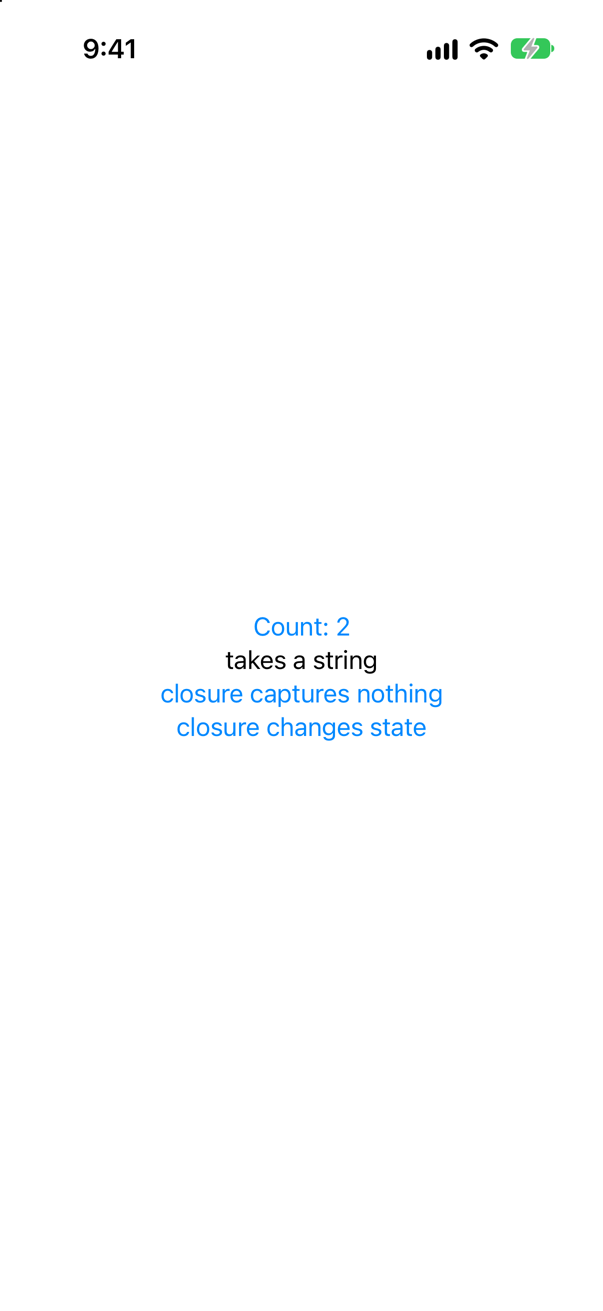
Only the third. After the first tap, and again after the second, the console showed the same two lines:
ContentView.body
  body of “closure changes state”
To skip a child's body, SwiftUI has to be able to tell that the child's inputs are the same as last time. A string can be compared. A closure cannot, in general: Swift has no == for functions. All that can be compared is what the closure is made of — the code it points to, and whatever it captured.
A closure that captures nothing is made of the same thing every time, and that child was left alone. { other += 1 } is different. To change the parent's state it has to capture the parent — self, with its state — and it is built afresh each time the parent's body runs. To SwiftUI it looked like a new input both times, and the child's body ran both times.
How SwiftUI compares closures is not documented, so treat the first two results as observations on iOS 27, not as a contract. The practical rule is safe either way. In a list of hundreds of rows, a row that is handed a closure which touches the parent may have its body run every time the parent's does. Give leaf views the data they show; and when a view updates more often than you expect, ask it why, with Self._printChanges().
Where this comes from: WWDC21: Demystify SwiftUI (2021 — still the reference on identity) · WWDC23: Demystify SwiftUI performance · Senior iOS Interview Preparation (GitHub) — WWDC21, “Demystify SwiftUI”: "SwiftUI will keep around a copy of the value to perform a comparison and know if the view has changed."
ContentView has a counter in @State, and trips in an @Observable store. Both views call Self._printChanges(). The counter button is tapped, then "Add a night". What does each tap print?
Show the answer

At launch, before any tap:
ContentView: @self, @identity, __store, __count changed.
TripRow: @self changed.
TripRow: @self changed.
After a tap on the counter — one line, and no row is mentioned, because no row's body ran:
ContentView: __count changed.After "Add a night":
ContentView: \TripStore.trips changed.
TripRow: @self changed.
Three kinds of reason are on show. A name with two underscores is a @State property of the view itself. A key path such as \TripStore.trips is a property of an @Observable object that this body read: SwiftUI tracked the read, as withObservationTracking does — on lesson 16 you write that tracking by hand. And @self means the view was handed a different value — here the one row whose trip changed. Vancouver's row was created again too, compared, found equal, and skipped; that is why there is one TripRow line and not two.
@identity is in the very first line only. Apple's own description of the method says it marks "that the identity of the view has changed" — that the storage SwiftUI keeps for the view is being set up for a new instance. At launch that is expected. If you ever see @identity for a view that should simply be updating, something is replacing the view rather than updating it — an if/else, or an .id() that changes — and its state is being thrown away each time. That is lesson 20.
And remember the status of this tool. Apple, at WWDC: "a debugging-only facility that gives a best-effort explanation of why SwiftUI requested a view's body".
Where this comes from: WWDC23: Demystify SwiftUI performance · WWDC21: Demystify SwiftUI (2021 — still the reference on identity) · Senior iOS Interview Preparation (GitHub) — The description of _printChanges is quoted from the documentation comment that ships with the iOS 27 SDK. The interview-preparation repository: "Self._printChanges() tells you WHY body ran".
"Why does SwiftUI use structs for views?" is a standard interview question. Put a number on the answer: how big is a view, next to a UIView?
Show the answer

The console shows
TripCard: 33 bytes
Text:     32 bytes
UIView:   416 bytes
UILabel:  440 bytes
A TripCard is exactly as big as the Trip it holds: an Int, a String, another Int and a Bool make 33 bytes. It lives on the stack, or inline in whatever holds it, and creating one allocates nothing. A UIView object is more than ten times that size before it has done anything; it is allocated on the heap, it is reference-counted, and it brings a CALayer with it.
That difference is what makes SwiftUI's whole approach affordable. Hacking with Swift's suggested answer: "structs are used because they are much simpler and much more efficient than classes", and "SwiftUI is free to recreate your view structs whenever and as often as it wants, so performance needs to be good."
Give the other two reasons as well. A struct has no inherited state: a UIView subclass carries every property of UIView, wanted or not, while a SwiftUI view holds exactly what you declared. And a value cannot be shared and changed behind your back, which is what lets SwiftUI compare an old description with a new one and trust the result.
Where this comes from: Hacking with Swift interview question: Why does SwiftUI use structs for views? · Declaring a custom view — Hacking with Swift rates this question “advanced”. Apple calls a view "a lightweight description of your user interface".
A function that is on no actor asks a view for its body. What does the compiler say — and what does that tell you about the View protocol?
Show the answer

It compiles, with a warning
main actor-isolated property 'body' can not be referenced from a nonisolated contextThat is with the settings of a new project. In the Swift 6 language mode the compiler says the same thing, and it is still only a warning: main actor-isolated property 'body' can not be referenced from a nonisolated context
The View protocol is marked @MainActor. Apple's reference says so in its last paragraph: "A type conforming to this protocol inherits @preconcurrency @MainActor isolation from the protocol if the conformance is declared in its original declaration." So a view struct, with its body, its state and every method you add to it, is on the main actor, and body is always evaluated on the main thread. Two consequences: inside a view you never need to dispatch to the main queue to touch its state; and a view's body and methods are not meant to be called from background code.
Why a warning, and not an error? Because of the other word in that sentence: @preconcurrency. Write the same thing with a protocol of your own that is plainly @MainActor, and the compiler refuses:
It does not compile. The compiler reports
main actor-isolated property 'title' can not be referenced from a nonisolated contextChange the first line to @preconcurrency @MainActor, which says that the isolation was added to something that existed before Swift had actors, and the identical code compiles with a warning: main actor-isolated property 'title' can not be referenced from a nonisolated context That is what Apple did for View.
And a date, because the answer changed. Apple, in 2024: "Views in SwiftUI have always been evaluated on the main actor, and the view protocol is now marked with the main actor annotation to reflect that." Before Xcode 16 the annotation was on body alone, so older code — and older answers — are full of @MainActor written by hand on view structs. Apple again: "you can now remove that annotation without any change in behavior."
Where this comes from: View · WWDC24: What’s new in SwiftUI (the View protocol becomes @MainActor) · WWDC25: Explore concurrency in SwiftUI — Apple, View; WWDC24, “What’s new in SwiftUI”. The declaration in the iOS 27 SDK reads @MainActor @preconcurrency public protocol View.
onAppear logs "screen viewed". The user opens the detail screen, goes back, and opens it again and goes back. How many times is it logged — and what is the SwiftUI equivalent of viewDidLoad?
Show the answer
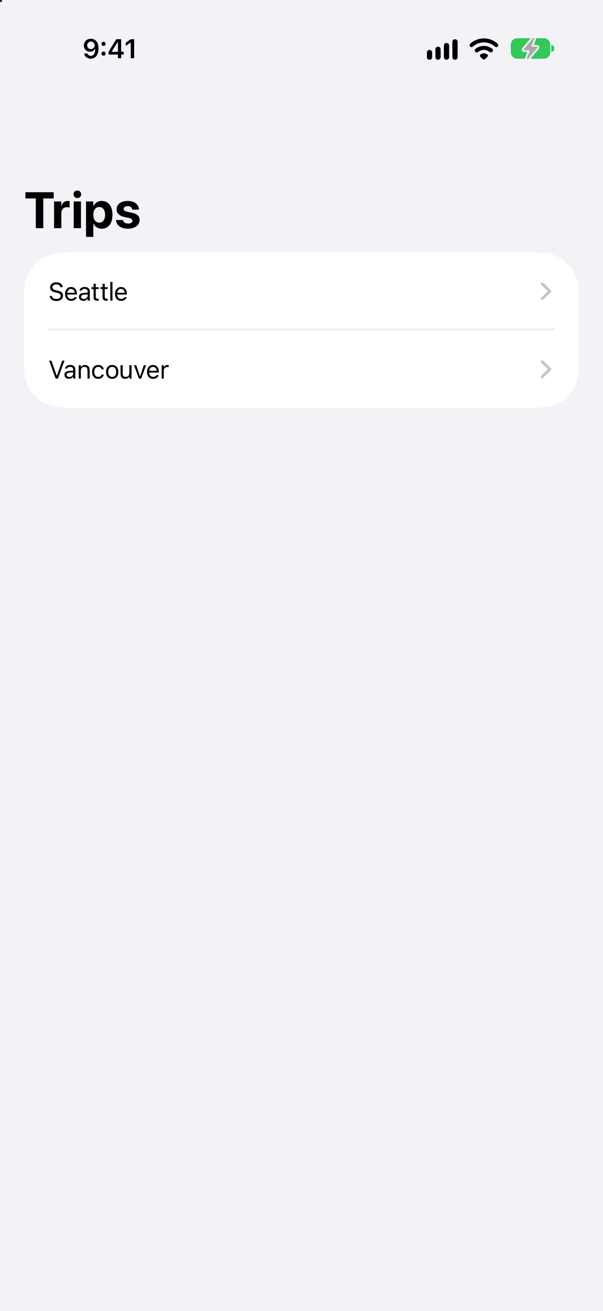
Twice — once for each time the screen came into view:
screen viewed: Seattle
screen left: Seattle
screen viewed: Seattle
screen left: Seattle
onAppear is viewWillAppear, not viewDidLoad. It runs every time the view comes onto the screen: after a push, and again after the next push. (The popular short answer — that onAppear is called "only when the view is shown for the first time" — is not quite right, as the console shows.) For "screen viewed" that is the correct behavior. For "load the data" it means loading again on every visit.
.task is no different in this respect. The same screen with .task { print(…) } in place of onAppear, visited twice, printed:
task started: Seattle
task started: Seattle
There is no exact viewDidLoad, because there is no moment at which a view is loaded and then kept. The nearest things are these. For work that belongs to the time the view is on the screen, .task { … }: Apple describes its lifetime as one "that matches that of the modified view", and cancels it if the view goes away first. For work that should start again only when some input changes, .task(id:). And for work that should happen once for a piece of data, do it in the model that owns the data. A model object lives for as long as you keep it; a view does not.
Where this comes from: Hacking with Swift interview question: What’s the difference between a view’s initializer and onAppear()? · onAppear(perform:) · task(name:priority:file:line:_:) — Apple, onAppear(perform:): "Adds an action to perform before this view appears."
body sorts the cities each time it runs. The screen also has a counter that has nothing to do with them. The counter is tapped three times. How many times are the cities sorted?
Show the answer

Four times: once at the start, and once more for every tap. These are the three taps:
sorting 4 cities
sorting 4 cities
sorting 4 cities
The sort has nothing to do with the counter. But it is done inside body, and body runs whenever any state that the view reads has changed. Four cities are nothing. Four thousand, sorted again on every keystroke in a search field on the same screen, is a slow app.
Apple's performance session names it: "Make sure to check for expensive string interpolation or operations like data filtering and other work inside of body." The interview-preparation repository gives the one-line version, under "Why must body stay cheap?": "It can run many times — sorting, formatting, or creating objects there repeats every time."
The cures, in order of preference. Keep the data already sorted in the model, so that body only reads it. Or move the counter into a small view of its own, so that its state no longer belongs to the view that does the sorting. Or compute the result once, when its input changes, and store it.
Where this comes from: WWDC23: Demystify SwiftUI performance · Senior iOS Interview Preparation (GitHub) — WWDC23, “Demystify SwiftUI performance”.
A view takes its starting quantity from its parent, and keeps it in @State. The parent later passes a different starting value. Does the view show it?
Show the answer
No. The button was tapped, the parent's body ran, and the picker was created again with start: 5. The console says so:
QuantityPicker.init with start 1
QuantityPicker.init with start 5
And the screen still says 1:

@State is storage that belongs to the view on the screen, and it is given its initial value once, when that view first appears. Every later QuantityPicker(start:) is a new description of the same view, and SwiftUI keeps the state it already has. The value in init is an initial value, as the name State(initialValue:) says.
It is the classic trap for anyone who thinks of init as set-up, and the interview-preparation repository lists it by name: "Initial value used ONCE. New values from the parent are ignored." If the parent owns the value, the child should not hold a copy in @State: give it a plain let to display, or a @Binding to change. If the child really should start over when the input changes, give it a new identity with .id(start). Both belong to Part 6, which begins after layout.
Where this comes from: Senior iOS Interview Preparation (GitHub) · State() (the macro, Xcode 27) · WWDC21: Demystify SwiftUI (2021 — still the reference on identity) — The interview-preparation repository calls it “the @State initial value trap”. Apple, State(): "Declare state as private to prevent setting it in an initializer, which can conflict with the storage management that SwiftUI provides."
A button's action changes three @State properties, one after another. How many times does body run?
Show the answer

Once. After the tap, the console showed one line, with all three new values in it:
ContentView.body: Vancouver, 3 nights, favorite trueSetting state does not run body. It marks the view as out of date. When the button's action has finished, SwiftUI updates everything that was marked, once. So body never sees the half-way states — Vancouver with five nights, or three nights and no star — and the screen never shows them.
It is the same bargain as setNeedsLayout() in UIKit: you say that something is stale as often as you like, and the work is done once, later. It is also why you do not need to "batch" your changes, and why reading a state property straight after setting it, in the same action, gives you the new value even though the screen has not caught up yet.
Where this comes from: Declaring a custom view · WWDC21: Demystify SwiftUI (2021 — still the reference on identity) — Apple, “Declaring a custom view”: SwiftUI reads body "any time it needs to update the view" — not each time a value is set.
A view counts taps in @State, but shows the count only after "Show the count" has been pressed. "Tap me" is pressed twice before that. How many times does body run for those two taps?
Show the answer

Not at all. The two taps changed the state, and body did not run:
taps is now 1
taps is now 2
The state changed — the action's own print proves it — but nothing on the screen depended on it. While showsCount is false, body never reaches the line that reads taps, so SwiftUI has no reason to ask for body again. Pressing "Show the count" ran body once. From then on body does read taps, and the next tap printed:
taps is now 3
ContentView.body
So the precise answer to "when does body run?" is not "when state changes". It is "when state that body read, the last time it ran, changes". The interview-preparation repository puts the capital letters in the right place: "When state or observed data it READS changes." The same rule holds for @Observable objects, and that is the whole reason they update fewer views than the older ObservableObject did (lesson 18).
Where this comes from: Senior iOS Interview Preparation (GitHub) · WWDC23: Demystify SwiftUI performance · Hacking with Swift interview question: What does the @State property wrapper do? — The interview-preparation repository, “When does SwiftUI re-run a view’s body?”
Further reading
The analytics event that fired forty times
“Product says profile_viewed is being logged dozens of times per visit, and the network inspector shows duplicate requests. Here is the view. What is wrong, and where should this work live?”

What it logged while that happened
analytics: profile_viewed
analytics: profile_viewed
analytics: profile_viewed
analytics: profile_viewed
analytics: profile_viewed
analytics: profile_viewed
Where this comes from: Hacking with Swift: iOS interview questions — from Hacking with Swift's question list: “What's the difference between a view's initializer and onAppear()?”
Show the answer
A SwiftUI view is a cheap description, not an object with a life of its own. Its init runs every time a parent's body is re-evaluated — which is constantly. So the event is logged on every re-render, and each run starts an unstructured Task that nobody owns or cancels. init is not viewDidLoad.

What it logged
analytics: profile_viewed.task(id:) ties the work to the time the view is on screen: it starts when the view appears, is cancelled when the view goes away, and restarts if userID changes.
What interviewers listen for: That you separate a view's value (re-created endlessly) from its identity (what actually persists), and that you reach for .task rather than a bare Task.