Words, pictures and symbols
Text, images, and SF Symbols
You will buildThe trip card grows up. It gets a price and a date that format themselves, a plural that is always right, a note with bold text in it, a picture that fits, and an icon — and you make a small view that loads a photograph from the network.
TimeAbout 90 minutes
WhyIn UIKit these were four separate crafts: a UILabel and its formatters, NSAttributedString, a UIImageView and its content mode, and UIImage symbol configurations. In SwiftUI they are three small views — Text, Image and Label — that do more by themselves than you expect, and that each have one behavior nobody expects. Text treats a string literal and a string variable differently. Image ignores the frame you give it. In this lesson you meet both, on purpose, and learn the two lines that fix each.
Open your project
Open your
Tripsproject as lesson 7 left it: double-clickTrips.xcodeprojin Finder, or use File ▸ Open… (⌘O) in Xcode.If you did not finish lesson 7, or would rather start from a known state, download Trips-lesson-07.zip instead. It is the project exactly as it stood at the end of lesson 7. Unzip it and open
Trips.xcodeproj.Run it (⌘R) to check that it builds. You should see where lesson 7 ended:

Trips, as it stood at the end of lesson 7Screenshot · iPhone 17, iOS 27.0
More to say about a trip
A card can only show what a trip knows. Give Trip four more properties: the name of a picture, a price, the day it starts, and a note. In Trip.swift:
struct Trip: Identifiable { let id: Int var city: String var country: String var nights: Int var isFavorite: Bool var imageName: String var price: Decimal var start: Date var notes: String}struct Trip: Identifiable {
let id: Int
var city: String
var country: String
var nights: Int
var isFavorite: Bool
var imageName: String
var price: Decimal
var start: Date
var notes: String
}The price is a Decimal, not a Double. Money is counted in tenths and hundredths, which a Double cannot hold exactly; one of this lesson's flash cards shows what goes wrong. The samples need the new values — and Vancouver becomes a stay of one night, for a reason you will see in a moment:
extension Trip { static let seattle = Trip(id: 1, city: "Seattle", country: "United States", nights: 5, isFavorite: true) nights: 5, isFavorite: true, imageName: "seattle", price: 1249.5, start: .on(2027, 6, 12), notes: "**Pike Place** early, before the crowds.") static let vancouver = Trip(id: 2, city: "Vancouver", country: "Canada", nights: 3, isFavorite: false) nights: 1, isFavorite: false, imageName: "vancouver", price: 320, start: .on(2027, 6, 17), notes: "One night only: *Stanley Park* at sunset.") static let atacama = Trip(id: 3, city: "San Pedro de Atacama", country: "Chile", nights: 12, isFavorite: true) nights: 12, isFavorite: true, imageName: "atacama", price: 4180, start: .on(2027, 11, 2), notes: "Stars. Bring a **warm** coat.") static let samples = [seattle, vancouver, atacama]}extension Trip {
static let seattle = Trip(id: 1, city: "Seattle", country: "United States",
nights: 5, isFavorite: true, imageName: "seattle",
price: 1249.5, start: .on(2027, 6, 12),
notes: "**Pike Place** early, before the crowds.")
static let vancouver = Trip(id: 2, city: "Vancouver", country: "Canada",
nights: 1, isFavorite: false, imageName: "vancouver",
price: 320, start: .on(2027, 6, 17),
notes: "One night only: *Stanley Park* at sunset.")
static let atacama = Trip(id: 3, city: "San Pedro de Atacama", country: "Chile",
nights: 12, isFavorite: true, imageName: "atacama",
price: 4180, start: .on(2027, 11, 2),
notes: "Stars. Bring a **warm** coat.")
static let samples = [seattle, vancouver, atacama]
}.on(2027, 6, 12) does not exist yet. It is a small helper, so that the samples can say a date plainly. Add it at the bottom of the file:
extension Date {
    /// The start of that day, in the calendar and time zone of whoever runs the app.
    static func on(_ year: Int, _ month: Int, _ day: Int) -> Date {
        Calendar.current.date(from: DateComponents(year: year, month: month, day: day))!
    }
}
Run the app (⌘R). The card does not show the new properties yet, but look at the second trip:

"1 nights". The card says Text("\(trip.nights) nights"), and until now no sample had exactly one night. Every app that builds its sentences by gluing a number to a word has this bug somewhere.
Text that formats itself
First, the way that everybody tries. Add a row under the title for the date and the price, written as you would write a print. In TripCard.swift:
struct TripCard: View { let trip: Trip var body: some View { HStack { VStack(alignment: .leading) { Text(trip.city) .font(.headline) Text(trip.country) .foregroundStyle(.secondary) VStack(alignment: .leading) { HStack { VStack(alignment: .leading) { Text(trip.city) .font(.headline) Text(trip.country) .foregroundStyle(.secondary) } Spacer() Text("\(trip.nights) nights") if trip.isFavorite { Image(systemName: "star.fill") .foregroundStyle(.yellow) } } Spacer() Text("\(trip.nights) nights") if trip.isFavorite { Image(systemName: "star.fill") .foregroundStyle(.yellow) HStack { Text("\(trip.start)") Spacer() Text("$\(trip.price)") } .font(.subheadline) } .padding() .background(.quaternary, in: RoundedRectangle(cornerRadius: 12)) .padding(.horizontal) }}struct TripCard: View {
let trip: Trip
var body: some View {
VStack(alignment: .leading) {
HStack {
VStack(alignment: .leading) {
Text(trip.city)
.font(.headline)
Text(trip.country)
.foregroundStyle(.secondary)
}
Spacer()
Text("\(trip.nights) nights")
if trip.isFavorite {
Image(systemName: "star.fill")
.foregroundStyle(.yellow)
}
}
HStack {
Text("\(trip.start)")
Spacer()
Text("$\(trip.price)")
}
.font(.subheadline)
}
.padding()
.background(.quaternary, in: RoundedRectangle(cornerRadius: 12))
.padding(.horizontal)
}
}The outer VStack is new: the card is now a column, with the title row first and the new row below it. Xcode builds this, but not quietly. It marks the line with the price:
'appendInterpolation' is deprecated: Localized string interpolation produces an unlocalized, debug description for this type of value. Use a type supported by LocalizedStringKey.StringInterpolation or initialize a LocalizedStringResource instead with an interpolated value that conforms to CustomLocalizedStringResourceConvertible.Run it anyway.
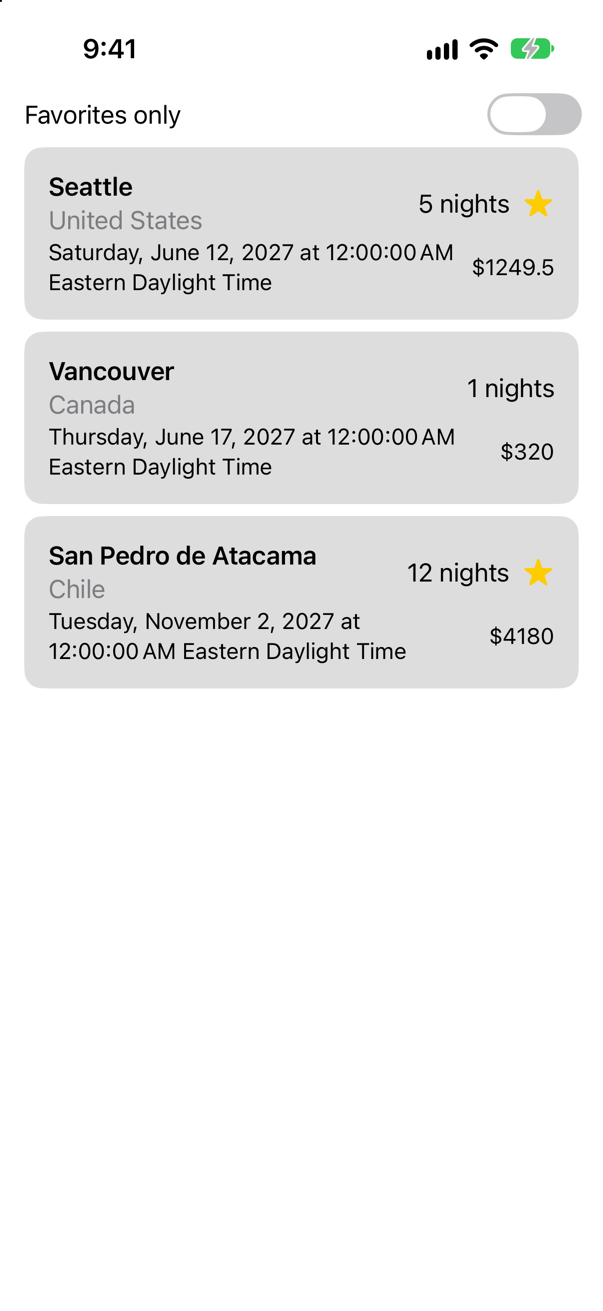
printScreenshot · iPhone 17, iOS 27.0Three things are wrong, and none of them is a crash. The date is the whole of the date: weekday, time, and the name of a time zone (yours will be your own). The price is a bare number: $1249.5, with no separator for the thousands and one decimal place where money has two. That is the "debug description" that the warning promised. And Vancouver still has "1 nights".
In UIKit the cure was a DateFormatter, a NumberFormatter, and an if for the plural. Here, Text takes the value itself, together with a description of how to show it:
struct TripCard: View { let trip: Trip var body: some View { VStack(alignment: .leading) { HStack { VStack(alignment: .leading) { Text(trip.city) .font(.headline) Text(trip.country) .foregroundStyle(.secondary) } Spacer() Text("\(trip.nights) nights") Text("^[\(trip.nights) night](inflect: true)") if trip.isFavorite { Image(systemName: "star.fill") .foregroundStyle(.yellow) } } HStack { Text("\(trip.start)") Text(trip.start, format: .dateTime.day().month().year()) Spacer() Text("$\(trip.price)") Text(trip.price, format: .currency(code: "USD")) } .font(.subheadline) } .padding() .background(.quaternary, in: RoundedRectangle(cornerRadius: 12)) .padding(.horizontal) }}struct TripCard: View {
let trip: Trip
var body: some View {
VStack(alignment: .leading) {
HStack {
VStack(alignment: .leading) {
Text(trip.city)
.font(.headline)
Text(trip.country)
.foregroundStyle(.secondary)
}
Spacer()
Text("^[\(trip.nights) night](inflect: true)")
if trip.isFavorite {
Image(systemName: "star.fill")
.foregroundStyle(.yellow)
}
}
HStack {
Text(trip.start, format: .dateTime.day().month().year())
Spacer()
Text(trip.price, format: .currency(code: "USD"))
}
.font(.subheadline)
}
.padding()
.background(.quaternary, in: RoundedRectangle(cornerRadius: 12))
.padding(.horizontal)
}
}Run it (⌘R). The simulator shows

| In the code | What it does |
|---|---|
Text(trip.start, format: .dateTime.day().month().year()) | Shows a Date. You say which parts you want — day, month, year — and not their order or punctuation. Those follow the user's region. |
Text(trip.price, format: .currency(code: "USD")) | Shows a number as money: the symbol, the separators and the number of decimal places that the currency and the user's region call for. |
Text("^[\(trip.nights) night](inflect: true)") | Asks for the words in the square brackets to agree with the number in them: "1 night", "5 nights". Apple calls it automatic grammar agreement; the syntax is taken apart just below. |
None of the three is special to SwiftUI. The format styles belong to Foundation, and work anywhere: trip.price.formatted(.currency(code: "USD")) gives you the same string in a model or in a test. The ^[…](inflect: true) markup is Foundation's too. What Text adds is that it takes them directly, and keeps what it shows in step with the user's language and region.
The ^[…](…) syntax, taken apart. It is Markdown, the same Markdown as the **bold** of the next step, with one addition of Apple's own: a caret in front of a link. In ordinary Markdown [words](address) is a link. With the caret, the parentheses hold not an address but attributes to attach to the words — ^[ text to work on ]( attribute: value ) — and there can be several, separated by commas.
| Piece | What it is |
|---|---|
^[ | The start: "attach what follows to these words". Without the caret, […](…) would be a link. |
\(trip.nights) night | The words to work on. One of them is the number, written as an interpolation — which matters below. |
]( | The end of the words and the start of the attributes. |
inflect: true | One attribute and its value. The name is Foundation's InflectionRuleAttribute, written as inflect in Markdown; true means its InflectionRule is .automatic. |
) | The end. The whole literal becomes a LocalizedStringKey, which keeps the number as an argument, not as characters. |
Where it is processed. Not by Text, and not by the compiler: by Foundation, in two steps, when the text is resolved for the screen. First the string is parsed as Markdown with Apple's extended attributes allowed, which turns ^[5 night](inflect: true) into the characters 5 night carrying one attribute, inflect = .automatic. Then the inflection engine reads that attribute and rewrites the words so that they agree with the number, which it knows as the interpolation's argument. The result, 5 nights, is what reaches the node that draws the card. AttributedString(localized:) runs the same two steps anywhere, which is how to get the finished sentence outside a view: String(AttributedString(localized: "^[\(nights) night](inflect: true)").characters).
What inflect: true asks for. Automatic agreement: the engine works the grammar out itself from the number in the text. In English that is one thing, singular or plural — "1 night", "5 nights". In a language with gender and case it changes articles and adjectives too, and that is why the feature exists. Two rules follow from how it works. The number must reach the key as an interpolated value: ^[\(nights) night] agrees, and ^[5 night] typed in, or ^[\(String(nights)) night], does not, because by then the 5 is characters in a string with nothing to agree with (the edge cases below show this on the screen). And print shows the markup as it is — a String is characters, and only something that parses the Markdown, Text or AttributedString(localized:), makes anything of it.
extension AttributeScopes.FoundationAttributes {
    @frozen public enum InflectionRuleAttribute : CodableAttributedStringKey, MarkdownDecodableAttributedStringKey {
        public typealias Value = InflectionRule
        public static let markdownName: String
    }
}

public enum InflectionRule : Sendable {
    case automatic
    case explicit(Morphology)
}
Other attributes can go in the same parentheses. These are the ones Foundation decodes from Markdown; inflect is the one you will write, and agreeWithArgument when the number sits apart from the word.
| In the parentheses | Since | What it asks for |
|---|---|---|
inflect: true | iOS 15 | Agree the words with the number among them. |
agreeWithArgument: 1 | iOS 17 | Agree with the first interpolated value wherever it is: \(nights) ^[night](agreeWithArgument: 1) in Seattle gives "5 nights in Seattle". |
inflectionAlternative: "…" | iOS 15 | What to show instead when the engine cannot inflect: a language it does not support, or a number that is not an argument. |
morphology: {…} | iOS 15 | Grammar the engine cannot work out, such as a noun's gender, for the languages where it matters. |
referentConcept: 1, agreeWithConcept: 1 | iOS 17 | Mark one phrase as a concept, and make a later word, a pronoun or an adjective, agree with it. |
Bold inside a string
The notes have asterisks in them: "**Pike Place** early, before the crowds." That is Markdown, and Text understands Markdown. Show the note at the bottom of the card:
struct TripCard: View { let trip: Trip var body: some View { VStack(alignment: .leading) { HStack { VStack(alignment: .leading) { Text(trip.city) .font(.headline) Text(trip.country) .foregroundStyle(.secondary) } Spacer() Text("^[\(trip.nights) night](inflect: true)") if trip.isFavorite { Image(systemName: "star.fill") .foregroundStyle(.yellow) } } HStack { Text(trip.start, format: .dateTime.day().month().year()) Spacer() Text(trip.price, format: .currency(code: "USD")) } .font(.subheadline) Text(trip.notes) .font(.footnote) } .padding() .background(.quaternary, in: RoundedRectangle(cornerRadius: 12)) .padding(.horizontal) }}struct TripCard: View {
let trip: Trip
var body: some View {
VStack(alignment: .leading) {
HStack {
VStack(alignment: .leading) {
Text(trip.city)
.font(.headline)
Text(trip.country)
.foregroundStyle(.secondary)
}
Spacer()
Text("^[\(trip.nights) night](inflect: true)")
if trip.isFavorite {
Image(systemName: "star.fill")
.foregroundStyle(.yellow)
}
}
HStack {
Text(trip.start, format: .dateTime.day().month().year())
Spacer()
Text(trip.price, format: .currency(code: "USD"))
}
.font(.subheadline)
Text(trip.notes)
.font(.footnote)
}
.padding()
.background(.quaternary, in: RoundedRectangle(cornerRadius: 12))
.padding(.horizontal)
}
}Run it (⌘R). The simulator shows

This is the behavior of Text that nobody expects, and it has a simple cause. Text has two initializers that look the same when you call them. Write a string literal between the parentheses, and Swift picks the one that takes a LocalizedStringKey: the text is looked up for translation, and its Markdown is interpreted. Pass a String variable, as you did here, and Swift picks the one that takes a String — which shows exactly the characters it was given. Apple's documentation puts the intent this way: "use a string literal argument when you want localization, and a string variable argument when you don't."
It is the right default: text that came from the user or from a server should not be reinterpreted behind your back. When you do want the Markdown in a piece of data to be honored, say so, by turning the string into an AttributedString — the Swift replacement for NSAttributedString. Add this to Trip.swift:
extension Trip {
    /// The notes, with their Markdown turned into bold and italic text.
    var formattedNotes: AttributedString {
        (try? AttributedString(markdown: notes)) ?? AttributedString(notes)
    }
}
AttributedString(markdown:) can throw, if the Markdown cannot be read; then the plain text is used. And in the card, show the formatted version:
struct TripCard: View { let trip: Trip var body: some View { VStack(alignment: .leading) { HStack { VStack(alignment: .leading) { Text(trip.city) .font(.headline) Text(trip.country) .foregroundStyle(.secondary) } Spacer() Text("^[\(trip.nights) night](inflect: true)") if trip.isFavorite { Image(systemName: "star.fill") .foregroundStyle(.yellow) } } HStack { Text(trip.start, format: .dateTime.day().month().year()) Spacer() Text(trip.price, format: .currency(code: "USD")) } .font(.subheadline) Text(trip.notes) Text(trip.formattedNotes) .font(.footnote) } .padding() .background(.quaternary, in: RoundedRectangle(cornerRadius: 12)) .padding(.horizontal) }}struct TripCard: View {
let trip: Trip
var body: some View {
VStack(alignment: .leading) {
HStack {
VStack(alignment: .leading) {
Text(trip.city)
.font(.headline)
Text(trip.country)
.foregroundStyle(.secondary)
}
Spacer()
Text("^[\(trip.nights) night](inflect: true)")
if trip.isFavorite {
Image(systemName: "star.fill")
.foregroundStyle(.yellow)
}
}
HStack {
Text(trip.start, format: .dateTime.day().month().year())
Spacer()
Text(trip.price, format: .currency(code: "USD"))
}
.font(.subheadline)
Text(trip.formattedNotes)
.font(.footnote)
}
.padding()
.background(.quaternary, in: RoundedRectangle(cornerRadius: 12))
.padding(.horizontal)
}
}Run it (⌘R). The simulator shows

A picture, at its own size
Each trip names a picture: seattle, vancouver, atacama. The pictures themselves have to be in the app. Three were drawn for this course:



Save the three pictures to your Mac: click each one to download it.
In Xcode's Project navigator, select the asset catalog: the item named
Assets. It is a file with the extension.xcassets, which the template made.Drag the three pictures from the Finder into the outline view — the list in the editor area that already holds
AccentColorandAppIcon. A new image set appears for each picture, named after its file:atacama,seattle,vancouver.
An image set has three wells, marked 1x, 2x and 3x, and your picture went into the first. Remember that; it matters in a moment. Now show the picture at the top of the card:
struct TripCard: View { let trip: Trip var body: some View { VStack(alignment: .leading) { Image(trip.imageName) HStack { VStack(alignment: .leading) { Text(trip.city) .font(.headline) Text(trip.country) .foregroundStyle(.secondary) } Spacer() Text("^[\(trip.nights) night](inflect: true)") if trip.isFavorite { Image(systemName: "star.fill") .foregroundStyle(.yellow) } } HStack { Text(trip.start, format: .dateTime.day().month().year()) Spacer() Text(trip.price, format: .currency(code: "USD")) } .font(.subheadline) Text(trip.formattedNotes) .font(.footnote) } .padding() .background(.quaternary, in: RoundedRectangle(cornerRadius: 12)) .padding(.horizontal) }}struct TripCard: View {
let trip: Trip
var body: some View {
VStack(alignment: .leading) {
Image(trip.imageName)
HStack {
VStack(alignment: .leading) {
Text(trip.city)
.font(.headline)
Text(trip.country)
.foregroundStyle(.secondary)
}
Spacer()
Text("^[\(trip.nights) night](inflect: true)")
if trip.isFavorite {
Image(systemName: "star.fill")
.foregroundStyle(.yellow)
}
}
HStack {
Text(trip.start, format: .dateTime.day().month().year())
Spacer()
Text(trip.price, format: .currency(code: "USD"))
}
.font(.subheadline)
Text(trip.formattedNotes)
.font(.footnote)
}
.padding()
.background(.quaternary, in: RoundedRectangle(cornerRadius: 12))
.padding(.horizontal)
}
}Run it (⌘R). The simulator shows

Image(trip.imageName), and nothing elseScreenshot · iPhone 17, iOS 27.0That is the middle of the Seattle picture, and it has pushed everything else off the screen. An Image is drawn at its natural size unless you say otherwise. The file is 1200 pixels wide and sits in the 1x well, which means one pixel for one point: 1200 points, on a screen that is 402 points wide. This is the second behavior that nobody expects, and the first thing an interviewer asks about Image.
A frame would not have helped. Apple's article on fitting images shows the same experiment with a frame around the image, and describes the result: "the image extends beyond the frame's boundaries." What an image needs first is permission to change size:
struct TripCard: View { let trip: Trip var body: some View { VStack(alignment: .leading) { Image(trip.imageName) .resizable() HStack { VStack(alignment: .leading) { Text(trip.city) .font(.headline) Text(trip.country) .foregroundStyle(.secondary) } Spacer() Text("^[\(trip.nights) night](inflect: true)") if trip.isFavorite { Image(systemName: "star.fill") .foregroundStyle(.yellow) } } HStack { Text(trip.start, format: .dateTime.day().month().year()) Spacer() Text(trip.price, format: .currency(code: "USD")) } .font(.subheadline) Text(trip.formattedNotes) .font(.footnote) } .padding() .background(.quaternary, in: RoundedRectangle(cornerRadius: 12)) .padding(.horizontal) }}struct TripCard: View {
let trip: Trip
var body: some View {
VStack(alignment: .leading) {
Image(trip.imageName)
.resizable()
HStack {
VStack(alignment: .leading) {
Text(trip.city)
.font(.headline)
Text(trip.country)
.foregroundStyle(.secondary)
}
Spacer()
Text("^[\(trip.nights) night](inflect: true)")
if trip.isFavorite {
Image(systemName: "star.fill")
.foregroundStyle(.yellow)
}
}
HStack {
Text(trip.start, format: .dateTime.day().month().year())
Spacer()
Text(trip.price, format: .currency(code: "USD"))
}
.font(.subheadline)
Text(trip.formattedNotes)
.font(.footnote)
}
.padding()
.background(.quaternary, in: RoundedRectangle(cornerRadius: 12))
.padding(.horizontal)
}
}Run it (⌘R). The simulator shows
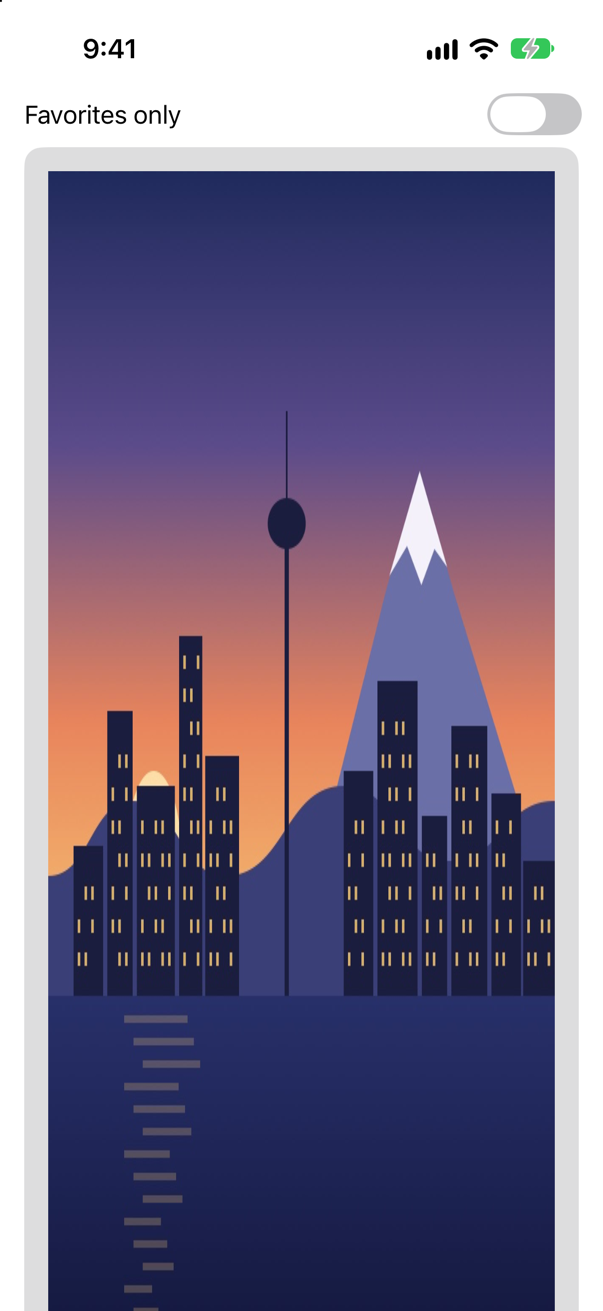
.resizable(): it fits the width, and nothing elseScreenshot · iPhone 17, iOS 27.0Now it is exactly as wide as the card — and still 800 points tall, so it is stretched. .resizable() lets the image take whatever size it is offered, and here it is offered a width (the card's) and no height (a scroll view has no height to offer). In Apple's words, "by itself, this modifier scales each axis of the image independently." One more modifier keeps the shape:
struct TripCard: View { let trip: Trip var body: some View { VStack(alignment: .leading) { Image(trip.imageName) .resizable() .scaledToFit() HStack { VStack(alignment: .leading) { Text(trip.city) .font(.headline) Text(trip.country) .foregroundStyle(.secondary) } Spacer() Text("^[\(trip.nights) night](inflect: true)") if trip.isFavorite { Image(systemName: "star.fill") .foregroundStyle(.yellow) } } HStack { Text(trip.start, format: .dateTime.day().month().year()) Spacer() Text(trip.price, format: .currency(code: "USD")) } .font(.subheadline) Text(trip.formattedNotes) .font(.footnote) } .padding() .background(.quaternary, in: RoundedRectangle(cornerRadius: 12)) .padding(.horizontal) }}struct TripCard: View {
let trip: Trip
var body: some View {
VStack(alignment: .leading) {
Image(trip.imageName)
.resizable()
.scaledToFit()
HStack {
VStack(alignment: .leading) {
Text(trip.city)
.font(.headline)
Text(trip.country)
.foregroundStyle(.secondary)
}
Spacer()
Text("^[\(trip.nights) night](inflect: true)")
if trip.isFavorite {
Image(systemName: "star.fill")
.foregroundStyle(.yellow)
}
}
HStack {
Text(trip.start, format: .dateTime.day().month().year())
Spacer()
Text(trip.price, format: .currency(code: "USD"))
}
.font(.subheadline)
Text(trip.formattedNotes)
.font(.footnote)
}
.padding()
.background(.quaternary, in: RoundedRectangle(cornerRadius: 12))
.padding(.horizontal)
}
}Run it (⌘R). The simulator shows
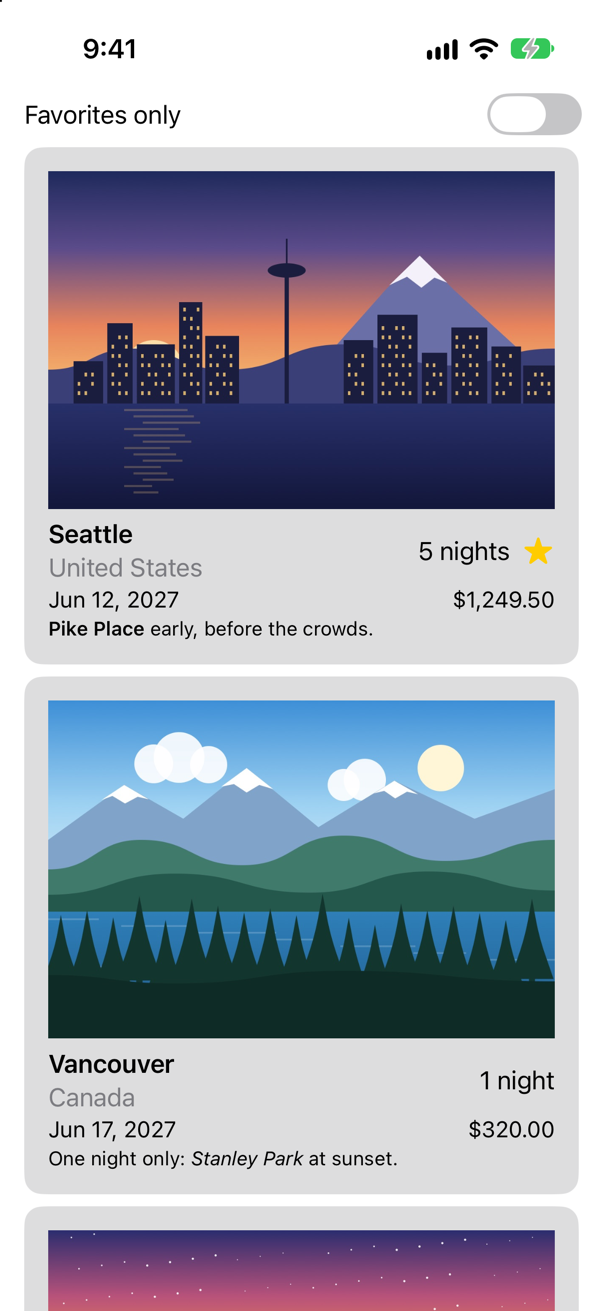
.resizable().scaledToFit()Screenshot · iPhone 17, iOS 27.0The whole picture, at the right proportions, as large as the space allows. This pair is UIImageView with .scaleAspectFit.
Filling a frame
A picture that large makes the list a long one. A card usually wants a strip of the picture: full width, a fixed height, and the picture cropped to it. That is .scaleAspectFill, and its name here is scaledToFill. Give it a frame to fill:
struct TripCard: View { let trip: Trip var body: some View { VStack(alignment: .leading) { Image(trip.imageName) .resizable() .scaledToFit() .scaledToFill() .frame(height: 120) HStack { VStack(alignment: .leading) { Text(trip.city) .font(.headline) Text(trip.country) .foregroundStyle(.secondary) } Spacer() Text("^[\(trip.nights) night](inflect: true)") if trip.isFavorite { Image(systemName: "star.fill") .foregroundStyle(.yellow) } } HStack { Text(trip.start, format: .dateTime.day().month().year()) Spacer() Text(trip.price, format: .currency(code: "USD")) } .font(.subheadline) Text(trip.formattedNotes) .font(.footnote) } .padding() .background(.quaternary, in: RoundedRectangle(cornerRadius: 12)) .padding(.horizontal) }}struct TripCard: View {
let trip: Trip
var body: some View {
VStack(alignment: .leading) {
Image(trip.imageName)
.resizable()
.scaledToFill()
.frame(height: 120)
HStack {
VStack(alignment: .leading) {
Text(trip.city)
.font(.headline)
Text(trip.country)
.foregroundStyle(.secondary)
}
Spacer()
Text("^[\(trip.nights) night](inflect: true)")
if trip.isFavorite {
Image(systemName: "star.fill")
.foregroundStyle(.yellow)
}
}
HStack {
Text(trip.start, format: .dateTime.day().month().year())
Spacer()
Text(trip.price, format: .currency(code: "USD"))
}
.font(.subheadline)
Text(trip.formattedNotes)
.font(.footnote)
}
.padding()
.background(.quaternary, in: RoundedRectangle(cornerRadius: 12))
.padding(.horizontal)
}
}Run it (⌘R). The simulator shows
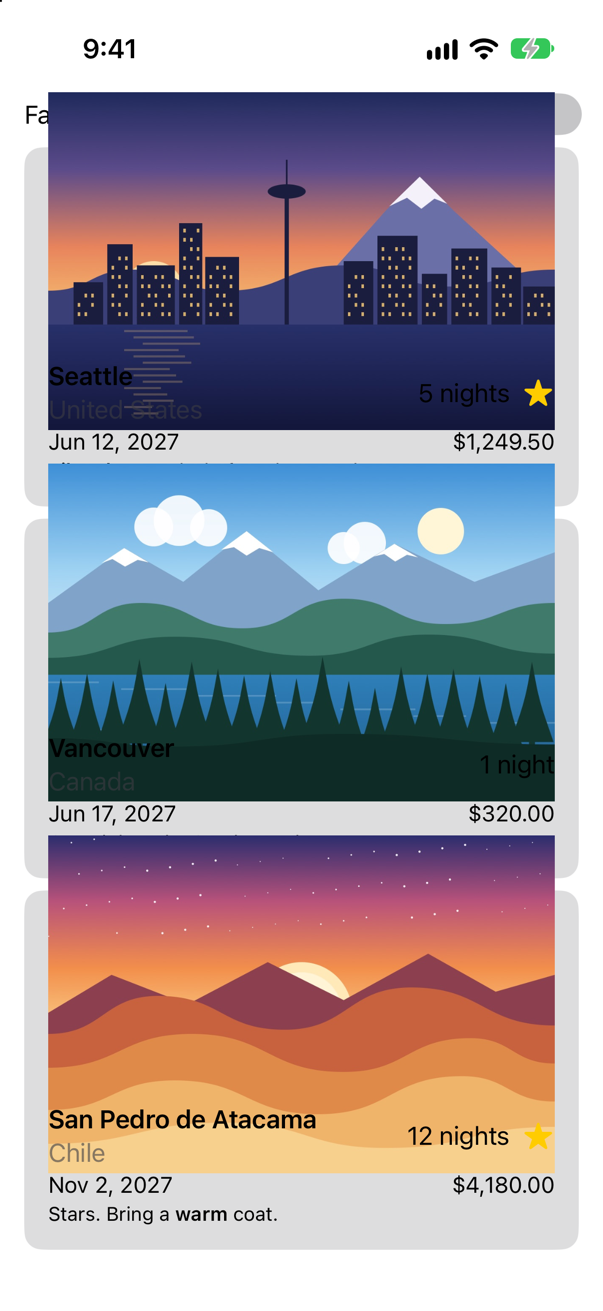
.scaledToFill() in a frame 120 points tallScreenshot · iPhone 17, iOS 27.0The picture is the right width. It is also far taller than 120 points, and it has spilled over the text of its own card and the top of the next one. Nothing is broken. To fill a frame of that width without changing shape, the picture has to be taller than the frame, and a frame is not a mask. Apple: "By default, a view's bounding frame is used only for layout, so any content that extends beyond the edges of the frame is still visible."
In UIKit this was the moment you set clipsToBounds. Here it is .clipped() — or clipShape, which clips to a shape of your choosing, and gives the corners for free:
struct TripCard: View { let trip: Trip var body: some View { VStack(alignment: .leading) { Image(trip.imageName) .resizable() .scaledToFill() .frame(height: 120) .clipShape(RoundedRectangle(cornerRadius: 8)) HStack { VStack(alignment: .leading) { Text(trip.city) .font(.headline) Text(trip.country) .foregroundStyle(.secondary) } Spacer() Text("^[\(trip.nights) night](inflect: true)") if trip.isFavorite { Image(systemName: "star.fill") .foregroundStyle(.yellow) } } HStack { Text(trip.start, format: .dateTime.day().month().year()) Spacer() Text(trip.price, format: .currency(code: "USD")) } .font(.subheadline) Text(trip.formattedNotes) .font(.footnote) } .padding() .background(.quaternary, in: RoundedRectangle(cornerRadius: 12)) .padding(.horizontal) }}struct TripCard: View {
let trip: Trip
var body: some View {
VStack(alignment: .leading) {
Image(trip.imageName)
.resizable()
.scaledToFill()
.frame(height: 120)
.clipShape(RoundedRectangle(cornerRadius: 8))
HStack {
VStack(alignment: .leading) {
Text(trip.city)
.font(.headline)
Text(trip.country)
.foregroundStyle(.secondary)
}
Spacer()
Text("^[\(trip.nights) night](inflect: true)")
if trip.isFavorite {
Image(systemName: "star.fill")
.foregroundStyle(.yellow)
}
}
HStack {
Text(trip.start, format: .dateTime.day().month().year())
Spacer()
Text(trip.price, format: .currency(code: "USD"))
}
.font(.subheadline)
Text(trip.formattedNotes)
.font(.footnote)
}
.padding()
.background(.quaternary, in: RoundedRectangle(cornerRadius: 12))
.padding(.horizontal)
}
}Run it (⌘R). The simulator shows
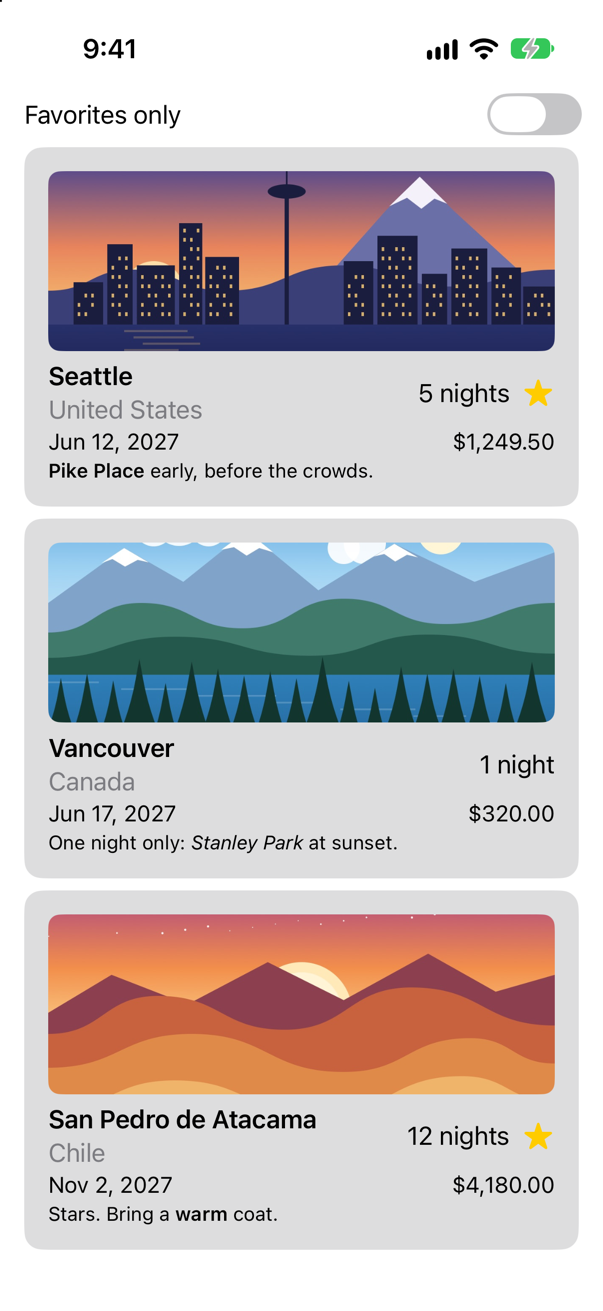
.scaledToFill(), a frame, and .clipShape(…)Screenshot · iPhone 17, iOS 27.0UIImageView | Image |
|---|---|
contentMode = .scaleToFill (the default) | .resizable() |
.scaleAspectFit | .resizable().scaledToFit() |
.scaleAspectFill, with clipsToBounds = true | .resizable().scaledToFill(), a .frame(…), and .clipped() |
| No content mode at all — the image at its own size | A plain Image("name") |
Symbols
The star on the card has been an SF Symbol since lesson 5: Image(systemName: "star.fill"). A symbol is an image that behaves like text. It takes its size and weight from the font, and it sits on the baseline of the words beside it. The view that puts a symbol and a title together is Label. Use it for the nights:
struct TripCard: View { let trip: Trip var body: some View { VStack(alignment: .leading) { Image(trip.imageName) .resizable() .scaledToFill() .frame(height: 120) .clipShape(RoundedRectangle(cornerRadius: 8)) HStack { VStack(alignment: .leading) { Text(trip.city) .font(.headline) Text(trip.country) .foregroundStyle(.secondary) } Spacer() Text("^[\(trip.nights) night](inflect: true)") Label("^[\(trip.nights) night](inflect: true)", systemImage: "moon.stars") if trip.isFavorite { Image(systemName: "star.fill") .foregroundStyle(.yellow) } } HStack { Text(trip.start, format: .dateTime.day().month().year()) Spacer() Text(trip.price, format: .currency(code: "USD")) } .font(.subheadline) Text(trip.formattedNotes) .font(.footnote) } .padding() .background(.quaternary, in: RoundedRectangle(cornerRadius: 12)) .padding(.horizontal) }}struct TripCard: View {
let trip: Trip
var body: some View {
VStack(alignment: .leading) {
Image(trip.imageName)
.resizable()
.scaledToFill()
.frame(height: 120)
.clipShape(RoundedRectangle(cornerRadius: 8))
HStack {
VStack(alignment: .leading) {
Text(trip.city)
.font(.headline)
Text(trip.country)
.foregroundStyle(.secondary)
}
Spacer()
Label("^[\(trip.nights) night](inflect: true)", systemImage: "moon.stars")
if trip.isFavorite {
Image(systemName: "star.fill")
.foregroundStyle(.yellow)
}
}
HStack {
Text(trip.start, format: .dateTime.day().month().year())
Spacer()
Text(trip.price, format: .currency(code: "USD"))
}
.font(.subheadline)
Text(trip.formattedNotes)
.font(.footnote)
}
.padding()
.background(.quaternary, in: RoundedRectangle(cornerRadius: 12))
.padding(.horizontal)
}
}Run it (⌘R). The simulator shows
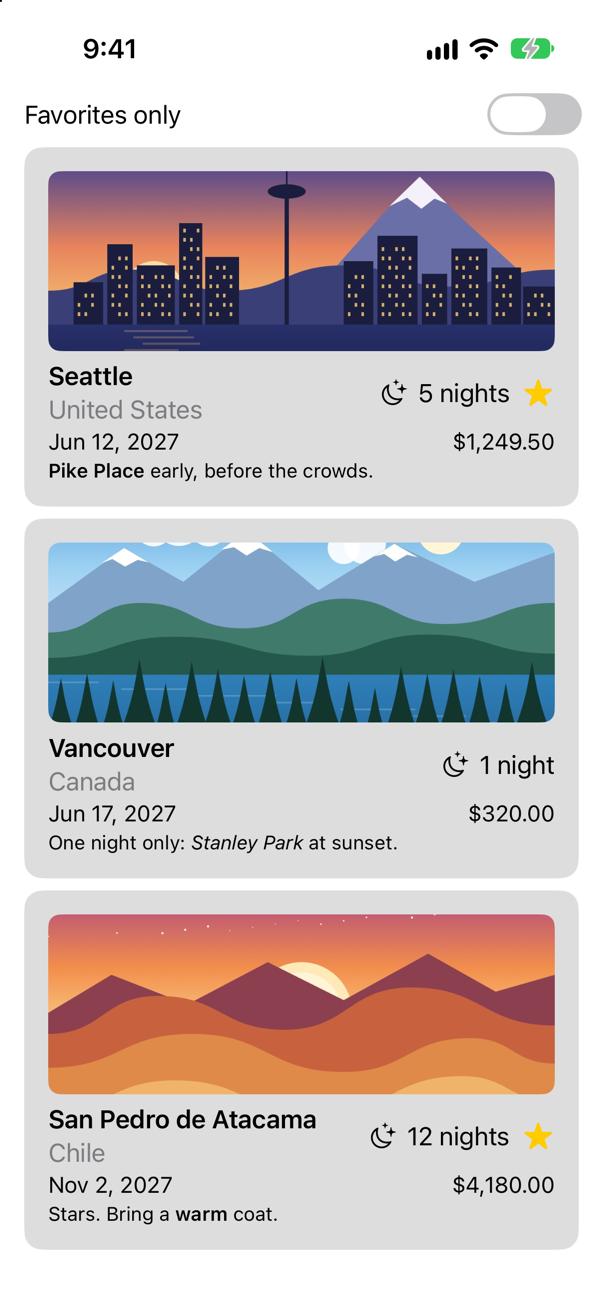
Label: a symbol and its titleScreenshot · iPhone 17, iOS 27.0The title of a Label is a literal here, so the grammar agreement from step 3 works inside it. To see what else symbols do, use the canvas: a preview is the quickest place to try things that have nothing to do with the app's data. Add this at the bottom of TripCard.swift:
#Preview("Symbols") {
    VStack(alignment: .leading, spacing: 20) {
        Label("12 nights", systemImage: "moon.stars")
        Label("12 nights", systemImage: "moon.stars")
            .font(.title)
        HStack {
            Image(systemName: "star")
            Image(systemName: "star")
                .symbolVariant(.fill)
            Image(systemName: "star")
                .symbolVariant(.circle.fill)
        }
        .font(.largeTitle)
        HStack {
            Image(systemName: "airplane.circle.fill")
            Image(systemName: "airplane.circle.fill")
                .symbolRenderingMode(.multicolor)
            Image(systemName: "airplane.circle.fill")
                .symbolRenderingMode(.hierarchical)
                .foregroundStyle(.blue)
            Image(systemName: "airplane.circle.fill")
                .symbolRenderingMode(.palette)
                .foregroundStyle(.white, .indigo)
        }
        .font(.largeTitle)
    }
}
Open the canvas (⌥⌘↩), and choose the preview named Symbols:
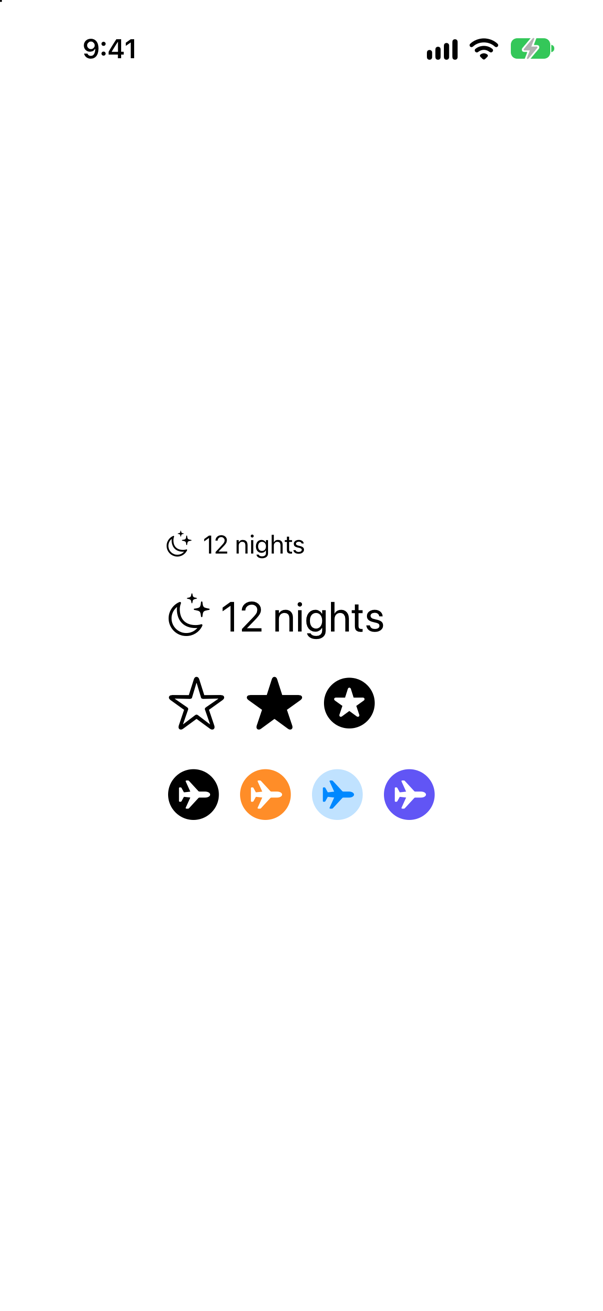
Symbols previewScreenshot · iPhone 17, iOS 27.0| Row | What it shows |
|---|---|
| 1 and 2 | The same Label, at the default font and at .title. You size a symbol with .font, exactly as you size text. .resizable() and a frame are for photographs; one of this lesson's flash cards shows what they do to a symbol. |
| 3 | .symbolVariant(…): the outline, .fill, and .circle.fill. One name, several shapes. ("star.fill" in the name itself, as on the card, does the same.) |
| 4 | .symbolRenderingMode(…): one color, which is the default; .multicolor, the symbol's own colors; .hierarchical, one color in several strengths; and .palette, a color of your choosing for each layer. |
Delete the Symbols preview again when you have looked at it. It has done its job, and it has nothing to do with the card.
#Preview("Symbols") { VStack(alignment: .leading, spacing: 20) { Label("12 nights", systemImage: "moon.stars") Label("12 nights", systemImage: "moon.stars") .font(.title) HStack { Image(systemName: "star") Image(systemName: "star") .symbolVariant(.fill) Image(systemName: "star") .symbolVariant(.circle.fill) } .font(.largeTitle) HStack { Image(systemName: "airplane.circle.fill") Image(systemName: "airplane.circle.fill") .symbolRenderingMode(.multicolor) Image(systemName: "airplane.circle.fill") .symbolRenderingMode(.hierarchical) .foregroundStyle(.blue) Image(systemName: "airplane.circle.fill") .symbolRenderingMode(.palette) .foregroundStyle(.white, .indigo) } .font(.largeTitle) }}There are several thousand, and their names are not guessable. Apple's free SF Symbols app lists them all, shows which rendering modes and variants each supports, and lets you copy the name. A name that does not exist is not a compile error: one of this lesson's edge cases shows what happens instead.
Where this comes from: SF Symbols
A picture from the network
The pictures on the cards are in the app. A photograph on a server has to be fetched, which takes time and can fail — so a view that shows one has three things to draw: the picture, something while it loads, and something if it never arrives. AsyncImage hands you those three as a phase.
Make a new view. Choose File ▸ New ▸ File from Template… (⌘N). Under User Interface, select SwiftUI View, and click Next. Name it
RemotePhoto, and click Create.
struct RemotePhoto: View { let url: URL? var body: some View { Text("Hello, World!") AsyncImage(url: url) { phase in if let image = phase.image { image .resizable() .scaledToFill() } else if phase.error != nil { Image(systemName: "wifi.slash") .font(.title) .foregroundStyle(.secondary) } else { ProgressView() } } .frame(width: 100, height: 100) .background(.quaternary) .clipShape(Circle()) }}struct RemotePhoto: View {
let url: URL?
var body: some View {
AsyncImage(url: url) { phase in
if let image = phase.image {
image
.resizable()
.scaledToFill()
} else if phase.error != nil {
Image(systemName: "wifi.slash")
.font(.title)
.foregroundStyle(.secondary)
} else {
ProgressView()
}
}
.frame(width: 100, height: 100)
.background(.quaternary)
.clipShape(Circle())
}
}Inside the closure, image is an ordinary Image, so this lesson's modifiers apply to it: .resizable(), .scaledToFill(). The frame and the clip shape go on the outside, around whichever of the three is showing. Now a preview that exercises all three phases — an address that works, one with a mistake in it, and no address at all:
#Preview { RemotePhoto() HStack(spacing: 24) { RemotePhoto(url: URL(string: "https://picsum.photos/id/1018/300/300")) RemotePhoto(url: URL(string: "https://picsum.photos/id/1018/300/300x")) RemotePhoto(url: nil) }}#Preview {
HStack(spacing: 24) {
RemotePhoto(url: URL(string: "https://picsum.photos/id/1018/300/300"))
RemotePhoto(url: URL(string: "https://picsum.photos/id/1018/300/300x"))
RemotePhoto(url: nil)
}
}The canvas, a few seconds later:

A photograph, the symbol for a failure, and a spinner that will turn for ever: with no address there is nothing to load, and nothing to fail. Your Mac needs to be online for the first; the photograph comes from picsum.photos, a free service for placeholder pictures.
You will not put RemotePhoto on the main screen yet. It is ready for Part 10, when the trips themselves come from a server. One thing changed recently enough to mention now, because the answer that most people learned is out of date: "AsyncImage does not cache". Since iOS 27 it does. Apple's documentation says that it "caches downloaded image data following the transport protocol" — the server's own caching headers decide. One of this lesson's edge cases has the details.
What you built
- A trip that knows its price, its start date, its notes and its picture.
- A card that shows all of them: format styles for the date and the money, grammar agreement for the plural, Markdown for the note, a cropped picture, and a
Label. RemotePhoto, a small view with a state for each phase of loading a picture from the network.
The card works, and it has been arranged by guesswork: a VStack here, a Spacer there. The next lesson is on stacks, spacers and alignment — and the fix for the large-text preview that has been broken since lesson 5.
The finished project
Stuck, or want to compare with your own? This is the project as it stands at the end of this lesson, built and run before it was put here.
- Trips-lesson-08.zip — unzip it, then open
Trips.xcodeprojin Xcode.
Flash cards
18 cards for this lesson, each labelled with its topic. 10 ask how you would write something; the other 8 are trick questions, written to catch a misunderstanding. Answer in your head first, then tap the card.
Syntax · TextShow a Decimal as an amount in US dollars.

Text(value, format: .currency(code:)). In a simulator set to the United States it shows $1,249.50: the separators and the two decimal places come from the format style, not from you.
Syntax · TextShow a Date as day, month and year.

Text(date, format: .dateTime.day().month().year()). You name the parts you want; their order and punctuation follow the user's region. In the United States: Jun 12, 2027.
Syntax · TextWrite "1 night" or "5 nights", whichever the number calls for, without an if.

^[…](inflect: true) around the number and its noun. Foundation makes the noun agree with the number: the two lines showed 1 night and 5 nights.
Syntax · TextMake one word of a sentence bold.

Markdown, in a string literal: **bold**, *italic*, [a link](https://…). It has to be a literal — a String variable is shown as it is.
Syntax · ImagesShow a picture from the asset catalog, as large as fits, without distorting it.
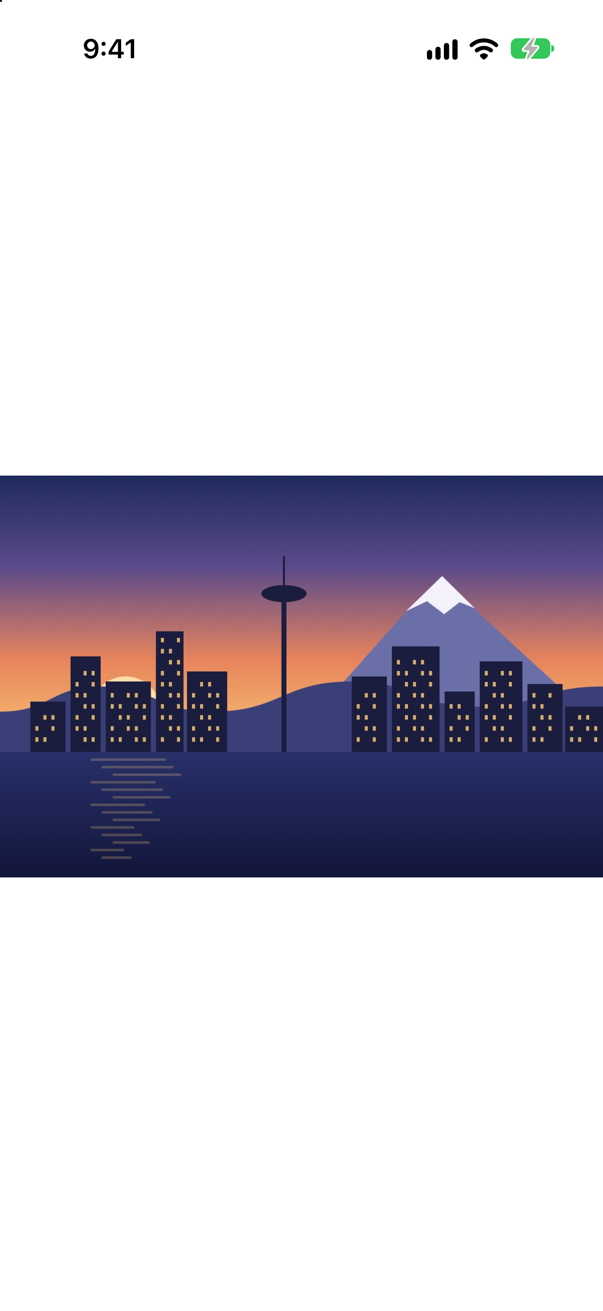
.resizable() lets the image change size; .scaledToFit() keeps its proportions. Together they are UIImageView's .scaleAspectFit.
Syntax · ImagesFill a 200 × 200 square with a picture that is not square, cropping what does not fit.
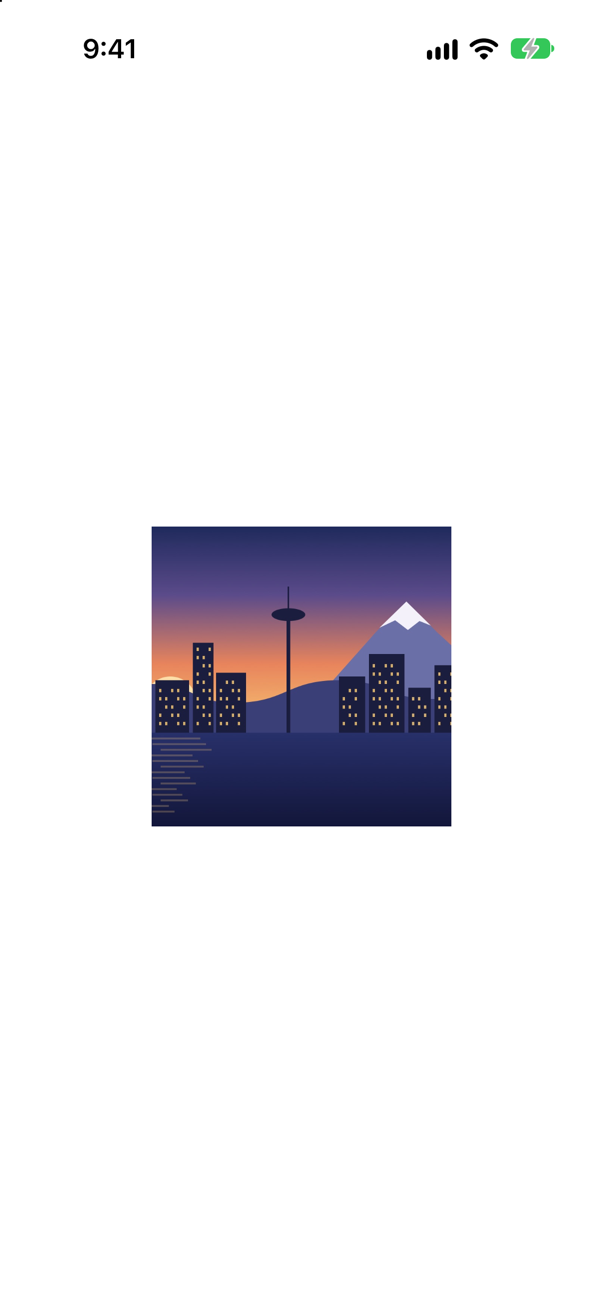
.resizable().scaledToFill(), then the frame, then .clipped(). Without the last line the picture spills out of the frame: a frame is layout, not a mask.
Syntax · SymbolsShow an SF Symbol with a title beside it.

Label(title, systemImage:). The symbol takes its size from the font and sits on the text's baseline. A container can choose to show only the icon or only the title: .labelStyle(.iconOnly).
Syntax · SymbolsDraw a symbol in one color, with its layers in different strengths of it.

.symbolRenderingMode(.hierarchical) with a foregroundStyle. The other modes: .monochrome (the default), .multicolor (the symbol's own colors) and .palette (your color for each layer).
Syntax · ImagesLoad a picture from a URL, with a spinner while it loads.

AsyncImage(url:content:placeholder:). The first closure is handed the loaded Image; image modifiers such as .resizable() go on that, not on the AsyncImage. To show something when the load fails, use the form whose closure takes a phase.
Syntax · SymbolsMake a symbol bounce each time a value changes.

.symbolEffect(.bounce, value:). The effect plays whenever the value changes. Symbols animate layer by layer, which is something an ordinary image cannot do.
Trick question · ImagesImage("seattle") with a frame of 200 × 120 and a red border. The picture is 1200 × 800 pixels. How big is it drawn?
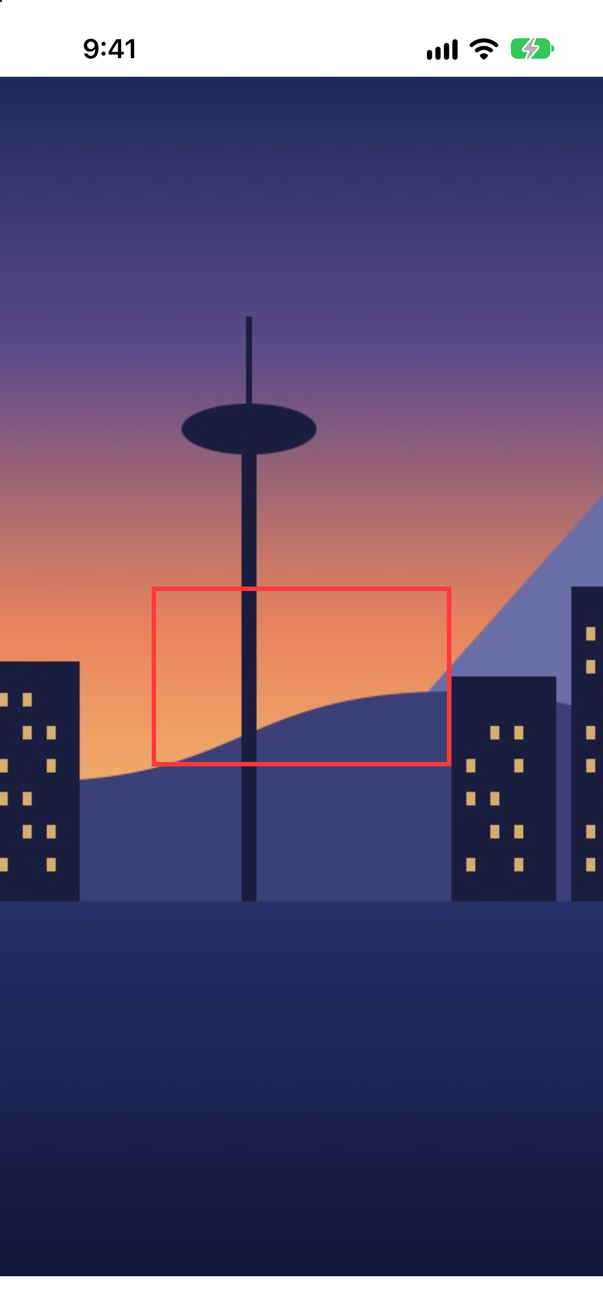
At its natural size, 1200 × 800 points — far outside the red frame, and off every edge of the screen. A frame does not resize an image; it only reserves space for it. .resizable() is what lets it change size.
Trick question · Textlet note = "Bring a **warm** coat." and then Text(note). Is "warm" bold?

No. The asterisks are shown as asterisks. Markdown is interpreted only when Text is given a string literal (a LocalizedStringKey). A String variable is shown exactly as it is; turn it into an AttributedString(markdown:) if you want it interpreted.
Trick question · Textlet price = 1249.5 and then Text("Total: \(price)"). What is on the screen?

Total: 1,249.500000 — six decimal places. Inside a Text literal, a Double is formatted like C's %lf. Say how you want it: Text("Total: \(price, format: .currency(code: "USD"))").
Trick question · TextThe user turns their text size up in Settings. One line uses .font(.body), the other .font(.system(size: 17)). Which of them grows?

Only the first. The text styles — .body, .headline, .caption and the rest — follow the user's setting (Dynamic Type). A font with a size in points is that size for everybody. The picture was taken at the first of the accessibility sizes.
Trick question · TextA UILabel shows one line unless you set numberOfLines. How many lines does a Text show?

As many as it needs. A Text wraps by default, and truncates only when it runs out of room or lines. .lineLimit(1) gives you the UILabel behavior.
Trick question · Images.foregroundStyle(.red) on a picture from the asset catalog, and on an SF Symbol. Which of them turns red?
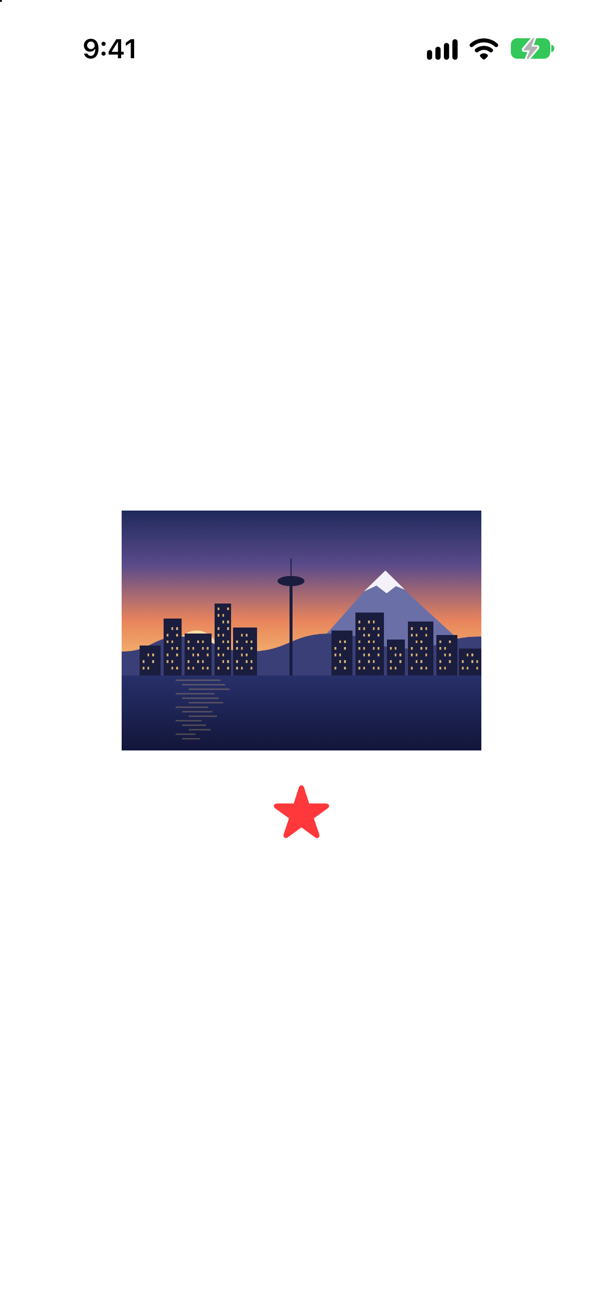
Only the symbol. A symbol is a template: a shape to be filled with the foreground style. A photograph keeps its own colors. To use a picture as a shape, mark it .renderingMode(.template) — every pixel that is not transparent then takes the color.
Trick question · TextWhy is the price a Decimal? What does 0.1 + 0.2 == 0.3 say, as Double and as Decimal?
As Double: false 0.30000000000000004. As Decimal: true 0.3. A Double counts in halves, quarters and eighths, and cannot hold a tenth exactly; a Decimal counts in tenths. Use Decimal for money — the format styles take either.
Trick question · SymbolsYou want a larger airplane, so you write .resizable().frame(width: 60, height: 60) on the symbol. What do you get?
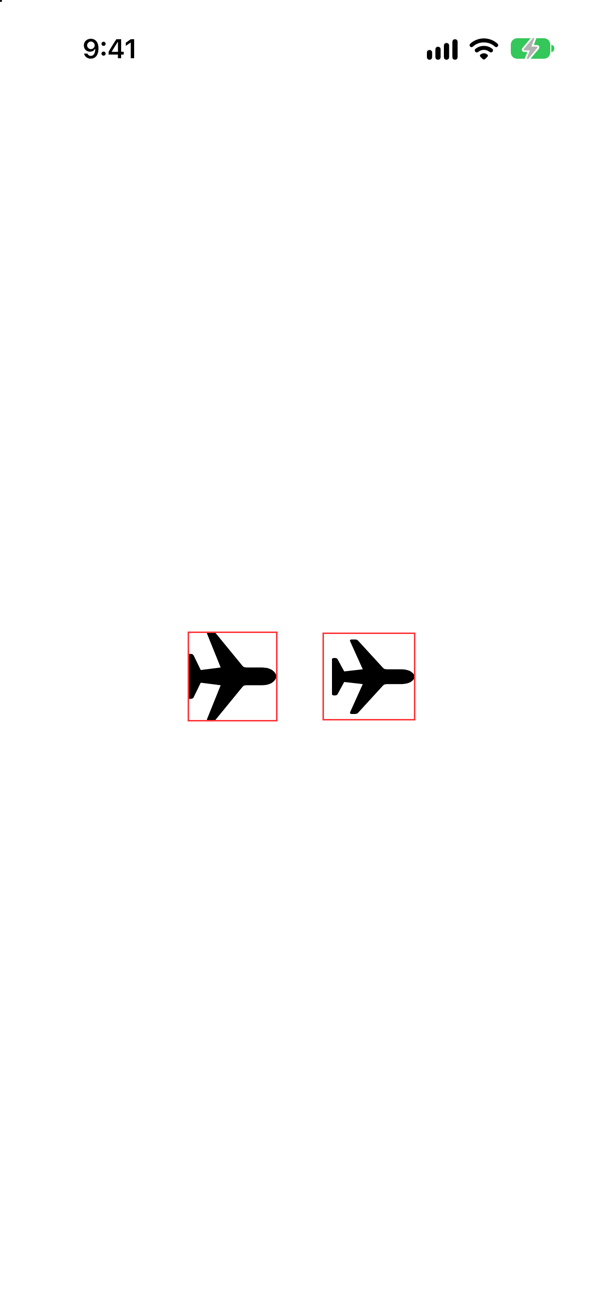
A stretched airplane (on the left). .resizable() treats the symbol as a bitmap, and the frame is not its shape. A symbol is sized like text: with .font, or relative to the text around it with .imageScale(.large).
Edge cases and tricky questions
12 questions of the kind an interviewer uses to find out whether you really know this — the corners, the traps, and the things that changed recently. Each has its source. Wherever the answer is what some code does, that code was compiled and run, and what you see under “Show the answer” is what it really did. Say your answer aloud before you open it.
A designer sends a picture 1200 × 800 pixels. You drag it into the asset catalog and write Image("seattle"). How wide is it, on an iPhone whose screen is 402 points wide? And what change — to the catalog, not to the code — makes it a third of that?
Show the answer

Image("seattle"), with the file in the 1x wellScreenshot · iPhone 17, iOS 27.0The console shows
1200 x 800 points, at scale 11200 points: three times the width of the screen, so what you see is the middle third of the picture. The code also asks UIKit for the same picture and prints its size, and the console shows that the picture's pixels have been taken for points, one for one.
The reason is where the drag put the file. Apple: "By default, Xcode creates each image set with wells for @1x, @2x, and @3x resolutions. If the filename of the image you import ends in @2x or @3x, Xcode automatically places the image into the well with the corresponding resolution." A file named plain seattle.jpg lands in the 1x well, which declares one pixel to a point.
Move the same file to the 3x well — or name it seattle@3x.jpg before you drag it — and nothing else changes but the declaration. The same code then printed:
400 x 267 points, at scale 3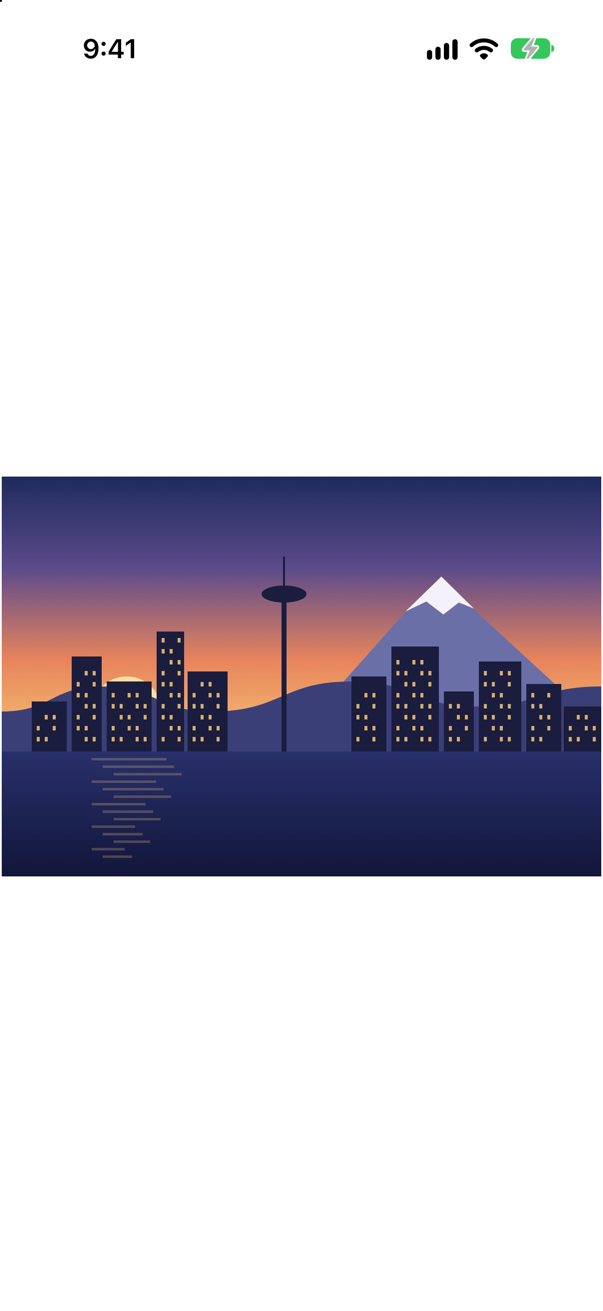
That is the size a designer who exports "at 3x" has in mind. It is worth knowing, and it is not the fix: a picture should fit the space it is given, whatever its file says. That is .resizable(), with .scaledToFit() or .scaledToFill().
Where this comes from: Adding images to your Xcode project · Fitting images into available space — Apple, “Adding images to your Xcode project”.
A picture should fill a strip 320 points tall above a headline. It is clipped. Then the headline loses its first letters. What happened — and does .frame(maxWidth: .infinity) fix it?
Show the answer
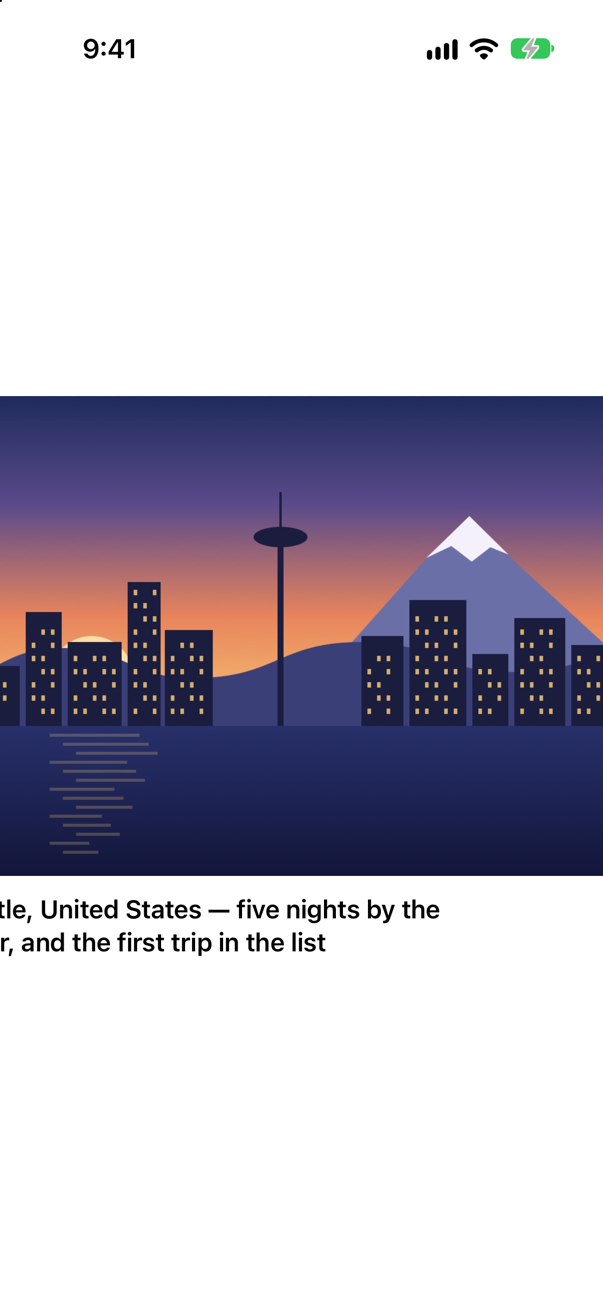
The picture is three wide to two tall. To fill a strip 320 points tall it has to be 480 points wide, and the screen is 402. So the image reports a width of 480 — and its frame, which fixes only the height, passes that width on. The VStack becomes 480 points wide and is centered on the screen, and everything in it starts 39 points to the left of the edge. .clipped() cannot help: it clips to the frame, and the frame is the thing that is too wide.
.frame(maxWidth: .infinity) is the fix that everybody tries first. It changes nothing:
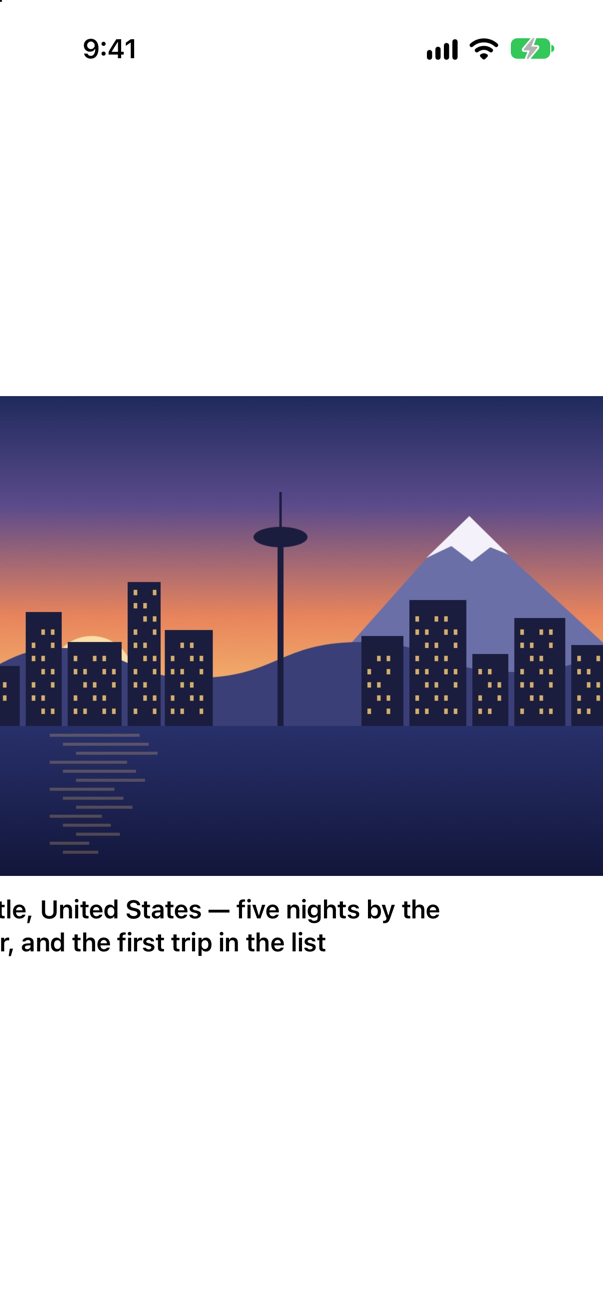
maxWidth: .infinity: the sameScreenshot · iPhone 17, iOS 27.0A frame with only a maximum, when it is offered less than its content wants, stays the size of its content. Give it a minimum of zero as well, and it takes the width it is offered, whatever the picture inside would like:
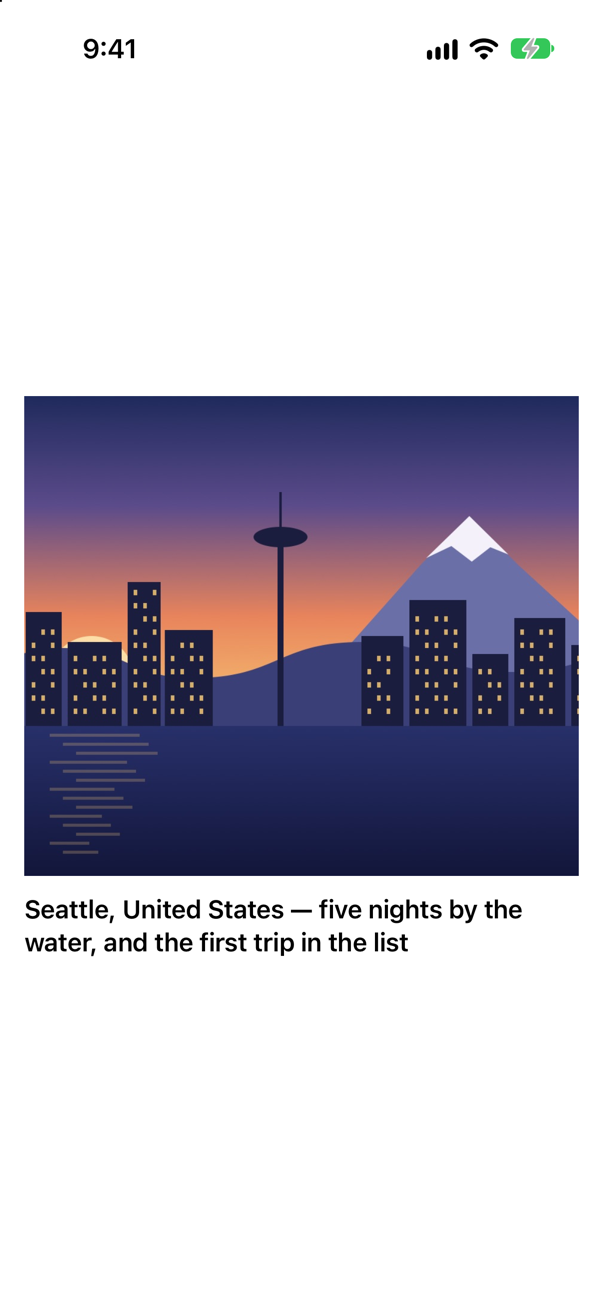
minWidth: 0, maxWidth: .infinityScreenshot · iPhone 17, iOS 27.0The other cure is to stop the picture from taking part in layout at all. Lay out something that has no opinion about its size, and draw the picture over it:
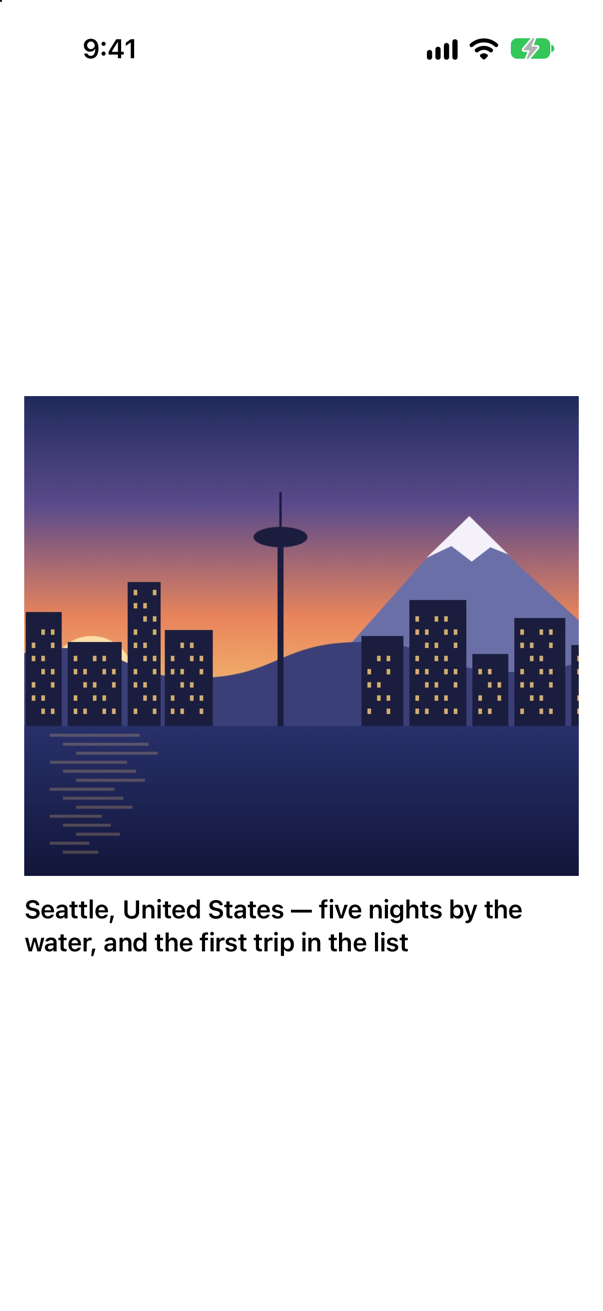
An overlay is offered the size of the view it is on, and can never change that size. This is the shape to remember for any "hero" image. The card in this lesson's tutorial got away without it only because its strip is wider than it is tall, as the picture is.
One thing neither recipe does is stop the hidden part of the picture from taking touches. That bites on lesson 11, when buttons are put just above a card, and it is cured there with one more line.
Where this comes from: Fitting images into available space · clipped(antialiased:) · Hacking with Swift interview question: What is the difference between aspect fill and aspect fit when displaying an image? — Apple, clipped(antialiased:): "By default, a view’s bounding frame is used only for layout, so any content that extends beyond the edges of the frame is still visible." Hacking with Swift asks the plain version: “What is the difference between aspect fill and aspect fit when displaying an image?”
Four Text views, all meant to show "Seattle" in bold. Which of them do?
Show the answer
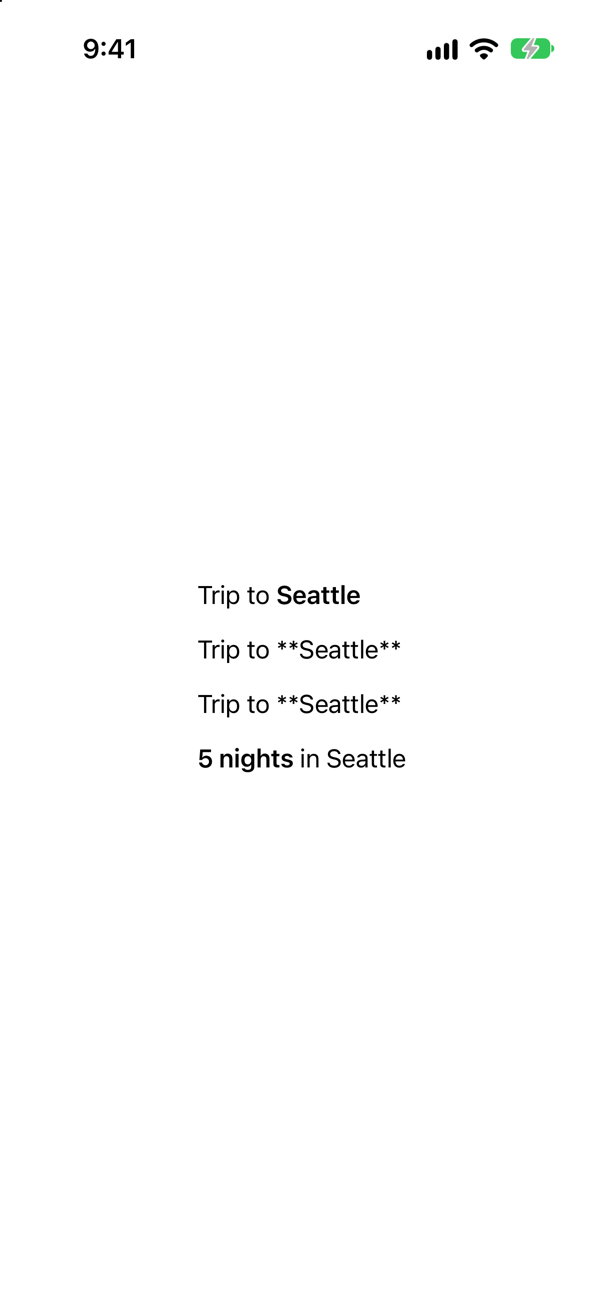
Only the first. The rule is not "Markdown works in Text". It is "Markdown is interpreted in a string literal", because a literal makes a LocalizedStringKey, and that is the type whose text is parsed.
The second line is the one that catches people. The literal is parsed — but the value interpolated into it is not. An interpolated value is data: it is put into the finished text as it stands, asterisks and all. That is deliberate, and you want it: a user's name that happens to contain an underscore should not start italics. The third line is not a literal at all: "Trip to " + city is a String, so nothing is parsed.
The last line shows the useful direction. Markdown written in the literal around an interpolation works, so the styling is yours and the value is the data's.
For text that arrives as data and really is Markdown — a note from a server — convert it yourself: Text(try AttributedString(markdown: note)). Wrapping it in LocalizedStringKey(note) also parses it, and also looks it up for translation, which is rarely what you mean.
Where this comes from: Text · LocalizedStringKey — Apple, LocalizedStringKey: "As a general rule, use a string literal argument when you want localization, and a string variable argument when you don’t."
A price, three ways. One is a Double interpolated into a Text. One is a Decimal interpolated into a Text. One uses a format style. What does each show — and which one does the compiler complain about?
Show the answer

The three lines read, in order: Total: 1,249.500000, Total: 1249.5, and Total: $1,249.50.
A Double in a Text literal is formatted as C's %lf would format it, with six decimal places, and then given the separators of the user's region. A Decimal is not a type the literal knows how to format, so you get its description — and a warning from the compiler, which is the only one of the three it objects to: 'appendInterpolation' is deprecated: Localized string interpolation produces an unlocalized, debug description for this type of value. Use a type supported by LocalizedStringKey.StringInterpolation or initialize a LocalizedStringResource instead with an interpolated value that conforms to CustomLocalizedStringResourceConvertible.
The cure is the same for both, and it is the third line: say what the number is. An interpolation takes a format style exactly as Text(_:format:) does. The interview version of this question is "how do you show a number as currency without building the string yourself?", and the answer is a format style — never String(format:), and never a NumberFormatter that you keep in a property.
Where this comes from: Text.init(_:format:) · Text — Apple, Text: "Using string interpolation ensures that the text in your app can be localized correctly in all locales".
The app must show one price the German way — 1.249,50 $ — for a user whose phone is set to the United States. The format style has a .locale(…) method. Does this work?
Show the answer

No. That line showed $1,249.50. A Text that is given a format style formats with the locale of its environment, and the locale you set on the style itself is overruled.
Two things do work, and the proof ran all three together:
The second line formats the number yourself, with formatted(…), and hands Text a finished String: it showed 1.249,50 $. The third leaves the format style alone and changes the environment of that one view: it showed 1.249,50 $ too.
The third is the one to prefer, and the reason is the design of the whole thing. Text keeps the value, not a string, so that it can format it again when the user's language or region changes, and so that a preview or a test can ask for another locale from outside: .environment(\.locale, …) on any view changes every Text below it. A string that you formatted yourself is frozen.
Where this comes from: Text.init(_:format:) · Environment — Apple, Text.init(_:format:): "Any changes to the value update the string displayed by the text view."
^[\(nights) night](inflect: true) works in a Text. A colleague builds the same text as a String first, to reuse it. What do these three show, for three nights?
Show the answer
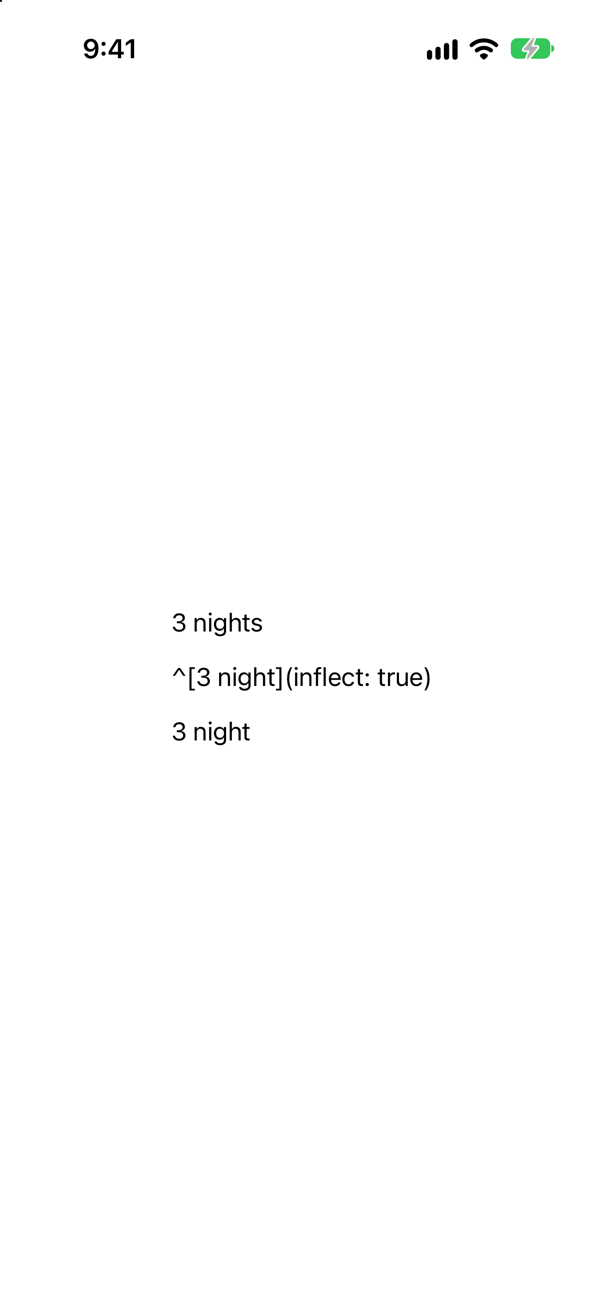
3 nights, then the markup itself, then 3 night.
The first is the case from this lesson's tutorial. The second is a String, so Text shows its characters. The third is the instructive one. LocalizedStringKey(markup) does parse the markup — the brackets are gone — but the agreement has nothing to agree with. By the time the key is made, the 3 is three characters in a string. In the first line it was an argument: a number, interpolated into a literal, that Foundation could look at to decide between "night" and "nights".
So keep the count as a number until the last moment. If you need the finished sentence outside a view — for an accessibility label, or a notification — make it with AttributedString(localized: "^[\(nights) night](inflect: true)"), and String(sentence.characters) when a plain String is wanted. String(localized:) on its own hands the markup back unparsed: a String is characters, and the parsing is AttributedString's.
And know the limit. This is automatic grammar agreement, a feature of Foundation since iOS 15, for the languages Apple supports. A product that ships in many languages still describes its plurals in a String Catalog, where each language can have as many forms as it needs.
Where this comes from: InflectionRule — automatic grammar agreement · WWDC21: What’s new in Foundation (format styles, AttributedString, grammar agreement) — Apple, InflectionRule: "Most apps can rely on loading localized strings to perform automatic grammar agreement."
"How would you explain Dynamic Type?" is a standard question. Here is the follow-up. Four lines of text, and the user chooses a larger text size. Which lines grow?
Show the answer
The first and the third. Here are the four lines at the default size, and then at the first of the accessibility sizes:
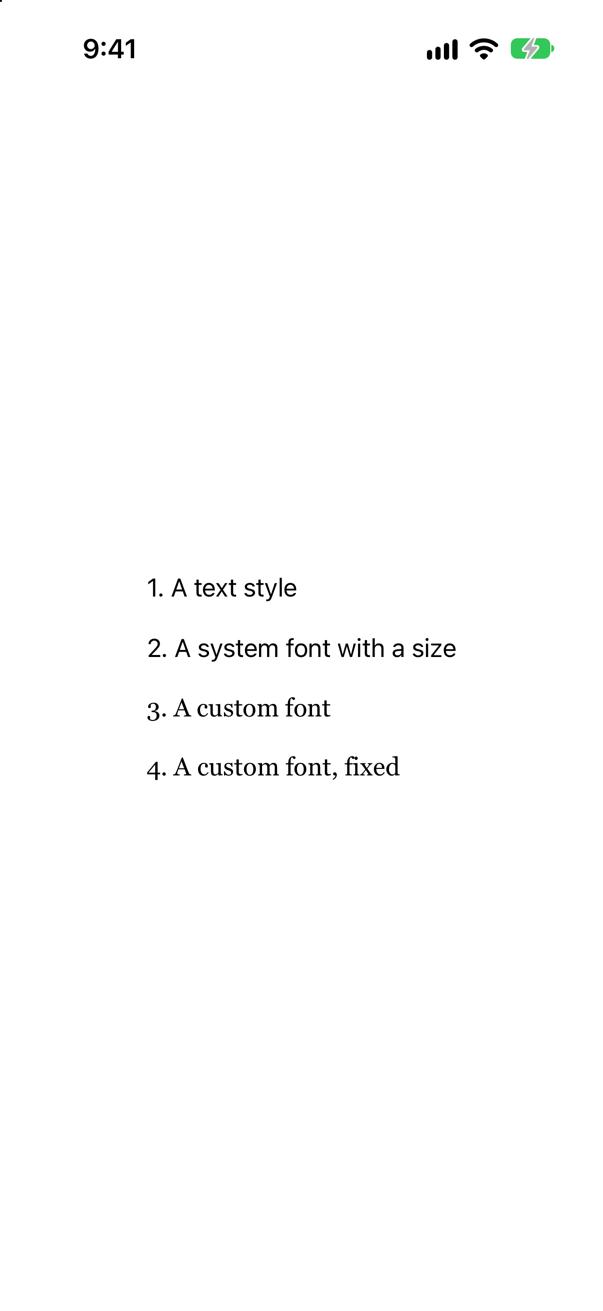
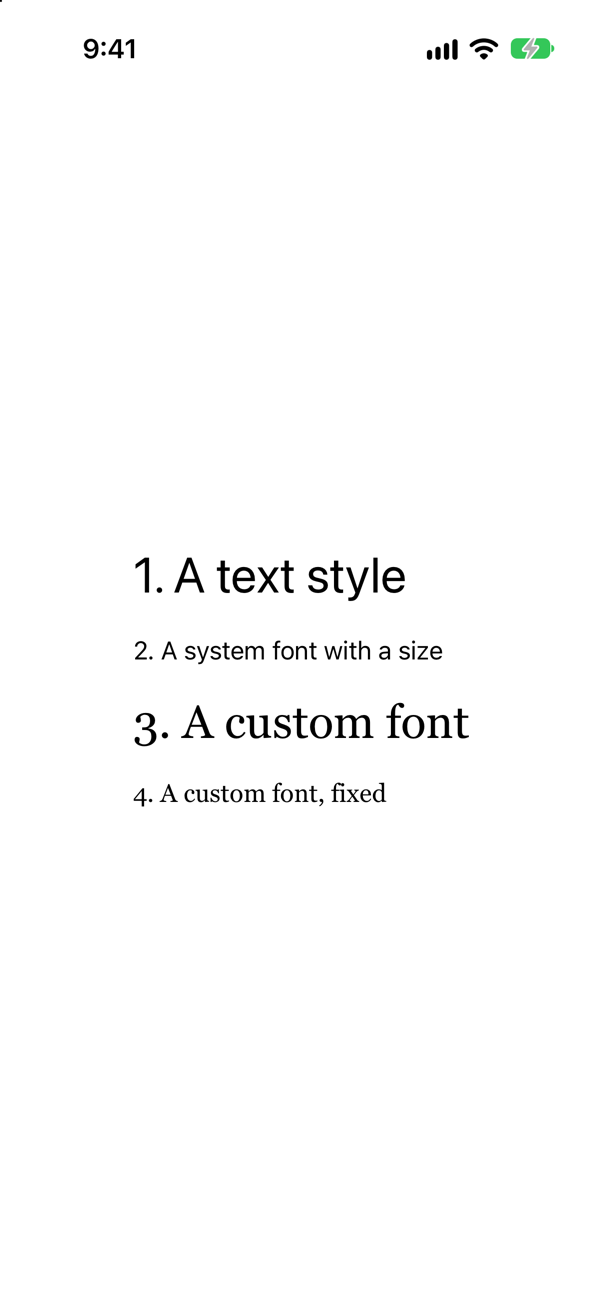
A text style follows the user's setting: that is what a text style is. .system(size: 17) is 17 points for everyone — the trap, because it looks like the careful choice. And a custom font, which most people expect to be fixed, scales by default. Apple: "The font scales adaptively from the size provided to align with the default text style of body." You can name another style to scale with — .custom("Georgia", size: 32, relativeTo: .title) — and you have to ask for a fixed size by name: fixedSize:.
The answer an interviewer is listening for, in Hacking with Swift's words: Dynamic Type lets "the user … adjust their preferred size for all fonts in all apps", and "SwiftUI even defaults to using it across the board". Then the part that shows experience: text styles everywhere; a number only when a design truly cannot move; and a look at every screen at the largest sizes, where the layout breaks before the fonts do. Lesson 5's preview of the card in the largest size is exactly that check, and the next lesson fixes what it found.
Where this comes from: Applying custom fonts to text · Hacking with Swift interview question: How would you explain Dynamic Type to a new iOS developer? — Apple, “Applying custom fonts to text”. Hacking with Swift: “How would you explain Dynamic Type to a new iOS developer?”
A typo in the name of a symbol, and another in the name of a picture. Neither is a compile error. What does the user see, what does the developer see — and how do you get the compiler to check the picture's name?
Show the answer

The user sees nothing where the two images should be: no placeholder, no crash, and no space taken up. The developer gets one line each in Xcode's console, which SwiftUI logs as the app runs:
No symbol named 'star.filled' found in system symbol set
No image named 'seatle' found in asset catalog for …/Probe.app
A name in a string is checked when the image is drawn, not when the code is compiled. For symbols there is no way round that: copy the name from the SF Symbols app rather than typing it. For your own pictures there is. Since Xcode 15, Xcode writes a Swift name for every picture in the asset catalog. The release notes: "These symbols provide a safer, more assistive way to reference assets that's resilient to renames & typos, leverages compiler type checking, and integrates with code completion." You use them like this:
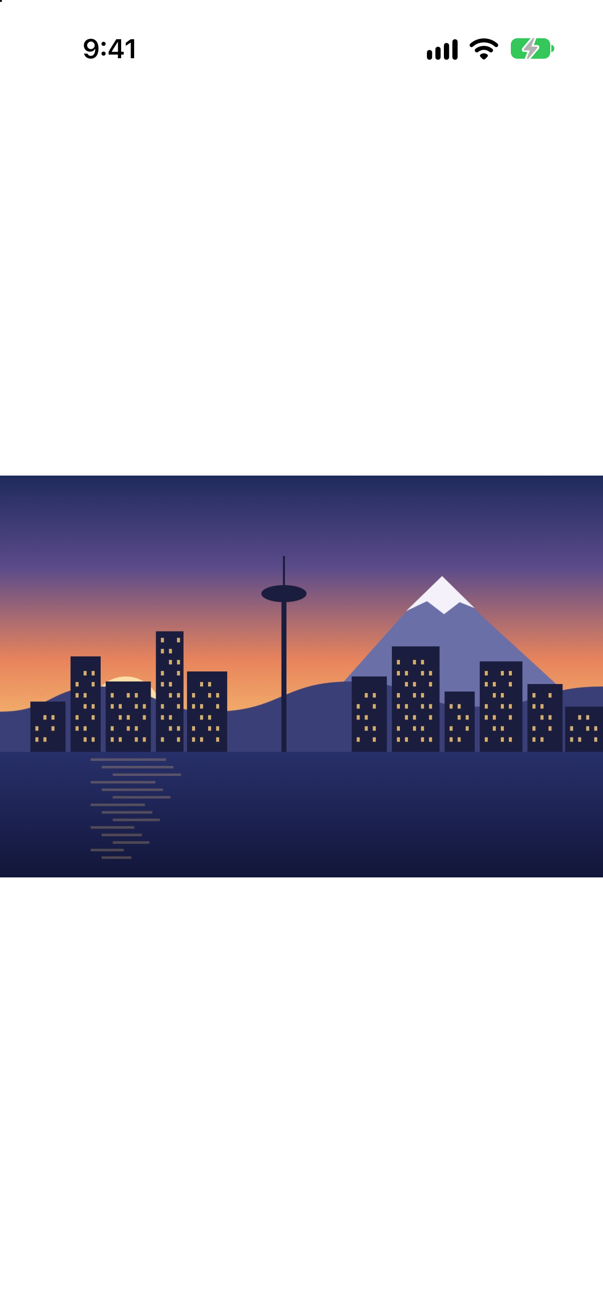
And now the same typo is a compile error: type 'ImageResource' has no member 'seatle'
Use Image(.seattle) wherever the picture is known when you write the code. Image(trip.imageName), as in this lesson's card, is for names that are data — and then a missing picture is a case your code should expect.
Where this comes from: Apple: Xcode 15 release notes (generated asset symbols) · Image · SF Symbols — Apple, Xcode 15 release notes: "Xcode now generates Swift and Objective-C symbols for each color and image in the asset catalog."
Three AsyncImage views in frames of 200 × 100, each with a red border. The first two are given an address that works, the third one that does not exist. What does each draw?
Show the answer
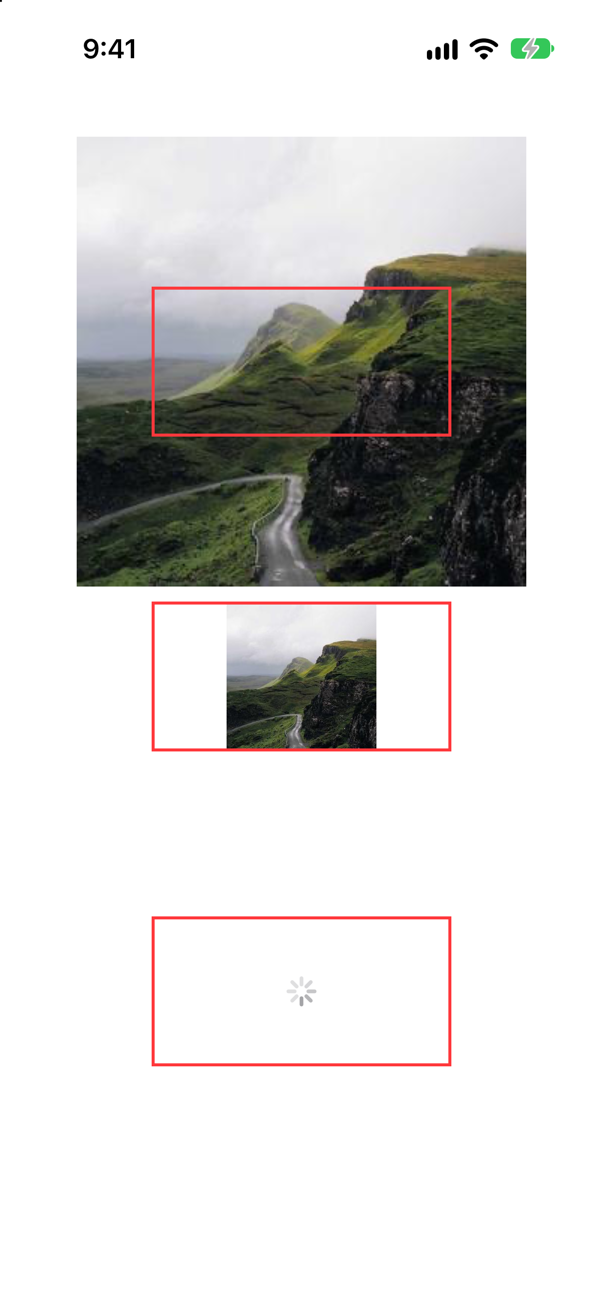
The first draws the photograph at its natural size, 300 × 300 points, straight through its frame. An AsyncImage is not an Image. Apple: "You can't apply image-specific modifiers, like resizable(capInsets:resizingMode:), directly to an AsyncImage. Instead, apply them to the Image instance that your content closure gets". That is the second view, which fits.
The third is the one to remember in an interview. The address is wrong, the load has failed — and the spinner is still turning. With this initializer there are only two things to draw, the image and the placeholder, so a failure looks exactly like a slow network, for ever.
To draw a failure you need the form whose closure is given a phase. Apple's description of it: "SwiftUI calls the closure with a phase value at different points during the load operation to indicate the current state." The phase is .empty while loading, .success with the image, or .failure with the error — which is what RemotePhoto in this lesson's tutorial uses, and why its second circle shows a symbol and not a spinner.
Where this comes from: AsyncImage · AsyncImagePhase — Apple, AsyncImage. The photograph is from picsum.photos, a free placeholder service; the proof of this answer needs the network.
"Does AsyncImage cache the images it downloads?" The answer that most candidates learned is "no". What is the answer for an app built for iOS 27?
Show the answer
It caches. This changed in iOS 27, and the documentation now says so in so many words: "In iOS 27, macOS 27, watchOS 27, tvOS 27, and visionOS 27 and later, AsyncImage caches downloaded image data following the transport protocol." The release notes add what that means: it uses "HTTP caching protocols, allowing servers to control caching behavior via standard headers."
The old answer is still everywhere. The interview-preparation repository, for one, asks "Does AsyncImage cache images?" and answers "Not persistently — use an image cache (NSCache / URLCache) for scrolling lists." That was sound advice until this year, and it is still the right answer for an app that must run on iOS 26 or earlier.
The new API that goes with it, for when the default is not what you want. To change the policy for one image, build a URLRequest with the cachePolicy you need and use the new initializers that take a request. To change how a whole part of the app downloads its images, set a session on the view hierarchy: Apple describes asyncImageURLSession(_:) as the way "to customize the download process in a specific view hierarchy".
And say what it still is not. AsyncImage does not downsample a large photograph to the size it is shown at, does not prefetch for a list, and does not let you draw a retry button without writing the phases yourself. For a feed of hundreds of images those are still your job.
Where this comes from: AsyncImage · Apple: iOS & iPadOS 27 release notes · Senior iOS Interview Preparation (GitHub) — Apple, AsyncImage, and the iOS & iPadOS 27 release notes.
Three pictures and three buttons. For each, what name does the accessibility system have — the name VoiceOver would speak?
Show the answer
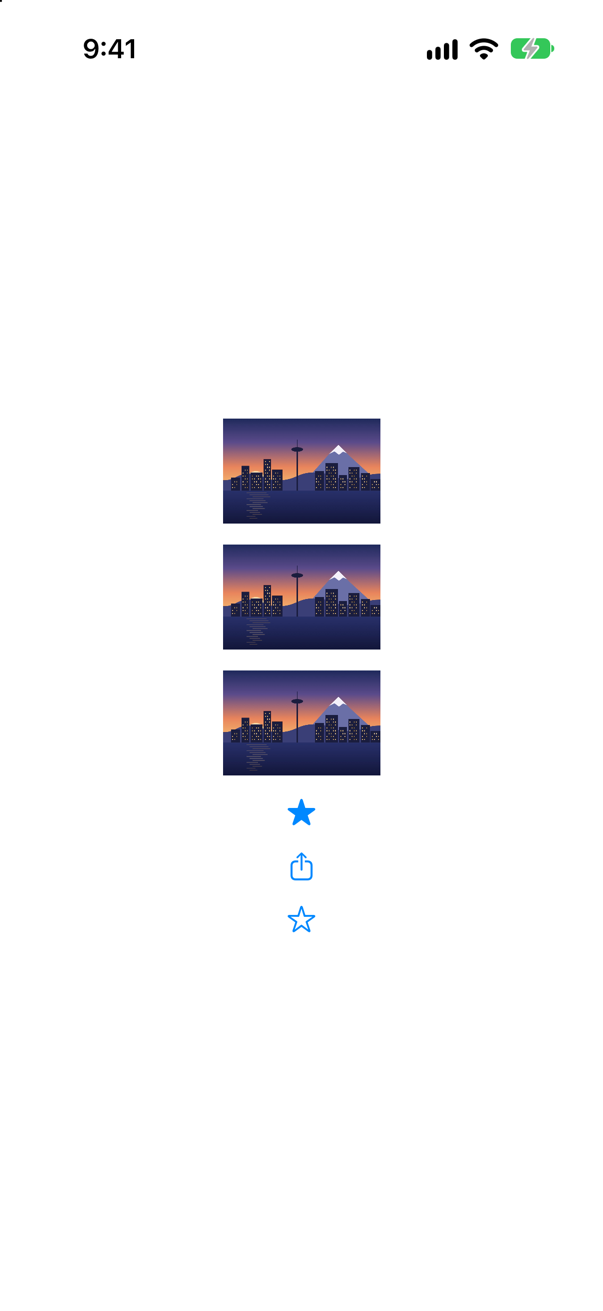
Read back from the running app, the three pictures are named seattle, nothing at all, and The Seattle skyline at dusk. The three buttons are named Favorite, Share, and Add to favorites.
The first picture is the default, and it is rarely what you want: Image("seattle") is announced by the name it has in the asset catalog. Apple's reference for Image gives the two alternatives. For a picture that carries meaning, "use one of the initializers that takes a label parameter". For a picture that is only there to look good, "use an initializer with the decorative parameter; the accessibility systems ignore these images."
The buttons hold a surprise in the other direction. A button whose label is only an SF Symbol is not nameless: symbols come with names of their own, so star.fill is announced as "Favorite" and square.and.arrow.up as "Share". Sometimes that is right. Often it describes the picture and not the action — a star that removes something from the favorites is still called "Favorite".
So say what the button does, and hide the words if the design wants only the icon. That is the last line: a title, a symbol, and .labelStyle(.iconOnly). The title is not drawn, and it is what VoiceOver speaks. It is the same reason Label exists at all: an icon with its meaning attached.
Where this comes from: Image · Label · Image.init(decorative:bundle:) — Apple, Image: “Making images accessible”. The names were read from the running app through the interface that UI tests use — the same one that VoiceOver uses.
For years the way to style part of a sentence was Text("5").bold() + Text(" nights"). What does Xcode 27 say about it, and what replaces it?
Show the answer

It compiles, with a warning
'+' was deprecated in iOS 26.0: Use string interpolation on `Text` instead: `Text("Hello \(name)")`The + operator on Text is deprecated as of iOS 26. Apple's reason is about translation, not style: "Using this operator to concatenate texts hardcodes a specific order for part of the sentence. This may lead to incorrect localization, especially for right-to-left languages."
The replacement is interpolation. A Text can be interpolated into a Text literal, with its own modifiers, and so can an Image:

TextScreenshot · iPhone 17, iOS 27.0The difference is what the translator receives. With + there were two fragments, "5" and " nights in Seattle", in an order fixed by your code. With interpolation there is one sentence with two places marked in it, and a translation can move them. It is still one Text, so it wraps and truncates as one paragraph — which is the reason not to reach for an HStack of three Text views instead.
Where this comes from: Text.+(_:_:) (deprecated) · Text — Apple, Text.+(_:_:): "The + on Text has been deprecated."