Arriving, leaving, and growing
Transitions and matched geometry
You will buildA card's details that slide down into place, a photo that grows out of its thumbnail into a large picture and shrinks back when tapped again, and a favorite star that bounces — then Part 8's interview problem.
TimeAbout 55 minutes, then the interview problem
WhyThe last lesson's animations changed values on views that stayed. This one is about views that come and go — the second half of animation in SwiftUI, and the half that confuses people, because the rules are different: a view being inserted has no old value to animate from, so SwiftUI needs to be told how it should arrive and leave. That is a transition. And when one view should seem to become another somewhere else on the screen, two views are told to share their geometry. Interviewers ask about both, and Part 8's problem is a classic mix-up of the two.
Open your project
Open your
Tripsproject as lesson 28 left it: double-clickTrips.xcodeprojin Finder, or use File ▸ Open… (⌘O) in Xcode.If you did not finish lesson 28, or would rather start from a known state, download Trips-lesson-28.zip instead. It is the project exactly as it stood at the end of lesson 28. Unzip it and open
Trips.xcodeproj.Run it (⌘R) to check that it builds. You should see where lesson 28 ended:
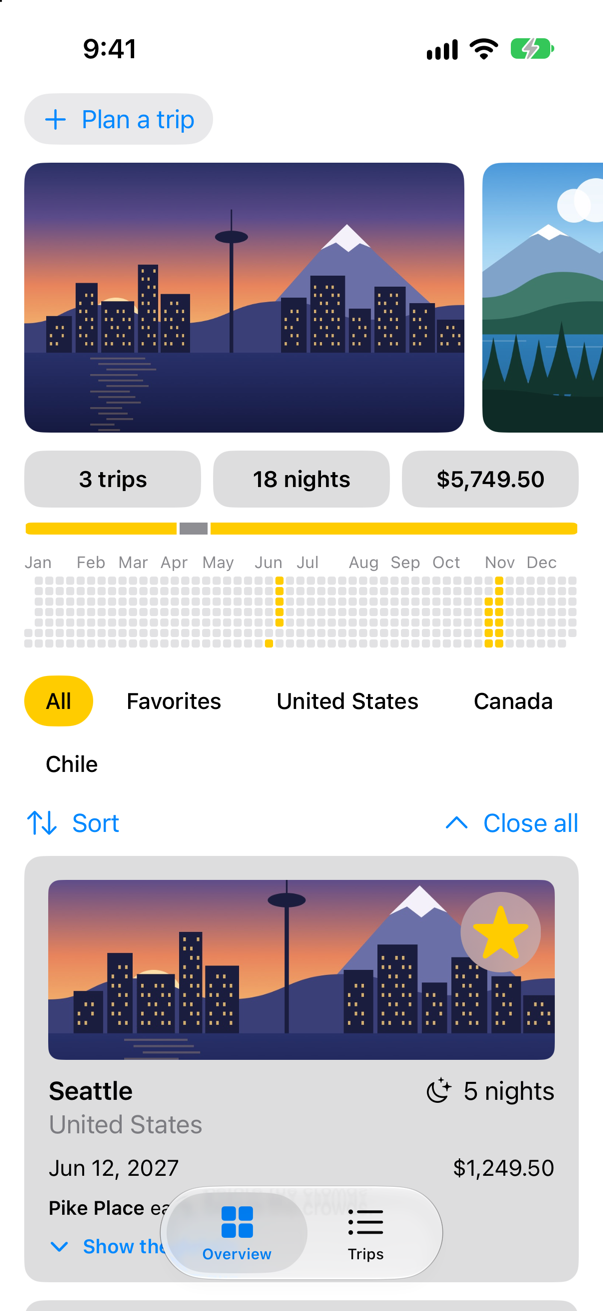
Trips, as it stood at the end of lesson 28Screenshot · iPhone 17, iOS 27.0
A transition
When showsFacts turns on, TripFacts is inserted: it was not in the view hierarchy, and now it is. The last lesson's withAnimation made it fade in, because fading is the default way for an inserted view to arrive. A .transition(_:) says how a view arrives and leaves instead. Apple: "When this view appears or disappears, the transition will be applied to it, allowing for animating it in and out." Transitions combine: here the facts move down from the top while fading in, and leave the same way. In TripCard.swift:
struct TripCard: View { @Binding var trip: Trip @State private var showsFacts = false var body: some View { VStack(alignment: .leading, spacing: 10) { Image(trip.imageName) .resizable() .scaledToFill() .frame(height: 120) .clipShape(RoundedRectangle(cornerRadius: 8)) .contentShape(Rectangle()) .overlay(alignment: .topTrailing) { FavoriteButton(isFavorite: $trip.isFavorite) .accessibilityLabel("Favorite \(trip.city)") .padding(6) .background(.ultraThinMaterial, in: Circle()) .padding(8) } ViewThatFits(in: .horizontal) { HStack(alignment: .firstTextBaseline) { title Spacer() nights } VStack(alignment: .leading, spacing: 4) { title nights } } ViewThatFits(in: .horizontal) { HStack { start Spacer() price } VStack(alignment: .leading, spacing: 4) { start price } } .font(.subheadline) Text(trip.formattedNotes) .font(.footnote) Button(showsFacts ? "Hide the details" : "Show the details", systemImage: showsFacts ? "chevron.up" : "chevron.down") { withAnimation { showsFacts.toggle() } } .font(.footnote.weight(.semibold)) .accessibilityLabel(showsFacts ? "Hide the details of \(trip.city)" : "Show the details of \(trip.city)") if showsFacts { TripFacts(trip: trip) .font(.subheadline) .transition(.move(edge: .top).combined(with: .opacity)) } } .padding() .background(.quaternary, in: RoundedRectangle(cornerRadius: 12)) .padding(.horizontal) } private var title: some View { VStack(alignment: .leading, spacing: 2) { Text(trip.city) .font(.headline) Text(trip.country) .foregroundStyle(.secondary) } } private var nights: some View { Label("^[\(trip.nights) night](inflect: true)", systemImage: "moon.stars") } private var start: some View { Text(trip.start, format: .dateTime.day().month().year()) } private var price: some View { Text(trip.price, format: .currency(code: "USD")) }}struct TripCard: View {
@Binding var trip: Trip
@State private var showsFacts = false
var body: some View {
VStack(alignment: .leading, spacing: 10) {
Image(trip.imageName)
.resizable()
.scaledToFill()
.frame(height: 120)
.clipShape(RoundedRectangle(cornerRadius: 8))
.contentShape(Rectangle())
.overlay(alignment: .topTrailing) {
FavoriteButton(isFavorite: $trip.isFavorite)
.accessibilityLabel("Favorite \(trip.city)")
.padding(6)
.background(.ultraThinMaterial, in: Circle())
.padding(8)
}
ViewThatFits(in: .horizontal) {
HStack(alignment: .firstTextBaseline) {
title
Spacer()
nights
}
VStack(alignment: .leading, spacing: 4) {
title
nights
}
}
ViewThatFits(in: .horizontal) {
HStack {
start
Spacer()
price
}
VStack(alignment: .leading, spacing: 4) {
start
price
}
}
.font(.subheadline)
Text(trip.formattedNotes)
.font(.footnote)
Button(showsFacts ? "Hide the details" : "Show the details", systemImage: showsFacts ? "chevron.up" : "chevron.down") {
withAnimation {
showsFacts.toggle()
}
}
.font(.footnote.weight(.semibold))
.accessibilityLabel(showsFacts ? "Hide the details of \(trip.city)" : "Show the details of \(trip.city)")
if showsFacts {
TripFacts(trip: trip)
.font(.subheadline)
.transition(.move(edge: .top).combined(with: .opacity))
}
}
.padding()
.background(.quaternary, in: RoundedRectangle(cornerRadius: 12))
.padding(.horizontal)
}
private var title: some View {
VStack(alignment: .leading, spacing: 2) {
Text(trip.city)
.font(.headline)
Text(trip.country)
.foregroundStyle(.secondary)
}
}
private var nights: some View {
Label("^[\(trip.nights) night](inflect: true)", systemImage: "moon.stars")
}
private var start: some View {
Text(trip.start, format: .dateTime.day().month().year())
}
private var price: some View {
Text(trip.price, format: .currency(code: "USD"))
}
}Run the app and tap Show the details on the Seattle card:
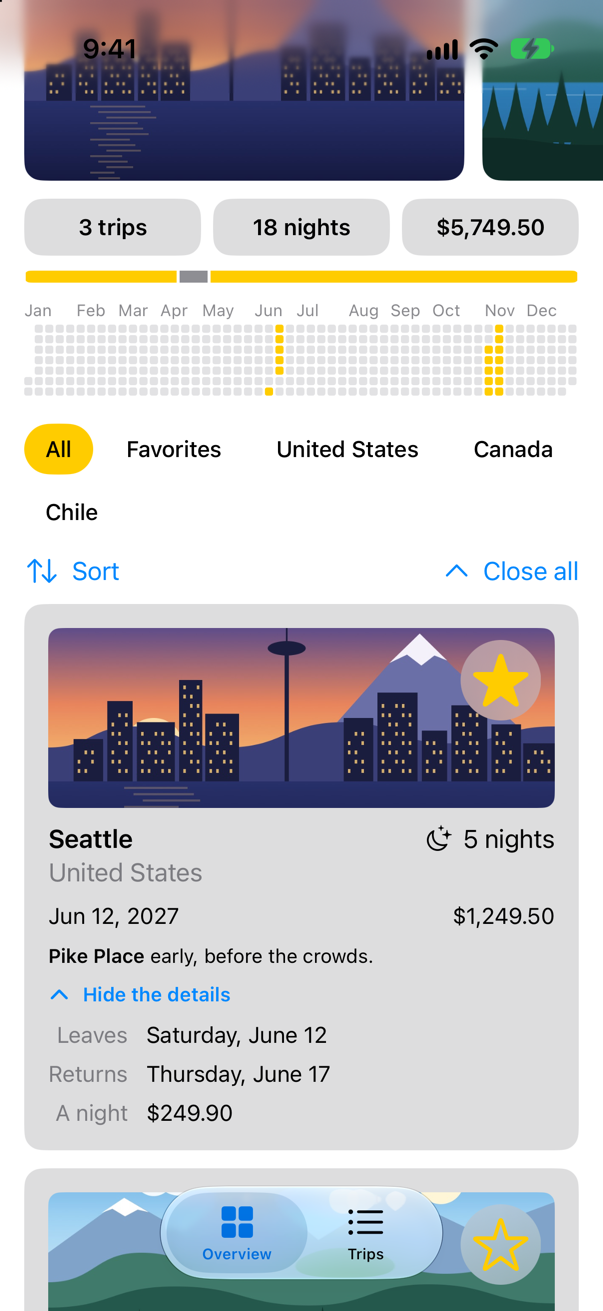
A transition only plays inside an animation — here, the card's withAnimation. Without one, the view simply appears and disappears; an edge case in this lesson shows it.
A photo that grows
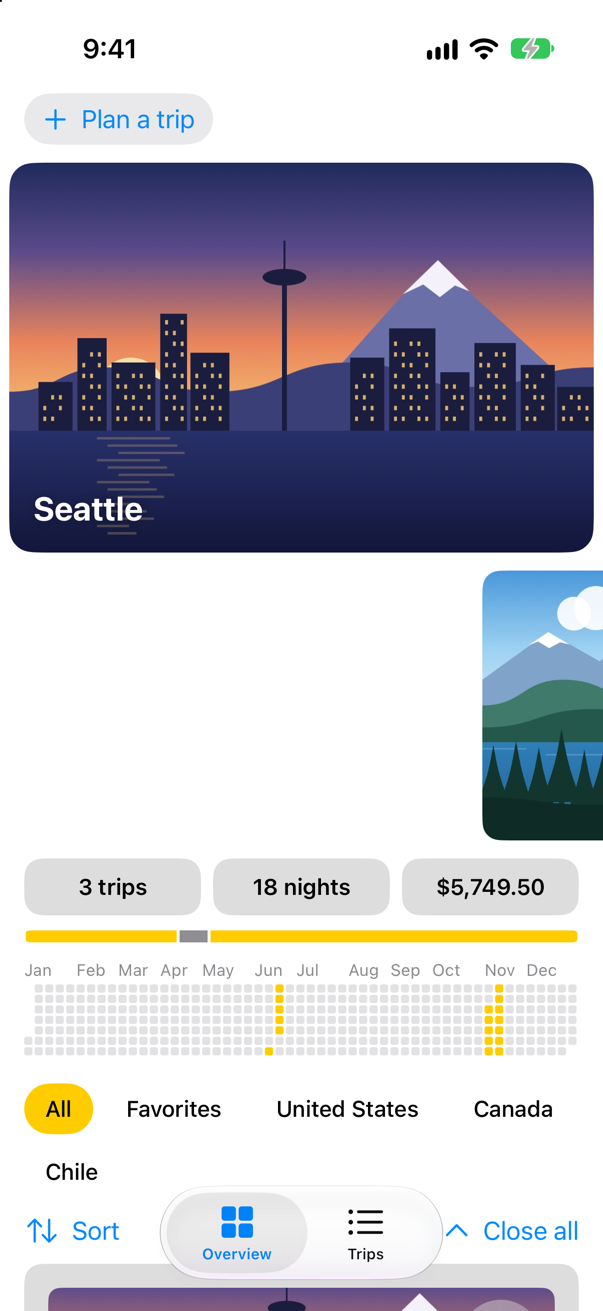
The Overview's photo strip shows the trips small. A tap should lift a photo into a large picture above the strip, the photo appearing to grow out of its thumbnail rather than a new picture fading in. They are two different views — one in the strip, one above it — so SwiftUI is told they are the same thing: matchedGeometryEffect(id:in:) with the same id, in a namespace that the view owns (@Namespace). Apple: "If inserting a view in the same transaction that another view with the same key is removed, the system will interpolate their frame rectangles in window space to make it appear that there is a single view moving from its old position to its new position."
So the tap does two things in one animation: it removes the thumbnail — leaving a clear space the same size, so the strip does not shuffle — and inserts the large picture. Each photo gets an accessibility label and the button trait, so VoiceOver can find and press it; the large one is made a single element first, or the city name drawn over it would be read as a second "Photo of Seattle". In PhotoStrip.swift:
struct PhotoStrip: View { let trips: [Trip] @Namespace private var photos @State private var enlarged: Trip.ID? var body: some View { ScrollView(.horizontal) { HStack(spacing: 12) { ForEach(trips) { trip in Image(trip.imageName) .resizable() .scaledToFill() .containerRelativeFrame(.horizontal, count: 5, span: 4, spacing: 12) .frame(height: 180) .clipShape(RoundedRectangle(cornerRadius: 12)) .contentShape(Rectangle()) VStack(spacing: 12) { if let trip = trips.first(where: { $0.id == enlarged }) { Image(trip.imageName) .resizable() .scaledToFill() .matchedGeometryEffect(id: trip.id, in: photos) .frame(height: 260) .clipShape(RoundedRectangle(cornerRadius: 16)) .overlay(alignment: .bottomLeading) { Text(trip.city) .font(.title2.bold()) .foregroundStyle(.white) .shadow(radius: 4) .padding() } .padding(.horizontal) .accessibilityElement(children: .ignore) .accessibilityLabel("Photo of \(trip.city)") .accessibilityAddTraits(.isButton) .onTapGesture { withAnimation(.spring(duration: 0.5)) { enlarged = nil } } } ScrollView(.horizontal) { HStack(spacing: 12) { ForEach(trips) { trip in if trip.id == enlarged { Color.clear .containerRelativeFrame(.horizontal, count: 5, span: 4, spacing: 12) .frame(height: 180) } else { Image(trip.imageName) .resizable() .scaledToFill() .matchedGeometryEffect(id: trip.id, in: photos) .containerRelativeFrame(.horizontal, count: 5, span: 4, spacing: 12) .frame(height: 180) .clipShape(RoundedRectangle(cornerRadius: 12)) .contentShape(Rectangle()) .accessibilityLabel("Photo of \(trip.city)") .accessibilityAddTraits(.isButton) .onTapGesture { withAnimation(.spring(duration: 0.5)) { enlarged = trip.id } } } } } .scrollTargetLayout() } .scrollTargetLayout() .scrollTargetBehavior(.viewAligned) .safeAreaPadding(.horizontal) .scrollIndicators(.hidden) } .scrollTargetBehavior(.viewAligned) .safeAreaPadding(.horizontal) .scrollIndicators(.hidden) }}struct PhotoStrip: View {
let trips: [Trip]
@Namespace private var photos
@State private var enlarged: Trip.ID?
var body: some View {
VStack(spacing: 12) {
if let trip = trips.first(where: { $0.id == enlarged }) {
Image(trip.imageName)
.resizable()
.scaledToFill()
.matchedGeometryEffect(id: trip.id, in: photos)
.frame(height: 260)
.clipShape(RoundedRectangle(cornerRadius: 16))
.overlay(alignment: .bottomLeading) {
Text(trip.city)
.font(.title2.bold())
.foregroundStyle(.white)
.shadow(radius: 4)
.padding()
}
.padding(.horizontal)
.accessibilityElement(children: .ignore)
.accessibilityLabel("Photo of \(trip.city)")
.accessibilityAddTraits(.isButton)
.onTapGesture {
withAnimation(.spring(duration: 0.5)) { enlarged = nil }
}
}
ScrollView(.horizontal) {
HStack(spacing: 12) {
ForEach(trips) { trip in
if trip.id == enlarged {
Color.clear
.containerRelativeFrame(.horizontal, count: 5, span: 4, spacing: 12)
.frame(height: 180)
} else {
Image(trip.imageName)
.resizable()
.scaledToFill()
.matchedGeometryEffect(id: trip.id, in: photos)
.containerRelativeFrame(.horizontal, count: 5, span: 4, spacing: 12)
.frame(height: 180)
.clipShape(RoundedRectangle(cornerRadius: 12))
.contentShape(Rectangle())
.accessibilityLabel("Photo of \(trip.city)")
.accessibilityAddTraits(.isButton)
.onTapGesture {
withAnimation(.spring(duration: 0.5)) { enlarged = trip.id }
}
}
}
}
.scrollTargetLayout()
}
.scrollTargetBehavior(.viewAligned)
.safeAreaPadding(.horizontal)
.scrollIndicators(.hidden)
}
}
}Run the app and tap the Seattle photo in the strip:
Tap the large picture, and it shrinks back into its place in the strip:
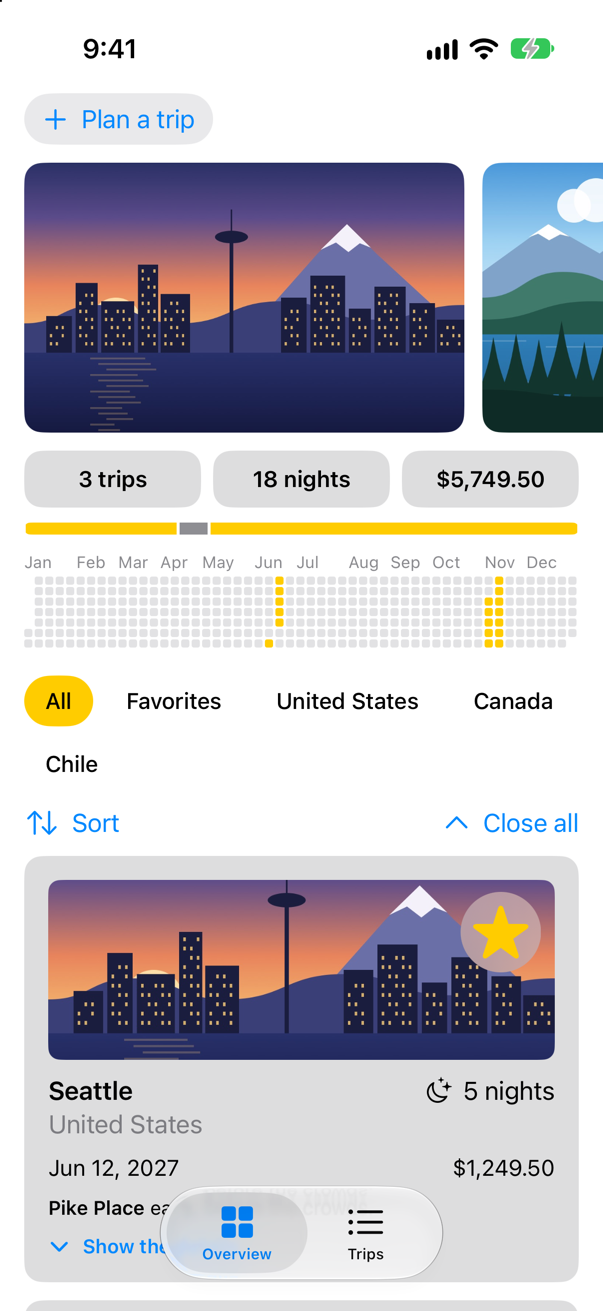
Apple adds what the modifier does not do: it "only arranges for the geometry of the views to be linked, not their rendering." The two views still arrive and leave with their transitions — by default a fade — while their frames travel together. That is why the moving picture can look, halfway, like one photo fading into the other.
A star that bounces
For an animation with more than two stages, SwiftUI has keyframes. keyframeAnimator(initialValue:trigger:content:keyframes:) animates a value of your own along a timeline whenever trigger changes; the content closure applies the value to the view. The favorite star grows to 1.4 times its size in a spring and settles back — every time isFavorite changes. In FavoriteButton.swift:
struct FavoriteButton: View { @Binding var isFavorite: Bool @Environment(\.highlight) private var highlight var body: some View { Button("Favorite", systemImage: isFavorite ? "star.fill" : "star") { isFavorite.toggle() } .labelStyle(.iconOnly) .font(.largeTitle) .tint(highlight) .keyframeAnimator(initialValue: 1.0, trigger: isFavorite) { content, scale in content.scaleEffect(scale) } keyframes: { _ in SpringKeyframe(1.4, duration: 0.15) SpringKeyframe(1.0, duration: 0.3) } }}struct FavoriteButton: View {
@Binding var isFavorite: Bool
@Environment(\.highlight) private var highlight
var body: some View {
Button("Favorite", systemImage: isFavorite ? "star.fill" : "star") {
isFavorite.toggle()
}
.labelStyle(.iconOnly)
.font(.largeTitle)
.tint(highlight)
.keyframeAnimator(initialValue: 1.0, trigger: isFavorite) { content, scale in
content.scaleEffect(scale)
} keyframes: { _ in
SpringKeyframe(1.4, duration: 0.15)
SpringKeyframe(1.0, duration: 0.3)
}
}
}Run the app, scroll to Vancouver, and tap its star:
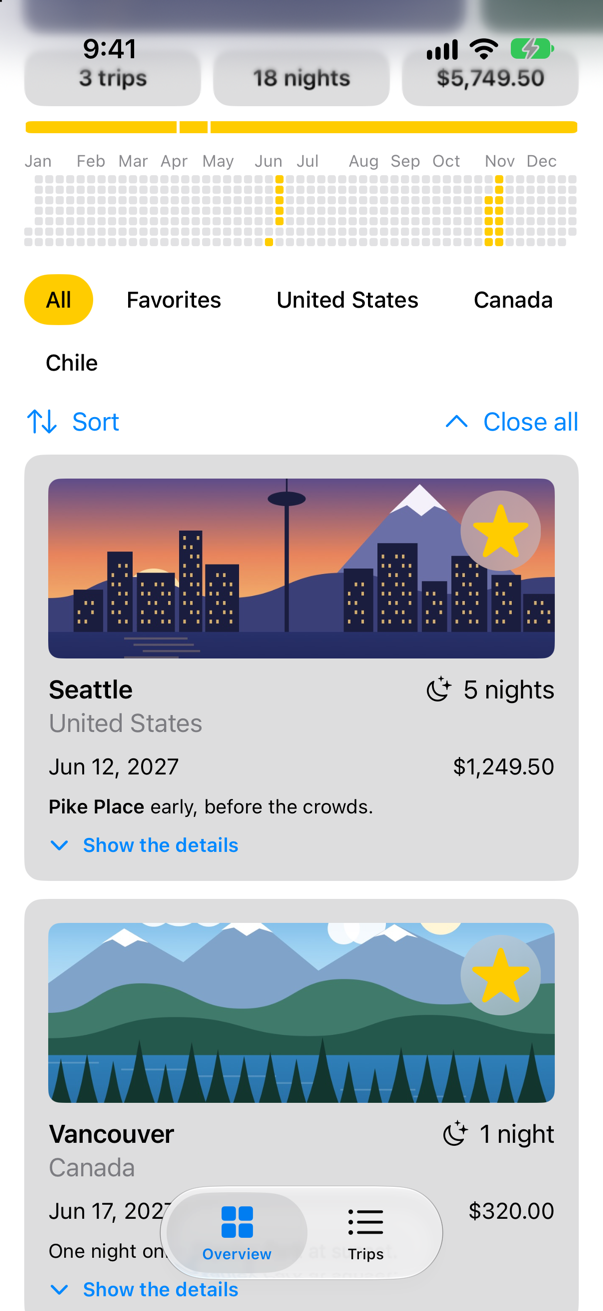
The star filled, and bounced on the way — a picture taken after the tap shows only where it ended. Keyframes run on their own clock: they are not an animation of state, so withAnimation does not change them. An edge case slows a set down to catch it at its largest.
What you built
- A transition for the details: moving down from the top, combined with a fade.
- A photo that grows out of its thumbnail with
matchedGeometryEffect, and shrinks back. - A star that bounces with
keyframeAnimator.
That is Part 8. Below the cards and the edge cases is its interview problem. Next, Part 9 begins, with controls and forms: Trips gets a settings screen.
The finished project
Stuck, or want to compare with your own? This is the project as it stands at the end of this lesson, built and run before it was put here.
- Trips-lesson-29.zip — unzip it, then open
Trips.xcodeprojin Xcode.
Flash cards
17 cards for this lesson, each labelled with its topic. 10 ask how you would write something; the other 7 are trick questions, written to catch a misunderstanding. Answer in your head first, then tap the card.
Syntax · TransitionsSay how a view arrives and leaves.
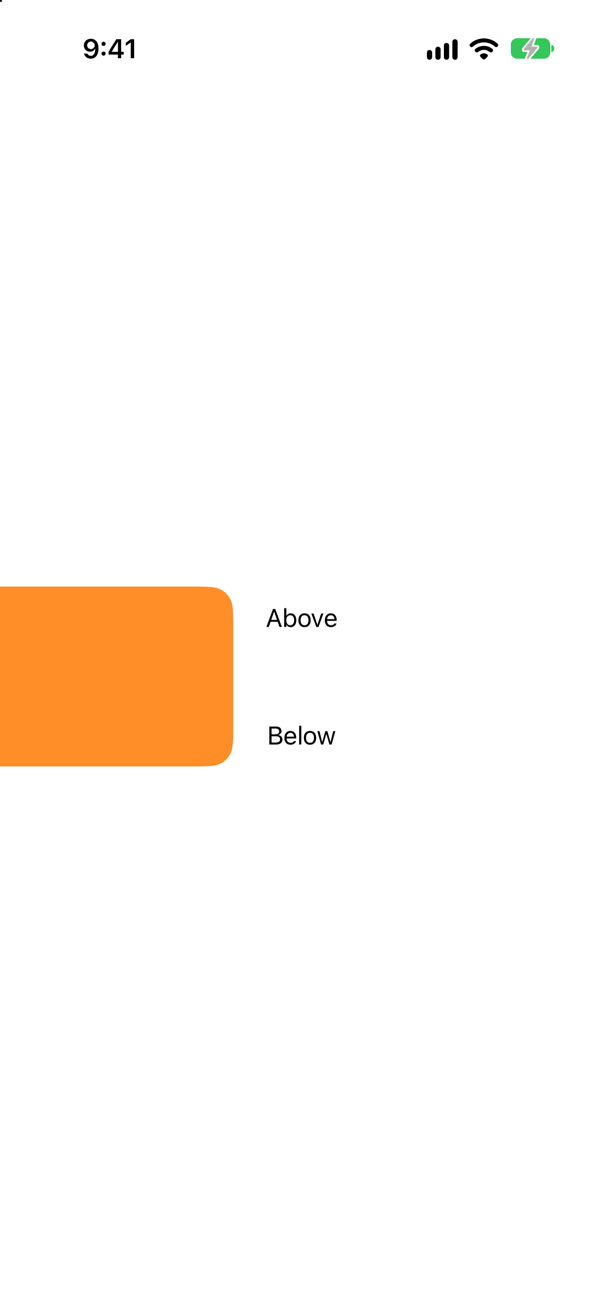
.transition(_:) on the view that is inserted or removed — here inside an if. The picture is partway through: the card sliding in from beyond the left edge, the texts moving apart.
Syntax · TransitionsTwo transitions at once: move and fade.
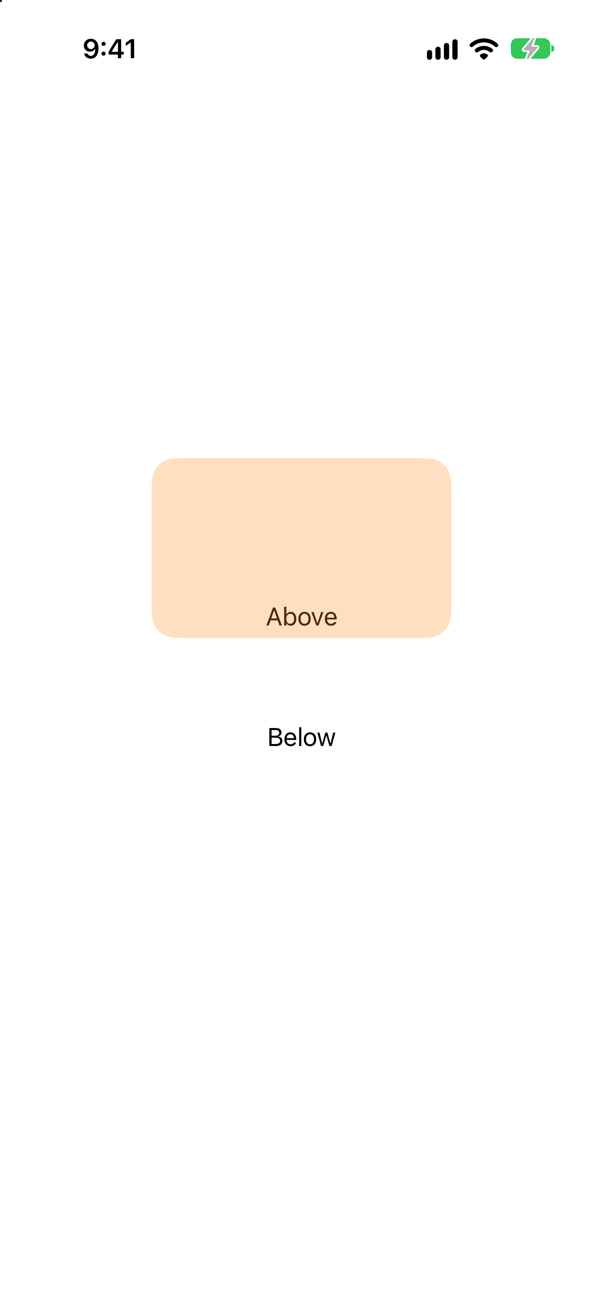
.combined(with:) joins transitions: both happen together. Built in: .opacity, .scale, .slide, .move(edge:), .offset, .push(from:), .blurReplace.
Syntax · TransitionsOne transition for arriving, another for leaving.

.asymmetric(insertion:removal:). The picture is the arrival, partway: growing from nothing. When it leaves, it will slide off to the right instead.
Syntax · Matched geometryMake one view seem to move and grow into another.
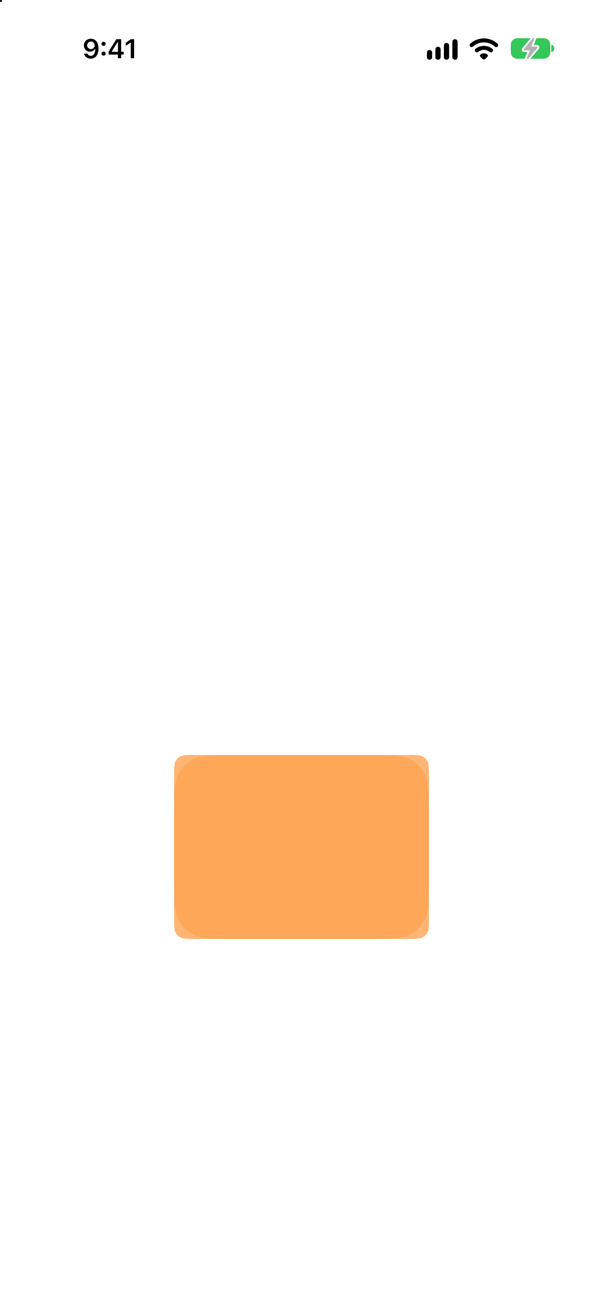
The same matchedGeometryEffect(id:in:) on both views, in a @Namespace the view owns, with one removed and the other inserted in the same animation. The picture is partway: one card on its way up and growing.
Syntax · KeyframesRun a value along a timeline of keyframes whenever something changes.

keyframeAnimator(initialValue:trigger:content:keyframes:). Each change of trigger runs the keyframes; LinearKeyframe, SpringKeyframe, CubicKeyframe and MoveKeyframe shape each segment. Slowed to six seconds, the picture caught the star near its largest.
Syntax · KeyframesCycle a view through a list of looks, over and over.
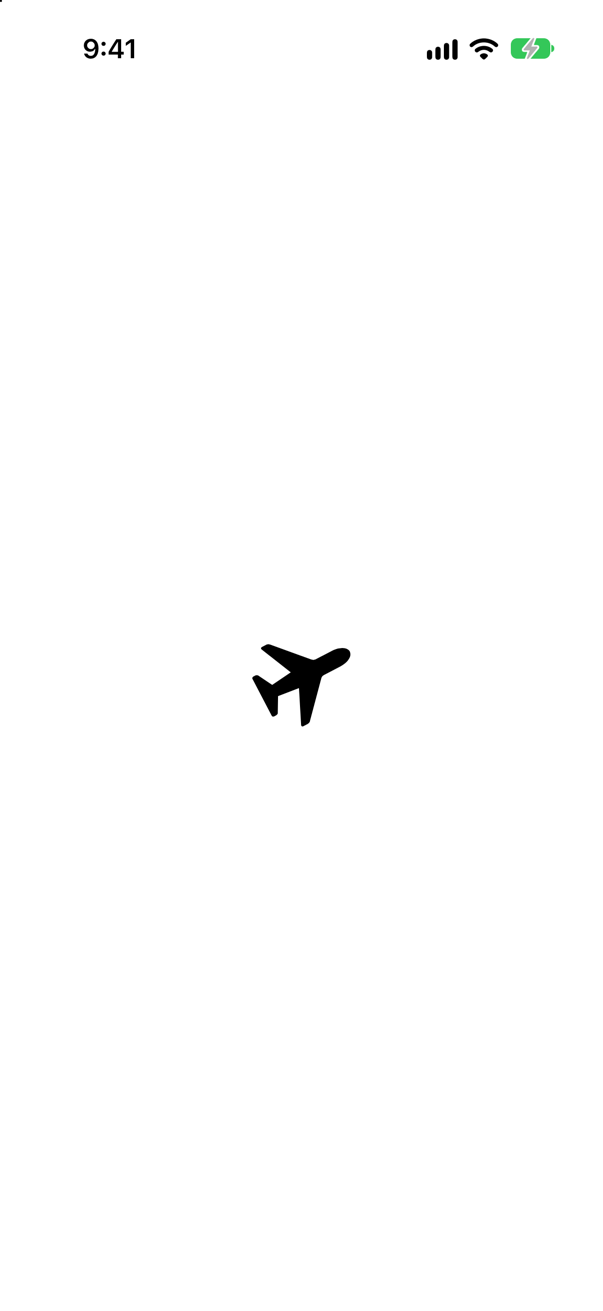
phaseAnimator(_:content:): the view animates from one phase to the next, and without a trigger it never stops. With trigger: it moves one phase per change instead.
Syntax · TransitionsKeep a leaving view in front of the others while it goes.
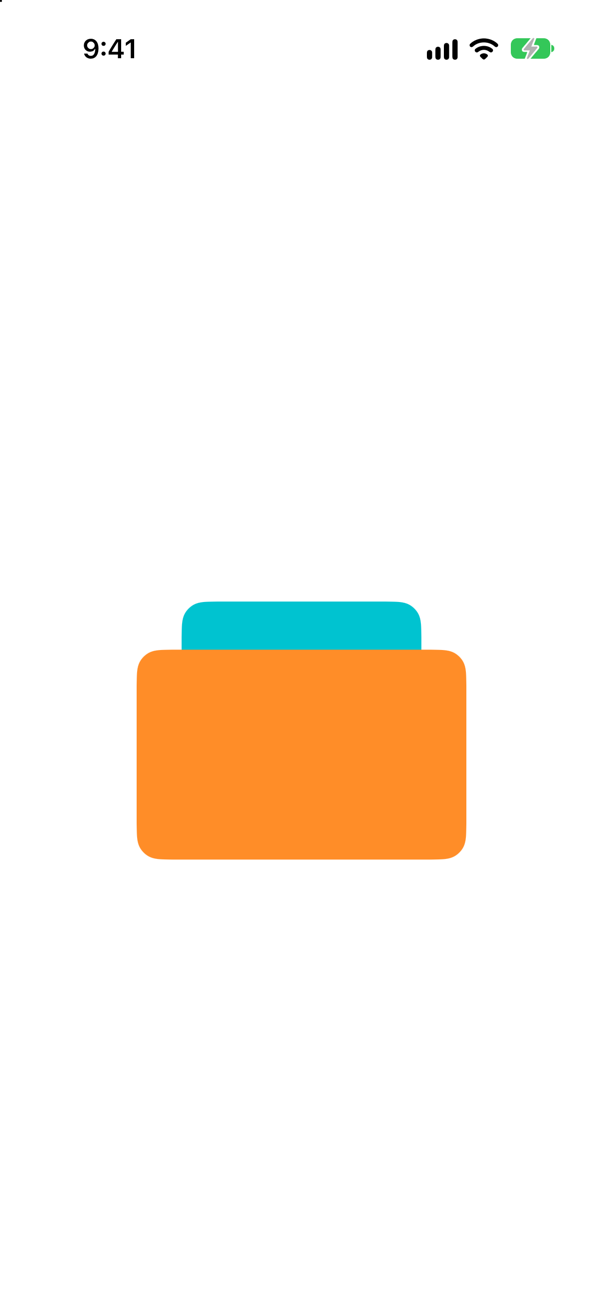
.zIndex(_:). Without it, a view leaving a ZStack slides out behind the others (an edge case shows it); with it, the orange card stays on top all the way out.
Syntax · TransitionsA view that pushes in from the bottom, the way a new page does.
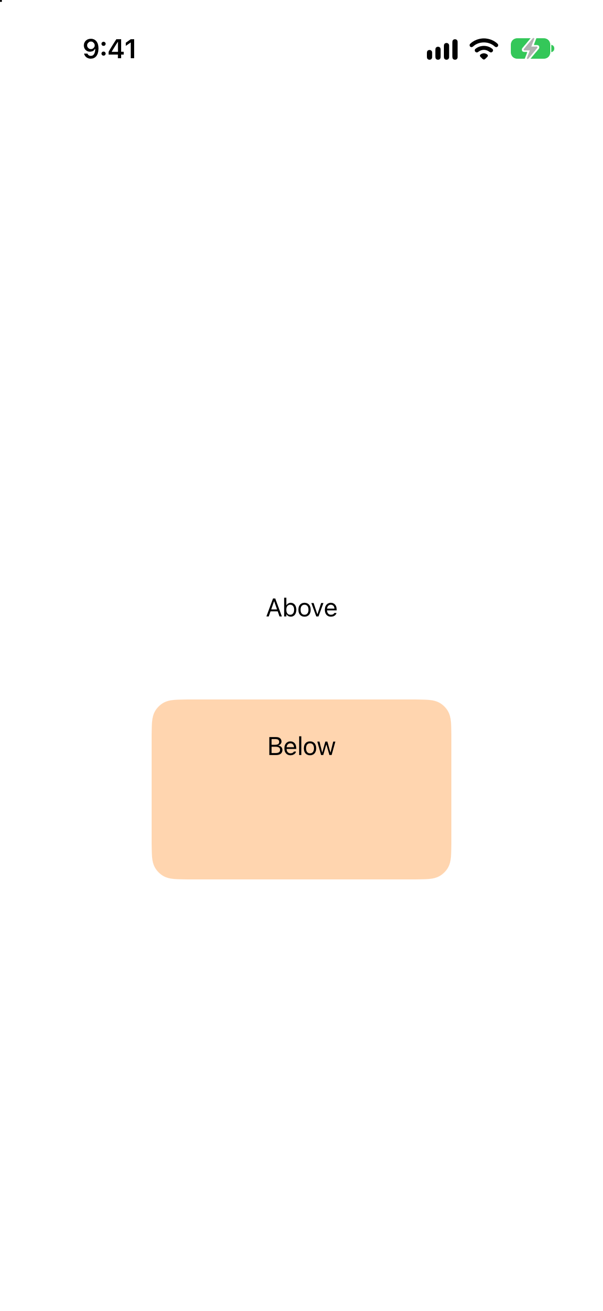
.push(from:): the view moves in from that edge while fading in, and leaves toward the opposite edge. The picture is partway in.
Syntax · TransitionsA view that arrives out of a blur.

.blurReplace (iOS 17): the view sharpens out of a blur as it arrives, and blurs away as it leaves. Partway in, in the picture.
Syntax · KeyframesMake an SF Symbol bounce when a value changes.

.symbolEffect(_:value:) (iOS 17), for SF Symbols only: .bounce, .pulse, .wiggle and more, each run when the value changes. A ready-made alternative to writing keyframes for a symbol.
Trick question · TransitionsA card inside if shown has .transition(.move(edge: .leading)). shown = true is set without withAnimation. Does the card slide in?
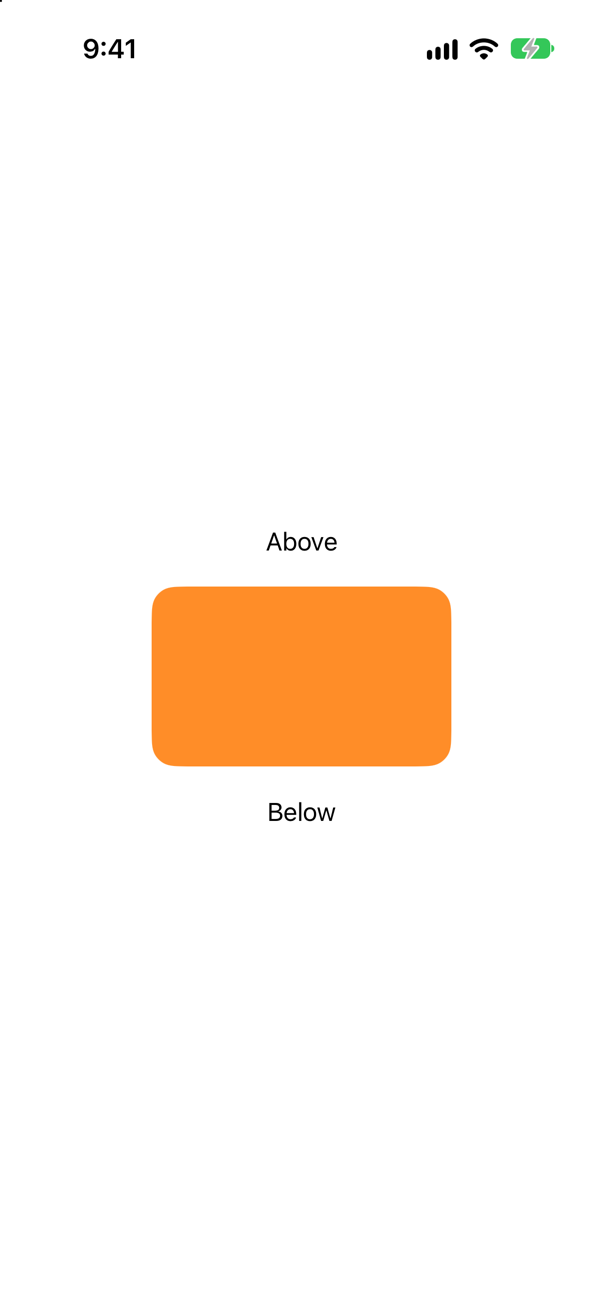
No — it is just there. A transition is the way a view is animated in or out, so it needs an animation to happen inside: withAnimation, or an .animation(_:value:) above the if. Without one, the picture shows the card already in place.
Trick question · TransitionsA rectangle that is always on the screen has .transition(.move(edge: .leading)). Its color changes inside withAnimation. Does it slide?
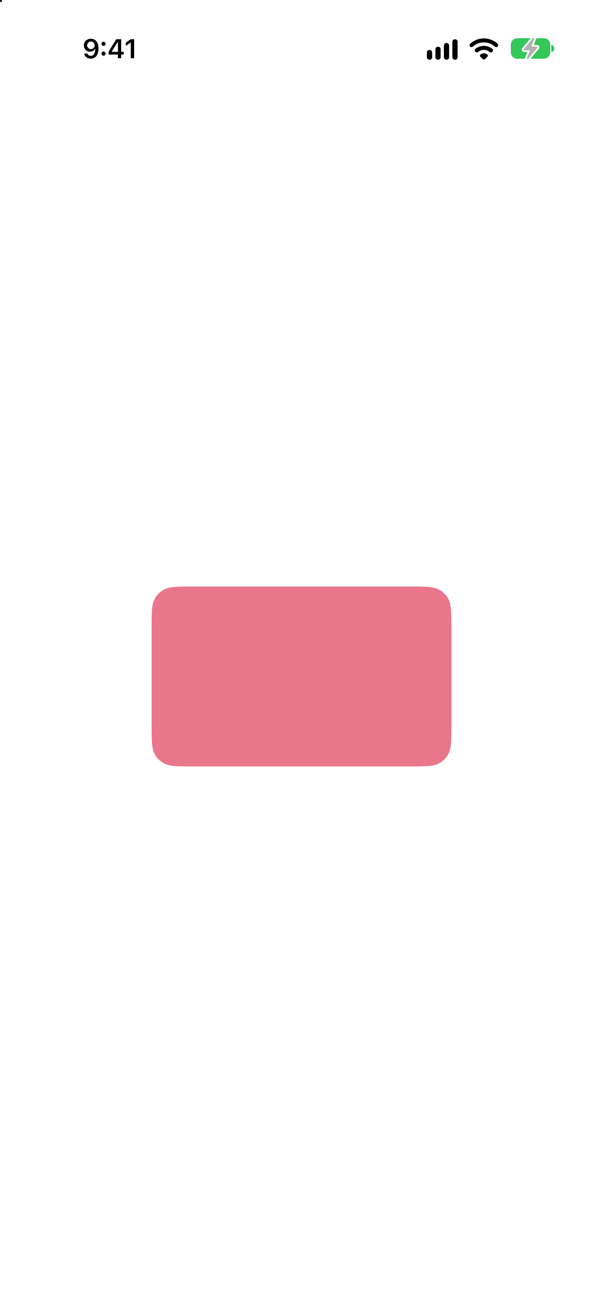
No. A transition applies only when a view is inserted or removed. This one stays, so its color animates (partway to purple, in the picture) and the transition never runs.
Trick question · TransitionsText(city).id(city).transition(.opacity), and city changes from Seattle to Vancouver inside withAnimation. What happens to the text?

The old text leaves and a new one arrives — both are on the screen at once, partway. A new id is a new view (lesson 20): the old one is removed and the new one inserted, so the transition runs. .id is the way to make a change transition instead of animate.
Trick question · TransitionsIn a ZStack, an orange card is declared after a teal one, so it is in front. It is removed with .transition(.move(edge: .bottom)). On its way out, is it in front of the teal card or behind it?
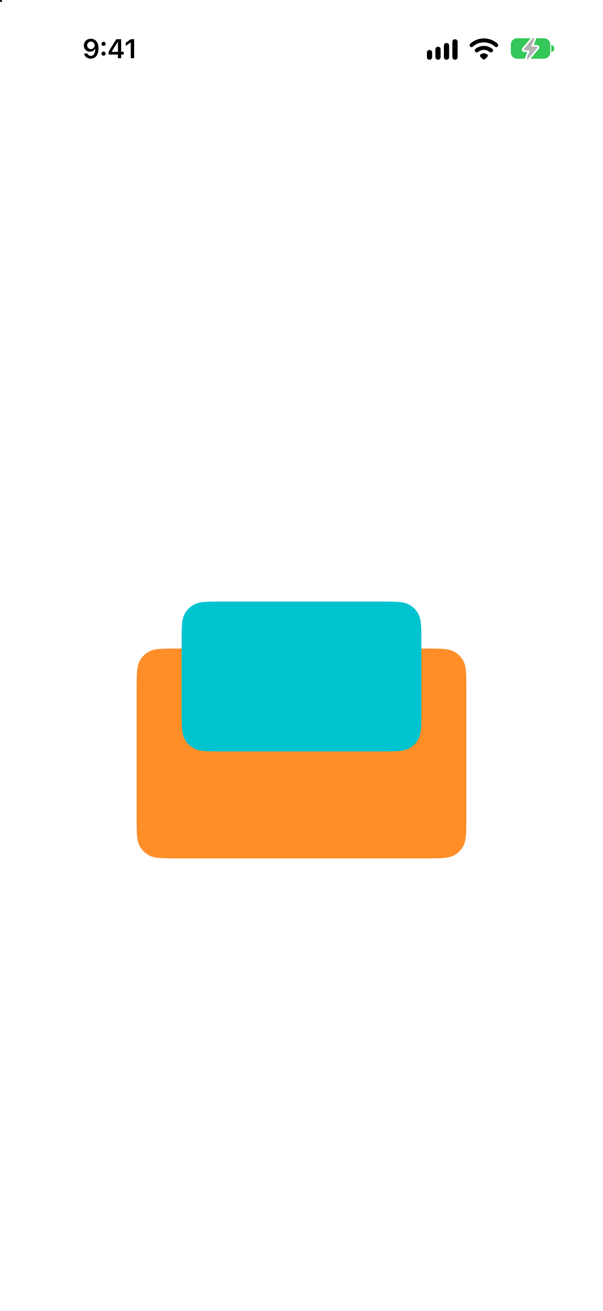
Behind. A view on its way out loses its place among the others, and the teal card is drawn over it — the picture shows it sliding down underneath. Give the leaving view .zIndex(1) to keep it in front.
Trick question · Matched geometryTwo circles, both on the screen, both with .matchedGeometryEffect(id: "dot", in: space). What does SwiftUI do?
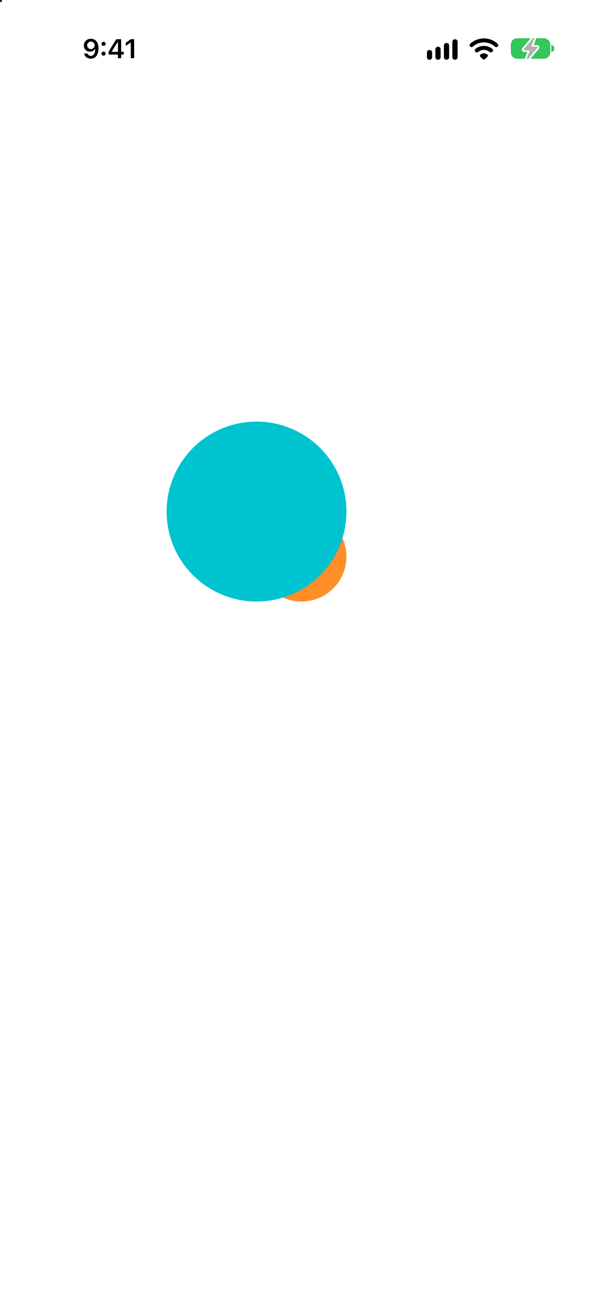
It logs that the result is undefined — "Multiple inserted views in matched geometry group Pair<String, ID>(first: "dot", second: SwiftUI.Namespace.ID(id: 7)) have isSource: true, results are undefined." — and draws the circles on top of each other. Two views in a group may both be on screen only if one says isSource: false.
Trick question · TransitionsA VStack has .animation(.linear(duration: 6), value: shown), and inside it a card in if shown with a transition. shown = true is set with no withAnimation. Does the card transition?
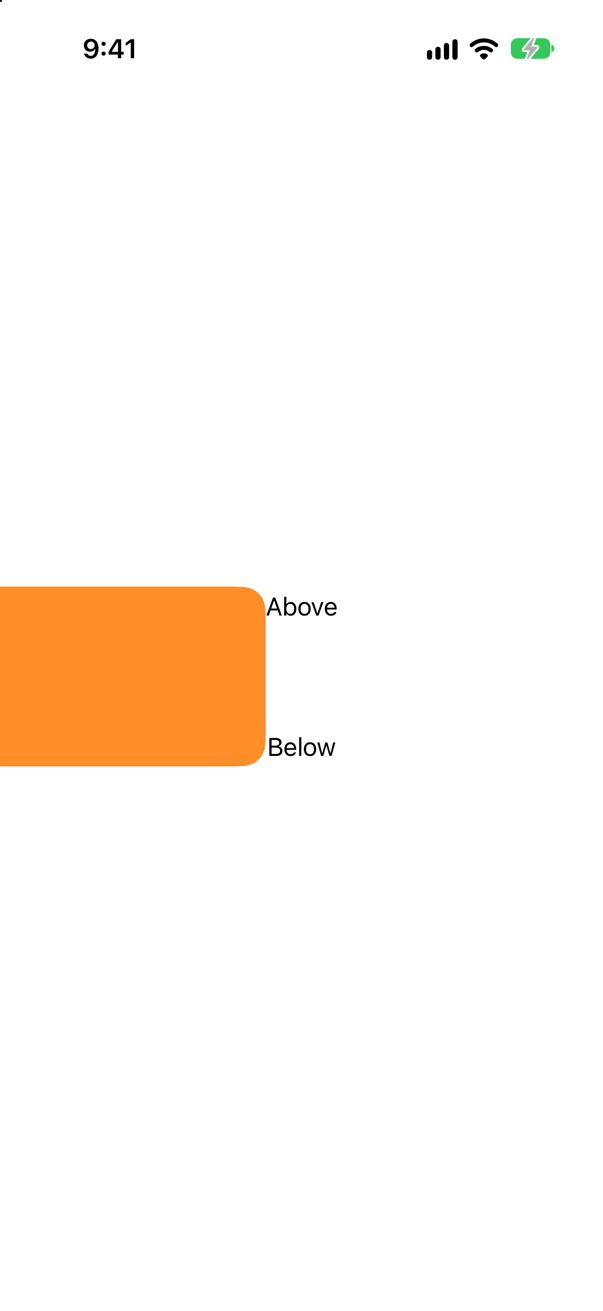
Yes — partway in, in the picture. The .animation(_:value:) above the if animates every change that shown causes inside it, the insertion included. Either kind of animation drives a transition.
Trick question · TransitionsA view with .transition(.slide) arrives from the leading edge. Which way does it leave?

Toward the trailing edge — it keeps going the way it came, rather than going back. Apple: "A transition that inserts by moving in from the leading edge, and removes by moving out towards the trailing edge." The picture is partway out, to the right.
Edge cases and tricky questions
10 questions of the kind an interviewer uses to find out whether you really know this — the corners, the traps, and the things that changed recently. Each has its source. Wherever the answer is what some code does, that code was compiled and run, and what you see under “Show the answer” is what it really did. Say your answer aloud before you open it.
A card appears inside if shown with .transition(.move(edge: .leading)). Once shown = true is set plainly, once inside withAnimation. Partway through, what does each show?
Show the answer
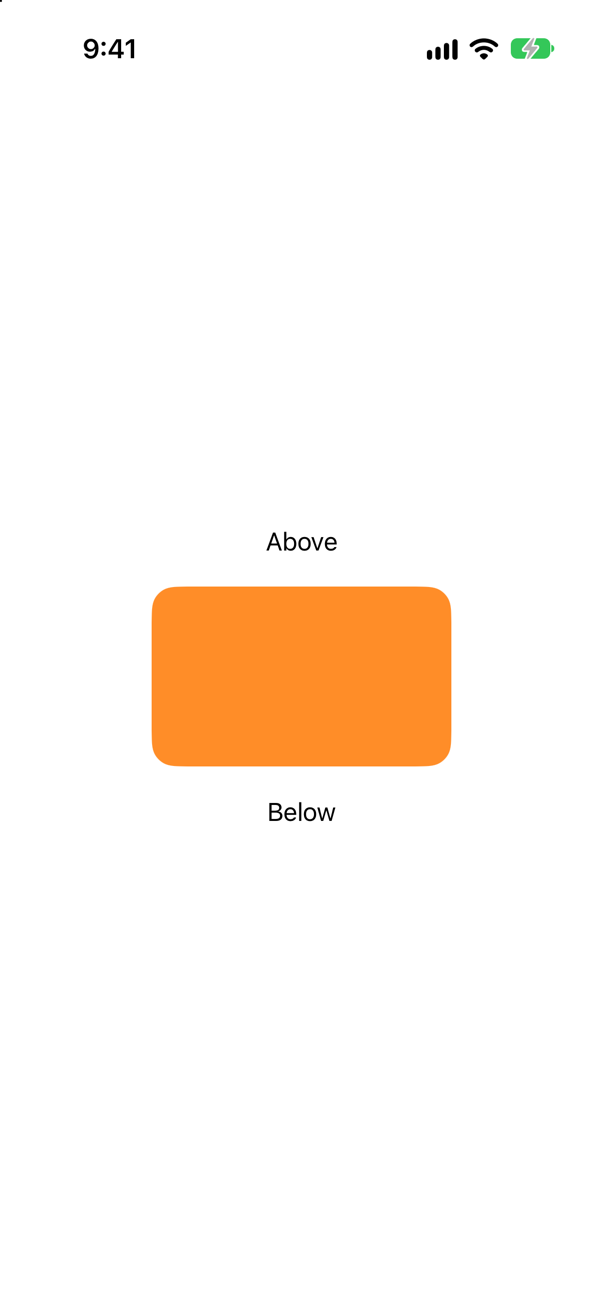
Plainly set, the card is already in place; with withAnimation, it is sliding in. The transition says how a view arrives, but only an animation makes it arrive gradually. Apple: "When this view appears or disappears, the transition will be applied to it, allowing for animating it in and out" — allowing, when there is an animation to do it in:
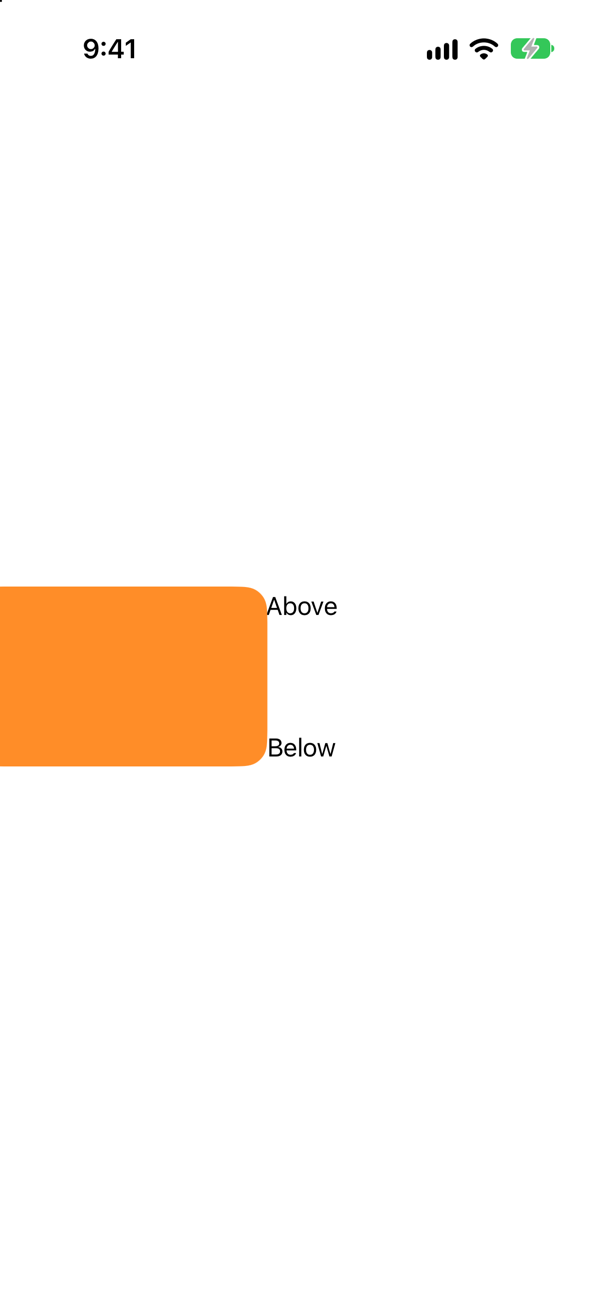
Notice the move starts beyond the edge of the screen: .move(edge: .leading) brings the view in from outside the leading edge, not from a few points away. And Above and Below moved apart smoothly too — their positions are ordinary animated values.
Where this comes from: transition(_:) — Measured on an iPhone 17 simulator, both pictures at the same moment of a six-second animation.
No withAnimation anywhere — shown = true is set plainly — but the VStack around the if has .animation(.linear(duration: 6), value: shown). Does the card's transition play?
Show the answer
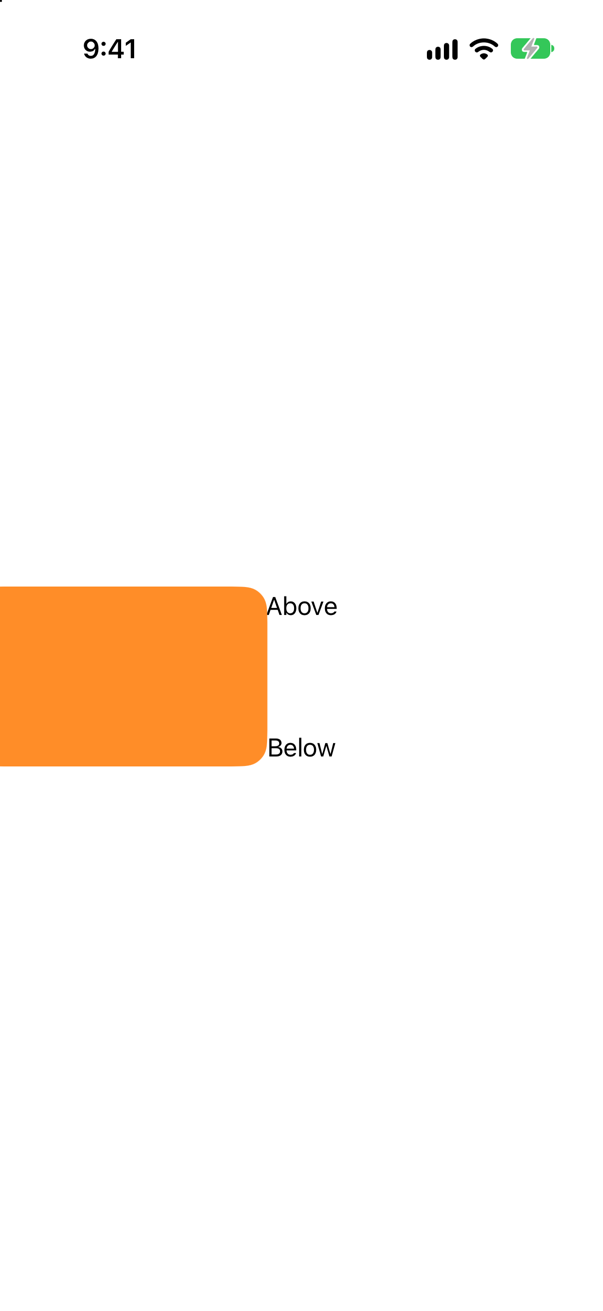
Yes. .animation(_:value:) animates every change inside the view it modifies that happens when shown changes — and inserting the card is such a change. So a transition can be driven from either place: withAnimation where the state changes, or .animation(_:value:) on a container of the view that comes and goes.
The modifier must sit on something that stays: on the card itself, inside the if, it would arrive together with the card and have nothing to animate from.
Where this comes from: transition(_:) · animation(_:value:) — Measured on an iPhone 17 simulator.
A rectangle that is always on the screen has .transition(.move(edge: .leading)). withAnimation changes its color. What happens?
Show the answer
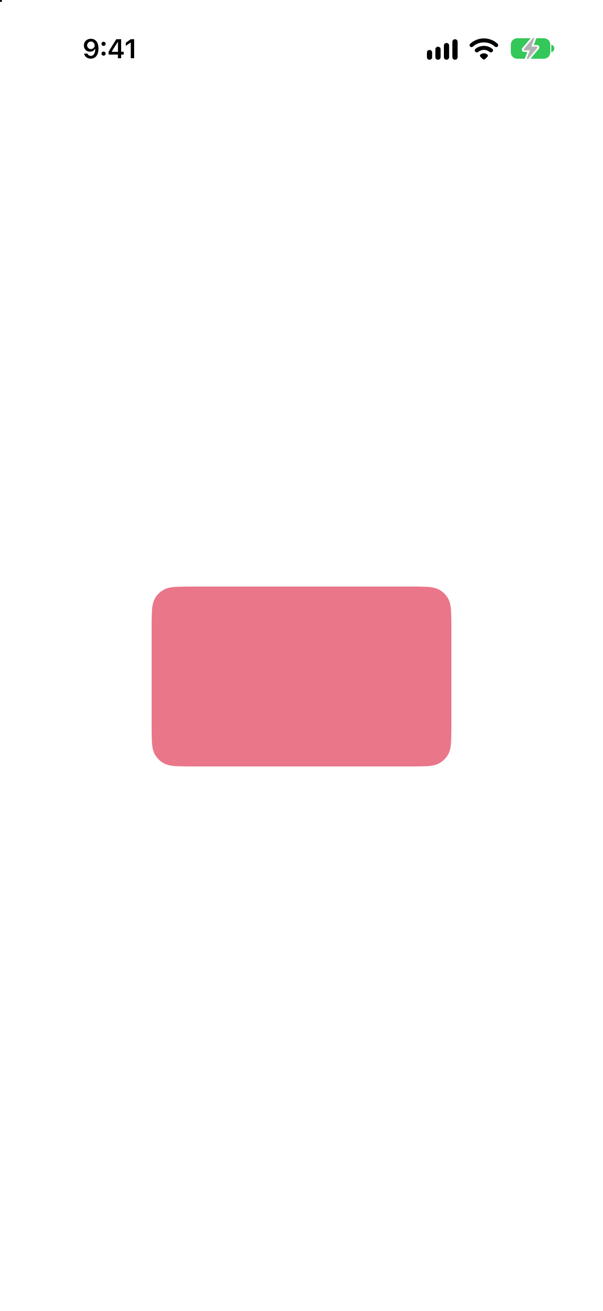
The color animates; the transition never runs. Transitions belong to insertion and removal, and this view is neither inserted nor removed — it stays, and its fill animates like any value.
Keep the two ideas apart, as the lesson says: an animation changes a value on a view that stays; a transition happens when a view enters or leaves. Problem V, below, is built on confusing them.
Where this comes from: transition(_:) — Measured on an iPhone 17 simulator.
A Text(city) should slide the new name in when city changes, rather than cross-fade in place. What makes a change of the same view use a transition?
Show the answer

A new identity: .id(city). When city changes, the id changes, and to SwiftUI that is a different view — lesson 20's lesson. The old text is removed and the new one inserted, so each runs the transition, and both are on screen together partway through.
It is the deliberate version of the bug in Problem V: there, an if/else changes identity by accident and a card cross-fades instead of growing; here, the identity is changed on purpose to get a transition. Apple warns against the reverse inside a custom transition — it "should not use any identity-affecting changes like .id, if, and switch on the content".
Where this comes from: Transition · id(_:) — Measured on an iPhone 17 simulator.
"Checked in" should grow into view, but leave by sliding off to the right. How, and what does each half look like?
Show the answer


.asymmetric(insertion: .scale, removal: .move(edge: .trailing)). Apple: it "Provides a composite transition that uses a different transition for insertion versus removal." The two pictures are the same view, seven seconds apart: once on its way in, once on its way out.
Most built-in transitions are symmetric — the view leaves the way it came. .slide is the exception that people trip over; Apple: "A transition that inserts by moving in from the leading edge, and removes by moving out towards the trailing edge."
Where this comes from: asymmetric(insertion:removal:) · transition(_:) · slide — Measured on an iPhone 17 simulator.
In a ZStack, an orange card is declared after a teal one, so it is drawn in front. It is removed with .transition(.move(edge: .bottom)). On its way out, which card is on top — and how do you keep the orange one in front?
Show the answer
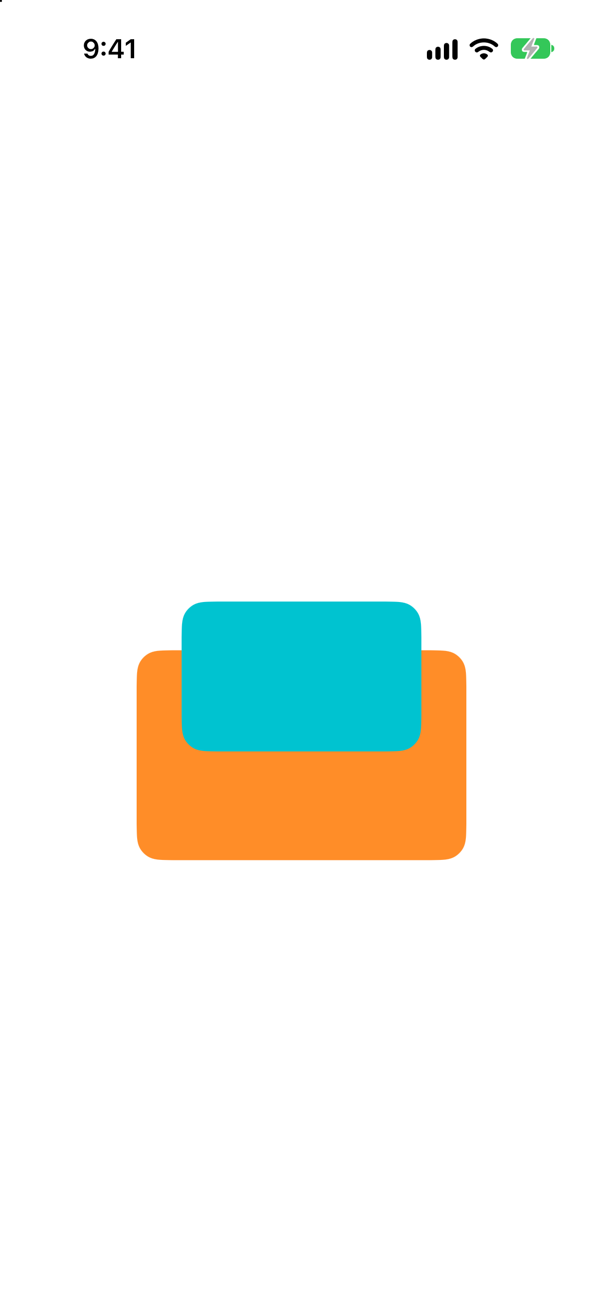
The teal card. While the orange card was on the screen its place in the ZStack put it in front, but once it is being removed it no longer has that place, and SwiftUI draws it beneath the views that stay. The fix is an explicit order:
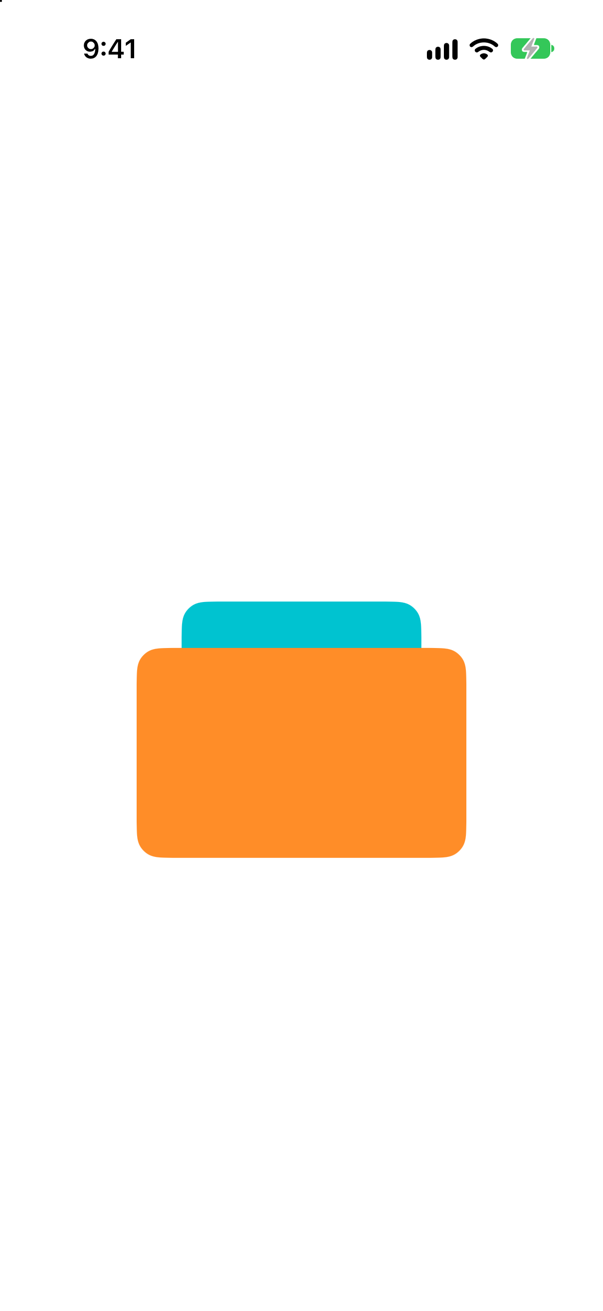
Apple: zIndex "Controls the display order of overlapping views" — and unlike the order of declaration, it travels with the view as it leaves. A card dismissed by sliding down over a list is the everyday case.
Where this comes from: zIndex(_:) · transition(_:) — Measured on an iPhone 17 simulator, both pictures at the same moment of a six-second removal.
Two circles, both on the screen, share .matchedGeometryEffect(id: "dot", in: space). What happens?
Show the answer
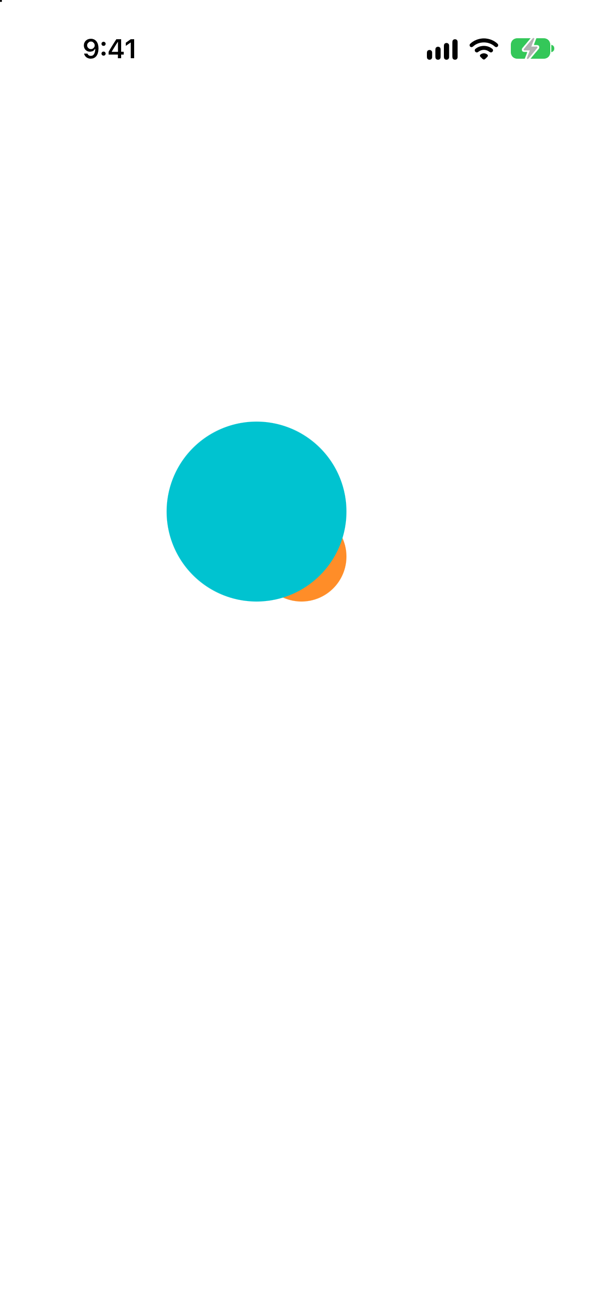
SwiftUI warns, and the result is undefined. The log:
SwiftUI wrote this while the app ran
Multiple inserted views in matched geometry group Pair<String, ID>(first: "dot", second: SwiftUI.Namespace.ID(id: 7)) have `isSource: true`, results are undefined.Apple: "If the number of currently-inserted views in the group with isSource = true is not exactly one results are undefined, due to it not being clear which is the source view." Here both took the same geometry and ended up stacked. The normal use has only one of the pair on screen at a time — removed and inserted in one animation, as this lesson's photo — and when both must show, all but one get isSource: false.
Where this comes from: matchedGeometryEffect(id:in:properties:anchor:isSource:) — The warning is SwiftUI's own, read from the simulator's log.
A small card at the bottom is removed and a large one at the top inserted, in one six-second animation, sharing a matchedGeometryEffect. Partway through, what is on the screen?
Show the answer
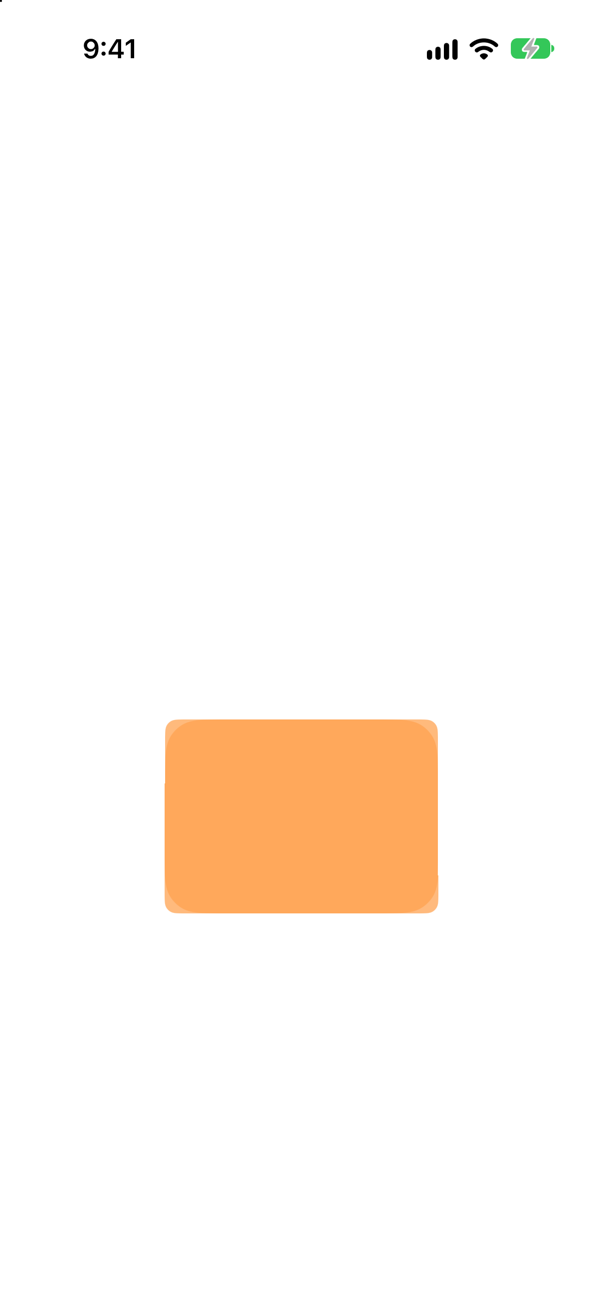
One card in between — in between in size, in position, and in opacity. Apple: "the system will interpolate their frame rectangles in window space to make it appear that there is a single view moving from its old position to its new position. The usual transition mechanisms define how each of the two views is rendered during the transition (e.g. fade in/out, scale, etc), the matchedGeometryEffect() modifier only arranges for the geometry of the views to be linked, not their rendering."
So the two views travel together, the old one fading out and the new one fading in on the way — the paler card in the picture. When the two look different (a thumbnail and a full card with text), give them transitions that suit them; the frames will still move as one.
Where this comes from: matchedGeometryEffect(id:in:properties:anchor:isSource:) · Namespace — Measured on an iPhone 17 simulator, partway through a six-second animation.
A star's keyframeAnimator grows it to 2.5 times its size over 3 seconds and back over 3 more, triggered by a counter. Partway through, how big is it — and does withAnimation affect it?
Show the answer

Much bigger — following its own timeline. The trigger changed with a plain taps += 1, no withAnimation, and the keyframes ran anyway: a keyframe animator times itself from its keyframes, not from a transaction. Apple notes that its content closure "updates every frame while animating, so avoid performing any expensive operations directly within content." At the end it is back to normal size:

Keyframes suit effects that are not a change of state — a bounce, a shake, a pulse — which is why this lesson's star uses them. For a value that should end somewhere new, use an ordinary animation of state.
Where this comes from: KeyframeAnimator — Measured on an iPhone 17 simulator.
A phase animator turns a plane through 0°, 40° and −40°, two seconds for each move, with no trigger:. Two pictures a second apart: the same?
Show the answer
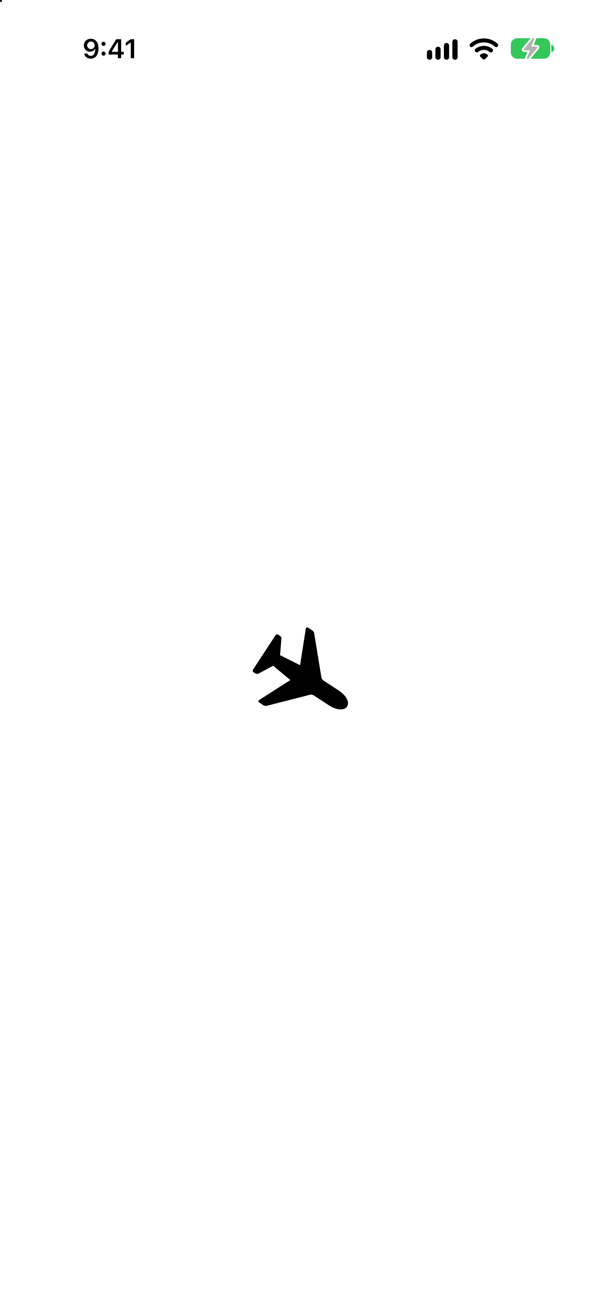
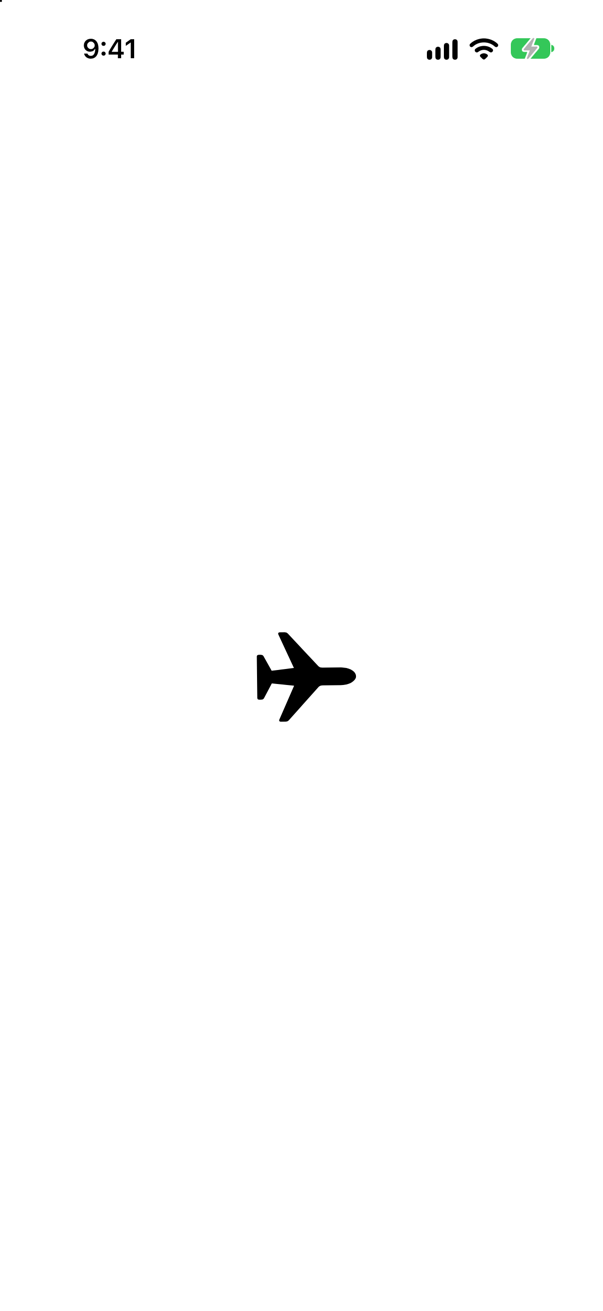
No — it is always on its way somewhere. Without a trigger, a phase animator moves on to the next phase as soon as it reaches one, and after the last starts again from the first, for as long as the view is on screen. Apple: it "Animates effects that you apply to a view over a sequence of phases that change continuously." With trigger:, "when the value of the trigger input changes, the modifier provides its content closure with the value of the second phase", and it stops there until the next change.
A forever-running animation keeps the screen redrawing; give it a trigger unless it is meant to draw the eye all the time — and remember the people who turn on Reduce Motion (lesson 51).
Where this comes from: phaseAnimator(_:trigger:content:animation:) · phaseAnimator(_:content:animation:) — Measured on an iPhone 17 simulator: the two pictures show the plane at different angles.
Further reading
- Animations
- WWDC23: Wind your way through advanced animations
- Hacking with Swift: matchedGeometryEffect (updated for Xcode 16.4)
The card that fades instead of growing
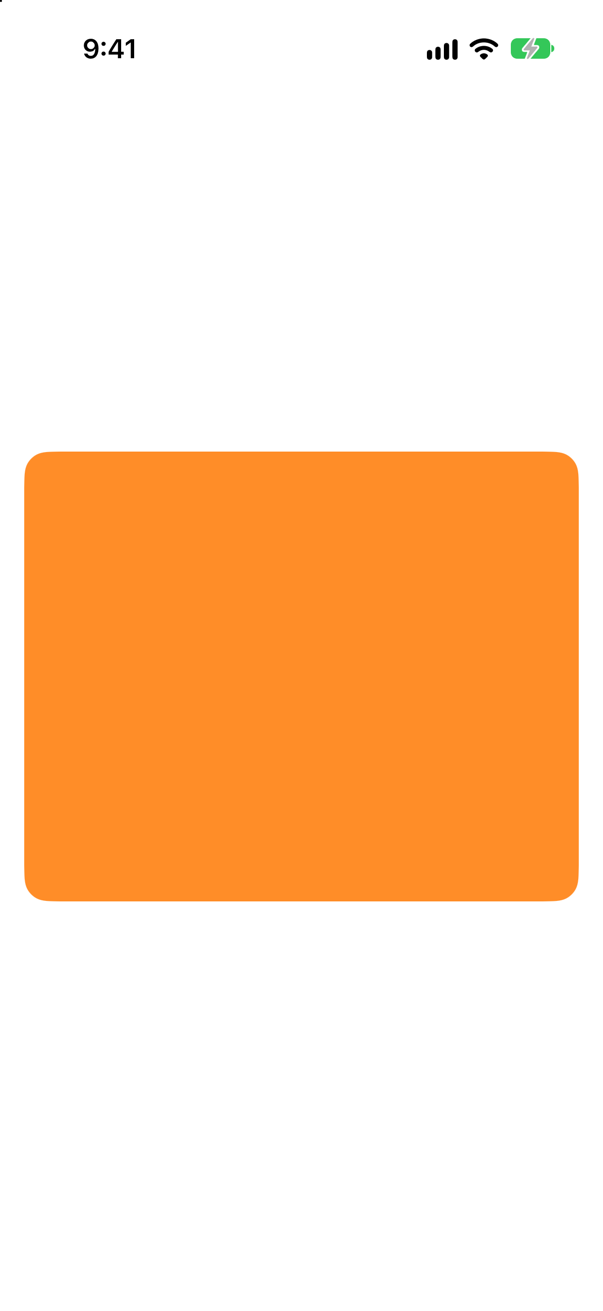
“Design wants this card to grow smoothly when tapped. Instead it cross-fades between two sizes. Why? And what is the one idea behind the fix?”

Where this comes from: Senior iOS Interview Preparation (GitHub) · WWDC21: Demystify SwiftUI (2021 — still the reference on identity)
Show the answer
To SwiftUI, the two branches of an if/else are two different views. Toggling removes one and inserts the other, and the default transition for removal and insertion is a fade. Nothing was ever asked to change size.

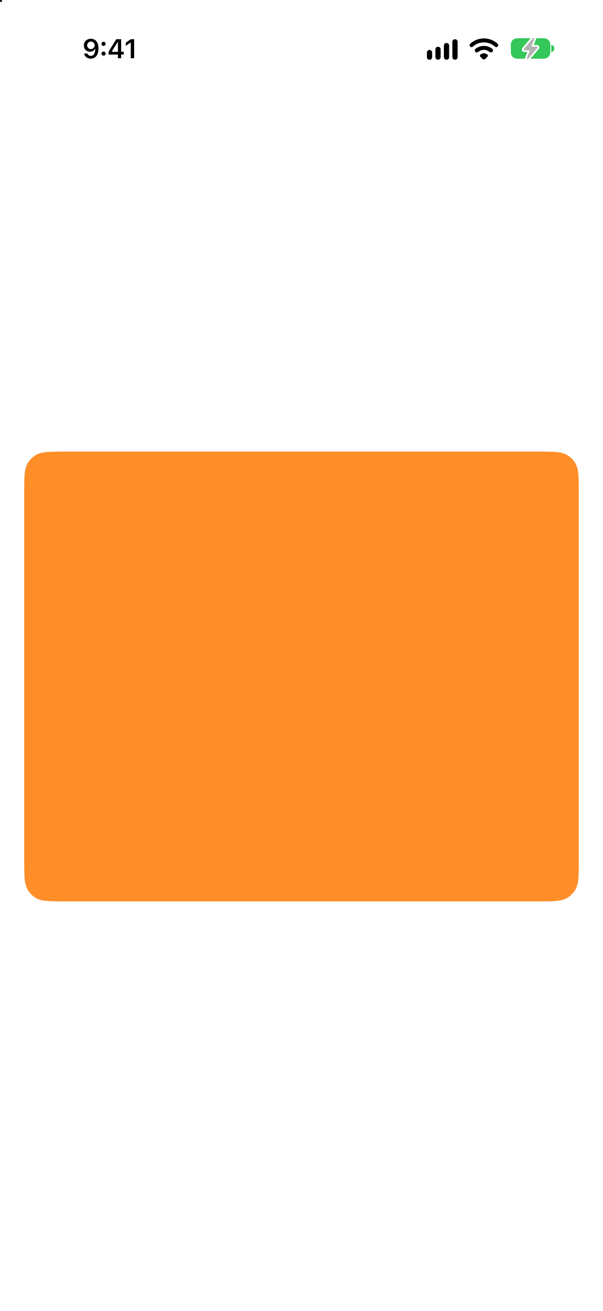
The one idea: an animation interpolates a value on a view whose identity stays the same. Change the identity and you get a transition instead. If two genuinely different views must appear to turn into one another, that is what matchedGeometryEffect is for.
What interviewers listen for: The sentence "the identity changed, so I got a transition, not an animation." It shows you know why, and not only the fix.