One star, one card
Performance
You will buildSelf._printChanges() in the trip card, to see what starring one card costs; a GridCard that hands each card its trip as a value, after which the same tap runs one card; the SwiftUI instrument; and a tidy-up. Then Part 12's interview problem.
TimeAbout 45 minutes, then the interview problem
WhyMost SwiftUI performance work comes down to one question: how often does a body run, and how much does it do when it does? A body runs when something it read changed — and, for a subview, when its parent ran and handed it inputs that SwiftUI cannot tell are the same as last time. Lesson 7 met Self._printChanges(); in this lesson it finds a real case in Trips, and the fix is the one interviewers want to hear: give a view values it can compare, keep each update small, and measure again.
Open your project
Open your
Tripsproject as lesson 47 left it: double-clickTrips.xcodeprojin Finder, or use File ▸ Open… (⌘O) in Xcode.If you did not finish lesson 47, or would rather start from a known state, download Trips-lesson-47.zip instead. It is the project exactly as it stood at the end of lesson 47. Unzip it and open
Trips.xcodeproj.Run it (⌘R) to check that it builds. You should see where lesson 47 ended:
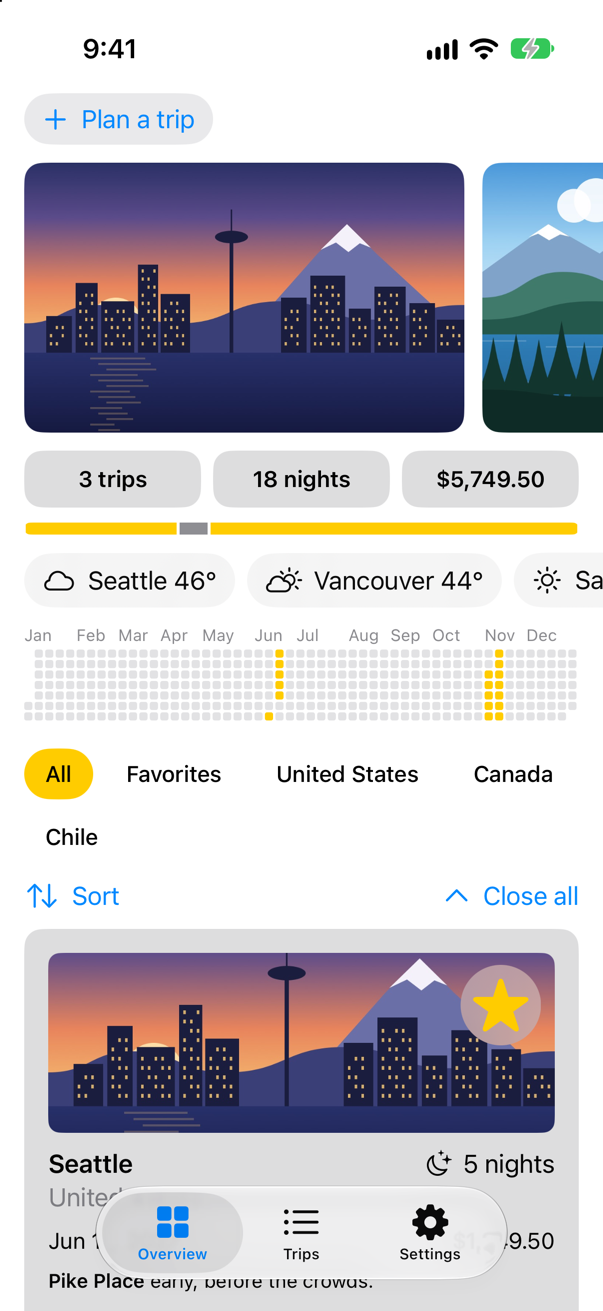
Trips, as it stood at the end of lesson 47Screenshot · iPhone 17, iOS 27.0
Count the cards
Starring a trip on the Overview changes one trip. How many cards does SwiftUI run to show it? Ask the card. Add a first line to body:
struct TripCard: View { @Binding var trip: Trip @State private var showsFacts = false var body: some View { let _ = Self._printChanges() VStack(alignment: .leading, spacing: 10) { Image(trip.imageName) .resizable() .scaledToFill() .frame(height: 120) .clipShape(RoundedRectangle(cornerRadius: 8)) .contentShape(Rectangle()) .overlay(alignment: .topTrailing) { FavoriteButton(isFavorite: $trip.isFavorite) .accessibilityLabel("Favorite \(trip.city)") .padding(6) .background(.ultraThinMaterial, in: Circle()) .padding(8) } ViewThatFits(in: .horizontal) { HStack(alignment: .firstTextBaseline) { title Spacer() nights } VStack(alignment: .leading, spacing: 4) { title nights } } ViewThatFits(in: .horizontal) { HStack { start Spacer() price } VStack(alignment: .leading, spacing: 4) { start price } } .font(.subheadline) Text(trip.formattedNotes) .font(.footnote) Button(showsFacts ? "Hide the details" : "Show the details", systemImage: showsFacts ? "chevron.up" : "chevron.down") { withAnimation { showsFacts.toggle() } } .font(.footnote.weight(.semibold)) .accessibilityLabel(showsFacts ? "Hide the details of \(trip.city)" : "Show the details of \(trip.city)") if showsFacts { TripFacts(trip: trip) .font(.subheadline) .transition(.move(edge: .top).combined(with: .opacity)) } } .padding() .background(.quaternary, in: RoundedRectangle(cornerRadius: 12)) .padding(.horizontal) } private var title: some View { VStack(alignment: .leading, spacing: 2) { Text(trip.city) .font(.headline) Text(trip.country) .foregroundStyle(.secondary) } } private var nights: some View { Label("^[\(trip.nights) night](inflect: true)", systemImage: "moon.stars") } private var start: some View { Text(trip.start, format: .dateTime.day().month().year()) } private var price: some View { Text(trip.price, format: .currency(code: "USD")) }}struct TripCard: View {
@Binding var trip: Trip
@State private var showsFacts = false
var body: some View {
let _ = Self._printChanges()
VStack(alignment: .leading, spacing: 10) {
Image(trip.imageName)
.resizable()
.scaledToFill()
.frame(height: 120)
.clipShape(RoundedRectangle(cornerRadius: 8))
.contentShape(Rectangle())
.overlay(alignment: .topTrailing) {
FavoriteButton(isFavorite: $trip.isFavorite)
.accessibilityLabel("Favorite \(trip.city)")
.padding(6)
.background(.ultraThinMaterial, in: Circle())
.padding(8)
}
ViewThatFits(in: .horizontal) {
HStack(alignment: .firstTextBaseline) {
title
Spacer()
nights
}
VStack(alignment: .leading, spacing: 4) {
title
nights
}
}
ViewThatFits(in: .horizontal) {
HStack {
start
Spacer()
price
}
VStack(alignment: .leading, spacing: 4) {
start
price
}
}
.font(.subheadline)
Text(trip.formattedNotes)
.font(.footnote)
Button(showsFacts ? "Hide the details" : "Show the details", systemImage: showsFacts ? "chevron.up" : "chevron.down") {
withAnimation {
showsFacts.toggle()
}
}
.font(.footnote.weight(.semibold))
.accessibilityLabel(showsFacts ? "Hide the details of \(trip.city)" : "Show the details of \(trip.city)")
if showsFacts {
TripFacts(trip: trip)
.font(.subheadline)
.transition(.move(edge: .top).combined(with: .opacity))
}
}
.padding()
.background(.quaternary, in: RoundedRectangle(cornerRadius: 12))
.padding(.horizontal)
}
private var title: some View {
VStack(alignment: .leading, spacing: 2) {
Text(trip.city)
.font(.headline)
Text(trip.country)
.foregroundStyle(.secondary)
}
}
private var nights: some View {
Label("^[\(trip.nights) night](inflect: true)", systemImage: "moon.stars")
}
private var start: some View {
Text(trip.start, format: .dateTime.day().month().year())
}
private var price: some View {
Text(trip.price, format: .currency(code: "USD"))
}
}Run the app, scroll down to the cards, and tap the star on Vancouver's:
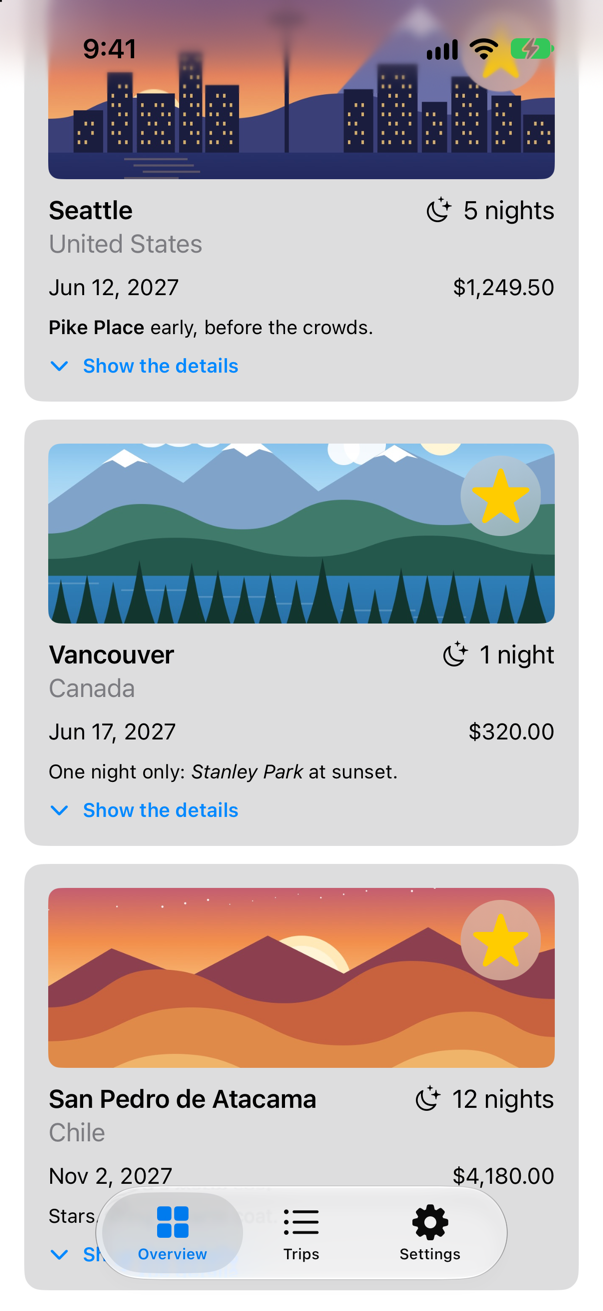
TripCard: @self, _trip changed.
TripCard: @self, _trip changed.
TripCard: @self, _trip changed.
Saved 3 trips: 797 bytes
Three lines, one for each card in the grid — although only Vancouver changed. @self means the card's own value was different from last time, and _trip is its binding. The grid's ForEach($store.trips…) makes a new binding for every card each time the grid's body runs, and SwiftUI cannot see that a new binding leads to the same trip: to it, every card got a new input. With three cards nobody would notice. With three hundred, each with a picture, it is the difference between one card's work and the whole grid's, on every tap.
A card that gets a value
The fix is to give each card something SwiftUI can compare. A trip is a value: if Vancouver's trip is the same as last time, the card made from it is the same. GridCard takes the trip, finds the store in the environment, and makes the binding the card needs inside its own body — which now runs only when its trip changed. Make a new SwiftUI View named GridCard, and replace everything in it:
import SwiftUI

/// A trip's card in the grid. It is given the trip — a value SwiftUI can compare with the last one — and makes the
/// card's binding itself, so that a change to one trip runs only that trip's card.
struct GridCard: View {
    let trip: Trip
    @Environment(TripStore.self) private var store

    var body: some View {
        TripCard(trip: Binding(get: { trip }, set: { store.update($0) }))
    }
}
In the grid, delete @Bindable var store = store at the top of body — the grid no longer makes bindings — and change the ForEach:
import SwiftUI/// The trip cards that pass the filter, in an order that can be changed by dragging.struct TripGrid: View { @Environment(TripStore.self) private var store let filter: TripFilter let closings: Int var body: some View { @Bindable var store = store LazyVGrid(columns: [GridItem(.adaptive(minimum: 300))], spacing: 12) { ForEach($store.trips.filter { filter.includes($0.wrappedValue) }) { $trip in TripCard(trip: $trip) ForEach(store.trips.filter { filter.includes($0) }) { trip in GridCard(trip: trip) } .reorderable() } .reorderContainer(for: Trip.self, isEnabled: filter == .all) { difference in switch difference.destination.position { case .before(let id): store.move(difference.sources, before: id) case .end: store.move(difference.sources, before: nil) } } .id(closings) }}#Preview { ScrollView { TripGrid(filter: .favorites, closings: 0) } .environment(TripStore())}import SwiftUI
/// The trip cards that pass the filter, in an order that can be changed by dragging.
struct TripGrid: View {
@Environment(TripStore.self) private var store
let filter: TripFilter
let closings: Int
var body: some View {
LazyVGrid(columns: [GridItem(.adaptive(minimum: 300))], spacing: 12) {
ForEach(store.trips.filter { filter.includes($0) }) { trip in
GridCard(trip: trip)
}
.reorderable()
}
.reorderContainer(for: Trip.self, isEnabled: filter == .all) { difference in
switch difference.destination.position {
case .before(let id): store.move(difference.sources, before: id)
case .end: store.move(difference.sources, before: nil)
}
}
.id(closings)
}
}
#Preview {
ScrollView {
TripGrid(filter: .favorites, closings: 0)
}
.environment(TripStore())
}Run the app again, and star Vancouver:
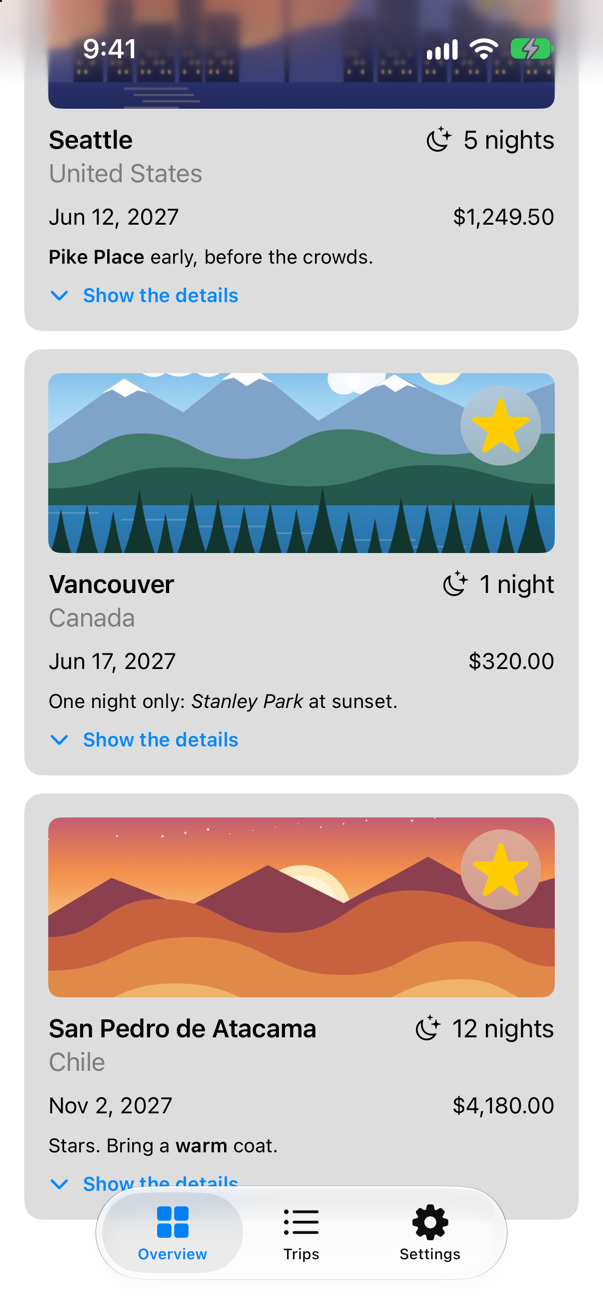
TripCard: @self, _trip changed.
Saved 3 trips: 797 bytes
One line: Vancouver's card. The other two trips were the same as before, so SwiftUI skipped their GridCards, and the cards inside them never ran. Nothing changed on the screen; one star now costs one card.
The SwiftUI instrument
_printChanges() explains one view. For a whole app — which views update most, and which take too long — use the SwiftUI instrument. Choose Product ▸ Profile (⌘I): Xcode builds the app for profiling and opens Instruments, where you choose the SwiftUI template and record while you use the app. Its first lanes show when SwiftUI was working at all (Update Groups) and which updates took too long — Long View Body Updates, Long Representable Updates, Other Long Updates — coloured by how likely each was to cause a hitch.
_printChanges() is reading.Open the guide →
Apple advises it for every kind of profiling: "You get higher-fidelity measurements by profiling on a device instead of the simulator." For this template it is not even a choice. Recorded with Xcode 27's command-line Instruments, xctrace, against the iOS 27 simulator, the SwiftUI template stopped with "Hitches is not supported on this platform.", and the SwiftUI instrument on its own recorded no data. Connect an iPhone, choose it as the run destination, and profile there.
Where this comes from: Improving your app's performance · WWDC25: Optimize SwiftUI performance with Instruments
Tidy up
Self._printChanges() is for debugging only — Apple says never to submit it to the App Store. Take it out again: delete the first line of body:
struct TripCard: View { @Binding var trip: Trip @State private var showsFacts = false var body: some View { let _ = Self._printChanges() VStack(alignment: .leading, spacing: 10) { Image(trip.imageName) .resizable() .scaledToFill() .frame(height: 120) .clipShape(RoundedRectangle(cornerRadius: 8)) .contentShape(Rectangle()) .overlay(alignment: .topTrailing) { FavoriteButton(isFavorite: $trip.isFavorite) .accessibilityLabel("Favorite \(trip.city)") .padding(6) .background(.ultraThinMaterial, in: Circle()) .padding(8) } ViewThatFits(in: .horizontal) { HStack(alignment: .firstTextBaseline) { title Spacer() nights } VStack(alignment: .leading, spacing: 4) { title nights } } ViewThatFits(in: .horizontal) { HStack { start Spacer() price } VStack(alignment: .leading, spacing: 4) { start price } } .font(.subheadline) Text(trip.formattedNotes) .font(.footnote) Button(showsFacts ? "Hide the details" : "Show the details", systemImage: showsFacts ? "chevron.up" : "chevron.down") { withAnimation { showsFacts.toggle() } } .font(.footnote.weight(.semibold)) .accessibilityLabel(showsFacts ? "Hide the details of \(trip.city)" : "Show the details of \(trip.city)") if showsFacts { TripFacts(trip: trip) .font(.subheadline) .transition(.move(edge: .top).combined(with: .opacity)) } } .padding() .background(.quaternary, in: RoundedRectangle(cornerRadius: 12)) .padding(.horizontal) } private var title: some View { VStack(alignment: .leading, spacing: 2) { Text(trip.city) .font(.headline) Text(trip.country) .foregroundStyle(.secondary) } } private var nights: some View { Label("^[\(trip.nights) night](inflect: true)", systemImage: "moon.stars") } private var start: some View { Text(trip.start, format: .dateTime.day().month().year()) } private var price: some View { Text(trip.price, format: .currency(code: "USD")) }}struct TripCard: View {
@Binding var trip: Trip
@State private var showsFacts = false
var body: some View {
VStack(alignment: .leading, spacing: 10) {
Image(trip.imageName)
.resizable()
.scaledToFill()
.frame(height: 120)
.clipShape(RoundedRectangle(cornerRadius: 8))
.contentShape(Rectangle())
.overlay(alignment: .topTrailing) {
FavoriteButton(isFavorite: $trip.isFavorite)
.accessibilityLabel("Favorite \(trip.city)")
.padding(6)
.background(.ultraThinMaterial, in: Circle())
.padding(8)
}
ViewThatFits(in: .horizontal) {
HStack(alignment: .firstTextBaseline) {
title
Spacer()
nights
}
VStack(alignment: .leading, spacing: 4) {
title
nights
}
}
ViewThatFits(in: .horizontal) {
HStack {
start
Spacer()
price
}
VStack(alignment: .leading, spacing: 4) {
start
price
}
}
.font(.subheadline)
Text(trip.formattedNotes)
.font(.footnote)
Button(showsFacts ? "Hide the details" : "Show the details", systemImage: showsFacts ? "chevron.up" : "chevron.down") {
withAnimation {
showsFacts.toggle()
}
}
.font(.footnote.weight(.semibold))
.accessibilityLabel(showsFacts ? "Hide the details of \(trip.city)" : "Show the details of \(trip.city)")
if showsFacts {
TripFacts(trip: trip)
.font(.subheadline)
.transition(.move(edge: .top).combined(with: .opacity))
}
}
.padding()
.background(.quaternary, in: RoundedRectangle(cornerRadius: 12))
.padding(.horizontal)
}
private var title: some View {
VStack(alignment: .leading, spacing: 2) {
Text(trip.city)
.font(.headline)
Text(trip.country)
.foregroundStyle(.secondary)
}
}
private var nights: some View {
Label("^[\(trip.nights) night](inflect: true)", systemImage: "moon.stars")
}
private var start: some View {
Text(trip.start, format: .dateTime.day().month().year())
}
private var price: some View {
Text(trip.price, format: .currency(code: "USD"))
}
}What you built
- A measurement:
Self._printChanges()inTripCard, and what one star did to the grid. GridCard, which gives each card its trip as a value — after which one star runs one card.- The SwiftUI instrument, and where to run it.
Guide: Inside the Attribute Graph — SwiftUI's graph read out of a running app: a view's nodes, how a write reaches body, modifiers as nodes, and a debugger stopped at every step.
That is Part 12. Below the cards and the edge cases is its interview problem. Next, Part 13 begins: dark mode and theming.
The finished project
Stuck, or want to compare with your own? This is the project as it stands at the end of this lesson, built and run before it was put here.
- Trips-lesson-48.zip — unzip it, then open
Trips.xcodeprojin Xcode.
Flash cards
8 cards for this lesson, each labelled with its topic. 6 ask how you would write something; the other 2 are trick questions, written to catch a misunderstanding. Answer in your head first, then tap the card.
Syntax · UpdatesMake a view say, in the console, why its body ran.

let _ = Self._printChanges() as the first line of body. At launch it printed "ContentView: @self, @identity, __nights changed." — @self and @identity for a view just made — and after the tap "ContentView: __nights changed.": the state that changed. __nights is the storage that Xcode 27's @State macro makes for nights. For debugging only: take it out before shipping.
Syntax · UpdatesGive each row of a ForEach its item as a value, not a binding, so that one change runs one row.

ForEach(store.trips) { trip in … } — values in, and an action on the store for the change. After the tap only "Seattle's row" printed: the other rows' inputs compared equal, so SwiftUI skipped them. This lesson's tutorial measures the binding version in Trips.
Syntax · ObservationKeep a property in an @Observable model from updating the views that read it.

@ObservationIgnored: the property is stored as usual, but Observation does not track it, so changing it updates nobody — here body ran once, at launch, and not for either tap. For bookkeeping, caches and counters that no screen shows.
Syntax · UpdatesShow a running timer without running body every second.

Text(_:style:) with .timer — or .relative, .offset — counts up on screen by itself. body printed once in four seconds. A counter kept in @State and changed every second would run body every second (an edge case measures both).
Syntax · UpdatesHand a subview only the field it shows, not the whole struct.
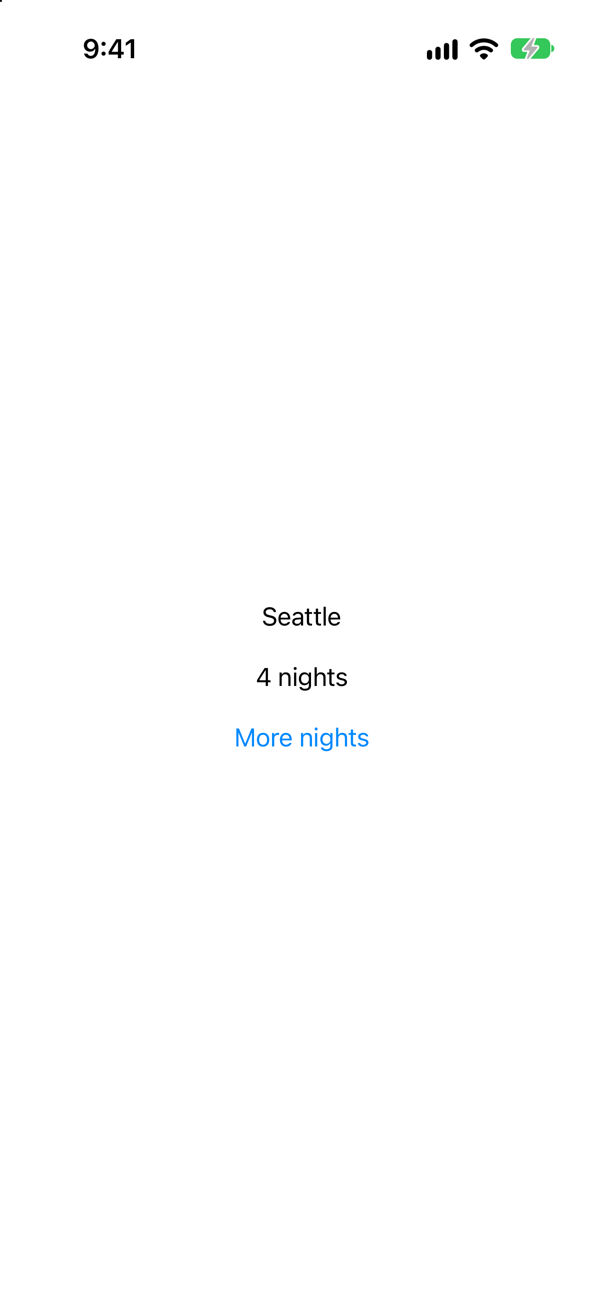
A let of exactly what it shows. Changing the nights did not run CityLabel again: its input, the city, was the same. Handed the whole Draft, it would have run for every change to any field.
Syntax · ProfilingProfile a SwiftUI app's updates with Instruments.
Product ▸ Profile (⌘I) builds the app for profiling and opens Instruments; choose the SwiftUI template. Its first lanes — Update Groups, Long View Body Updates, Long Representable Updates, Other Long Updates — show when SwiftUI worked and which updates took too long. Profile on a device: in Xcode 27 the template does not record in the simulator.
Trick question · UpdatesA view conforms to Equatable, but nobody writes .equatable(). Does SwiftUI ever call its ==?
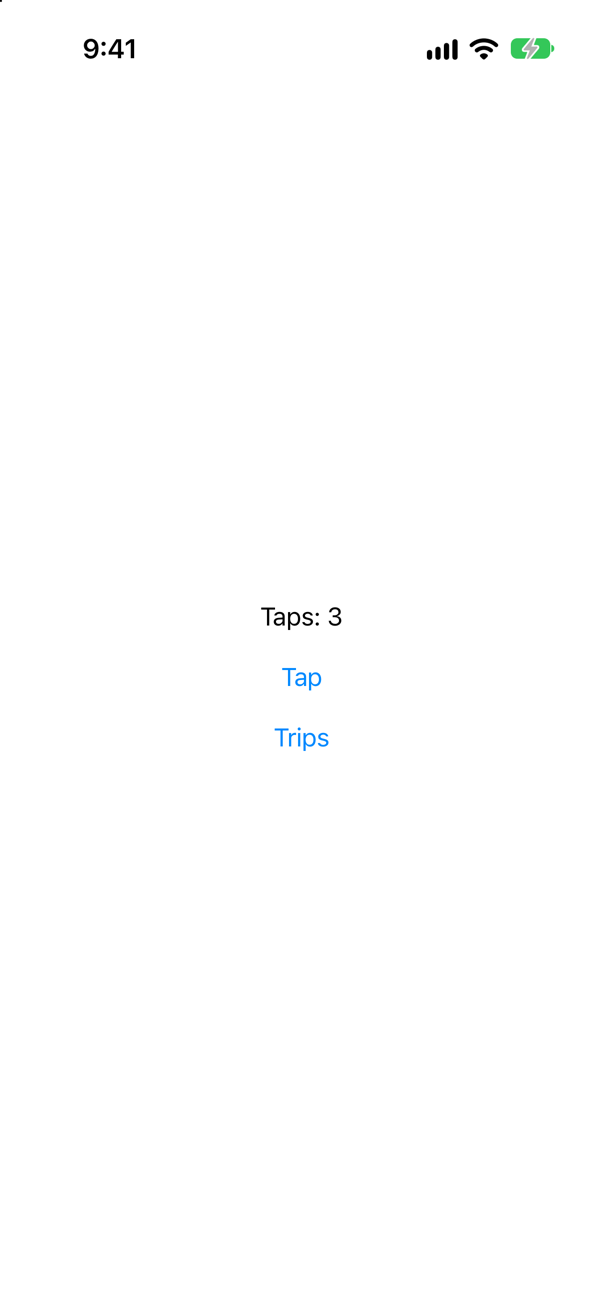
Yes — from the second tap on, "Row's == asked" printed and Row's body was skipped, just as with .equatable() (lesson 46's edge case). SwiftUI uses a view's own == whenever the view conforms to Equatable — and, as there, the first update after launch ran body without asking.
Trick question · Updates_printChanges() says @self changed. What changed?

Its own value: the parent made it again with different inputs — here a new nights, a plain let, which is not named. It printed "Shown: @self changed." after the tap, and the same at launch. A name in the list — __nights on the card before — is one of the view's dynamic properties: state, a binding, an environment value.
Edge cases and tricky questions
8 questions of the kind an interviewer uses to find out whether you really know this — the corners, the traps, and the things that changed recently. Each has its source. Wherever the answer is what some code does, that code was compiled and run, and what you see under “Show the answer” is what it really did. Say your answer aloud before you open it.
A row conforms to Equatable, and its == always says "the same". The parent hands it a number that grows with each tap. After three taps, what does the screen say — and does it matter that the row holds only an Int?
Show the answer
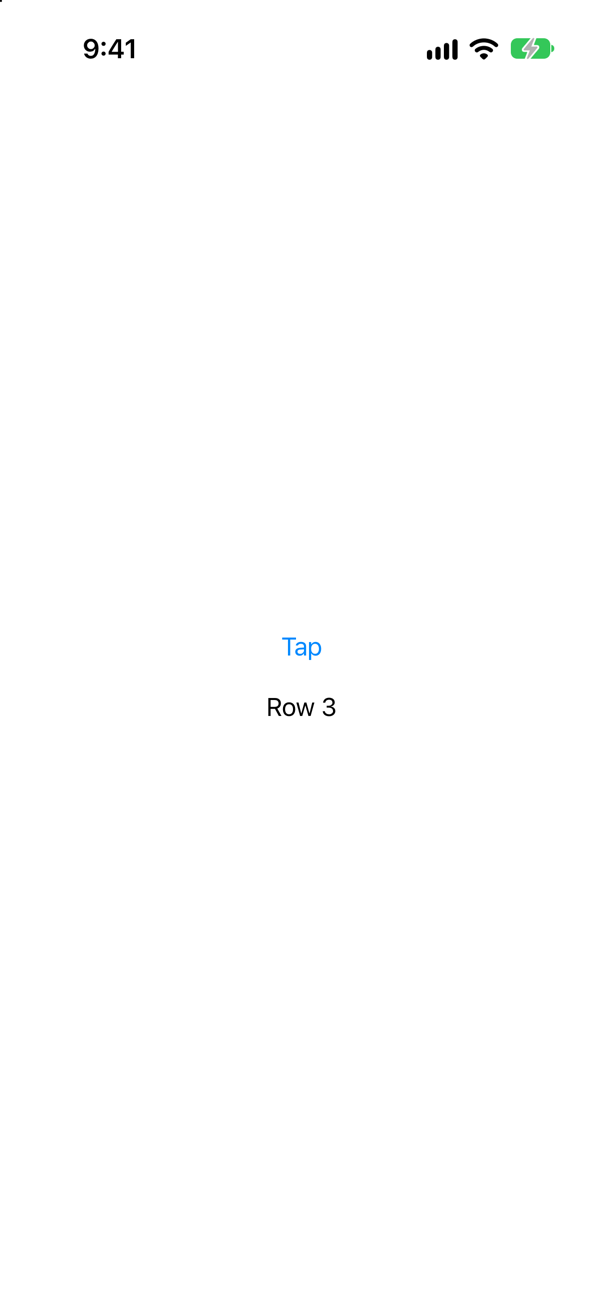
"Row 3" — the screen kept up, and the == was never asked. SwiftUI compares a view made only of plain values byte by byte, and ignores its ==:
The console, from launch through three taps
Row's body
Row's body
Row's body
Row's body
Put a String beside the number, and SwiftUI does ask the == — from the second update on — and believes it. The screen stopped at the first change:

Its console
Row's body
Row's body
Row's == asked
Row's == asked
So a custom == is used only where SwiftUI cannot compare the view by itself, and there it is trusted completely. It must say different whenever anything the screen shows has changed — or leave Equatable off the view.
Where this comes from: equatable() · WWDC21: Demystify SwiftUI (2021 — still the reference on identity) — Measured in the iOS 27 simulator; Apple does not document when a view's == is skipped.
Two bars grow from 50 to 300 points in withAnimation(.linear(duration: 1)). One is an ordinary view; the other conforms to Animatable, with its width as animatableData. During that second, how many times does each body run?
Show the answer
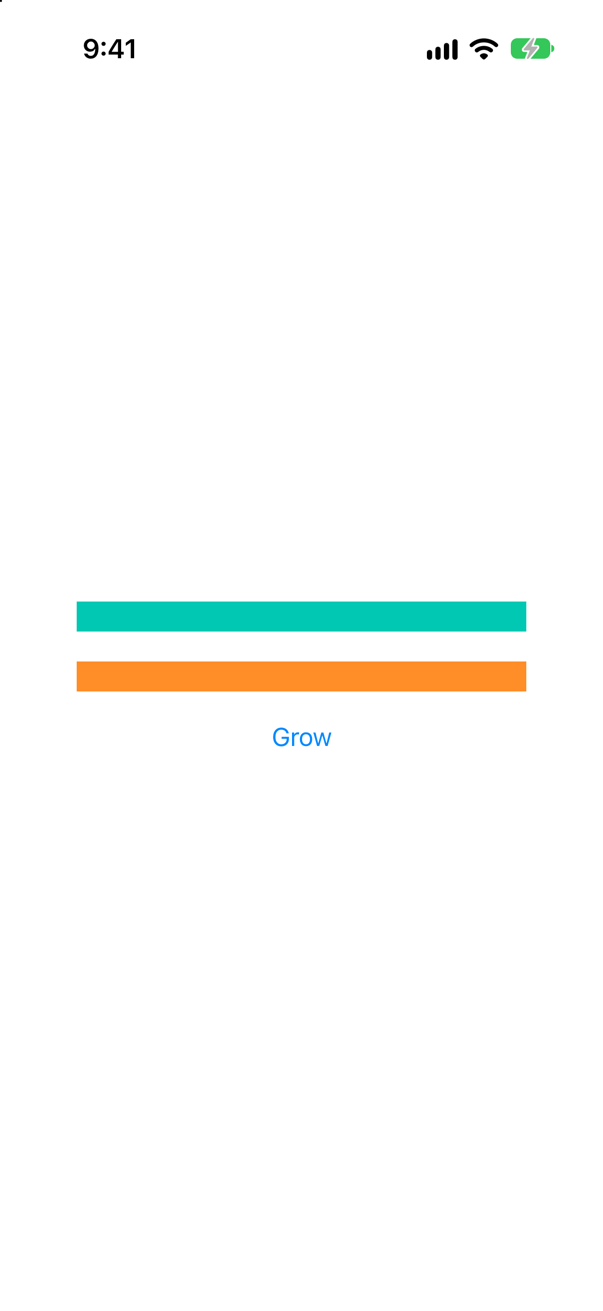
The ordinary bar once; the Animatable one about once a frame: "during the animation: Bar's body 60 times, Plain's 1"
An animation does not normally run body again: SwiftUI works out the start and the end once, and moves between them itself. Animatable is how a view asks to take part — SwiftUI sets animatableData and runs body on every frame — so it is what makes custom shapes and effects possible, and also what makes them expensive. Keep such a body small, and let ordinary views animate the ordinary way.
Where this comes from: Animatable · WWDC23: Explore SwiftUI animation — Measured in the iOS 27 simulator; the count is that run's.
An @Observable store holds trips and a title. One subview shows only store.trips.count; another shows store.title. A button changes one trip's isFavorite. Which subview's body runs?
Show the answer

The count's — although the count did not change:
The console, from launch through the tap
Title's body
Count's body
Count's body
Observation tracks properties, not what is inside them. Count read trips, and changing any element of the array is a change to trips. Title read only title, so it was left alone. A view that needs only a number derived from a big collection can be given that number instead — or the model can keep it as a property of its own.
Where this comes from: Observable() macro · WWDC23: Discover Observation in SwiftUI — Measured in the iOS 27 simulator.
A screen sets .environment(\.highlight, …), and a button switches it from yellow to mint. Below it, one view reads @Environment(\.highlight); another reads nothing from the environment. Which body runs?
Show the answer
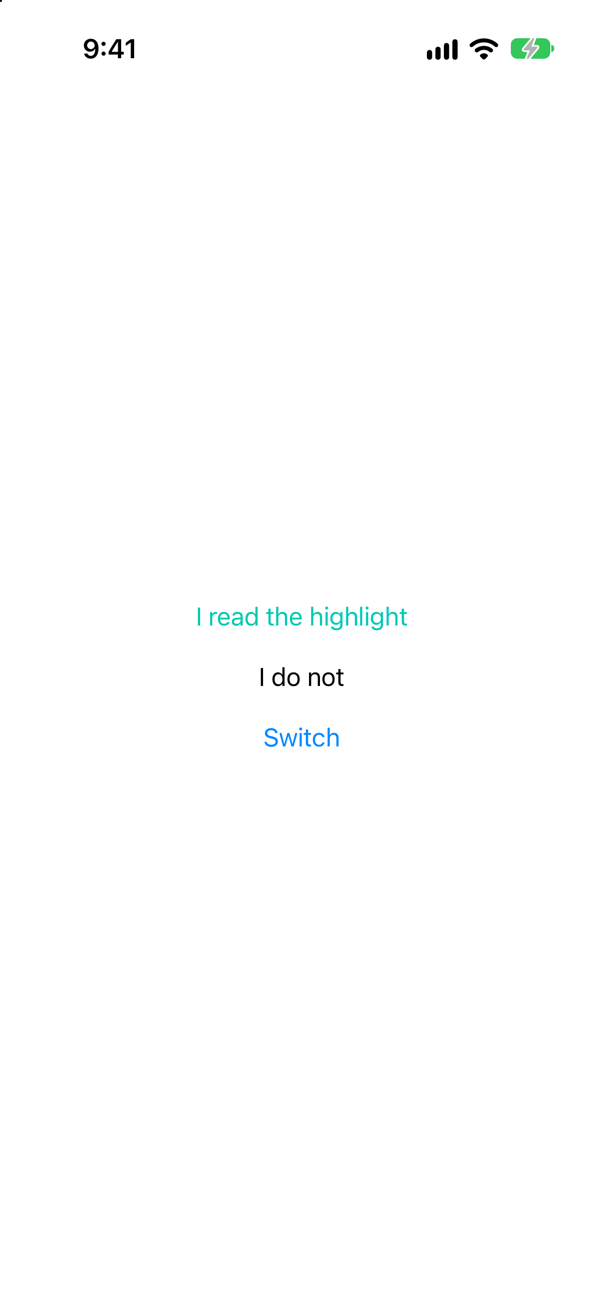
Only the reader's:
The console, from launch through the switch
Reader's body
NonReader's body
Reader's body
SwiftUI keeps track of which views read which environment values, and runs only those when one changes. So a value put high in the hierarchy — a theme, a store — is not, in itself, a reason for everything below to update; what matters is who reads it.
Where this comes from: Environment · EnvironmentValues — Measured in the iOS 27 simulator.
A screen keeps @State private var draft = Draft(), a struct with city and nights. One subview is handed the whole draft and shows the city; another is handed only draft.city. A button changes nights. Which body runs?
Show the answer
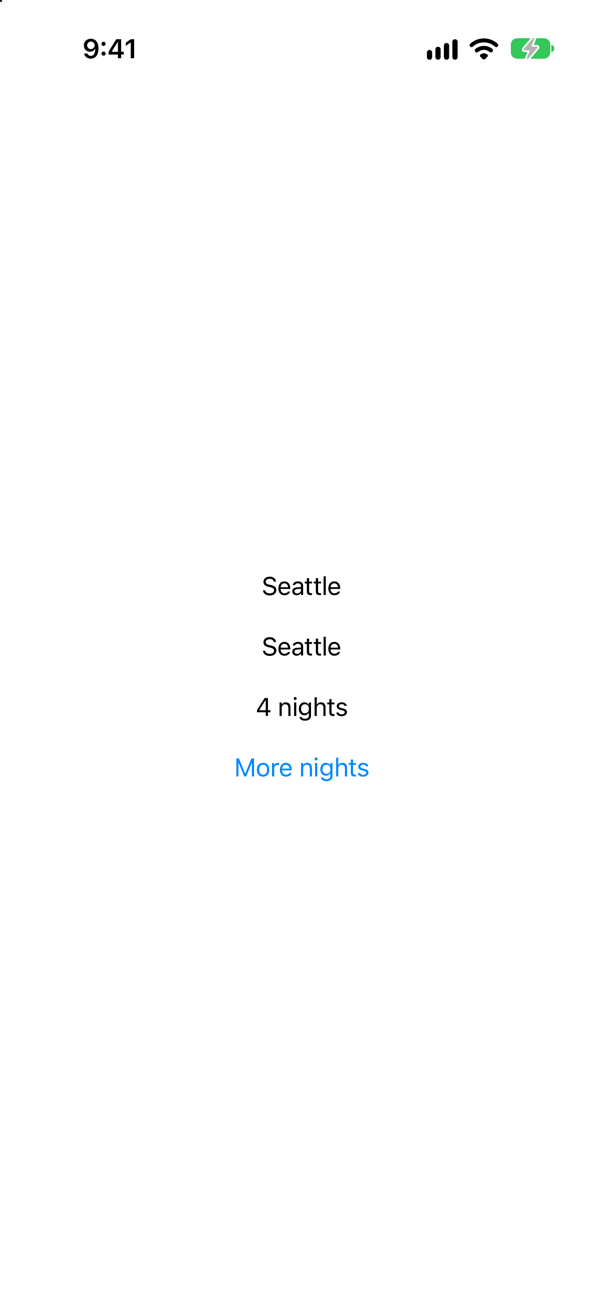
The one handed the whole draft:
The console, from launch through the tap
CityLabel's body
JustCity's body
CityLabel's body
A struct is one value: change any field, and every view handed the struct gets a new input. Unlike an @Observable class, nothing tracks which fields a body read. Hand a subview the fields it shows — or keep the data in an @Observable model, where reads are tracked property by property.
Where this comes from: State · WWDC23: Discover Observation in SwiftUI — Measured in the iOS 27 simulator.
ForEach(0..<count) { i in Text("Row \(i)") }, and a button adds one to count, which starts at 2. What happens?
Show the answer
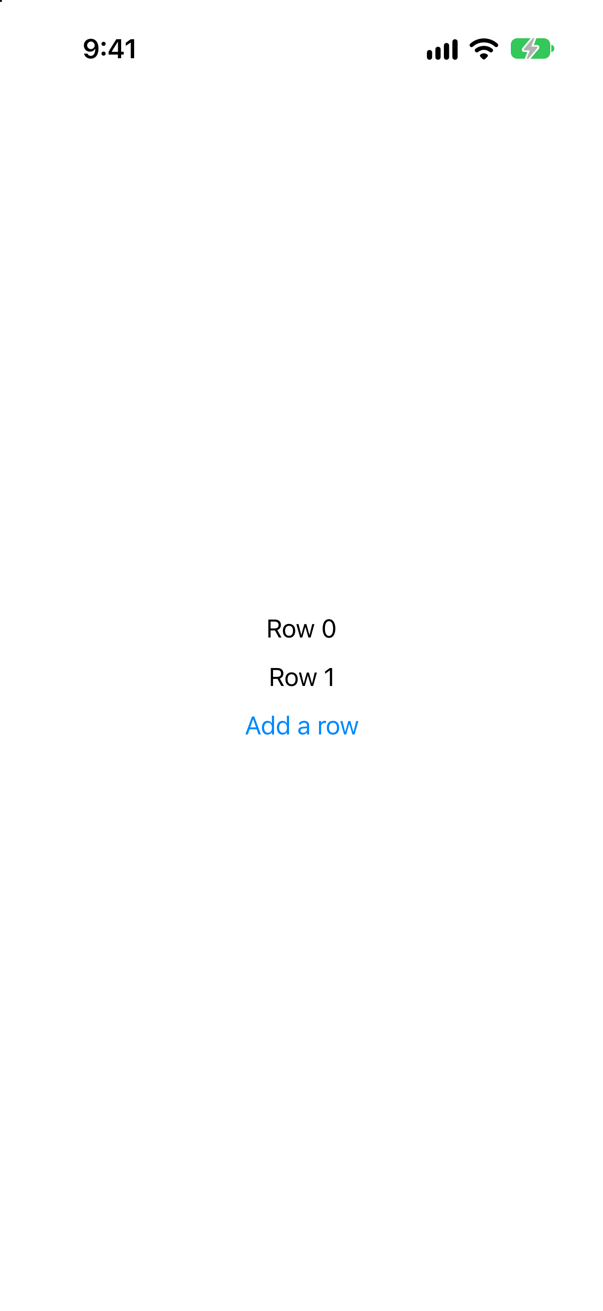
Nothing appears. The screen still has two rows after the tap — and there were two warnings. The compiler's, at build time: "non-constant range: argument must be an integer literal". And SwiftUI's, in the log, when the count changed:
SwiftUI wrote this to the log while the app ran
ForEach<Range<Int>, Int, Text> count (3) != its initial count (2). `ForEach(_:content:)` should only be used for *constant* data. Instead conform data to `Identifiable` or use `ForEach(_:id:content:)` and provide an explicit `id`!ForEach(_:content:) with a range identifies the rows by their positions, and SwiftUI expects the range never to change. For data that changes, give ForEach identities: ForEach(0..<count, id: \.self), or better, Identifiable items.
Where this comes from: ForEach · WWDC21: Demystify SwiftUI (2021 — still the reference on identity) — Built with Xcode 27 and measured in the iOS 27 simulator.
Two ways to show seconds ticking by: Text(start, style: .timer), and a number in @State that a task adds one to every second. In four seconds, how many times does each body run?
Show the answer
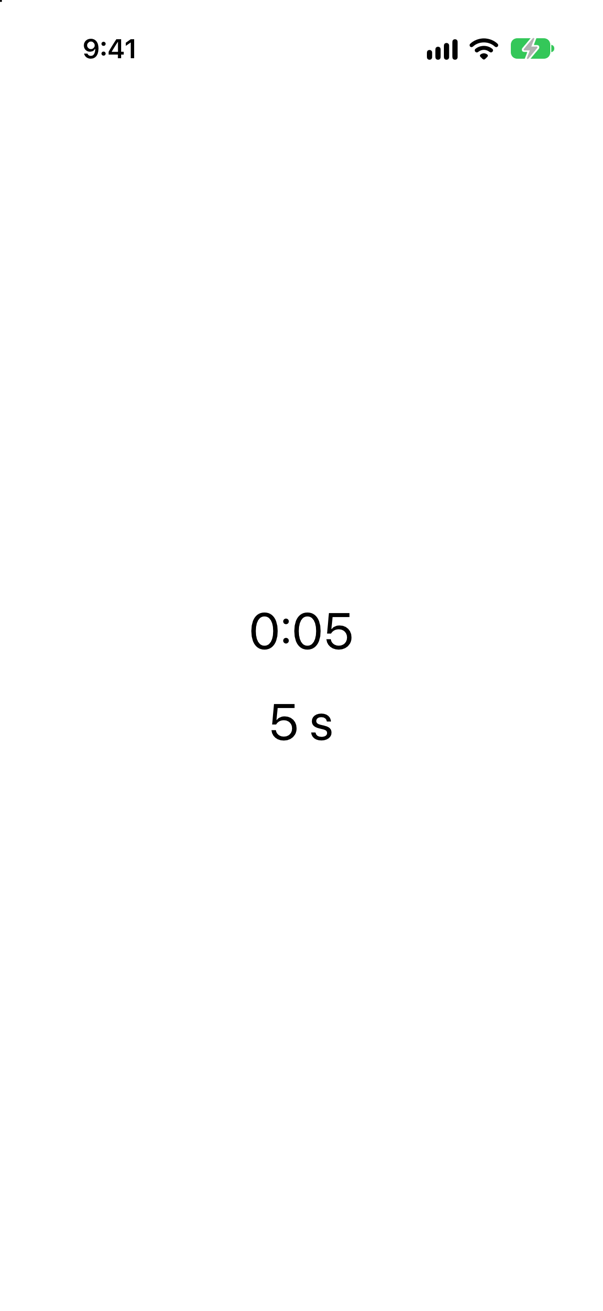
The styled text once; the counter every second:
The console, from launch until the screenshot
Counted's body
Styled's body
Counted's body
Counted's body
Counted's body
Counted's body
Counted's body
Counted's body
A date style — .timer, .relative, .offset — tells the system to keep the text current itself, with no body at all. For anything richer, TimelineView (lesson 41) runs only its own small closure on a schedule. A @State changed on a timer is the expensive way to make a clock.
Where this comes from: Text.DateStyle · TimelineView — Measured in the iOS 27 simulator.
A button sets three things to the values they already have: an @Observable model's city = "Seattle", the same model's place = Place(name: "Bergen") — a struct that is not Equatable — and a @State nights = 3. Which views run their body again?
Show the answer
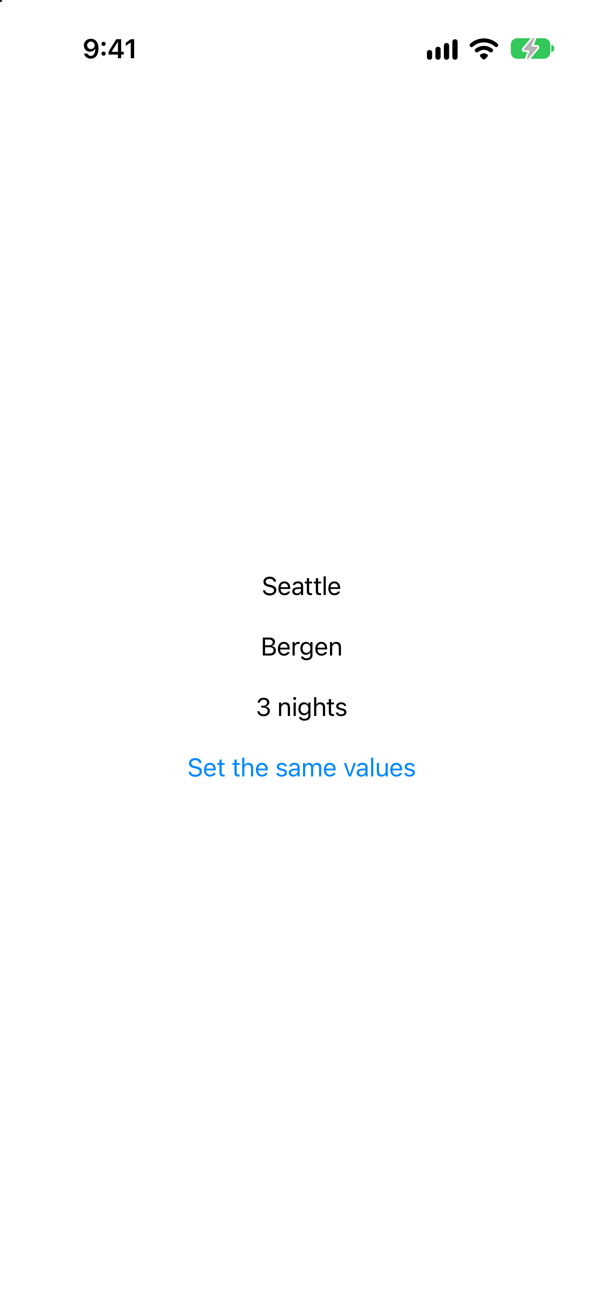
Only the one that shows the place — once per tap:
The console, from launch through two taps
ContentView's body
FromModel's body
FromModelPlace's body
FromState's body
FromModelPlace's body
FromModelPlace's body
The @Observable macro writes, for every property, a check called shouldNotifyObservers (Editor ▸ Expand Macro shows it): for an Equatable value it tells the views only if the new value is different, for an object only if it is a different object, and for anything else always. String is Equatable, so setting the same city changed nothing; Place is not, so the same place counted as a change. @State also ignored the same Int. Making a model's struct Equatable is a one-word way to save updates.
Where this comes from: Observable() macro · WWDC23: Discover Observation in SwiftUI — Measured in the iOS 27 simulator; shouldNotifyObservers is in the macro's expansion with Xcode 27 (Swift 6.4).
Further reading
- WWDC25: Optimize SwiftUI performance with Instruments
- Improving your app's performance
- WWDC23: Demystify SwiftUI performance
- WWDC21: Demystify SwiftUI (2021 — still the reference on identity)
Testing code that depends on today's date
“How would you unit test this? Take me from I can't to a passing test.”
Where this comes from: Senior iOS Interview Preparation (GitHub) · Swift Testing
Show the answer
"I can't" is the right first answer. The result depends on today's date and on whatever an earlier run left on disk. There are two hidden dependencies: the clock, and UserDefaults.standard. Turn each into something the test can supply:
Production code passes the real clock and a closure that reads UserDefaults. The test passes a fixed moment and a constant. One parameterized test then covers the whole table — including the boundary, where an expiry equal to now has to count as expired:
What interviewers listen for: That you name the hidden dependencies before you refactor, choose the lightest tool that works (a closure, not a hierarchy of protocols), and go looking for the boundary case yourself.