Scenes: what a window lives through
Scenes: windows, phases and the background
You will buildBurrow, a warren of sleepy bunnies, one to a window: a scene type of your own; a bunny whose mood follows her scene; a nap measured across the background; a burrow that keeps its carrots out of the app switcher; carrots saved on the way out; a hat each burrow remembers; and on iPad, a second burrow for Hazel.
TimeAbout two hours
WhyOn lesson 6 the life of an app turned out to be a value, scenePhase, and the place to save was background. That was one window, read in one place. An app lives through more than that. Its code stops in the background. The system takes a picture of it for the app switcher. It is ended without warning and brought back as if nothing happened. And on iPad it has several windows, each with a life of its own. Interviewers ask about every one of those, and the answers are easy to get wrong. In this lesson you watch each of them happen.
Meet Clover
This lesson's project is a new one, and it begins as a download.
Download Burrow-starter.zip, this lesson's starting point. Double-click it in Finder to unzip it, then double-click
Burrow.xcodeprojto open it in Xcode.Run it before changing anything. In the toolbar, open the run destination menu and pick an iPhone simulator — iPhone 17, for example. Choose Product ▸ Run (⌘R). Device Hub opens with the app:
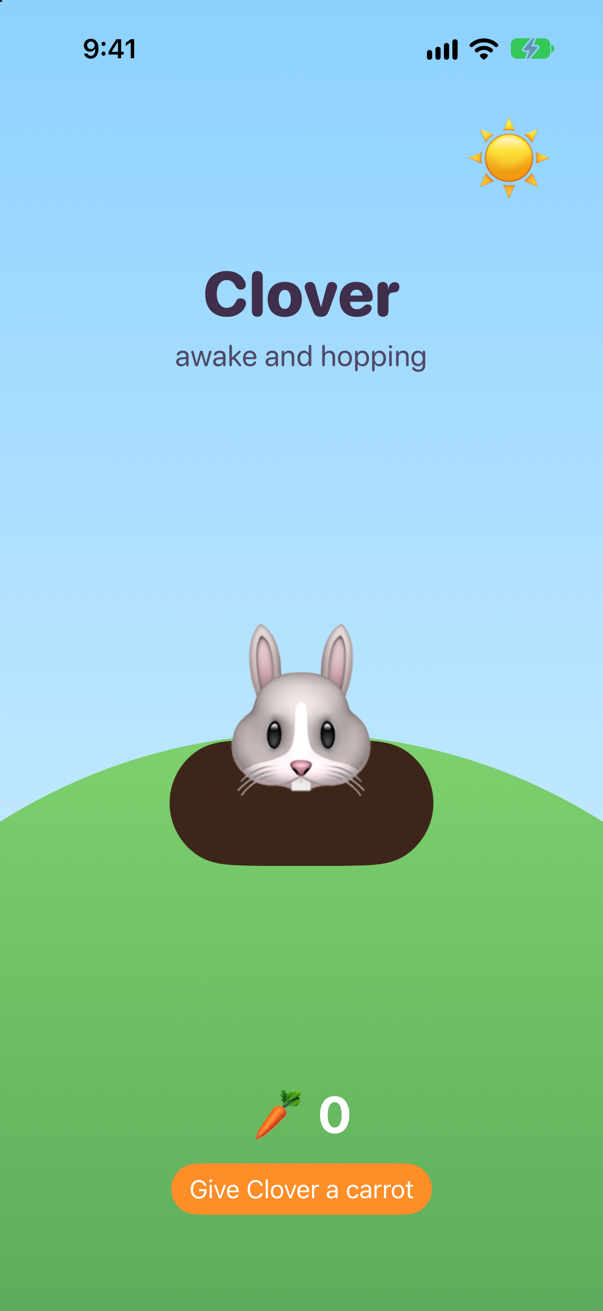
Clover, as the starter draws herScreenshot · iPhone 17, iOS 27.0
The starter has three files. BurrowApp.swift is exactly what Xcode wrote. ContentView.swift puts Clover on the screen, with a carrot for every tap. BurrowArt.swift is ready-made drawing that you will not need to change. It can draw a bunny in three moods:
import SwiftUI

/// How a bunny is: awake, drowsy or asleep. Her burrow follows it. `Sendable`: plain data.
enum Mood: Sendable {
    case awake, drowsy, asleep
}
For now Clover is always .awake. By the end of the lesson her mood will follow her scene, and her burrow will tell you what happened to the app while you were away.
The starter is set up as Parcel was at the end of lesson 15: Swift 6, Default Actor Isolation set to nonisolated, and Approachable Concurrency off — so every type in Burrow says whose it is. Mood says Sendable, because it is plain data; the views are the main actor's through View, and the scene and the app through Scene and App.
A scene of your own
Open BurrowApp.swift. Its body returns some Scene, and that scene is a WindowGroup: Apple's scene type for windows — one on iPhone, as many as the person opens on iPad and Mac. A scene can be a type of your own, built from Apple's, just as a view can. Make a new Swift file named BurrowScene (File ▸ New ▸ File from Template… (⌘N), Swift File), and replace everything in it with:
import SwiftUI

/// One kind of window: a burrow. The system never sees this type —
/// it sees the WindowGroup that its body returns.
struct BurrowScene: Scene {
    var body: some Scene {
        WindowGroup {
            ContentView()
        }
    }
}
Then let the app use it. In BurrowApp.swift:
import SwiftUI@mainstruct BurrowApp: App { var body: some Scene { WindowGroup { ContentView() } BurrowScene() }}import SwiftUI
@main
struct BurrowApp: App {
var body: some Scene {
BurrowScene()
}
}Run it (⌘R):
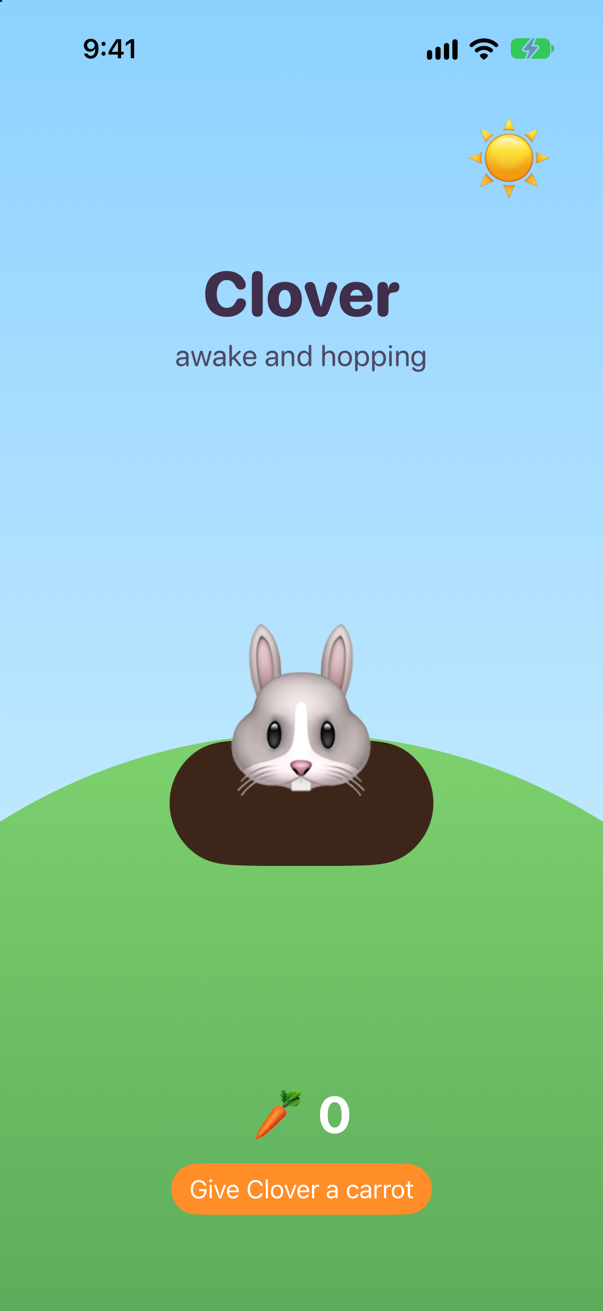
Nothing changed, and that is the point. The system knows only Apple's kinds of scene — WindowGroup, Window, DocumentGroup and a few more. It asks BurrowScene for its body, and finds a WindowGroup there. Apple's documentation of Scene shows the same shape, under the name MyScene.
For the same reasons as a view of your own: a name, and a place for the things that belong together. A scene can read its own phase, carry scene modifiers such as onChange, and — on iPad — make every window it opens. Burrow uses all three in this lesson.
Where this comes from: Scene
Clover follows her scene
A bunny should be as awake as her scene. Give ContentView the scene's phase, and draw Clover's mood from it. In ContentView.swift, replace the ContentView struct with:
struct ContentView: View { @Environment(\.scenePhase) private var phase @State private var carrots = 0 var body: some View { ZStack { BurrowArt(bunny: "Clover", mood: .awake) BurrowArt(bunny: "Clover", mood: Mood(phase)) VStack(spacing: 12) { Text("🥕 \(carrots)") .font(.system(size: 34, weight: .bold, design: .rounded)) .foregroundStyle(.white) Button("Give Clover a carrot") { carrots += 1 } .buttonStyle(.borderedProminent) .tint(.orange) } .frame(maxHeight: .infinity, alignment: .bottom) .padding(.bottom, 30) } .onChange(of: phase) { old, new in print("Clover: \(old) → \(new)") } }}struct ContentView: View {
@Environment(\.scenePhase) private var phase
@State private var carrots = 0
var body: some View {
ZStack {
BurrowArt(bunny: "Clover", mood: Mood(phase))
VStack(spacing: 12) {
Text("🥕 \(carrots)")
.font(.system(size: 34, weight: .bold, design: .rounded))
.foregroundStyle(.white)
Button("Give Clover a carrot") {
carrots += 1
}
.buttonStyle(.borderedProminent)
.tint(.orange)
}
.frame(maxHeight: .infinity, alignment: .bottom)
.padding(.bottom, 30)
}
.onChange(of: phase) { old, new in
print("Clover: \(old) → \(new)")
}
}
}And at the bottom of the file, add the translation from a phase to a mood:
extension Mood {
    /// A bunny is as awake as her scene.
    init(_ phase: ScenePhase) {
        switch phase {
        case .active: self = .awake
        case .inactive: self = .drowsy
        case .background: self = .asleep
        @unknown default: self = .awake
        }
    }
}
ScenePhase is Apple's enum and may gain cases in a later iOS. @unknown default handles those, and without it the compiler warns.
Run the app, and make Clover drowsy: open the app switcher. Apple's iPhone User Guide gives the gesture: "Swipe up from the bottom of the screen, pause in the center of the screen, then lift your finger." In Device Hub, do it with the pointer — drag up from the bottom edge of the screen, hold for a moment in the middle, and let go.
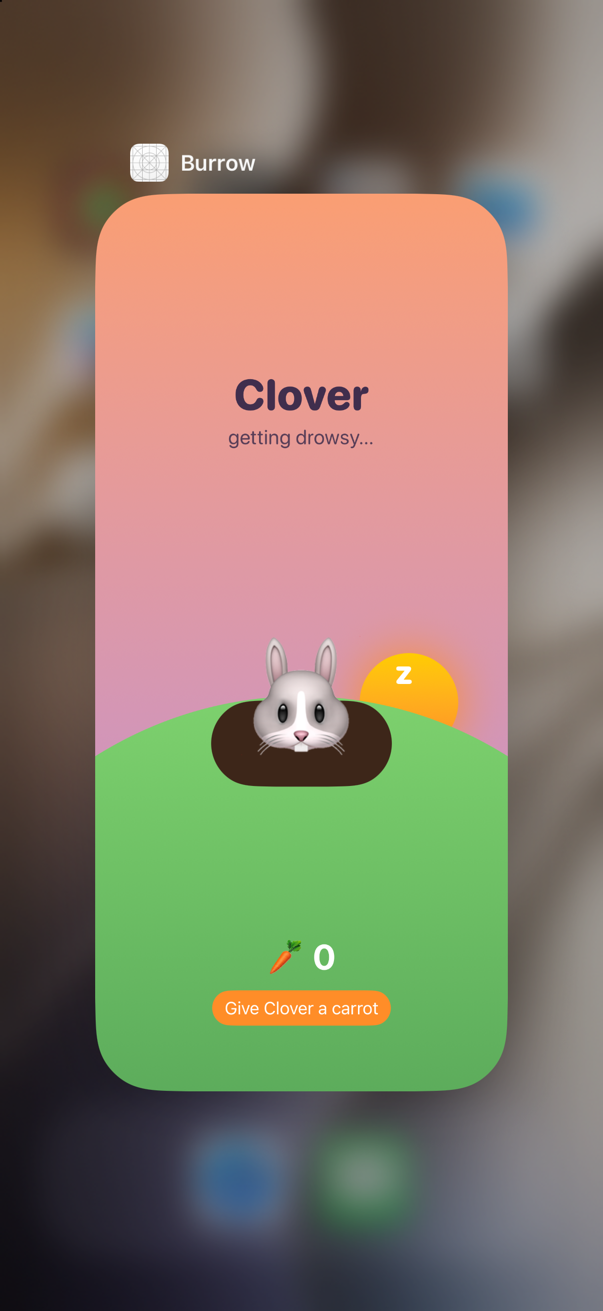
In the app switcher the app is on the screen, but nothing in it can be touched: it is inactive. Tap Burrow's card to go back to it. The console followed both changes:
Clover: active → inactive
Clover: inactive → active
Now press Home (Controls ▸ Home), and tap Burrow's icon to come back. When you press Home:
Clover: active → inactive
Clover: inactive → background
And when you come back:
Clover: background → inactive
Clover: inactive → active
You never see Clover asleep in the app itself: by the time her scene is background, it is not on the screen. Step 6 shows where she can be seen asleep.
Three places that hear it
A view is one place to read the phase. Your scene and the App are two more, and they do not answer the same question. Give each a line of its own. In BurrowScene.swift:
import SwiftUI/// One kind of window: a burrow. The system never sees this type —/// it sees the WindowGroup that its body returns.struct BurrowScene: Scene { @Environment(\.scenePhase) private var phase var body: some Scene { WindowGroup { ContentView() } .onChange(of: phase) { old, new in print("BurrowScene: \(old) → \(new)") } }}import SwiftUI
/// One kind of window: a burrow. The system never sees this type —
/// it sees the WindowGroup that its body returns.
struct BurrowScene: Scene {
@Environment(\.scenePhase) private var phase
var body: some Scene {
WindowGroup {
ContentView()
}
.onChange(of: phase) { old, new in
print("BurrowScene: \(old) → \(new)")
}
}
}And in BurrowApp.swift:
import SwiftUI@mainstruct BurrowApp: App { @Environment(\.scenePhase) private var phase var body: some Scene { BurrowScene() .onChange(of: phase) { old, new in print("The warren: \(old) → \(new)") } }}import SwiftUI
@main
struct BurrowApp: App {
@Environment(\.scenePhase) private var phase
var body: some Scene {
BurrowScene()
.onChange(of: phase) { old, new in
print("The warren: \(old) → \(new)")
}
}
}There, onChange is a scene modifier: the same name as the view modifier, on a scene. Run the app, press Home, and come back:
BurrowScene: active → inactive
The warren: active → inactive
Clover: active → inactive
BurrowScene: inactive → background
The warren: inactive → background
Clover: inactive → background
All three agree, because on iPhone Burrow has one window. They are still three different questions:
| Read in | It reports |
|---|---|
| a view | the phase of the scene that contains the view: this window. |
| a scene of your own | the windows that scene makes: on iPad, in step 9, it stays active while one of its windows is. |
the App | all the scenes of the app — Apple: "an aggregate value" — active if any one is. |
The order is always the same, too: your scene, then the App, then the view. Code that must run before any view hears the news — a save, say — belongs in the scene or the App. In step 9 the three readings part.
Asleep means stopped
Apple says of background: "expect the app to terminate soon after." Something quieter happens first. Give Clover a heartbeat — a task that counts the seconds while her view is on the screen — and let her measure her naps. Replace the ContentView struct once more:
struct ContentView: View { @Environment(\.scenePhase) private var phase @State private var carrots = 0 @State private var heartbeats = 0 @State private var asleepSince: Date? @State private var lastNap = "" var body: some View { ZStack { BurrowArt(bunny: "Clover", mood: Mood(phase)) VStack(spacing: 12) { if !lastNap.isEmpty { Text(lastNap) .font(.system(.headline, design: .rounded)) .padding(.horizontal, 14) .padding(.vertical, 6) .background(.white.opacity(0.85), in: Capsule()) } Text("🥕 \(carrots)") .font(.system(size: 34, weight: .bold, design: .rounded)) .foregroundStyle(.white) Button("Give Clover a carrot") { carrots += 1 } .buttonStyle(.borderedProminent) .tint(.orange) } .frame(maxHeight: .infinity, alignment: .bottom) .padding(.bottom, 30) } .task { while !Task.isCancelled { try? await Task.sleep(for: .seconds(1)) heartbeats += 1 } } .onChange(of: phase) { old, new in print("Clover: \(old) → \(new)") print("Clover: \(old) → \(new), \(heartbeats) heartbeats") if new == .background { asleepSince = .now } if new == .active, let asleepSince { lastNap = "Clover slept \(Int(Date.now.timeIntervalSince(asleepSince))) seconds" self.asleepSince = nil } } }}struct ContentView: View {
@Environment(\.scenePhase) private var phase
@State private var carrots = 0
@State private var heartbeats = 0
@State private var asleepSince: Date?
@State private var lastNap = ""
var body: some View {
ZStack {
BurrowArt(bunny: "Clover", mood: Mood(phase))
VStack(spacing: 12) {
if !lastNap.isEmpty {
Text(lastNap)
.font(.system(.headline, design: .rounded))
.padding(.horizontal, 14)
.padding(.vertical, 6)
.background(.white.opacity(0.85), in: Capsule())
}
Text("🥕 \(carrots)")
.font(.system(size: 34, weight: .bold, design: .rounded))
.foregroundStyle(.white)
Button("Give Clover a carrot") {
carrots += 1
}
.buttonStyle(.borderedProminent)
.tint(.orange)
}
.frame(maxHeight: .infinity, alignment: .bottom)
.padding(.bottom, 30)
}
.task {
while !Task.isCancelled {
try? await Task.sleep(for: .seconds(1))
heartbeats += 1
}
}
.onChange(of: phase) { old, new in
print("Clover: \(old) → \(new), \(heartbeats) heartbeats")
if new == .background {
asleepSince = .now
}
if new == .active, let asleepSince {
lastNap = "Clover slept \(Int(Date.now.timeIntervalSince(asleepSince))) seconds"
self.asleepSince = nil
}
}
}
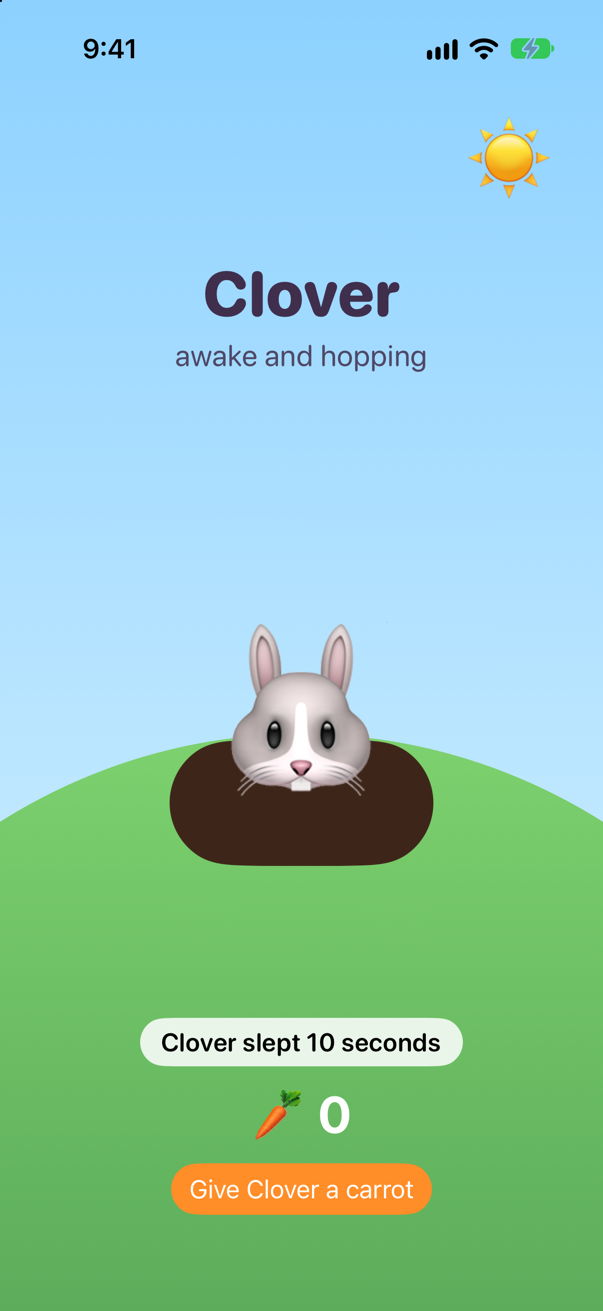
}Run it, wait a few seconds, press Home, count to eight, and come back.
BurrowScene: active → inactive
The warren: active → inactive
Clover: active → inactive, 5 heartbeats
BurrowScene: inactive → background
The warren: inactive → background
Clover: inactive → background, 6 heartbeats
BurrowScene: background → inactive
The warren: background → inactive
Clover: background → inactive, 7 heartbeats
BurrowScene: inactive → active
The warren: inactive → active
Clover: inactive → active, 7 heartbeats
Read the heartbeats. They kept going while the app was inactive, and stopped about when it reached background: eight seconds away added a beat or two, not eight. In the background the system suspends the app. Its code does not run at all, and when the app comes back it carries on from where it stopped — here, in the middle of a Task.sleep. The task was not cancelled, and nothing told it anything.
So never measure time away by counting it. Note the time when the scene goes, and subtract when it comes back. That is what asleepSince does.
What the app switcher shows
Give Clover some carrots, press Home, and then open the app switcher from the Home Screen.
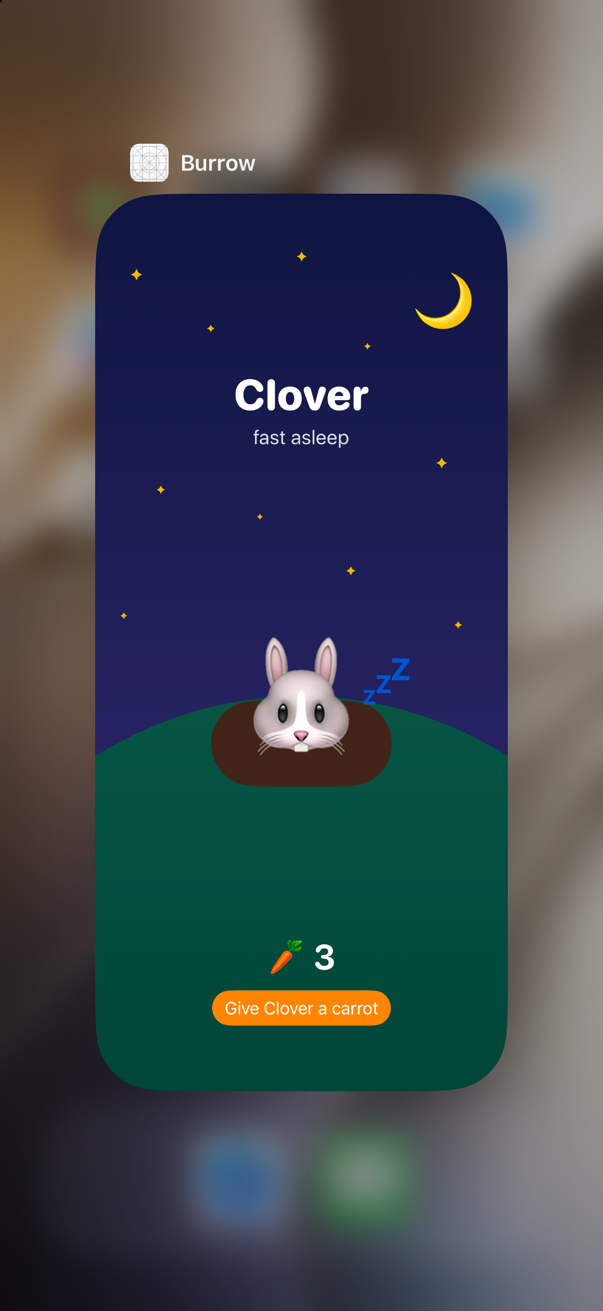
There is Clover, asleep under the stars — something the app itself never shows. After the app enters the background, Apple says, UIKit "takes a snapshot of your app's current user interface". That picture is the card in the app switcher, and it is shown again for a moment as the app comes back. Opened from the app, as in step 3, the switcher shows a live card instead: the app as it is while inactive.
Either way, Clover's carrots are in the picture. Carrots are no secret, but a bank balance would be, and Apple's rule is that the picture "must not contain any sensitive user information". Show the carrots only while the scene is active. Replace the ContentView struct:
struct ContentView: View { @Environment(\.scenePhase) private var phase @State private var carrots = 0 @State private var heartbeats = 0 @State private var asleepSince: Date? @State private var lastNap = "" var body: some View { ZStack { BurrowArt(bunny: "Clover", mood: Mood(phase)) VStack(spacing: 12) { if !lastNap.isEmpty { Text(lastNap) .font(.system(.headline, design: .rounded)) .padding(.horizontal, 14) .padding(.vertical, 6) .background(.white.opacity(0.85), in: Capsule()) if phase == .active { VStack(spacing: 12) { if !lastNap.isEmpty { Text(lastNap) .font(.system(.headline, design: .rounded)) .padding(.horizontal, 14) .padding(.vertical, 6) .background(.white.opacity(0.85), in: Capsule()) } Text("🥕 \(carrots)") .font(.system(size: 34, weight: .bold, design: .rounded)) .foregroundStyle(.white) Button("Give Clover a carrot") { carrots += 1 } .buttonStyle(.borderedProminent) .tint(.orange) } Text("🥕 \(carrots)") .font(.system(size: 34, weight: .bold, design: .rounded)) .foregroundStyle(.white) Button("Give Clover a carrot") { carrots += 1 } .buttonStyle(.borderedProminent) .tint(.orange) .frame(maxHeight: .infinity, alignment: .bottom) .padding(.bottom, 30) } .frame(maxHeight: .infinity, alignment: .bottom) .padding(.bottom, 30) } .task { while !Task.isCancelled { try? await Task.sleep(for: .seconds(1)) heartbeats += 1 } } .onChange(of: phase) { old, new in print("Clover: \(old) → \(new), \(heartbeats) heartbeats") if new == .background { asleepSince = .now } if new == .active, let asleepSince { lastNap = "Clover slept \(Int(Date.now.timeIntervalSince(asleepSince))) seconds" self.asleepSince = nil } } }}struct ContentView: View {
@Environment(\.scenePhase) private var phase
@State private var carrots = 0
@State private var heartbeats = 0
@State private var asleepSince: Date?
@State private var lastNap = ""
var body: some View {
ZStack {
BurrowArt(bunny: "Clover", mood: Mood(phase))
if phase == .active {
VStack(spacing: 12) {
if !lastNap.isEmpty {
Text(lastNap)
.font(.system(.headline, design: .rounded))
.padding(.horizontal, 14)
.padding(.vertical, 6)
.background(.white.opacity(0.85), in: Capsule())
}
Text("🥕 \(carrots)")
.font(.system(size: 34, weight: .bold, design: .rounded))
.foregroundStyle(.white)
Button("Give Clover a carrot") {
carrots += 1
}
.buttonStyle(.borderedProminent)
.tint(.orange)
}
.frame(maxHeight: .infinity, alignment: .bottom)
.padding(.bottom, 30)
}
}
.task {
while !Task.isCancelled {
try? await Task.sleep(for: .seconds(1))
heartbeats += 1
}
}
.onChange(of: phase) { old, new in
print("Clover: \(old) → \(new), \(heartbeats) heartbeats")
if new == .background {
asleepSince = .now
}
if new == .active, let asleepSince {
lastNap = "Clover slept \(Int(Date.now.timeIntervalSince(asleepSince))) seconds"
self.asleepSince = nil
}
}
}
}The only change is if phase == .active, around the carrots and the button. Run it, give Clover a carrot or two, and open the app switcher from the app:
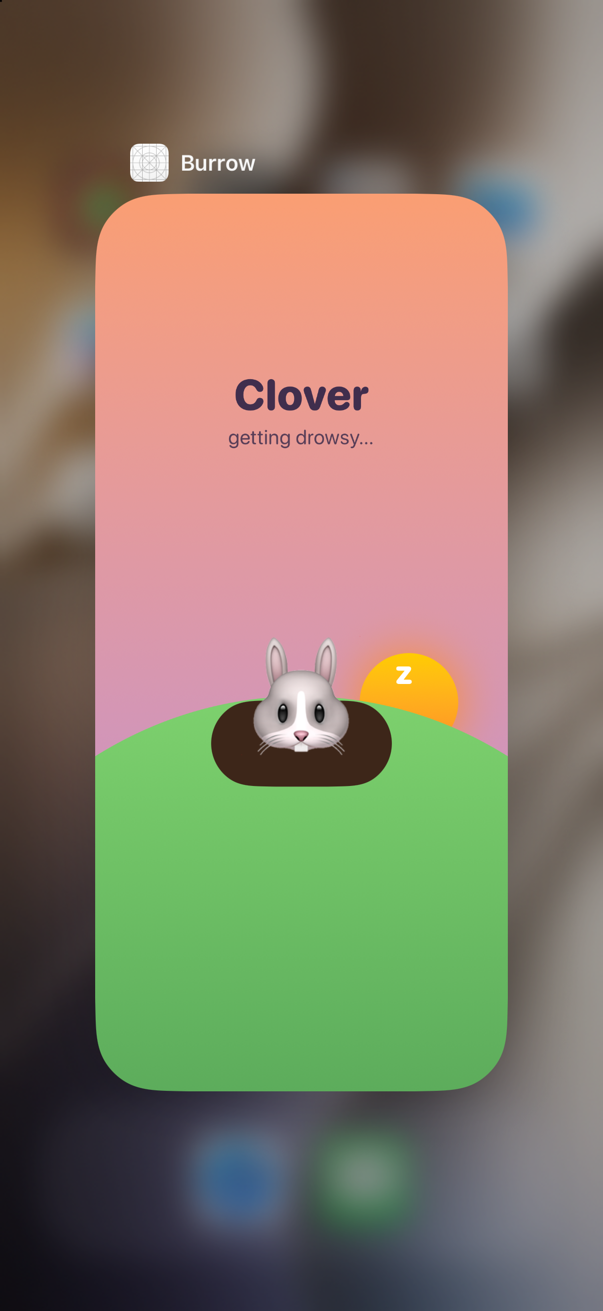
Hide on anything but active, not only on background: the switcher opened from the app never takes the app to the background at all.
Save on the way out
Clover's carrots are @State, and @State lasts as long as the process does. The system ends suspended apps when it needs their memory, without telling them, and a count kept only in memory goes with them. Move the carrots into a warren that the whole app shares, and save it when the app goes to the background — the last moment you are promised. Make a new Swift file named Warren, and make it read — @MainActor, because the burrows read it:
import Foundation

/// What every burrow shares: the carrots. One warren for the whole app, however many burrows are open.
/// `@MainActor`: the burrows read it.
@MainActor
@Observable
final class Warren {
    var carrots: Int

    init() {
        carrots = UserDefaults.standard.integer(forKey: "carrots")
    }

    func save() {
        UserDefaults.standard.set(carrots, forKey: "carrots")
        print("Saved \(carrots) carrots")
    }
}
The App makes the one warren, saves it, and hands it to the scene. In BurrowApp.swift:
import SwiftUI@mainstruct BurrowApp: App { @Environment(\.scenePhase) private var phase @State private var warren = Warren() var body: some Scene { BurrowScene() BurrowScene(warren: warren) .onChange(of: phase) { old, new in print("The warren: \(old) → \(new)") if new == .background { warren.save() } } }}import SwiftUI
@main
struct BurrowApp: App {
@Environment(\.scenePhase) private var phase
@State private var warren = Warren()
var body: some Scene {
BurrowScene(warren: warren)
.onChange(of: phase) { old, new in
print("The warren: \(old) → \(new)")
if new == .background {
warren.save()
}
}
}
}The scene passes it on. In BurrowScene.swift:
import SwiftUI/// One kind of window: a burrow. The system never sees this type —/// it sees the WindowGroup that its body returns.struct BurrowScene: Scene { let warren: Warren @Environment(\.scenePhase) private var phase var body: some Scene { WindowGroup { ContentView() ContentView(warren: warren) } .onChange(of: phase) { old, new in print("BurrowScene: \(old) → \(new)") } }}import SwiftUI
/// One kind of window: a burrow. The system never sees this type —
/// it sees the WindowGroup that its body returns.
struct BurrowScene: Scene {
let warren: Warren
@Environment(\.scenePhase) private var phase
var body: some Scene {
WindowGroup {
ContentView(warren: warren)
}
.onChange(of: phase) { old, new in
print("BurrowScene: \(old) → \(new)")
}
}
}And ContentView uses the warren's carrots instead of a count of its own. Replace the ContentView struct:
struct ContentView: View { let warren: Warren @Environment(\.scenePhase) private var phase @State private var carrots = 0 @State private var heartbeats = 0 @State private var asleepSince: Date? @State private var lastNap = "" var body: some View { ZStack { BurrowArt(bunny: "Clover", mood: Mood(phase)) if phase == .active { VStack(spacing: 12) { if !lastNap.isEmpty { Text(lastNap) .font(.system(.headline, design: .rounded)) .padding(.horizontal, 14) .padding(.vertical, 6) .background(.white.opacity(0.85), in: Capsule()) } Text("🥕 \(carrots)") Text("🥕 \(warren.carrots)") .font(.system(size: 34, weight: .bold, design: .rounded)) .foregroundStyle(.white) Button("Give Clover a carrot") { carrots += 1 warren.carrots += 1 } .buttonStyle(.borderedProminent) .tint(.orange) } .frame(maxHeight: .infinity, alignment: .bottom) .padding(.bottom, 30) } } .task { while !Task.isCancelled { try? await Task.sleep(for: .seconds(1)) heartbeats += 1 } } .onChange(of: phase) { old, new in print("Clover: \(old) → \(new), \(heartbeats) heartbeats") if new == .background { asleepSince = .now } if new == .active, let asleepSince { lastNap = "Clover slept \(Int(Date.now.timeIntervalSince(asleepSince))) seconds" self.asleepSince = nil } } }}struct ContentView: View {
let warren: Warren
@Environment(\.scenePhase) private var phase
@State private var heartbeats = 0
@State private var asleepSince: Date?
@State private var lastNap = ""
var body: some View {
ZStack {
BurrowArt(bunny: "Clover", mood: Mood(phase))
if phase == .active {
VStack(spacing: 12) {
if !lastNap.isEmpty {
Text(lastNap)
.font(.system(.headline, design: .rounded))
.padding(.horizontal, 14)
.padding(.vertical, 6)
.background(.white.opacity(0.85), in: Capsule())
}
Text("🥕 \(warren.carrots)")
.font(.system(size: 34, weight: .bold, design: .rounded))
.foregroundStyle(.white)
Button("Give Clover a carrot") {
warren.carrots += 1
}
.buttonStyle(.borderedProminent)
.tint(.orange)
}
.frame(maxHeight: .infinity, alignment: .bottom)
.padding(.bottom, 30)
}
}
.task {
while !Task.isCancelled {
try? await Task.sleep(for: .seconds(1))
heartbeats += 1
}
}
.onChange(of: phase) { old, new in
print("Clover: \(old) → \(new), \(heartbeats) heartbeats")
if new == .background {
asleepSince = .now
}
if new == .active, let asleepSince {
lastNap = "Clover slept \(Int(Date.now.timeIntervalSince(asleepSince))) seconds"
self.asleepSince = nil
}
}
}
}The preview makes a ContentView too, so it needs a warren of its own. Replace the preview at the bottom of ContentView.swift:
#Preview { ContentView() ContentView(warren: Warren())}#Preview {
ContentView(warren: Warren())
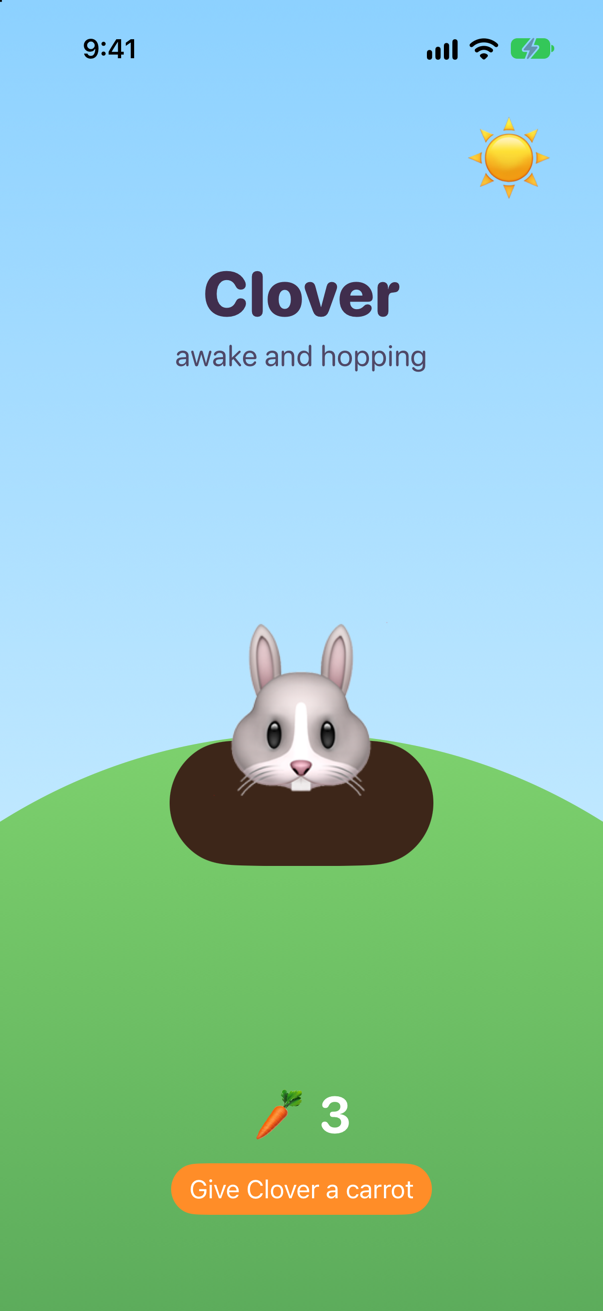
}Run it and give Clover three carrots. Then end the app the way the system does — in the background: press Home, stop it in Xcode (Product ▸ Stop, ⌘.), and run it again (⌘R).
In the console, when you pressed Home:
BurrowScene: active → inactive
The warren: active → inactive
Clover: active → inactive, 13 heartbeats
BurrowScene: inactive → background
The warren: inactive → background
Saved 3 carrots
Clover: inactive → background, 14 heartbeats
The save ran after the warren heard background, and before Clover did — the order of step 4. One of this lesson's edge cases stops the app while it is still on the screen, and finds out what that loses.
Each burrow remembers its hat
Some things belong to a window rather than to the app: which tab is open, what is scrolled into view, what is half typed. SwiftUI keeps those with @SceneStorage: one value for each scene, saved by the system and handed back when it brings that scene back. Give Clover a hat. Replace the ContentView struct:
struct ContentView: View { let warren: Warren @Environment(\.scenePhase) private var phase @SceneStorage("hat") private var hat = "" @State private var heartbeats = 0 @State private var asleepSince: Date? @State private var lastNap = "" var body: some View { ZStack { BurrowArt(bunny: "Clover", mood: Mood(phase)) BurrowArt(bunny: "Clover", mood: Mood(phase), hat: hat) if phase == .active { VStack(spacing: 12) { if !lastNap.isEmpty { Text(lastNap) .font(.system(.headline, design: .rounded)) .padding(.horizontal, 14) .padding(.vertical, 6) .background(.white.opacity(0.85), in: Capsule()) } Text("🥕 \(warren.carrots)") .font(.system(size: 34, weight: .bold, design: .rounded)) .foregroundStyle(.white) Button("Give Clover a carrot") { warren.carrots += 1 } .buttonStyle(.borderedProminent) .tint(.orange) HStack { ForEach(["🎀", "👑", "🎩"], id: \.self) { choice in Button(choice) { hat = choice } } } .buttonStyle(.bordered) } .frame(maxHeight: .infinity, alignment: .bottom) .padding(.bottom, 30) } } .task { while !Task.isCancelled { try? await Task.sleep(for: .seconds(1)) heartbeats += 1 } } .onChange(of: phase) { old, new in print("Clover: \(old) → \(new), \(heartbeats) heartbeats") if new == .background { asleepSince = .now } if new == .active, let asleepSince { lastNap = "Clover slept \(Int(Date.now.timeIntervalSince(asleepSince))) seconds" self.asleepSince = nil } } }}struct ContentView: View {
let warren: Warren
@Environment(\.scenePhase) private var phase
@SceneStorage("hat") private var hat = ""
@State private var heartbeats = 0
@State private var asleepSince: Date?
@State private var lastNap = ""
var body: some View {
ZStack {
BurrowArt(bunny: "Clover", mood: Mood(phase), hat: hat)
if phase == .active {
VStack(spacing: 12) {
if !lastNap.isEmpty {
Text(lastNap)
.font(.system(.headline, design: .rounded))
.padding(.horizontal, 14)
.padding(.vertical, 6)
.background(.white.opacity(0.85), in: Capsule())
}
Text("🥕 \(warren.carrots)")
.font(.system(size: 34, weight: .bold, design: .rounded))
.foregroundStyle(.white)
Button("Give Clover a carrot") {
warren.carrots += 1
}
.buttonStyle(.borderedProminent)
.tint(.orange)
HStack {
ForEach(["🎀", "👑", "🎩"], id: \.self) { choice in
Button(choice) {
hat = choice
}
}
}
.buttonStyle(.bordered)
}
.frame(maxHeight: .infinity, alignment: .bottom)
.padding(.bottom, 30)
}
}
.task {
while !Task.isCancelled {
try? await Task.sleep(for: .seconds(1))
heartbeats += 1
}
}
.onChange(of: phase) { old, new in
print("Clover: \(old) → \(new), \(heartbeats) heartbeats")
if new == .background {
asleepSince = .now
}
if new == .active, let asleepSince {
lastNap = "Clover slept \(Int(Date.now.timeIntervalSince(asleepSince))) seconds"
self.asleepSince = nil
}
}
}
}Run it and choose the crown. Then, as in step 7, press Home, stop the app in Xcode, and run it again.
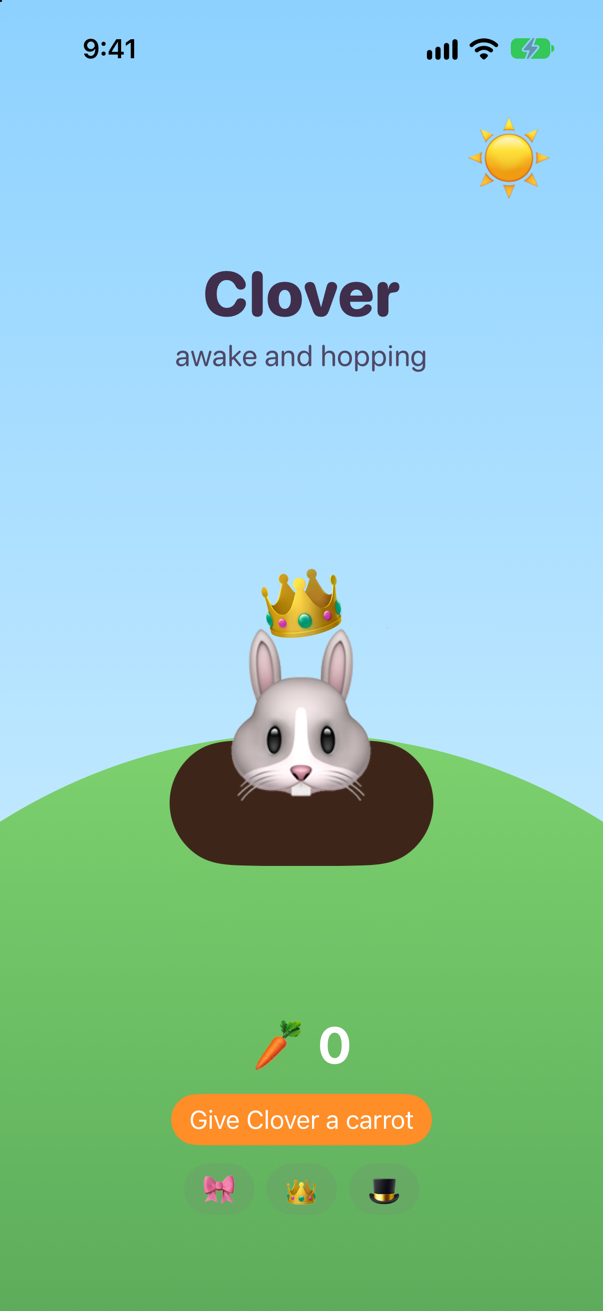
The crown came back, and nothing of yours saved it: the scene did, on its way to the background. Apple adds that the system "makes no guarantees as to when and how often the data will be persisted" — so keep @SceneStorage for small things you could lose. Three places to keep a value:
| Kept with | It lasts | Shared by |
|---|---|---|
@State | as long as the process | one view, in one window |
@SceneStorage | as long as the scene — across launches, when the system brings the scene back | the views of one window |
@AppStorage | until it is changed: it is kept in UserDefaults | every window |
A burrow for Hazel
On iPad a WindowGroup can make many windows. Make it make burrows for different bunnies: a window opened for a value. In BurrowScene.swift:
import SwiftUI/// One kind of window: a burrow. The system never sees this type —/// it sees the WindowGroup that its body returns./// One kind of window: a burrow, for whichever bunny it is opened for./// The system never sees this type — it sees the WindowGroup that its body returns.struct BurrowScene: Scene { let warren: Warren @Environment(\.scenePhase) private var phase var body: some Scene { WindowGroup { ContentView(warren: warren) WindowGroup(for: String.self) { $bunny in ContentView(bunny: bunny ?? "Clover", warren: warren) } .onChange(of: phase) { old, new in print("BurrowScene: \(old) → \(new)") } }}import SwiftUI
/// One kind of window: a burrow, for whichever bunny it is opened for.
/// The system never sees this type — it sees the WindowGroup that its body returns.
struct BurrowScene: Scene {
let warren: Warren
@Environment(\.scenePhase) private var phase
var body: some Scene {
WindowGroup(for: String.self) { $bunny in
ContentView(bunny: bunny ?? "Clover", warren: warren)
}
.onChange(of: phase) { old, new in
print("BurrowScene: \(old) → \(new)")
}
}
}WindowGroup(for: String.self) makes a window for each name it is given. Its closure receives a binding to that name — nil for the window the app opens by itself, which belongs to Clover. ContentView takes the name, and Clover's burrow gets a button that opens Hazel's. Replace the ContentView struct:
struct ContentView: View { let bunny: String let warren: Warren @Environment(\.scenePhase) private var phase @Environment(\.openWindow) private var openWindow @SceneStorage("hat") private var hat = "" @State private var heartbeats = 0 @State private var asleepSince: Date? @State private var lastNap = "" var body: some View { ZStack { BurrowArt(bunny: "Clover", mood: Mood(phase), hat: hat) BurrowArt(bunny: bunny, mood: Mood(phase), hat: hat) if phase == .active { VStack(spacing: 12) { if !lastNap.isEmpty { Text(lastNap) .font(.system(.headline, design: .rounded)) .padding(.horizontal, 14) .padding(.vertical, 6) .background(.white.opacity(0.85), in: Capsule()) } Text("🥕 \(warren.carrots)") .font(.system(size: 34, weight: .bold, design: .rounded)) .foregroundStyle(.white) Button("Give Clover a carrot") { Button("Give \(bunny) a carrot") { warren.carrots += 1 } .buttonStyle(.borderedProminent) .tint(.orange) HStack { ForEach(["🎀", "👑", "🎩"], id: \.self) { choice in Button(choice) { hat = choice } } } .buttonStyle(.bordered) if bunny == "Clover" { Button("Visit Hazel") { openWindow(value: "Hazel") } } } .frame(maxHeight: .infinity, alignment: .bottom) .padding(.bottom, 30) } } .task { while !Task.isCancelled { try? await Task.sleep(for: .seconds(1)) heartbeats += 1 } } .onChange(of: phase) { old, new in print("Clover: \(old) → \(new), \(heartbeats) heartbeats") print("\(bunny): \(old) → \(new), \(heartbeats) heartbeats") if new == .background { asleepSince = .now } if new == .active, let asleepSince { lastNap = "Clover slept \(Int(Date.now.timeIntervalSince(asleepSince))) seconds" lastNap = "\(bunny) slept \(Int(Date.now.timeIntervalSince(asleepSince))) seconds" self.asleepSince = nil } } }}struct ContentView: View {
let bunny: String
let warren: Warren
@Environment(\.scenePhase) private var phase
@Environment(\.openWindow) private var openWindow
@SceneStorage("hat") private var hat = ""
@State private var heartbeats = 0
@State private var asleepSince: Date?
@State private var lastNap = ""
var body: some View {
ZStack {
BurrowArt(bunny: bunny, mood: Mood(phase), hat: hat)
if phase == .active {
VStack(spacing: 12) {
if !lastNap.isEmpty {
Text(lastNap)
.font(.system(.headline, design: .rounded))
.padding(.horizontal, 14)
.padding(.vertical, 6)
.background(.white.opacity(0.85), in: Capsule())
}
Text("🥕 \(warren.carrots)")
.font(.system(size: 34, weight: .bold, design: .rounded))
.foregroundStyle(.white)
Button("Give \(bunny) a carrot") {
warren.carrots += 1
}
.buttonStyle(.borderedProminent)
.tint(.orange)
HStack {
ForEach(["🎀", "👑", "🎩"], id: \.self) { choice in
Button(choice) {
hat = choice
}
}
}
.buttonStyle(.bordered)
if bunny == "Clover" {
Button("Visit Hazel") {
openWindow(value: "Hazel")
}
}
}
.frame(maxHeight: .infinity, alignment: .bottom)
.padding(.bottom, 30)
}
}
.task {
while !Task.isCancelled {
try? await Task.sleep(for: .seconds(1))
heartbeats += 1
}
}
.onChange(of: phase) { old, new in
print("\(bunny): \(old) → \(new), \(heartbeats) heartbeats")
if new == .background {
asleepSince = .now
}
if new == .active, let asleepSince {
lastNap = "\(bunny) slept \(Int(Date.now.timeIntervalSince(asleepSince))) seconds"
self.asleepSince = nil
}
}
}
}And the preview:
#Preview { ContentView(warren: Warren()) ContentView(bunny: "Clover", warren: Warren())}#Preview {
ContentView(bunny: "Clover", warren: Warren())
}Run it on an iPad: in the run destination menu, choose iPad Air 11-inch (M4). Give Clover her crown and a carrot, tap Visit Hazel, and give Hazel a bow.
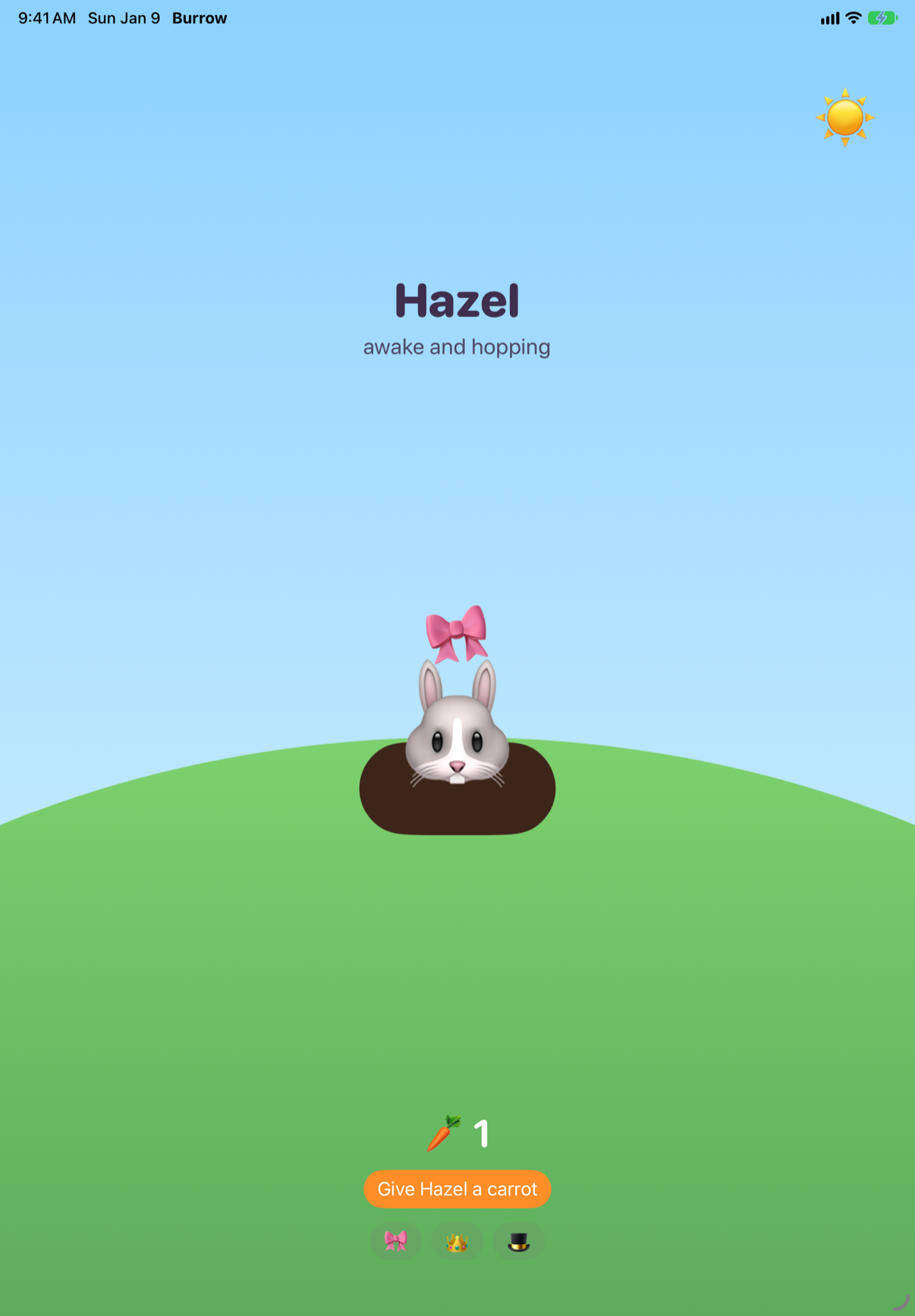
Hazel's burrow opened in front of Clover's. What each of them heard:
BurrowScene: active → inactive
The warren: active → inactive
Clover: active → inactive, 54 heartbeats
BurrowScene: inactive → active
The warren: inactive → active
Hazel: inactive → active, 0 heartbeats
Clover: inactive → background, 55 heartbeats
Here the three readings part. Clover's window went to the background. Hazel's is active — and so are the scene and the App, because one of their windows is. Now open the app switcher:
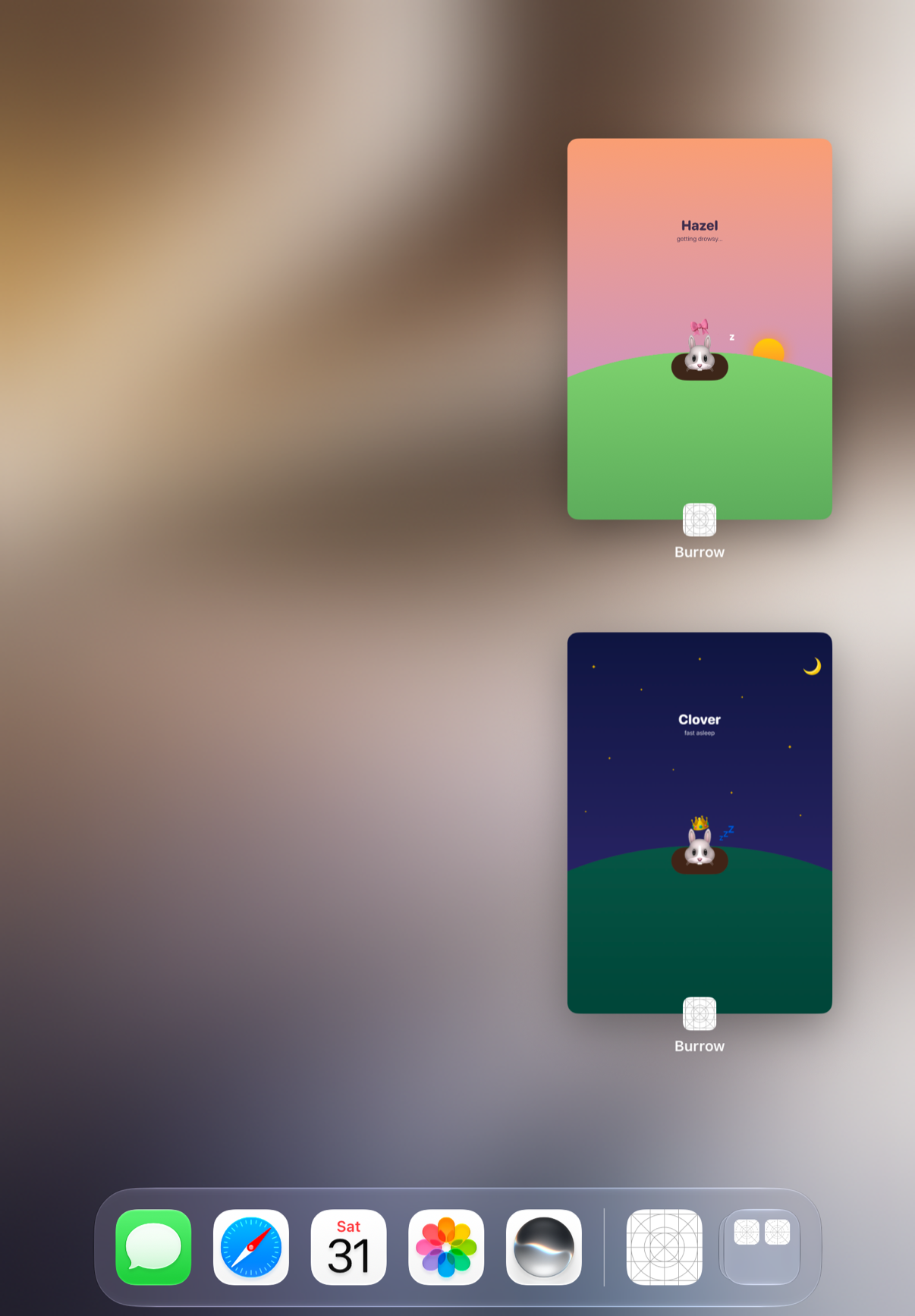
Each window is a scene of its own, with its own phase, its own picture in the switcher, and its own @SceneStorage: a bow for Hazel, a crown for Clover. The carrots are in the warren, which the App owns, so both burrows count the same carrot. Clover's card shows her asleep: her window's picture was taken when it went to the background.
What you built
BurrowScene— a scene type of your own, built from Apple'sWindowGroup, with anonChangeof its own; and the phase read in three places, in the order they hear it.- A bunny whose mood follows her scene, a heartbeat that shows the app stopping in the background, and a nap measured with dates.
- A burrow that keeps its carrots out of the app switcher, and a
Warrensaved when the app goes to the background. - A hat in
@SceneStoragethat comes back after the system ends the app, and on iPad a window for each bunny:WindowGroup(for:)andopenWindow(value:).
Next, the last tutorial: an app built with UIKit, whose scene delegate makes its window in code — this lesson's scenes, the UIKit way — and which takes up SwiftUI in both directions.
The finished project
Stuck, or want to compare with your own? This is the project as it stands at the end of this lesson, built and run before it was put here.
- Burrow.zip — unzip it, then open
Burrow.xcodeprojin Xcode.
Flash cards
12 cards for this lesson, each labelled with its topic. 8 ask how you would write something; the other 4 are trick questions, written to catch a misunderstanding. Answer in your head first, then tap the card.
Syntax · ScenesWrite a scene type of your own that shows ContentView in a window group, and make it the app's scene.
A struct that conforms to Scene, whose body returns some Scene — here Apple's WindowGroup. The system knows only Apple's kinds of scene; a scene of your own names one of them, with whatever modifiers it adds, as a view of your own names a piece of interface.
Syntax · ScenesPrint each change of phase of the windows a scene of your own makes — from the scene, not from a view.

@Environment(\.scenePhase) in the scene, and onChange(of:) as a scene modifier. Read there, the phase covers the windows that scene makes. Launched, sent to the Home Screen and brought back, it printed: background → inactive
inactive → active
active → inactive
inactive → background
background → inactive
inactive → active
Syntax · ScenesKeep a value for each window, which the system gives back when it brings the window back.
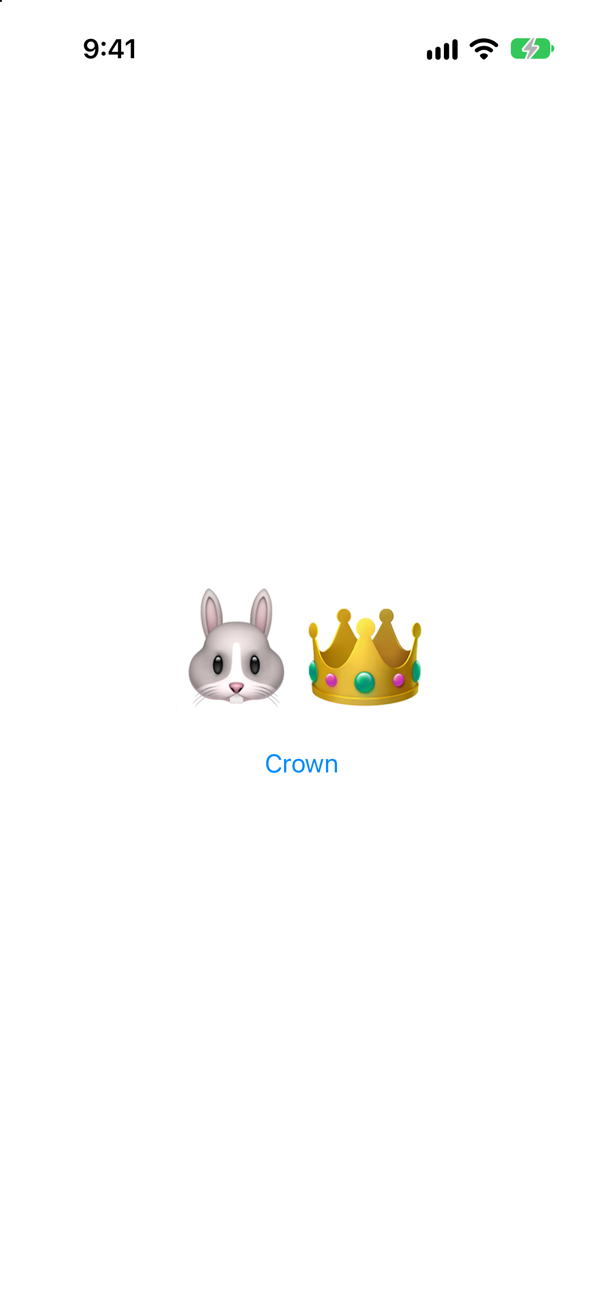
@SceneStorage with a key. Each scene keeps its own; the system saves it on the way to the background and gives it back when it restores that scene. Crowned, sent to the background, ended and launched again, the bunny still wore the crown.
Syntax · WindowsOn iPad, open a window for a value: a burrow for the bunny called "Hazel".
WindowGroup(for:) with a type that is Codable and Hashable; its closure gets a binding to the value — nil for the window the app opens by itself. openWindow(value:) from the environment opens one. A value whose window is already open brings that window forward instead.
Syntax · WindowsClose the window a view is in.
dismissWindow from the environment, called with no arguments: it closes the window the view is in. On iPad, closing the only window in front takes the person back to the Home Screen — one of this lesson's edge cases.
Syntax · The backgroundKeep what is on the screen out of the app switcher.
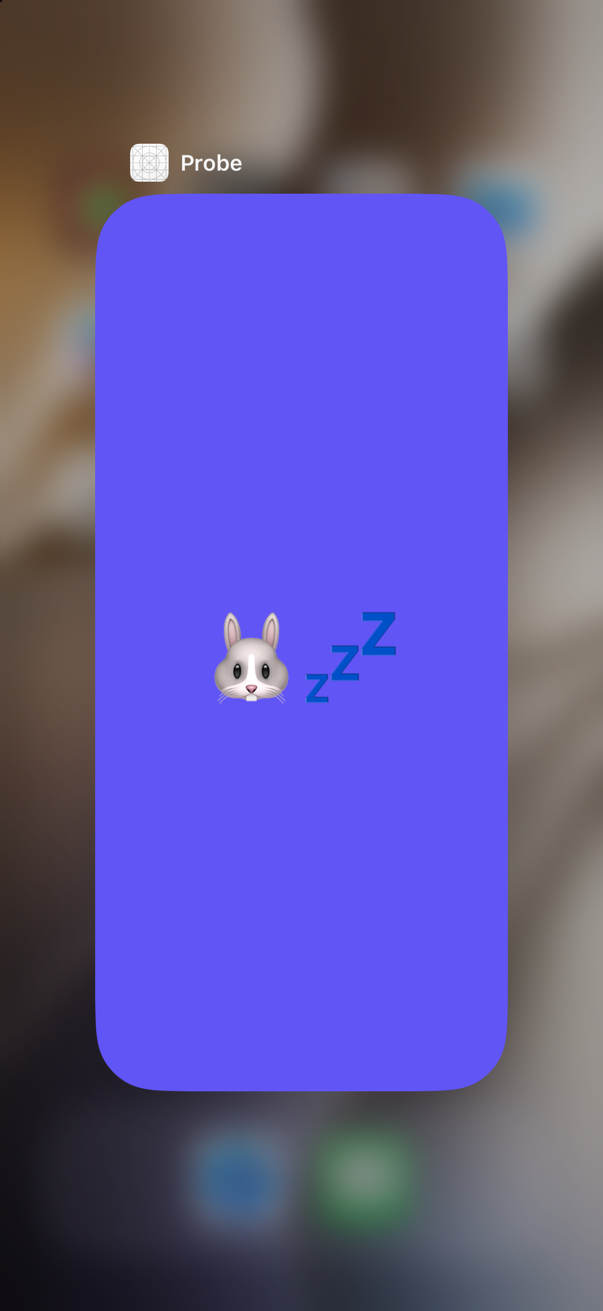
Draw a cover whenever the scene is not active. The app switcher shows it either way: its live card while the app is inactive, and the picture taken as it goes to the background. On background alone is not enough — opened from the app, the switcher never takes it to the background.
Syntax · The backgroundMeasure how long the app was in the background.
Note the date when the scene reaches background, and subtract when it is active again. Counting cannot do it: in the background the app is suspended, and nothing counts. Five seconds on the Home Screen printed: Away for 7 seconds
Syntax · The backgroundAsk the system to run some work in the background later — from the scene.
The scene modifier backgroundTask(.appRefresh(…)) holds the work; a BGAppRefreshTaskRequest submitted to BGTaskScheduler asks for it — in iOS 27 with try await submitTaskRequest(_:) (submit(_:) is deprecated), and not from the main thread, Apple's header says, so here from a @concurrent function. The system decides when. The identifier must also be in the Info.plist — Permitted background task scheduler identifiers — and Background fetch ticked under Background Modes; without them, submit throws, as one of this lesson's edge cases shows.
Trick question · ScenesOn iPad, Clover's window goes behind Hazel's. What do a view in Clover's window, the scene, and the App each read as the phase?
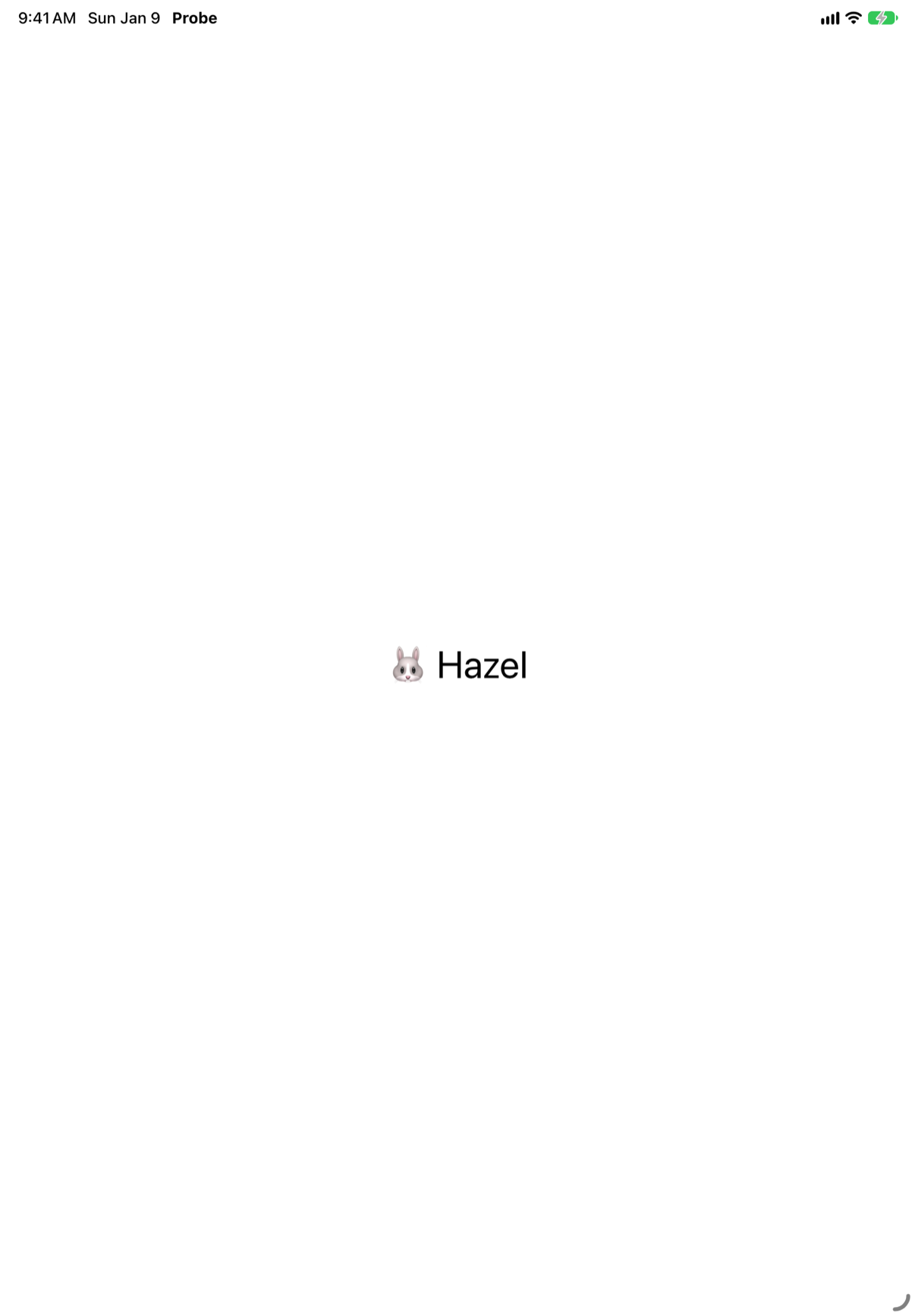
The view: background. The scene and the App: active. A view reads its own window; the scene reads the windows it makes; the App reads them all — active if any one is. Opening Hazel's window printed: Scene: inactive
App: inactive
Scene: active
App: active
Clover's view: active
Scene: inactive
App: inactive
Clover's view: inactive
Scene: active
App: active
Hazel's view: active
Clover's view: background
Trick question · The backgroundA view counts seconds in a .task loop. The person presses Home for eight seconds. How far has it counted when they come back — and was the task cancelled?

A second or two further, not eight — and no, not cancelled. In the background the app is suspended: no code runs, the loop included. When it comes back, the task carries on from where it stopped. It printed: inactive → active at 0 active → inactive at 5 inactive → background at 5 background → inactive at 6 inactive → active at 6
Trick question · ScenesA view keeps one value in @State, one in @SceneStorage and one in @AppStorage. The person sets all three and leaves the app, and the system ends it in the background. What is there when they open it again?
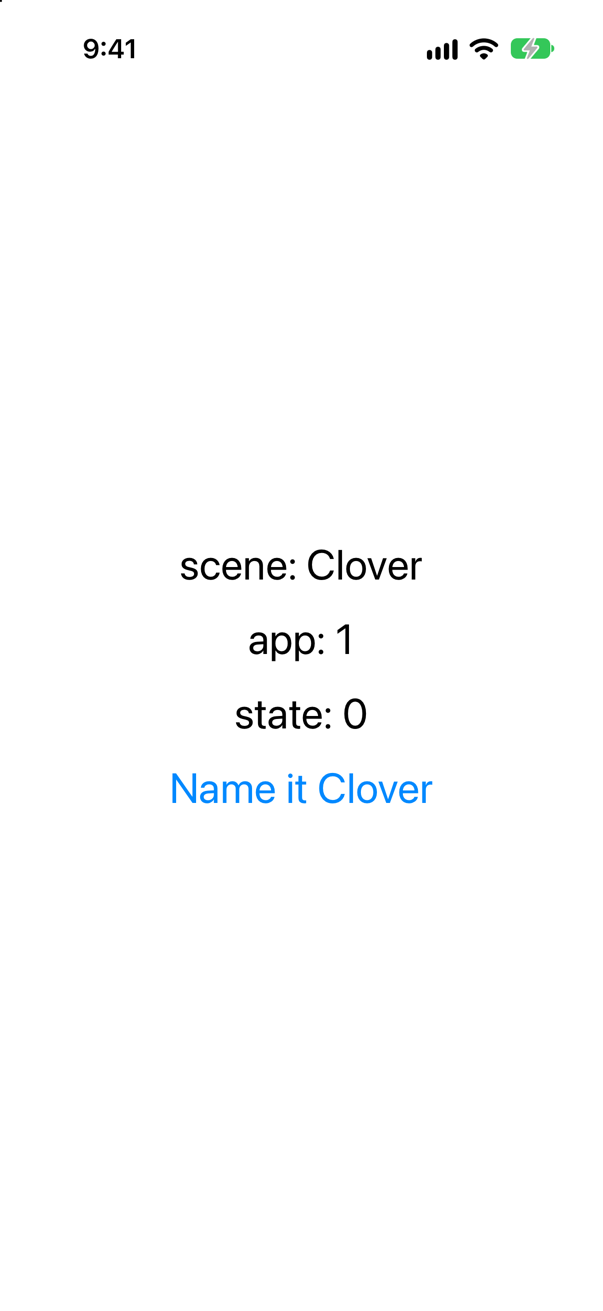
The @SceneStorage and @AppStorage values; @State starts again. The app was ended, so @State went with the process. The scene saved its storage on the way to the background and the system restored the scene; UserDefaults keeps the @AppStorage value. The screen read: scene: Clover, app: 1, state: 0.
Trick question · ScenesThe App and a view both have onChange(of: scenePhase). When the person presses Home, which hears background first?
The App — and a scene of your own hears it before the App. So a save that must happen before any view hears the news belongs in the App or the scene. Pressing Home printed: App: inactive
App: active
view: active
App: inactive
view: inactive
App: background
view: background
Edge cases and tricky questions
9 questions of the kind an interviewer uses to find out whether you really know this — the corners, the traps, and the things that changed recently. Each has its source. Wherever the answer is what some code does, that code was compiled and run, and what you see under “Show the answer” is what it really did. Say your answer aloud before you open it.
A view prints in onAppear and in onDisappear. The person presses Home, waits, and comes back. Which of the two runs?
Show the answer
Neither. onAppear ran once, at launch. The trip to the Home Screen and back printed only the phases:
phase: inactive
phase: background
phase: inactive
phase: active
As far as SwiftUI is concerned, the view never left: its window stopped being shown, and then was shown again. onAppear and onDisappear are about a view joining or leaving the hierarchy — a screen pushed and popped, an if that turns false. Work that should stop when the person leaves the app belongs in onChange(of: scenePhase).
Where this comes from: onDisappear(perform:) · ScenePhase
A view's .task counts seconds in a loop, and prints if it is cancelled. The person presses Home for eight seconds, then comes back. Is the task cancelled? How far did it count?
Show the answer

It is not cancelled, and it hardly counts. It printed:
inactive → active at 0
active → inactive at 5
inactive → background at 5
background → inactive at 6
inactive → active at 6
In eight seconds away the count moved by a second or two. The loop ran until the system suspended the app, a moment after it reached background; then nothing ran at all. Coming back, the task carried on from the Task.sleep it was in. A .task is cancelled when its view goes away, not when the app does — so whatever must stop when the person leaves needs scenePhase, and whatever measures time away needs dates.
Where this comes from: task(name:priority:file:line:_:) · ScenePhase
Three things hear about the app going to the background: the App's onChange(of: scenePhase), UIKit's didEnterBackgroundNotification, and a view's onChange(of: scenePhase). In what order?
Show the answer
The App, then UIKit, then the view. Pressing Home printed:
App: inactive
view: inactive
App: background
UIKit: didEnterBackground
view: background
SwiftUI tells the App — and a scene of your own, before it — about each change first. UIKit's notification comes next, and the views hear last. A view that waits for its own onChange to save is the last to know: save in the App or the scene. In a SwiftUI app, onChange(of: scenePhase) is the way to hear it; the notification is for code that is UIKit underneath.
Where this comes from: ScenePhase · UIApplication.didEnterBackgroundNotification
A view keeps one value in @SceneStorage, one in @AppStorage and one in @State. You set all three, stop the app in Xcode (⌘.) while it is still on the screen, and run it again. What does each show?
Show the answer
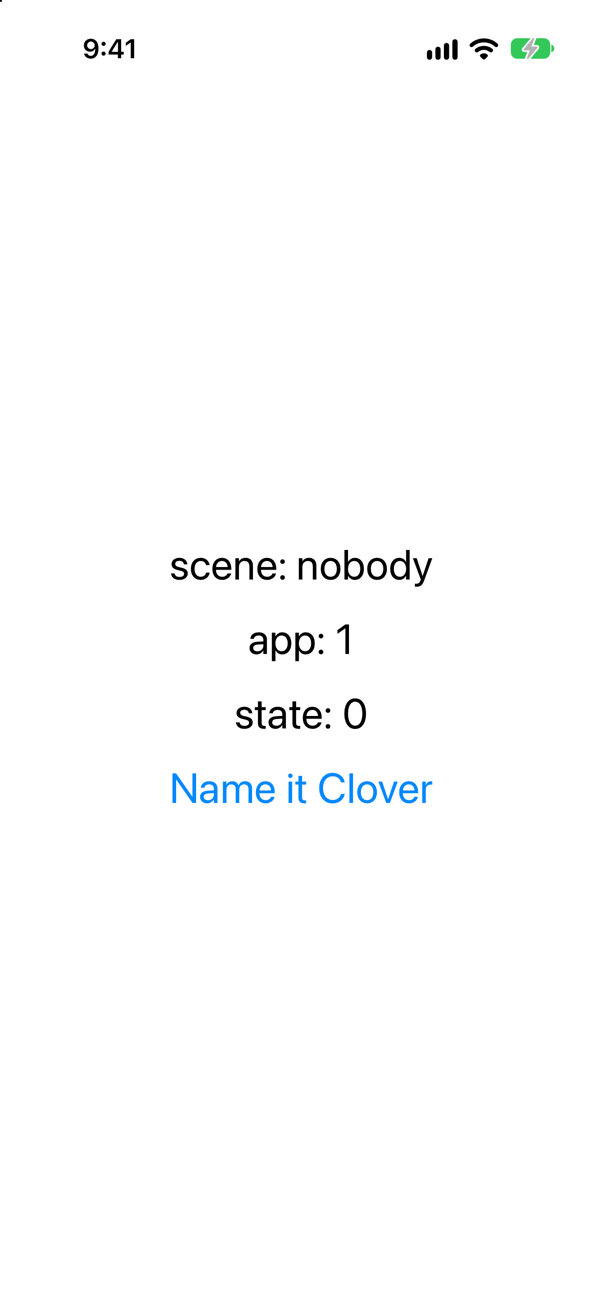
Only the @AppStorage value survives. The screen read scene: nobody, app: 1, state: 0. @State went with the process, as it always does. @SceneStorage is saved by the system as the scene goes to the background — and this scene never went. Press Home first, and then stop the app and run it again:
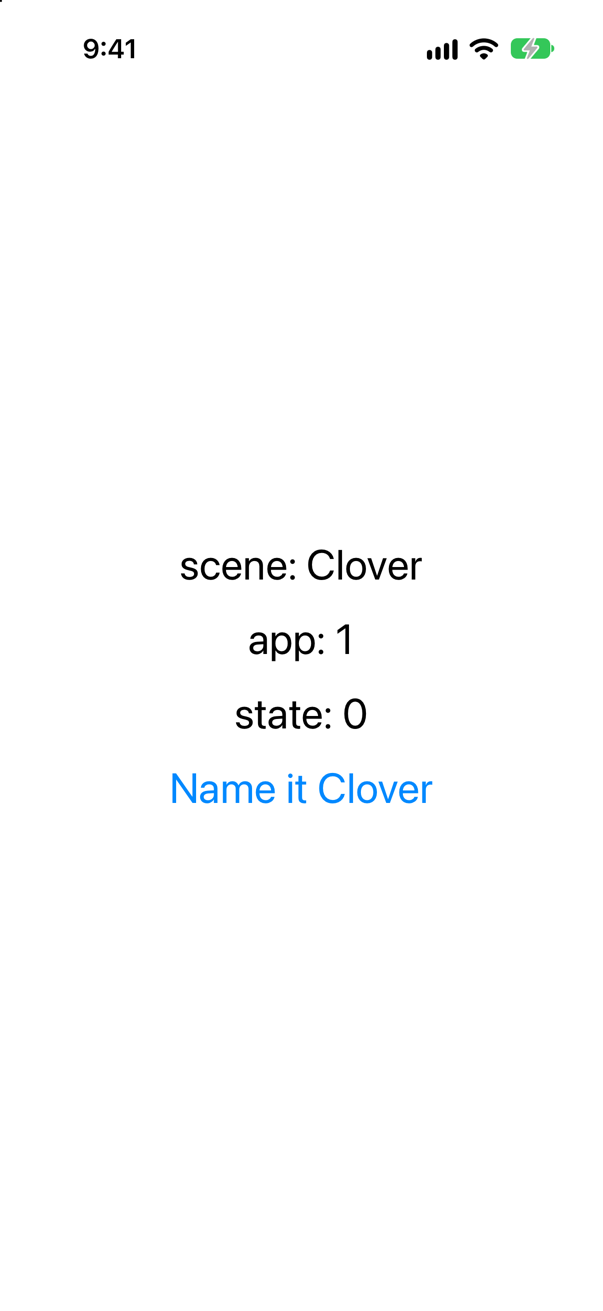
So to try state restoration, press Home before you stop the app — and know that Xcode's Stop, or a crash, loses what a scene had not yet saved.
Where this comes from: SceneStorage · AppStorage
On an iPhone, the person sets a value kept in @SceneStorage, opens the app switcher, swipes the app up and away, and then opens it again. Is the value there? And one kept in @State?
Show the answer
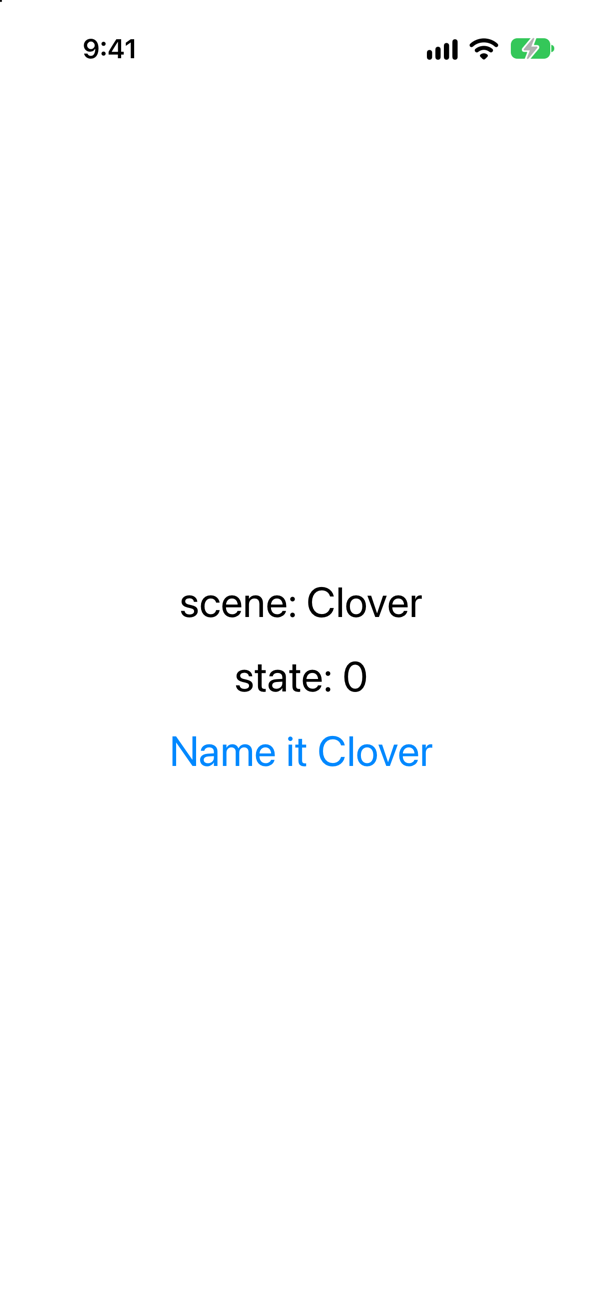
On this iPhone, the @SceneStorage value was there; the @State value was not. The swipe ended the app — the @State count started again from 0 — but the scene's storage came back: scene: Clover.
Apple's iPhone guide gives the swipe as the way to quit an app: open the App Switcher, then "swipe up on the app". Apple's documentation of SceneStorage says when its data is destroyed — when the scene is "explicitly destroyed", for example a window closed on macOS — and makes no promise about when it is saved. On iOS 27 on an iPhone, a swipe-away kept it. Do not build on that either way: keep in @SceneStorage only what you could lose.
Where this comes from: SceneStorage · iPhone User Guide: Quit and reopen an app on iPhone
On iPad, a button calls openWindow(value: "Hazel") for a WindowGroup(for: String.self). The person taps it, and then taps the same button in Hazel's window. How many Hazel windows are there?
Show the answer
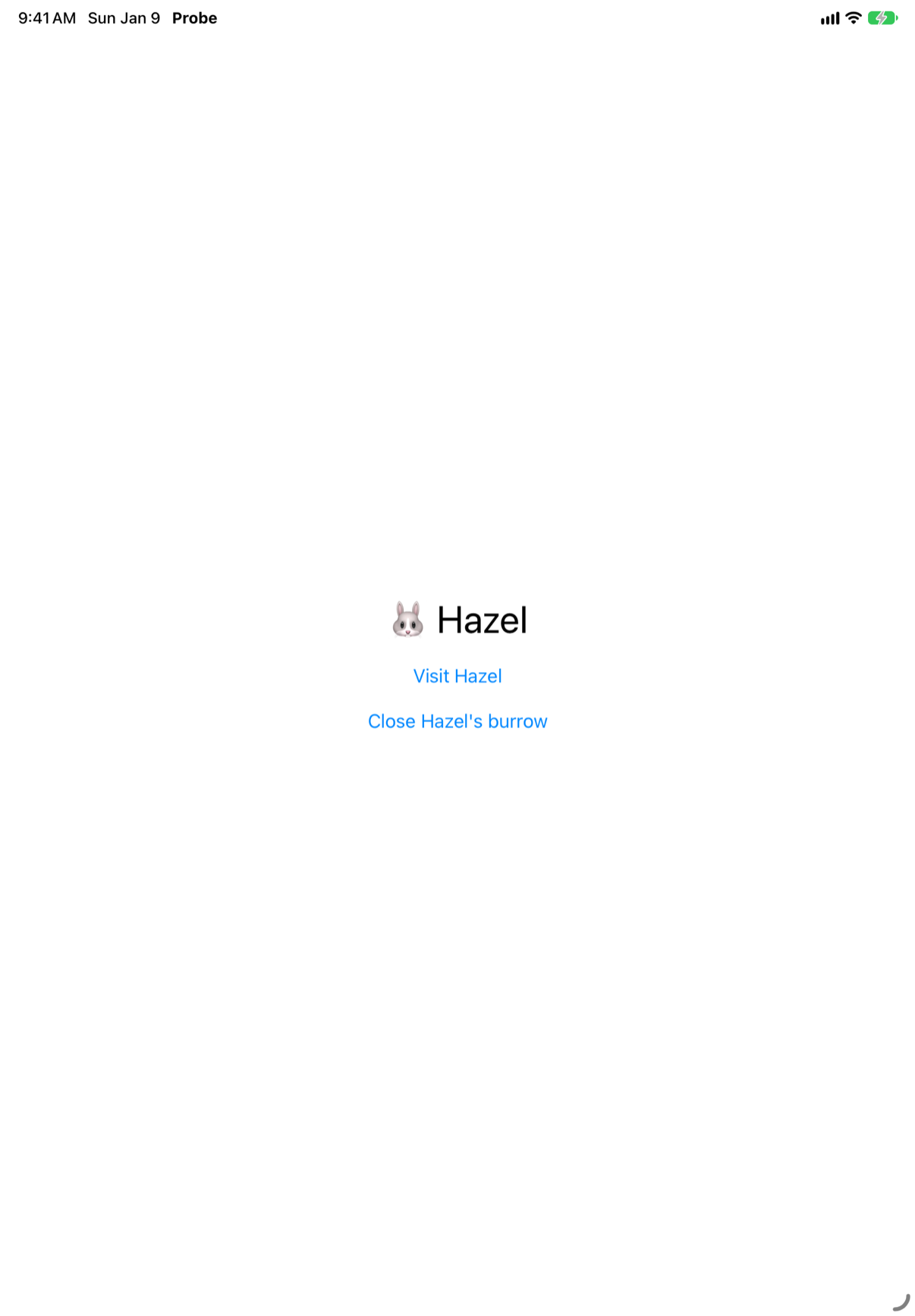
One. The second tap made nothing new — no second BurrowView for Hazel. After the first tap:
Scene: inactive
App: inactive
a burrow for Hazel
Scene: active
App: active
and after the second, only the phases moved while the window came forward:
Scene: inactive
App: inactive
Scene: active
App: active
Apple, on OpenWindowAction: if a window from the group already presents that value, "the system brings the window to the front"; only a new value makes a new window. So the value should identify the content — a bunny's name here, a document's identifier in a real app.
Where this comes from: OpenWindowAction · WindowGroup init(for:content:)
On iPad, the person opens a second window of the app. Does the App's init run again?
Show the answer
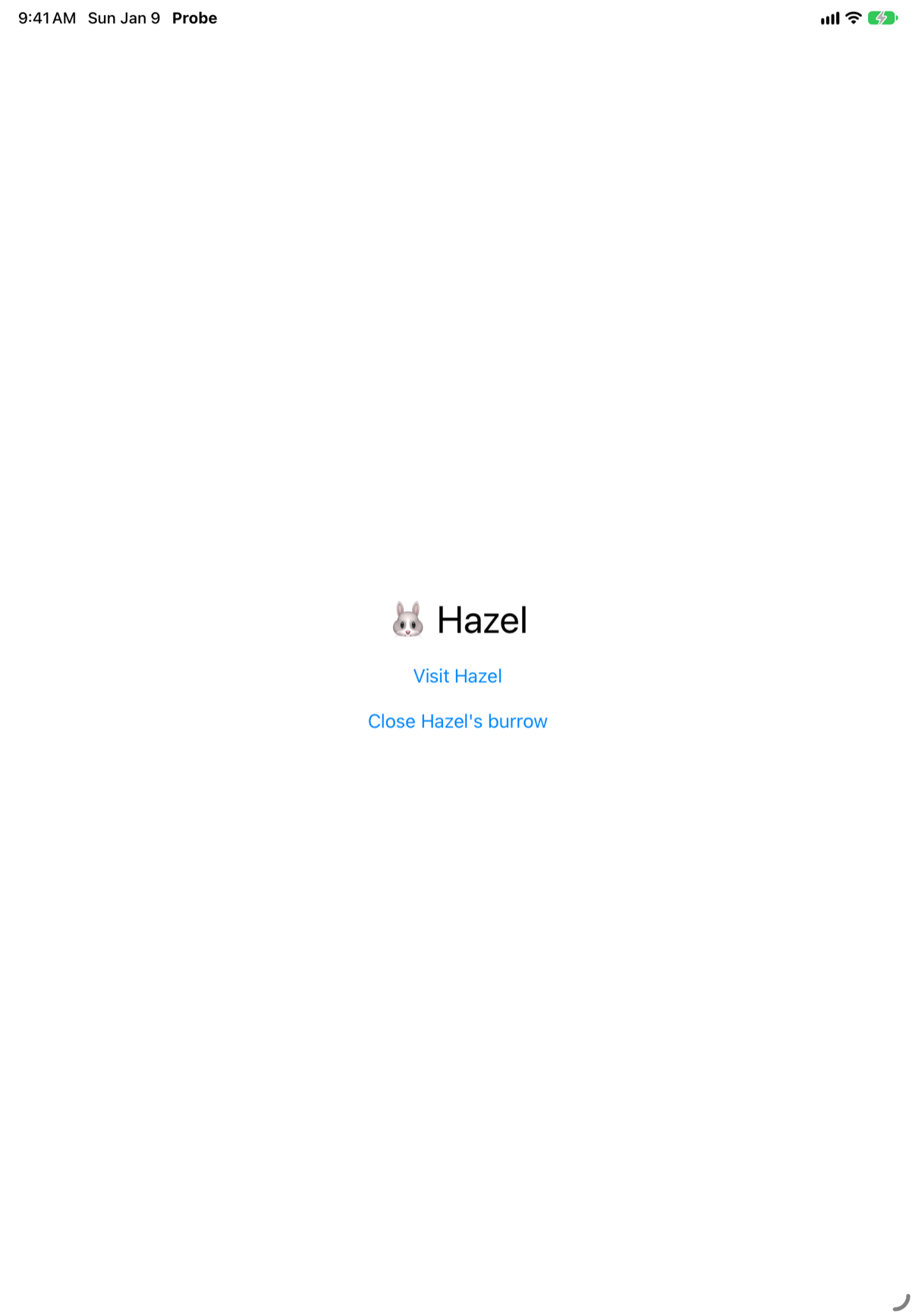
No — once per launch. Launching and then opening Hazel's window printed:
App.init
Scene: inactive
App: inactive
a burrow for Clover
Scene: active
App: active
Scene: inactive
App: inactive
a burrow for Hazel
Scene: active
App: active
There is one App in the process, made once, before any window. Each window gets a view hierarchy of its own from the scene's content — a new BurrowView, with its own @State — but the App, and whatever it owns, such as Burrow's warren, is shared by every window.
Where this comes from: Scene · WindowGroup
On iPad, Hazel's window is in front and Clover's is behind it. Hazel's window calls dismissWindow(). What does the person see next, and what is the app's scenePhase?
Show the answer
The Home Screen — and the app is in the background. Closing Hazel's window did not bring Clover's forward. The run printed:
Scene: inactive
App: inactive
Scene: background
App: background
With iPadOS's full-screen windows, the window behind is a scene in the background, and it stays there. So after dismissWindow() the app is background — and whatever you do on background, such as a save, runs. To show another window yourself, open it: openWindow(value:) brings a window that is already open to the front.
Where this comes from: EnvironmentValues dismissWindow · OpenWindowAction
At launch, an app submits a BGAppRefreshTaskRequest with the identifier of the .backgroundTask(.appRefresh(…)) on its scene. Nothing else is set up. What does submit do?
Show the answer

It throws. The run printed:
refused: BGTaskSchedulerErrorDomain, code 3
["Unrecognized Identifier"]
Code 3 is BGTaskSchedulerErrorCodeNotPermitted: the identifier is not one the app is allowed to schedule. (The call is iOS 27's try await submitTaskRequest(_:): submit(_:) is deprecated, and Apple's header asks that it not be made from the main thread — hence the @concurrent function.) Apple's steps: in Signing & Capabilities, add Background Modes and select Background fetch; then in Info, under Custom iOS Target Properties, add Permitted background task scheduler identifiers, with the identifier as an item. The .backgroundTask modifier says what to run; the Info.plist permits it. When it runs is the system's choice.
Where this comes from: Apple: Using background tasks to update your app · backgroundTask(_:action:) · BGTaskScheduler