Every trip, in a list
List and ForEach
You will buildA second tab in Trips: every trip as a row of a List, in sections by month, with a swipe to delete and a swipe to mark a favorite — and, on the way, the swipe to delete that deletes the wrong trip.
TimeAbout 80 minutes
WhyList is to SwiftUI what UITableView was to UIKit: the scrolling column of rows that most apps are built around, with the system's look, swipe actions, sections and editing for free. It is also where lesson 20's identity rules do the most work, because rows come and go, move and are deleted. Interviewers ask about both halves: how to build it, and what goes wrong when the ids or the offsets are not what you think.
Open your project
Open your
Tripsproject as lesson 20 left it: double-clickTrips.xcodeprojin Finder, or use File ▸ Open… (⌘O) in Xcode.If you did not finish lesson 20, or would rather start from a known state, download Trips-lesson-20.zip instead. It is the project exactly as it stood at the end of lesson 20. Unzip it and open
Trips.xcodeproj.Run it (⌘R) to check that it builds. You should see where lesson 20 ended:
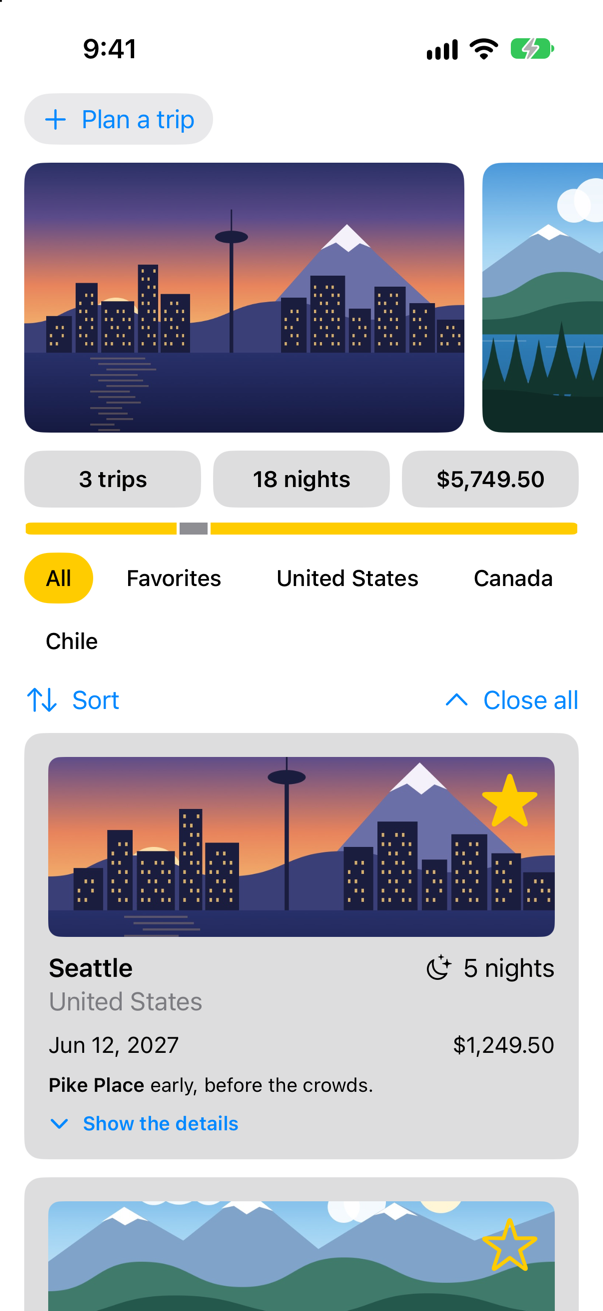
Trips, as it stood at the end of lesson 20Screenshot · iPhone 17, iOS 27.0
A second tab
The overview — planner, pictures, summary, cards — stays as it is. Every trip in a plain list gets a screen of its own beside it. Choose File ▸ New ▸ File from Template… (⌘N), under User Interface select SwiftUI View, click Next, name it TripList, and click Create. Replace the struct Xcode wrote, and its preview:
struct TripList: View { @Environment(TripStore.self) private var store var body: some View { Text("Hello, World!") List(store.trips) { trip in Text(trip.city) } }}struct TripList: View {
@Environment(TripStore.self) private var store
var body: some View {
List(store.trips) { trip in
Text(trip.city)
}
}
}#Preview { TripList() .environment(TripStore())}#Preview {
TripList()
.environment(TripStore())
}List(store.trips) { trip in … } is a List with a ForEach built in: one row for each trip, each known by its id. Now give the app two tabs. In TripsApp.swift, the window shows a TabView holding one Tab for each screen, and the store goes into the environment of the whole TabView, so that both tabs find it:
import SwiftUI@mainstruct TripsApp: App { @Environment(\.scenePhase) private var scenePhase @State private var store = TripStore() var body: some Scene { WindowGroup { ContentView() .environment(store) .task { // On the main actor, as the store is: `.task` and the closure take // the actor of the code they are written in. Each value is a [Trip], // handed on because a trip is Sendable. for await _ in Observations({ store.trips }) { store.save() } TabView { Tab("Overview", systemImage: "square.grid.2x2") { ContentView() } Tab("Trips", systemImage: "list.bullet") { TripList() } } .environment(store) .task { // On the main actor, as the store is: `.task` and the closure take // the actor of the code they are written in. Each value is a [Trip], // handed on because a trip is Sendable. for await _ in Observations({ store.trips }) { store.save() } } } .onChange(of: scenePhase) { _, new in if new == .background { store.save() } } }}import SwiftUI
@main
struct TripsApp: App {
@Environment(\.scenePhase) private var scenePhase
@State private var store = TripStore()
var body: some Scene {
WindowGroup {
TabView {
Tab("Overview", systemImage: "square.grid.2x2") {
ContentView()
}
Tab("Trips", systemImage: "list.bullet") {
TripList()
}
}
.environment(store)
.task {
// On the main actor, as the store is: `.task` and the closure take
// the actor of the code they are written in. Each value is a [Trip],
// handed on because a trip is Sendable.
for await _ in Observations({ store.trips }) {
store.save()
}
}
}
.onChange(of: scenePhase) { _, new in
if new == .background {
store.save()
}
}
}
}Run the app, and tap Trips at the bottom of the screen:
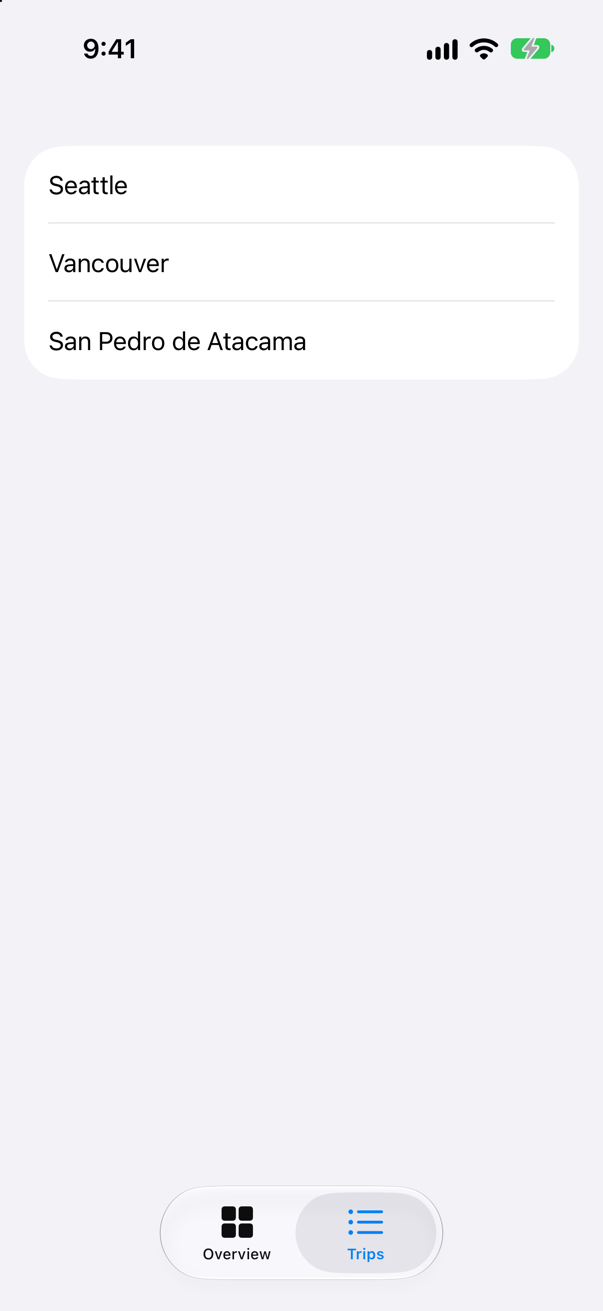
Three rows in the system's style, grouped on a gray background, ready to scroll. The Tab initializer takes a title and an SF Symbol, as a Label does; TabView draws the bar.
A row of its own
A row can be any view. Give a trip a row with its picture, its dates and its star. Make another SwiftUI View, named TripRow:
struct TripRow: View { let trip: Trip @Environment(\.highlight) private var highlight var body: some View { Text("Hello, World!") HStack(spacing: 12) { Image(trip.imageName) .resizable() .scaledToFill() .frame(width: 56, height: 40) .clipShape(RoundedRectangle(cornerRadius: 6)) VStack(alignment: .leading, spacing: 2) { Text(trip.city) .font(.headline) Text(trip.start, format: .dateTime.day().month().year()) .font(.subheadline) .foregroundStyle(.secondary) } Spacer() if trip.isFavorite { Image(systemName: "star.fill") .foregroundStyle(highlight) .accessibilityLabel("\(trip.city) is a favorite") } } }}struct TripRow: View {
let trip: Trip
@Environment(\.highlight) private var highlight
var body: some View {
HStack(spacing: 12) {
Image(trip.imageName)
.resizable()
.scaledToFill()
.frame(width: 56, height: 40)
.clipShape(RoundedRectangle(cornerRadius: 6))
VStack(alignment: .leading, spacing: 2) {
Text(trip.city)
.font(.headline)
Text(trip.start, format: .dateTime.day().month().year())
.font(.subheadline)
.foregroundStyle(.secondary)
}
Spacer()
if trip.isFavorite {
Image(systemName: "star.fill")
.foregroundStyle(highlight)
.accessibilityLabel("\(trip.city) is a favorite")
}
}
}
}#Preview { TripRow() List { TripRow(trip: .seattle) TripRow(trip: .vancouver) }}#Preview {
List {
TripRow(trip: .seattle)
TripRow(trip: .vancouver)
}
}The star reads lesson 19's highlight from the environment, like everything else in Trips that marks a favorite, and its accessibility label says whose star it is, so that VoiceOver reads "Seattle is a favorite". The preview puts two rows in a List of their own, so that the canvas shows them as rows. In TripList.swift, use it:
struct TripList: View { @Environment(TripStore.self) private var store var body: some View { List(store.trips) { trip in Text(trip.city) TripRow(trip: trip) } }}struct TripList: View {
@Environment(TripStore.self) private var store
var body: some View {
List(store.trips) { trip in
TripRow(trip: trip)
}
}
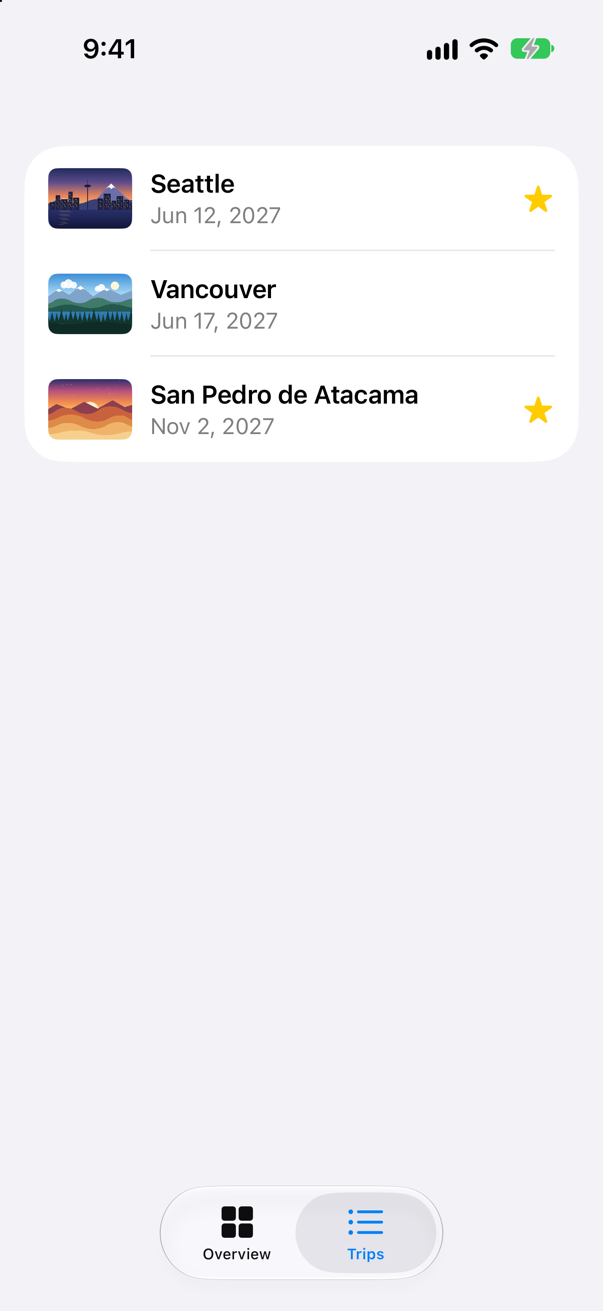
}Run the app, and tap Trips:
Sections
A long list reads better in groups. Group the trips by the month they start in. First, a way to ask a date for its month: add to the end of Trip.swift:
extension Date {
    /// The first moment of the month this date is in.
    var startOfMonth: Date {
        Calendar.current.dateInterval(of: .month, for: self)!.start
    }
}
Then the list. Instead of one ForEach over the trips, a ForEach over the months, each making a Section with a header, and inside each section a ForEach over that month's trips. In TripList.swift:
struct TripList: View { @Environment(TripStore.self) private var store var body: some View { List(store.trips) { trip in TripRow(trip: trip) List { ForEach(months, id: \.self) { month in let inMonth = trips(in: month) Section(month.formatted(.dateTime.month(.wide).year())) { ForEach(inMonth) { trip in TripRow(trip: trip) } } } } } /// The first day of every month in which a trip starts, earliest first. private var months: [Date] { Set(store.trips.map(\.start.startOfMonth)).sorted() } /// The trips that start in that month, earliest first. private func trips(in month: Date) -> [Trip] { store.trips.filter { $0.start.startOfMonth == month }.sorted { $0.start < $1.start } }}struct TripList: View {
@Environment(TripStore.self) private var store
var body: some View {
List {
ForEach(months, id: \.self) { month in
let inMonth = trips(in: month)
Section(month.formatted(.dateTime.month(.wide).year())) {
ForEach(inMonth) { trip in
TripRow(trip: trip)
}
}
}
}
}
/// The first day of every month in which a trip starts, earliest first.
private var months: [Date] {
Set(store.trips.map(\.start.startOfMonth)).sorted()
}
/// The trips that start in that month, earliest first.
private func trips(in month: Date) -> [Trip] {
store.trips.filter { $0.start.startOfMonth == month }.sorted { $0.start < $1.start }
}
}Run the app, and tap Trips:
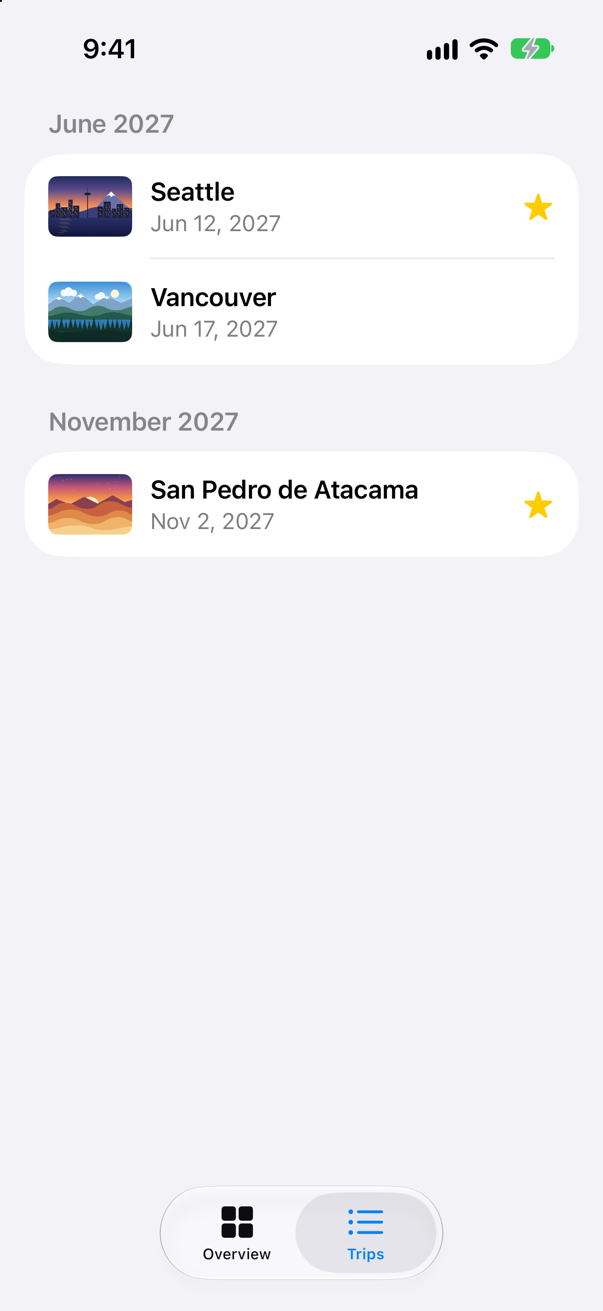
Two things to notice. The outer ForEach says id: \.self, because a month is a Date, which has no id — and that is safe, because no two months in months are equal: it is made from a Set. And let inMonth = trips(in: month) sits inside the ForEach's closure, before the Section, so that each section works out its trips once. The next step needs it.
Swipe to delete — the wrong way first
Deleting a row by swiping it to the left is one modifier on the ForEach: .onDelete, which hands you the offsets of the rows to delete. The obvious code removes those offsets from the store. In TripList.swift:
struct TripList: View { @Environment(TripStore.self) private var store var body: some View { List { ForEach(months, id: \.self) { month in let inMonth = trips(in: month) Section(month.formatted(.dateTime.month(.wide).year())) { ForEach(inMonth) { trip in TripRow(trip: trip) } .onDelete { offsets in store.trips.remove(atOffsets: offsets) } } } } } /// The first day of every month in which a trip starts, earliest first. private var months: [Date] { Set(store.trips.map(\.start.startOfMonth)).sorted() } /// The trips that start in that month, earliest first. private func trips(in month: Date) -> [Trip] { store.trips.filter { $0.start.startOfMonth == month }.sorted { $0.start < $1.start } }}struct TripList: View {
@Environment(TripStore.self) private var store
var body: some View {
List {
ForEach(months, id: \.self) { month in
let inMonth = trips(in: month)
Section(month.formatted(.dateTime.month(.wide).year())) {
ForEach(inMonth) { trip in
TripRow(trip: trip)
}
.onDelete { offsets in
store.trips.remove(atOffsets: offsets)
}
}
}
}
}
/// The first day of every month in which a trip starts, earliest first.
private var months: [Date] {
Set(store.trips.map(\.start.startOfMonth)).sorted()
}
/// The trips that start in that month, earliest first.
private func trips(in month: Date) -> [Trip] {
store.trips.filter { $0.start.startOfMonth == month }.sorted { $0.start < $1.start }
}
}Run the app, tap Trips, and swipe San Pedro de Atacama to the left:
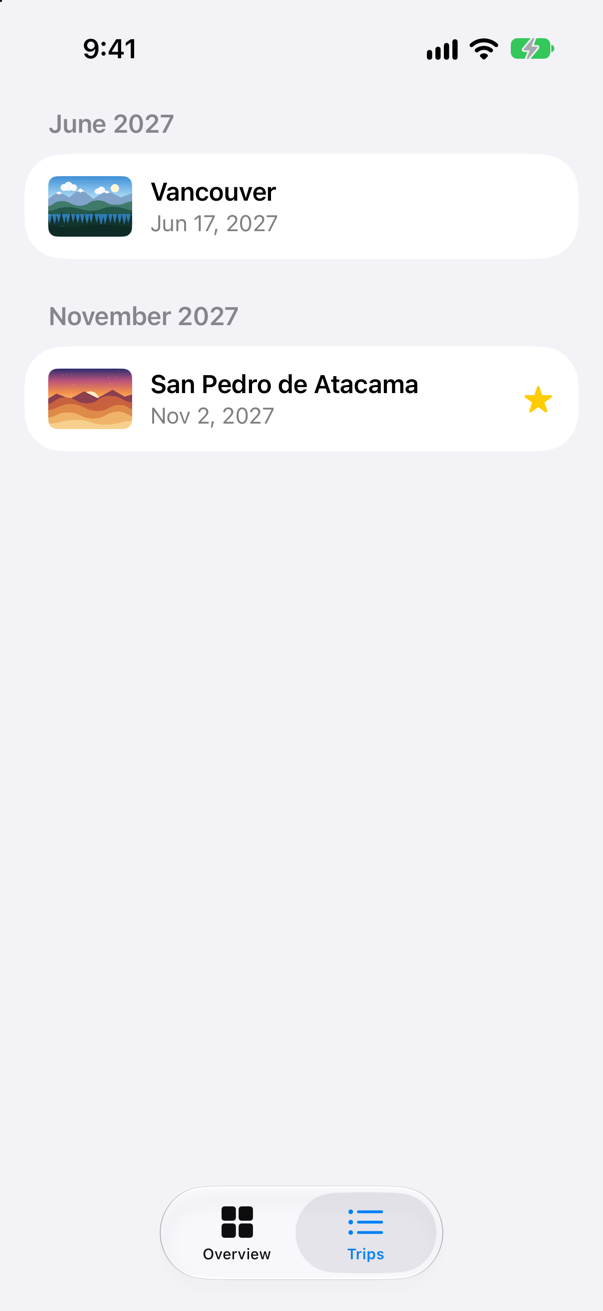
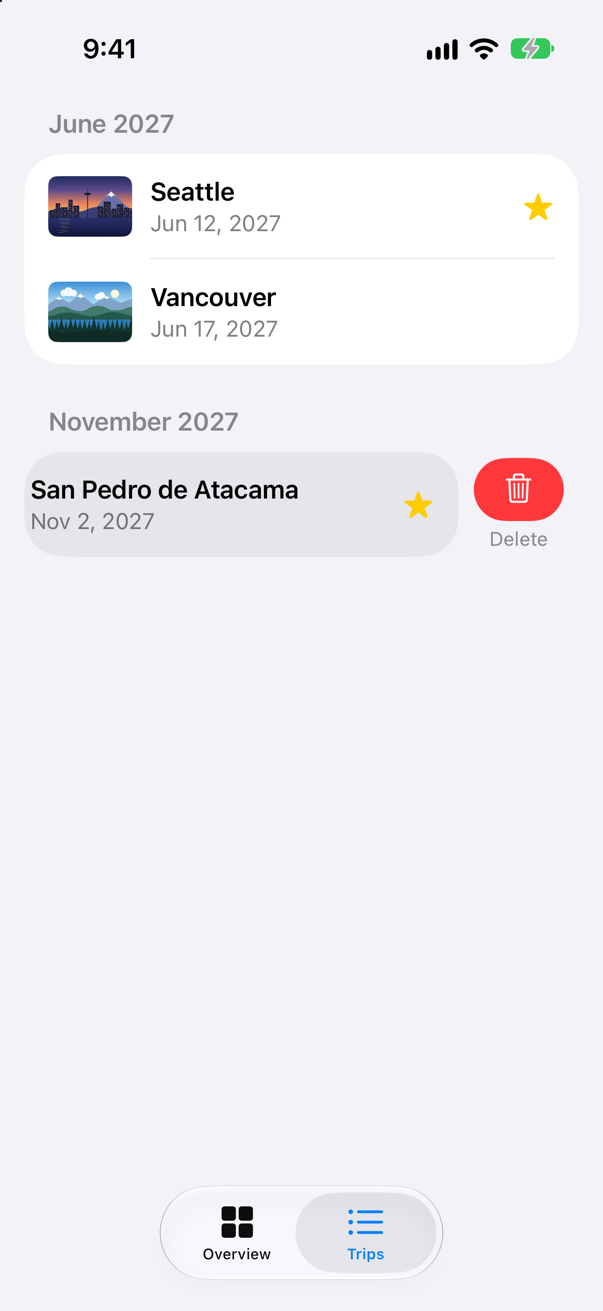
Then tap Delete — the picture at the top of this step. Atacama is still there, and Seattle is gone. The offsets .onDelete hands over count rows in that section: Atacama is row 0 of November. store.trips.remove(atOffsets:) counts in the store's array, where row 0 is Seattle. Every list with sections, a filter or a sort has this trap, and nothing warns about it: the offsets are perfectly valid, in the wrong array.
The fix is to turn offsets into trips while you are still in the section that gave them — that is what inMonth is for — and to delete trips, by id, from the store. Add to TripStore a way to delete trips, and, for the next step, a way to make one a favorite. In TripStore.swift:
/// The trips, for the whole app. `@MainActor`: the views read it, and the views/// are drawn on the main thread.@MainActor@Observablefinal class TripStore { var trips = Trip.samples /// Adds the trip a draft describes, with an id no other trip has. func add(_ draft: TripDraft) { let id = (trips.map(\.id).max() ?? 0) + 1 trips.append(draft.trip(id: id)) } /// Removes these trips, whatever order they are in. func delete(_ doomed: [Trip]) { let ids = Set(doomed.map(\.id)) trips.removeAll { ids.contains($0.id) } } /// Makes a trip a favorite, or not. func toggleFavorite(_ trip: Trip) { if let index = trips.firstIndex(where: { $0.id == trip.id }) { trips[index].isFavorite.toggle() } } func save() { print("Saving \(trips.count) trips") // a real save comes in Part 10 }}/// The trips, for the whole app. `@MainActor`: the views read it, and the views
/// are drawn on the main thread.
@MainActor
@Observable
final class TripStore {
var trips = Trip.samples
/// Adds the trip a draft describes, with an id no other trip has.
func add(_ draft: TripDraft) {
let id = (trips.map(\.id).max() ?? 0) + 1
trips.append(draft.trip(id: id))
}
/// Removes these trips, whatever order they are in.
func delete(_ doomed: [Trip]) {
let ids = Set(doomed.map(\.id))
trips.removeAll { ids.contains($0.id) }
}
/// Makes a trip a favorite, or not.
func toggleFavorite(_ trip: Trip) {
if let index = trips.firstIndex(where: { $0.id == trip.id }) {
trips[index].isFavorite.toggle()
}
}
func save() {
print("Saving \(trips.count) trips") // a real save comes in Part 10
}
}And in TripList.swift, hand the store the trips the offsets point to:
struct TripList: View { @Environment(TripStore.self) private var store var body: some View { List { ForEach(months, id: \.self) { month in let inMonth = trips(in: month) Section(month.formatted(.dateTime.month(.wide).year())) { ForEach(inMonth) { trip in TripRow(trip: trip) } .onDelete { offsets in store.trips.remove(atOffsets: offsets) store.delete(offsets.map { inMonth[$0] }) } } } } } /// The first day of every month in which a trip starts, earliest first. private var months: [Date] { Set(store.trips.map(\.start.startOfMonth)).sorted() } /// The trips that start in that month, earliest first. private func trips(in month: Date) -> [Trip] { store.trips.filter { $0.start.startOfMonth == month }.sorted { $0.start < $1.start } }}struct TripList: View {
@Environment(TripStore.self) private var store
var body: some View {
List {
ForEach(months, id: \.self) { month in
let inMonth = trips(in: month)
Section(month.formatted(.dateTime.month(.wide).year())) {
ForEach(inMonth) { trip in
TripRow(trip: trip)
}
.onDelete { offsets in
store.delete(offsets.map { inMonth[$0] })
}
}
}
}
}
/// The first day of every month in which a trip starts, earliest first.
private var months: [Date] {
Set(store.trips.map(\.start.startOfMonth)).sorted()
}
/// The trips that start in that month, earliest first.
private func trips(in month: Date) -> [Trip] {
store.trips.filter { $0.start.startOfMonth == month }.sorted { $0.start < $1.start }
}
}Run the app, and make the same swipe and tap:
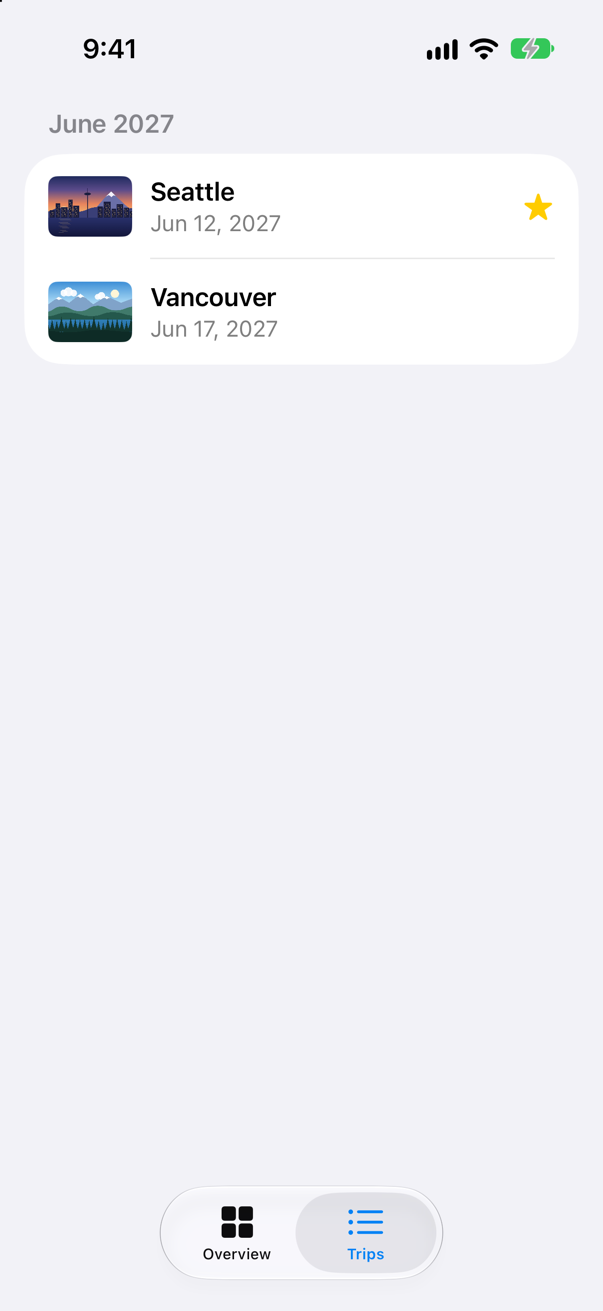
San Pedro de Atacama is gone, and so is November, because months no longer has a trip in it. Nothing told the list to remove the section: the list is a description of the store, and the store changed. So did the overview tab, which reads the same store: its tiles now say 2 trips.
A second swipe action
A row can have actions of its own on either edge. .onDelete already owns the trailing edge, so put a favorite on the leading one, with .swipeActions(edge: .leading). A swipe action is a Button; its .tint colors it. In TripList.swift:
struct TripList: View { @Environment(TripStore.self) private var store @Environment(\.highlight) private var highlight var body: some View { List { ForEach(months, id: \.self) { month in let inMonth = trips(in: month) Section(month.formatted(.dateTime.month(.wide).year())) { ForEach(inMonth) { trip in TripRow(trip: trip) .swipeActions(edge: .leading) { Button(trip.isFavorite ? "Unfavorite" : "Favorite", systemImage: trip.isFavorite ? "star.slash" : "star") { store.toggleFavorite(trip) } .tint(highlight) } } .onDelete { offsets in store.delete(offsets.map { inMonth[$0] }) } } } } } /// The first day of every month in which a trip starts, earliest first. private var months: [Date] { Set(store.trips.map(\.start.startOfMonth)).sorted() } /// The trips that start in that month, earliest first. private func trips(in month: Date) -> [Trip] { store.trips.filter { $0.start.startOfMonth == month }.sorted { $0.start < $1.start } }}struct TripList: View {
@Environment(TripStore.self) private var store
@Environment(\.highlight) private var highlight
var body: some View {
List {
ForEach(months, id: \.self) { month in
let inMonth = trips(in: month)
Section(month.formatted(.dateTime.month(.wide).year())) {
ForEach(inMonth) { trip in
TripRow(trip: trip)
.swipeActions(edge: .leading) {
Button(trip.isFavorite ? "Unfavorite" : "Favorite",
systemImage: trip.isFavorite ? "star.slash" : "star") {
store.toggleFavorite(trip)
}
.tint(highlight)
}
}
.onDelete { offsets in
store.delete(offsets.map { inMonth[$0] })
}
}
}
}
}
/// The first day of every month in which a trip starts, earliest first.
private var months: [Date] {
Set(store.trips.map(\.start.startOfMonth)).sorted()
}
/// The trips that start in that month, earliest first.
private func trips(in month: Date) -> [Trip] {
store.trips.filter { $0.start.startOfMonth == month }.sorted { $0.start < $1.start }
}
}Run the app, tap Trips, and swipe Vancouver to the right:
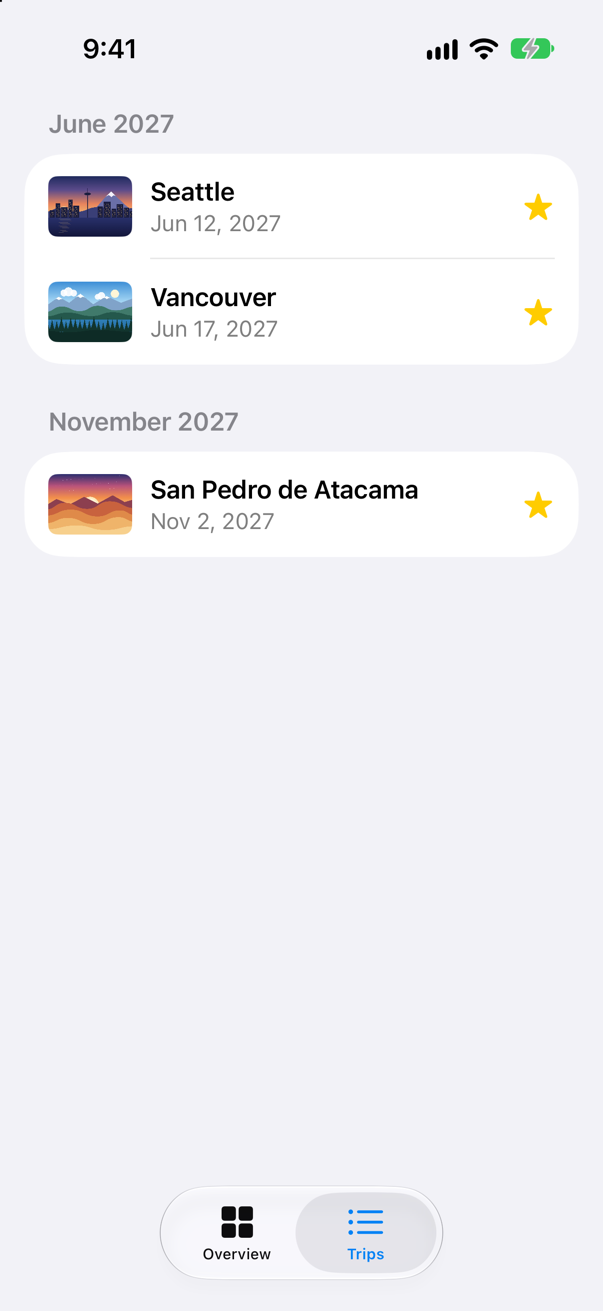
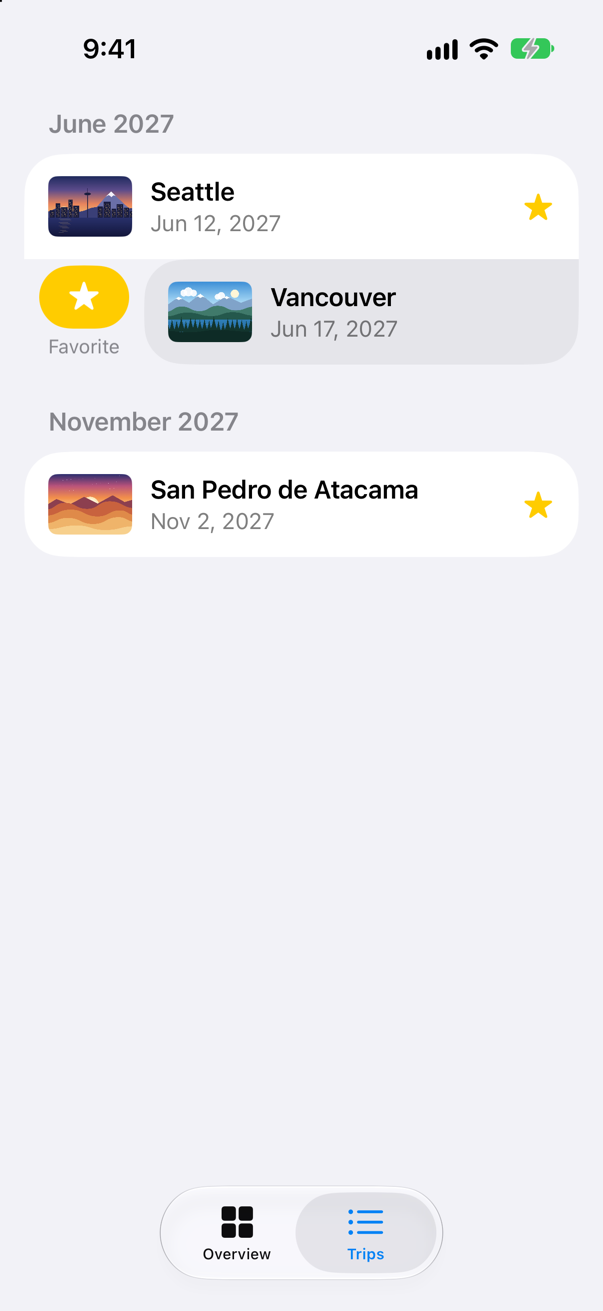
Tap Favorite — the picture at the top of this step: Vancouver has its star. The button's title and symbol come from the trip, so the same swipe on a favorite offers Unfavorite. Why the leading edge? A .swipeActions on the trailing edge would take that edge over, and .onDelete's Delete would no longer appear there. One of this lesson's edge cases shows it happening.
What you built
- A
TabViewwith two tabs, sharing one store through the environment. - A
ListofTripRows in sections by month. - Swipe to delete that deletes the trip that was swiped — after the version that did not.
- A leading swipe action that marks a favorite.
Guide: how ForEach works — what it keeps, when it makes its rows and how it tells them apart, all run on the simulator — is in ForEach, in full.
The list has rows but nowhere to go. In the next lesson a tap on a row opens the trip on a screen of its own, in a NavigationStack — and the stack of screens turns out to be an array you own.
The finished project
Stuck, or want to compare with your own? This is the project as it stands at the end of this lesson, built and run before it was put here.
- Trips-lesson-21.zip — unzip it, then open
Trips.xcodeprojin Xcode.
Flash cards
17 cards for this lesson, each labelled with its topic. 9 ask how you would write something; the other 8 are trick questions, written to catch a misunderstanding. Answer in your head first, then tap the card.
Syntax · ListA scrolling list with one row for each trip in an array.
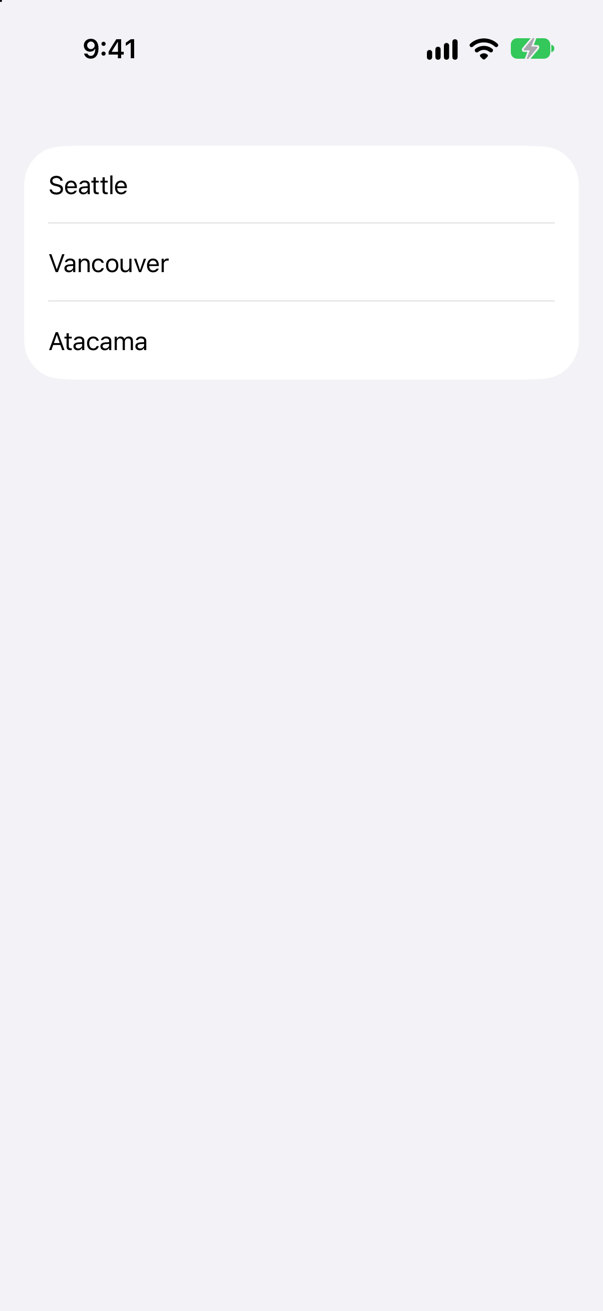
List(data) { item in … }, with Identifiable items — or List(data, id: \.someKey). It is a ForEach inside a List, written in one line.
Syntax · ListRows in groups, each group with a header.
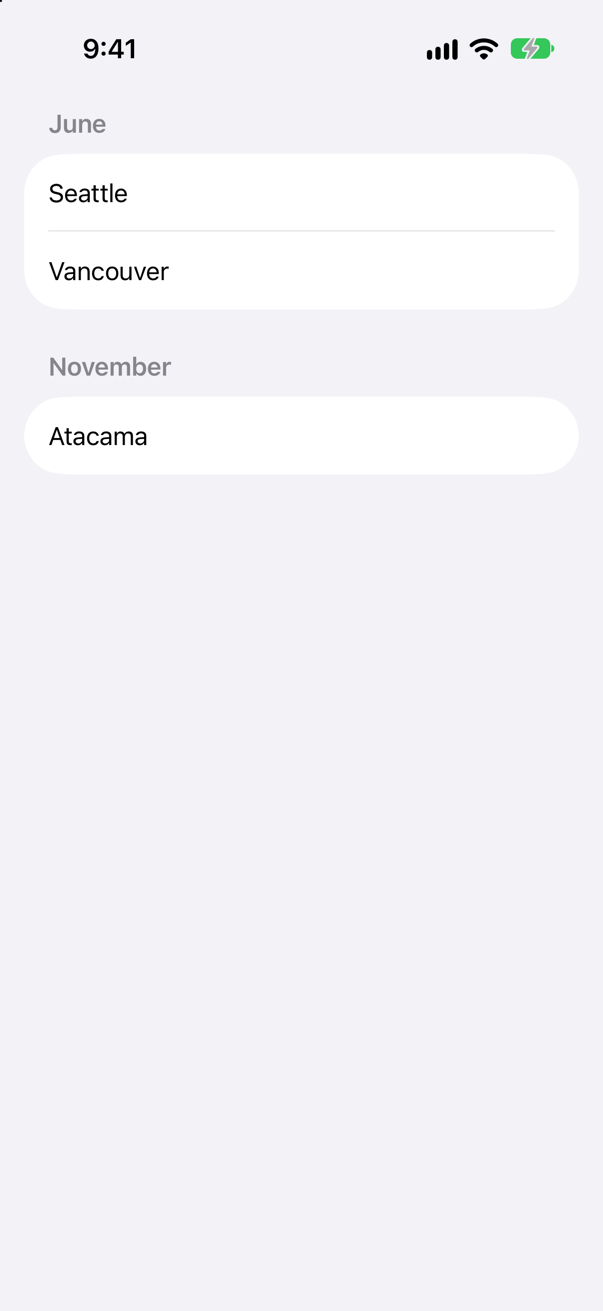
Section("Header") { … } inside a List. Sections can come from a ForEach of their own, as here, one for each month.
Syntax · ListLet the user delete a row by swiping it to the left.
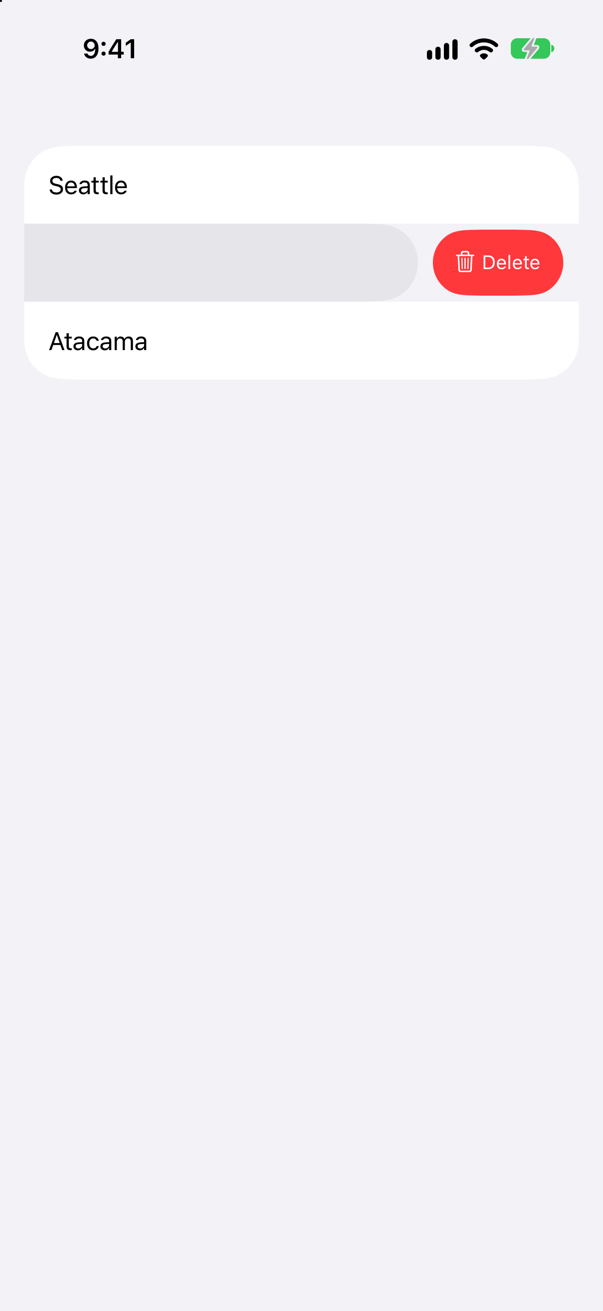
.onDelete on the ForEach — not on the List. It hands you the offsets of the rows, in the collection that ForEach was given; remove them from the same collection. The picture is the swipe; after the tap on Delete, Seattle and Atacama were left.
Syntax · ListA swipe action of your own, from the leading edge.
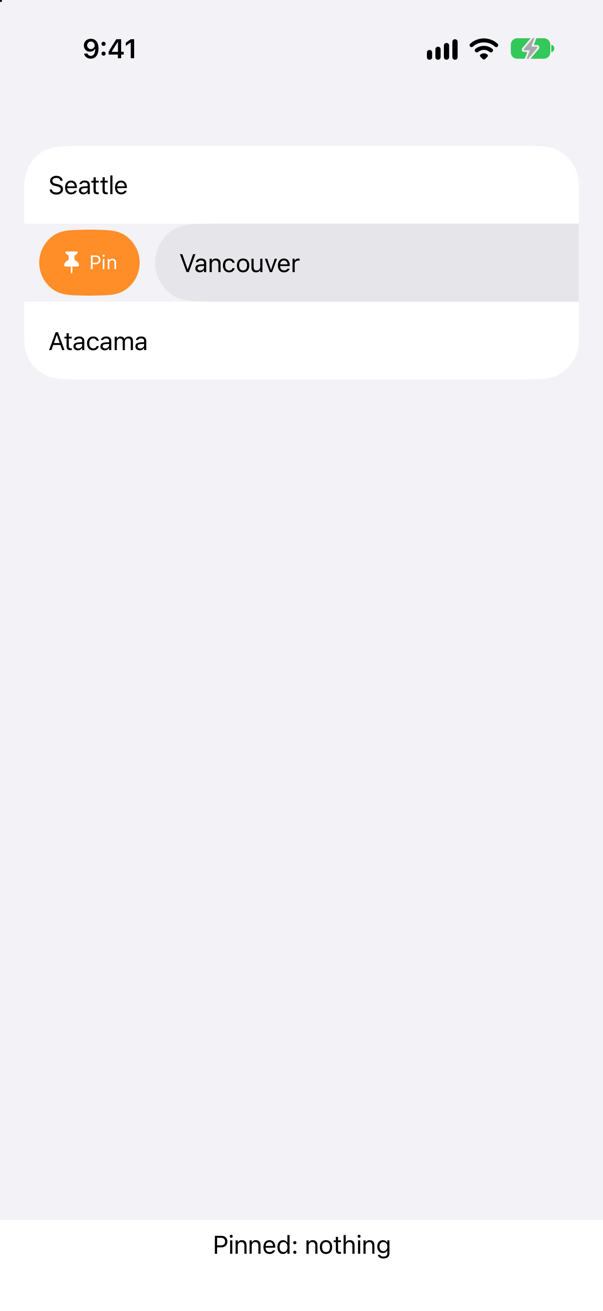
.swipeActions(edge:) on the row, holding Buttons; .tint colors each. The default edge is .trailing. The picture is the swipe from the leading edge.
Syntax · ListLet the user reorder rows, with the system's Edit button.
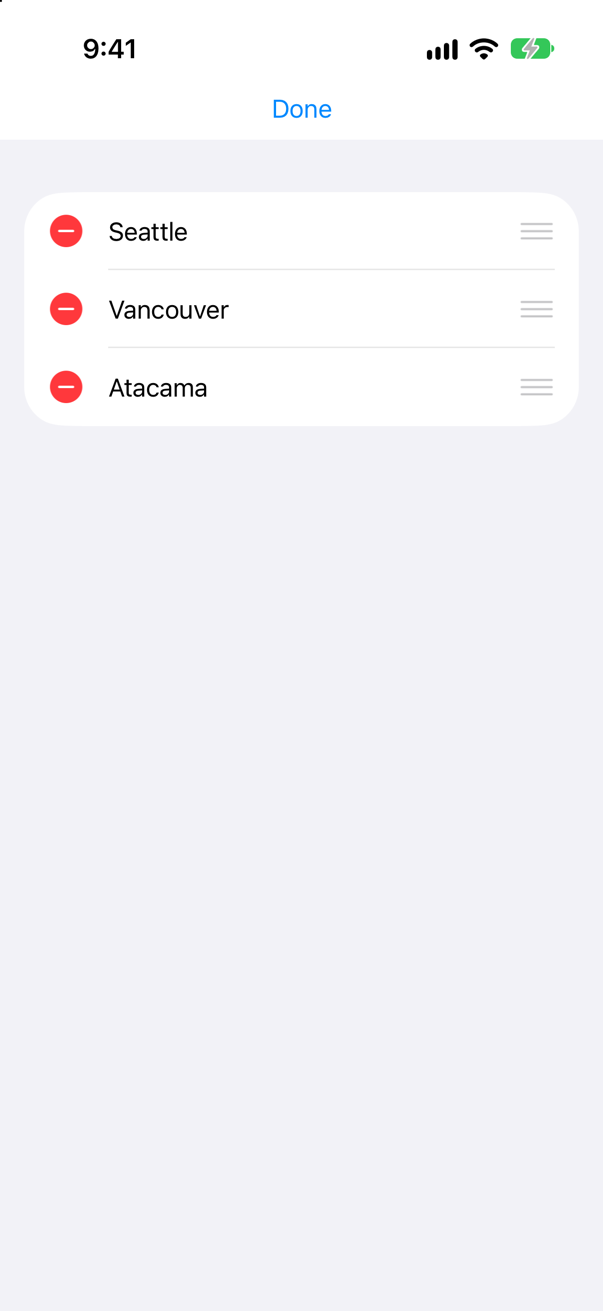
.onMove on the ForEach, with Array.move(fromOffsets:toOffset:). In edit mode — the Edit button turns it on — each row shows a delete control and a handle to drag. The picture is the list in edit mode.
Syntax · TabViewTwo screens, side by side, with a tab bar to switch between them.
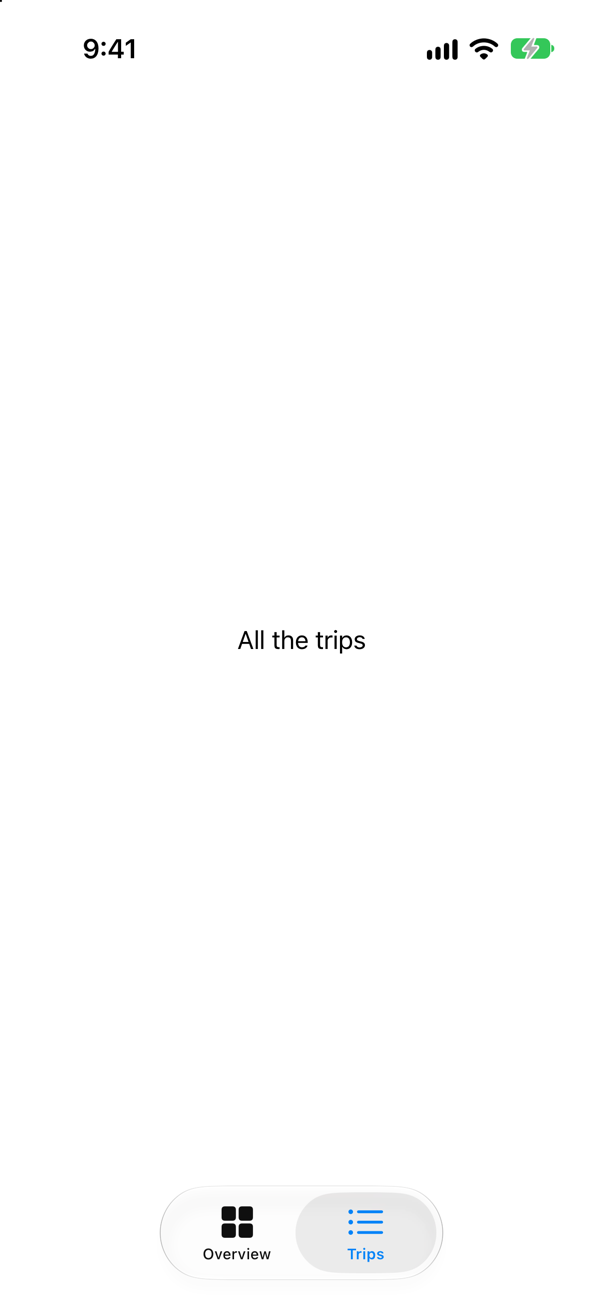
TabView holding a Tab for each screen, each with a title and an SF Symbol. The picture is after a tap on Trips.
Syntax · ListA list that mixes fixed rows with rows made from data.
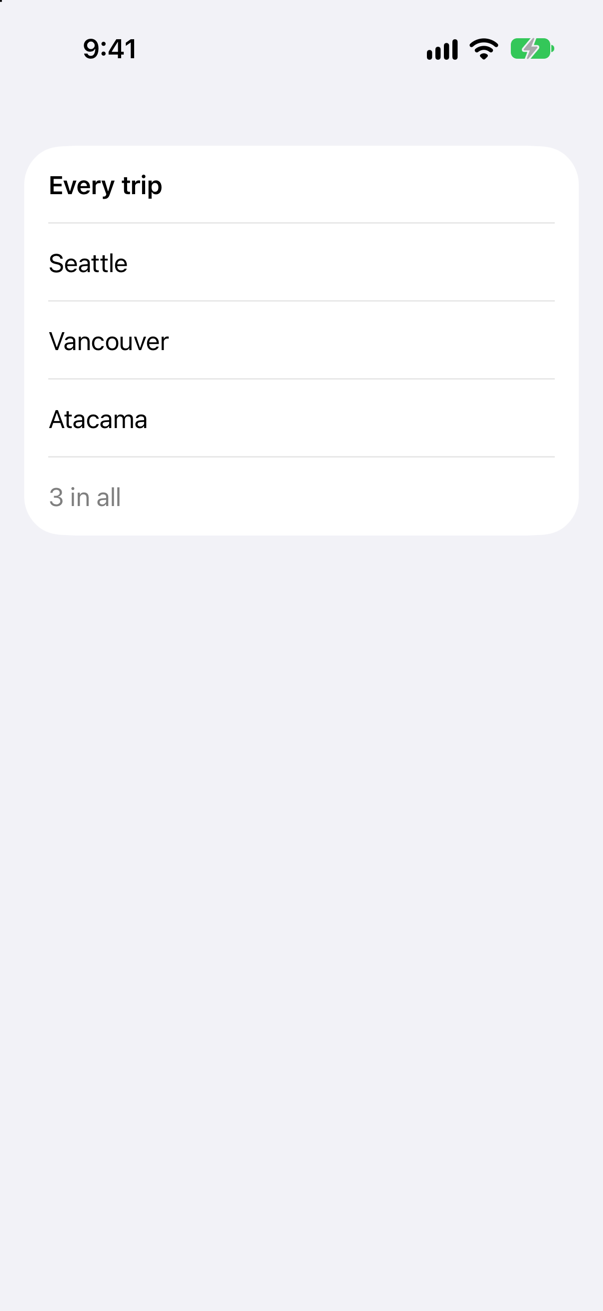
The List { … } form takes any rows: fixed ones written out, and a ForEach for the data. List(data) { … } takes only the data.
Syntax · ListA list without the grouped, inset look.
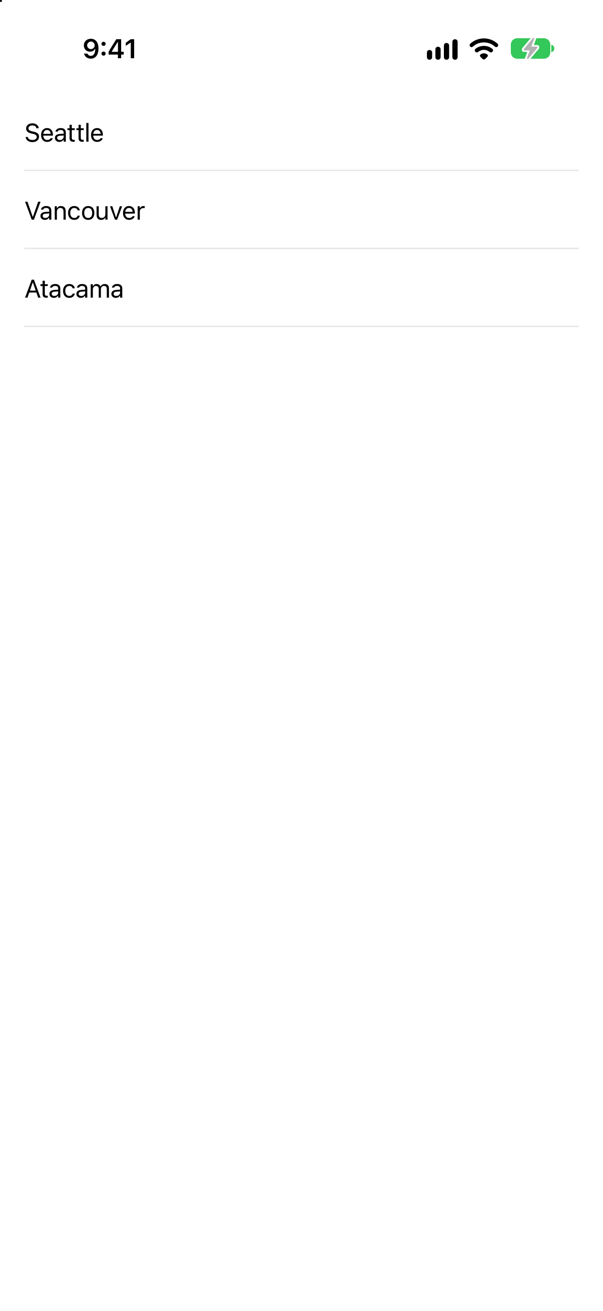
.listStyle(.plain): rows edge to edge, with no gray background. On iPhone the default is .insetGrouped, which Trips uses; .grouped, .inset and .sidebar are the others.
Syntax · ListiOS 27: swipe actions on rows that are not in a List — and only one row open at a time.
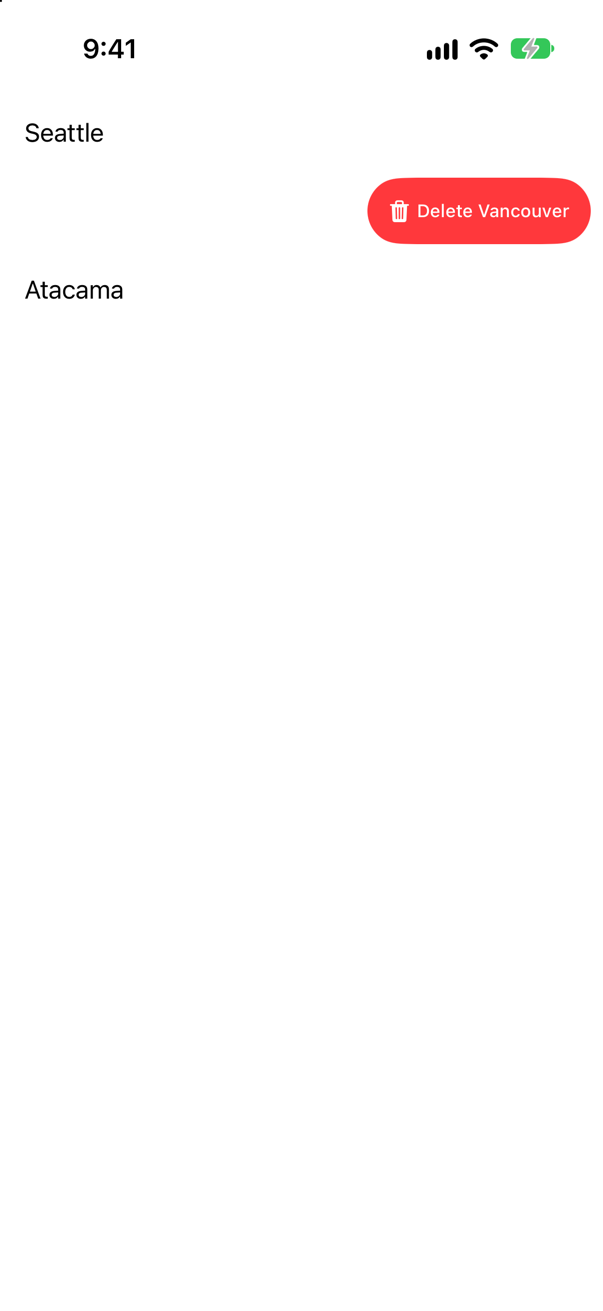
.swipeActions now works on rows in a ScrollView; .swipeActionsContainer() on the scroll view gives them what List gives its rows — one open at a time, closed by scrolling. The picture is the swipe; the tap deleted Vancouver.
Trick question · ListSections by month, and .onDelete { trips.remove(atOffsets: offsets) } in each. You swipe Atacama, alone in November, and tap Delete. What goes?
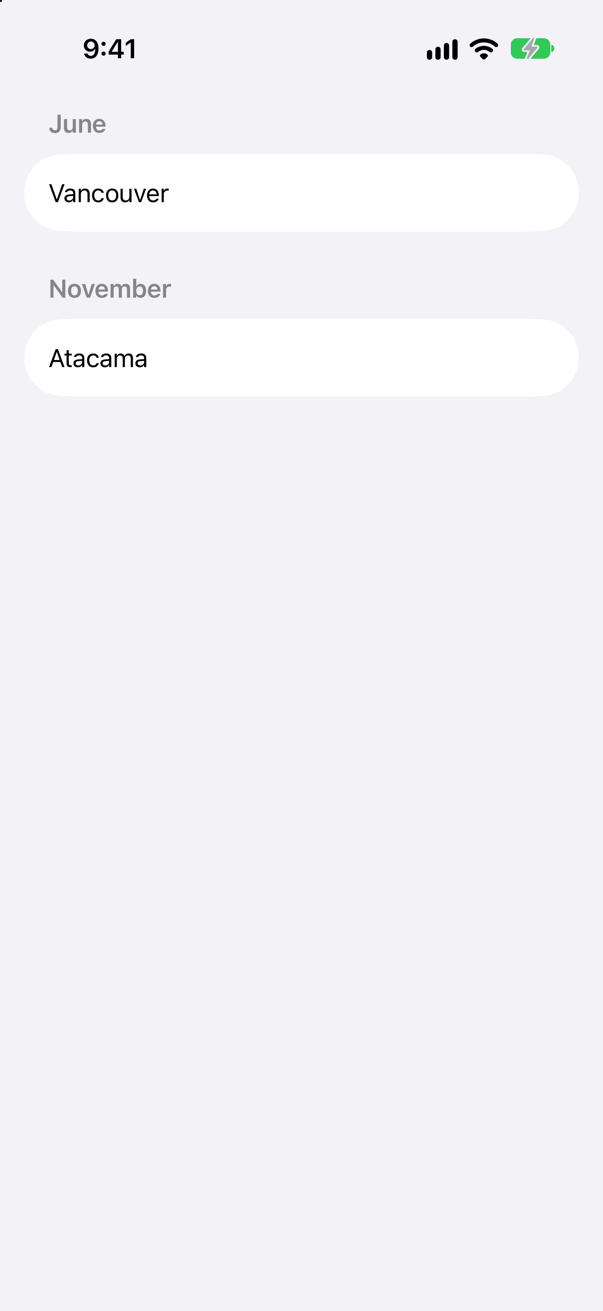
Seattle. The offsets count rows in that section — Atacama is row 0 of November — and trips counts from Seattle. Turn offsets into items in the section that gave them, then delete those items from the store by id.
Trick question · ListA row has .onDelete and also a Flag action from .swipeActions(edge: .trailing). You swipe it to the left. What do you see?
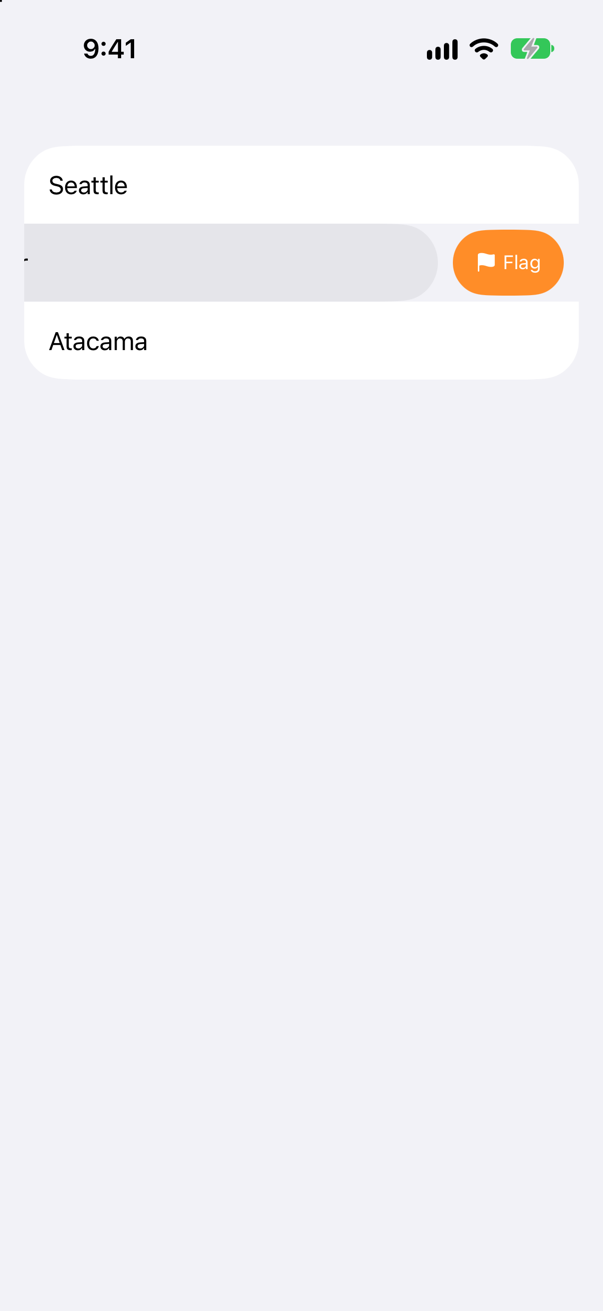
Flag, and no Delete. Swipe actions on an edge replace what .onDelete puts there. Add a destructive Delete button to the same .swipeActions, or put the other action on the leading edge.
Trick question · ListA List of three cities, put inside a ScrollView between a title and a footer. What does the screen show?
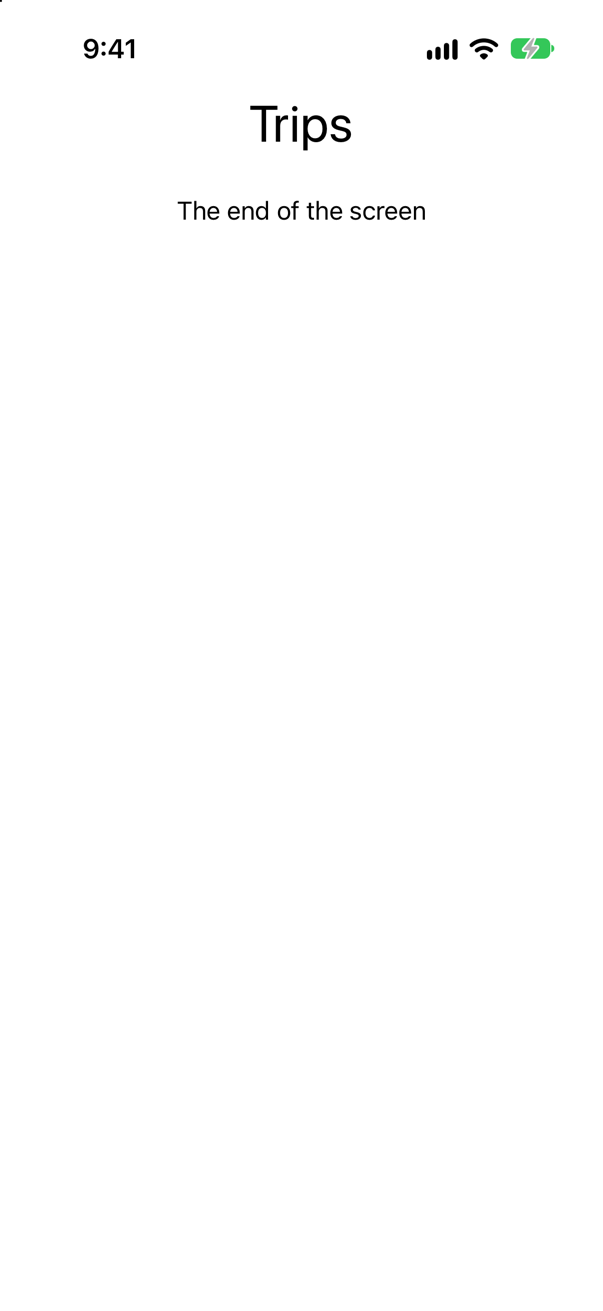
The title and the footer — no cities. A List scrolls by itself and takes the height it is offered; a ScrollView offers its content no fixed height, so the list gets almost none. Make the title and footer rows of the List, or use a LazyVStack in the scroll view.
Trick question · ListList(cities, id: \.self) { … }.onDelete { … }. Does it compile?
No: "value of type 'List<Never, ForEach<[String], String, Text>>' has no member 'onDelete'" onDelete belongs to ForEach — dynamic content — not to List. Write List { ForEach(…) { … }.onDelete { … } }.
Trick question · ListA List row holds a city and two buttons, Share and Delete. The user taps the city's name. What runs?
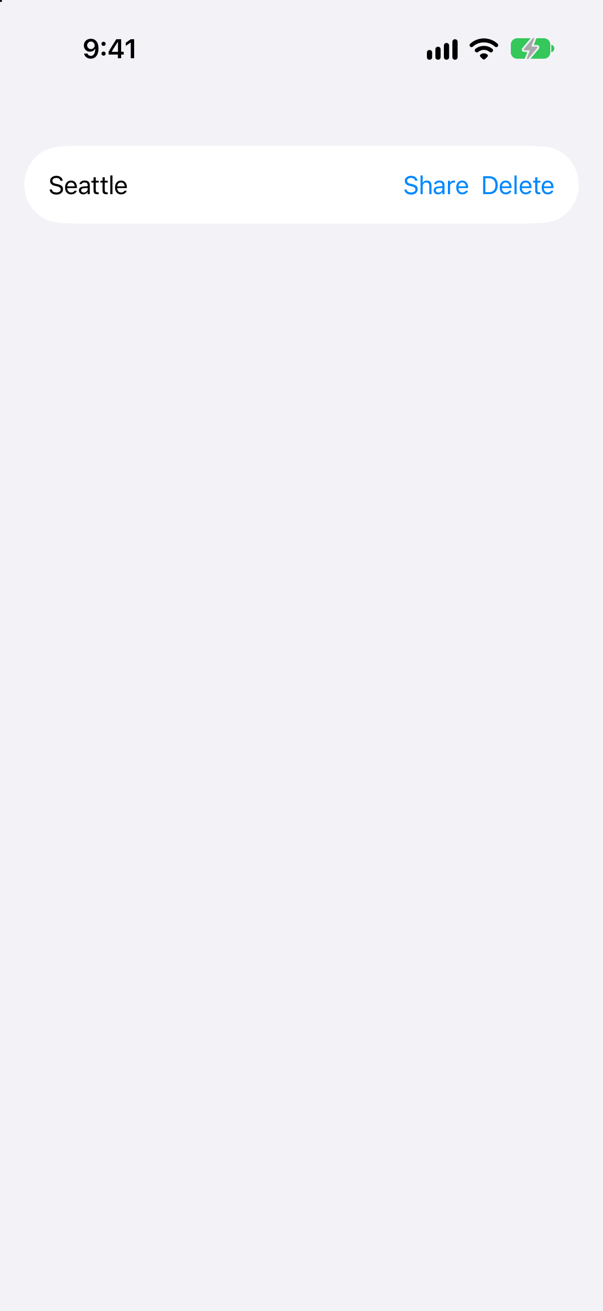
Both buttons. The console: Share tapped, Delete tapped. In a List, plain buttons make the whole row one tappable cell, and a tap on the row fires every button in it. Give each button .buttonStyle(.borderless) and each answers only to taps on itself.
Trick question · ListList(…, selection: $selected) where selected is a Set — multiple selection. On an iPhone, you tap Vancouver, then Seattle. What is selected?
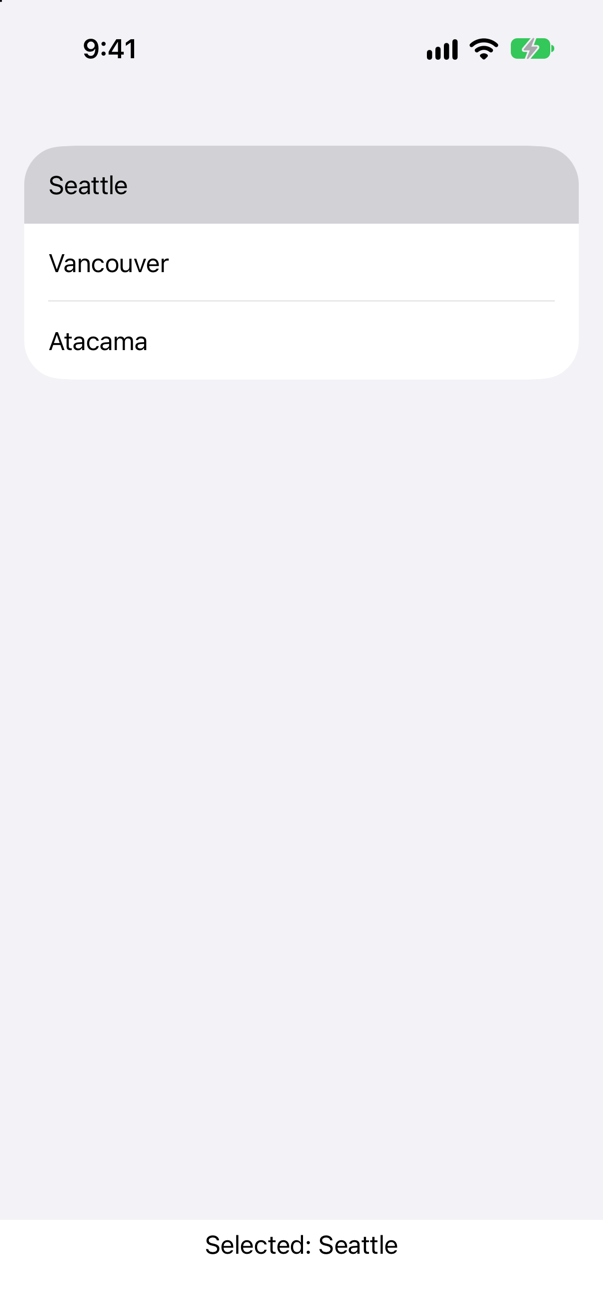
Only Seattle. Outside edit mode, a tap on an iPhone selects one row, whatever the binding can hold. Apple: "To enable multiple selections with tap gestures, put the list into edit mode." With an EditButton turned on, the same taps selected both.
Trick question · ListAn .onDelete that only prints, and forgets to remove the item. The user swipes Vancouver and taps Delete. What does the list show?
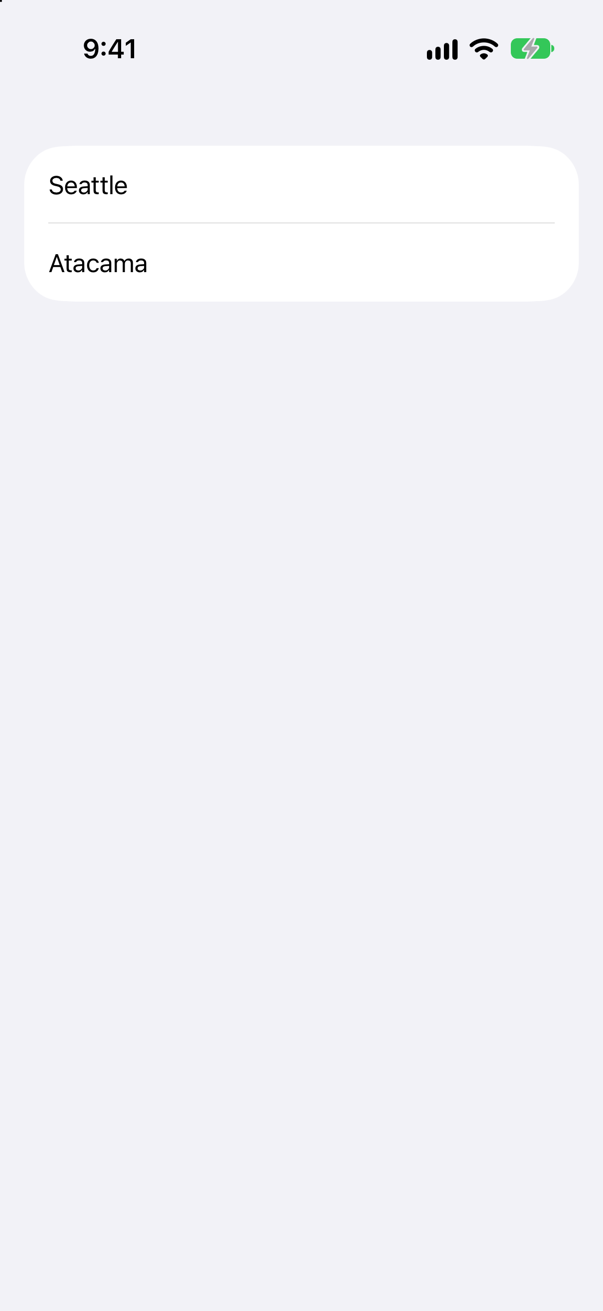
Seattle and Atacama — Vancouver's row is gone, and Vancouver is still in cities. Apple: the action "will be called after the row has already been removed from the List". The screen and the data now disagree, until something redraws the list.
Trick question · TabViewA counter in the first tab. Tap it twice, switch to the second tab, and come back. What does it say?
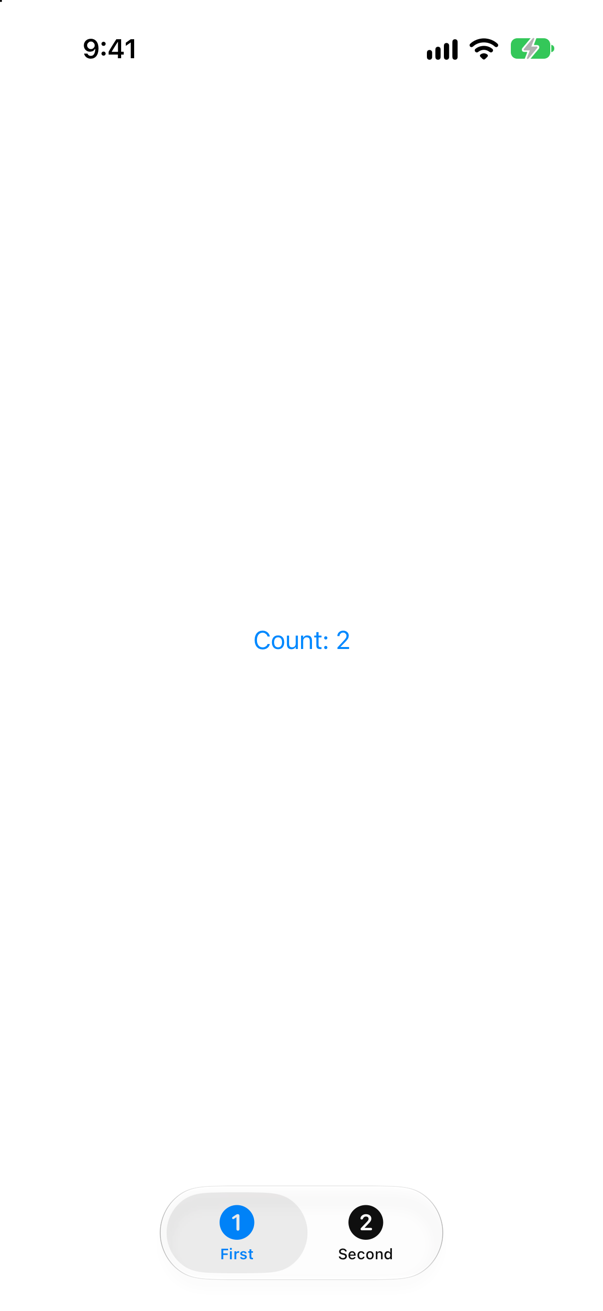
Count: 2. A TabView keeps every tab it has shown, state and all, while another is in front — unlike an if, which would end the view.
Edge cases and tricky questions
9 questions of the kind an interviewer uses to find out whether you really know this — the corners, the traps, and the things that changed recently. Each has its source. Wherever the answer is what some code does, that code was compiled and run, and what you see under “Show the answer” is what it really did. Say your answer aloud before you open it.
.onDelete hands you offsets. Two lists that delete with them — one in sections, one sorted on the fly with cities.sorted(). In each, Atacama is swiped and deleted. What actually goes?
Show the answer
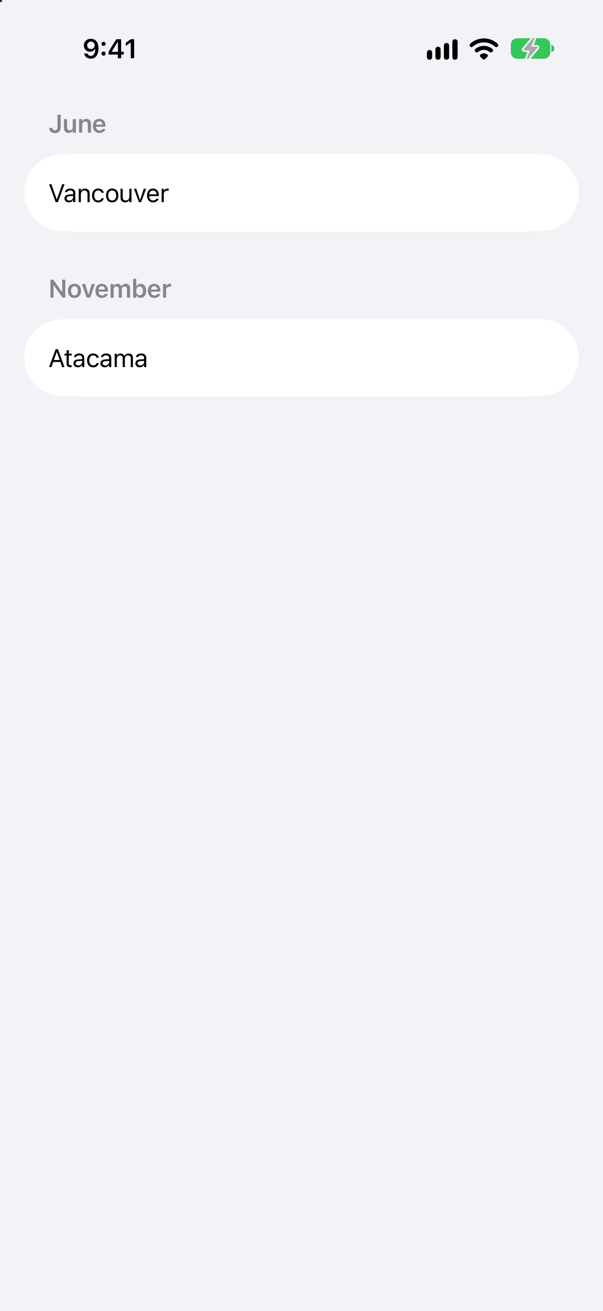
In both, Seattle. The offsets count positions in the collection that that ForEach was given: the November section's trips, or the sorted copy. Atacama is position 0 in both. remove(atOffsets:) on the original array removes its position 0 — Seattle.
The sorted list does the same:
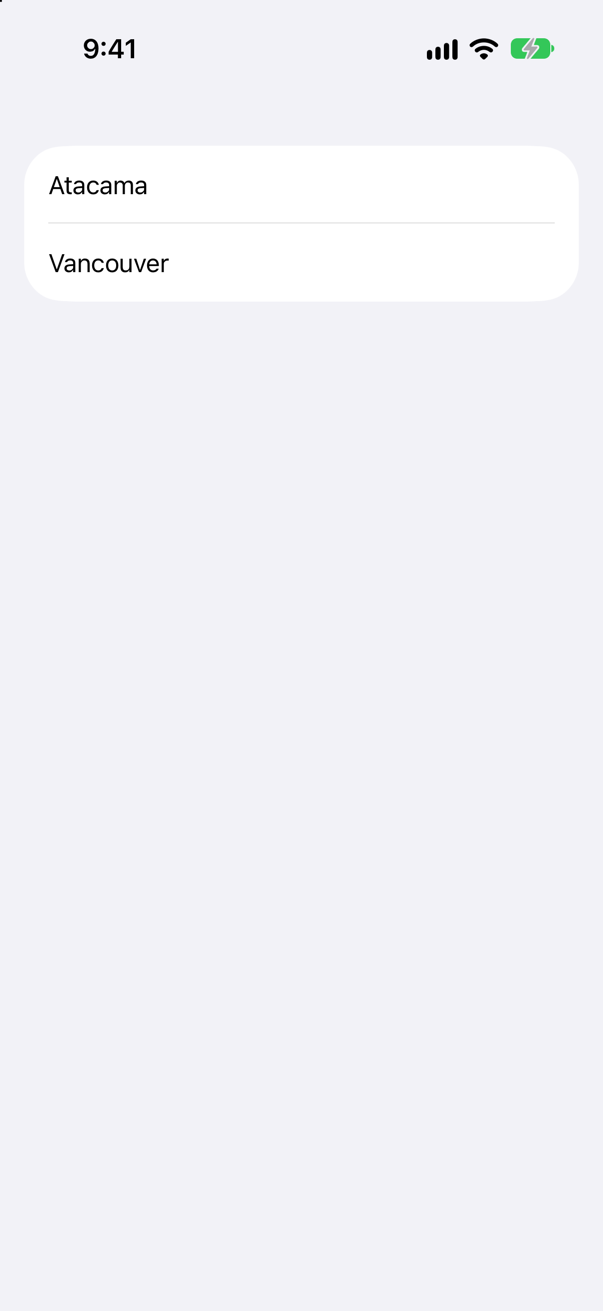
The rule: turn offsets into items in the same collection that produced them, then delete those items from the store by id.
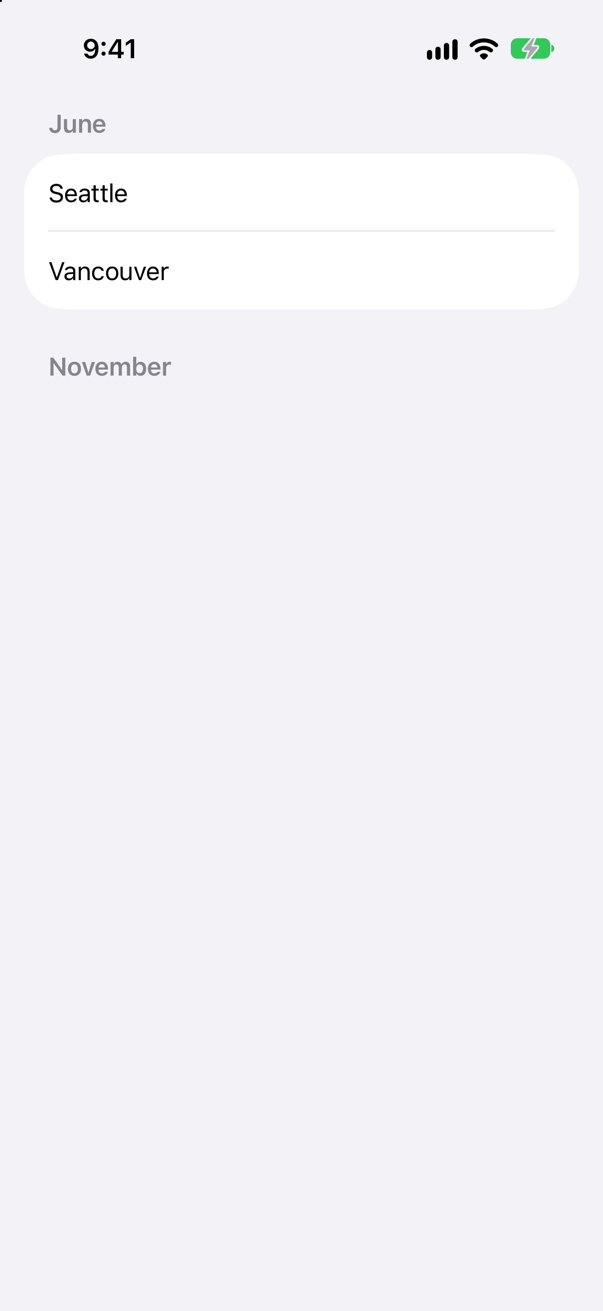
This is why a list's data needs stable ids even for deleting: the id is the only thing that means the same in the section, the sorted copy and the store. The interview-preparation repository asks it as "Why are stable IDs important in ForEach / List?" — this is the concrete answer.
Where this comes from: onDelete(perform:) · ForEach · Senior iOS Interview Preparation (GitHub) — Apple, onDelete(perform:): "You must delete the corresponding item within action."
A row has .onDelete, and you add a Flag swipe action. Where you put the action decides what the user can still do. Swipe left, with Flag on the trailing edge — and with Flag on the leading edge.
Show the answer
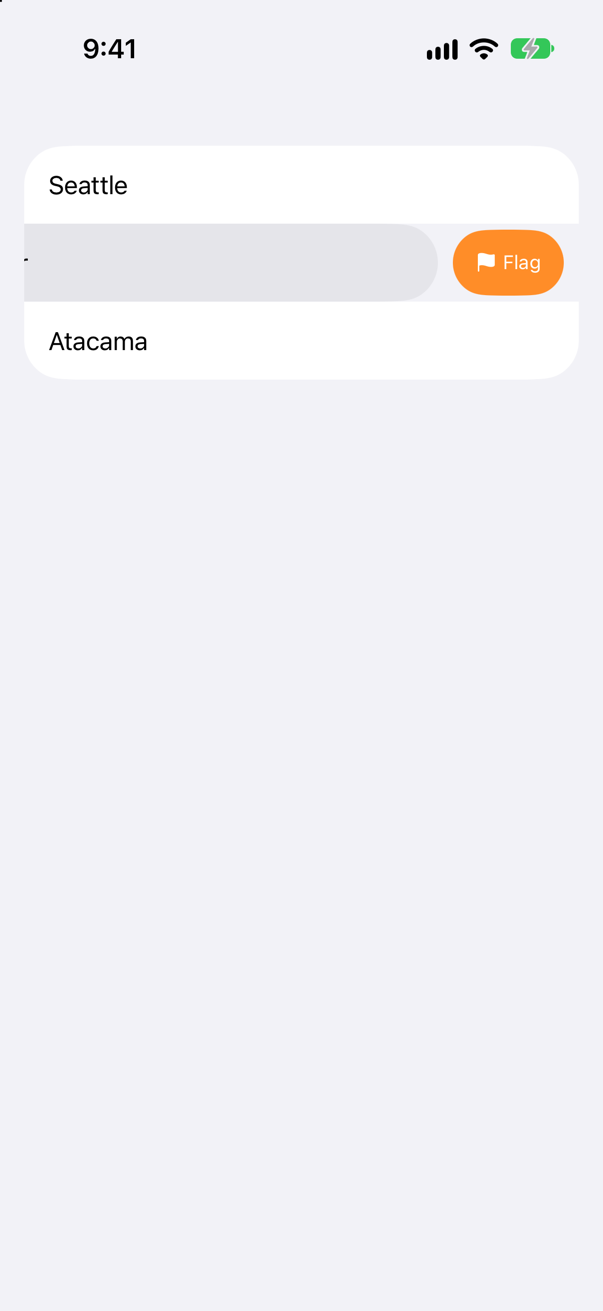
With Flag on the trailing edge, Delete is gone. A row's swipe actions for an edge replace what .onDelete puts on that edge, so swiping left now offers Flag alone, and the user can no longer delete by swiping.
Move Flag to the leading edge, and the left swipe offers Delete again:
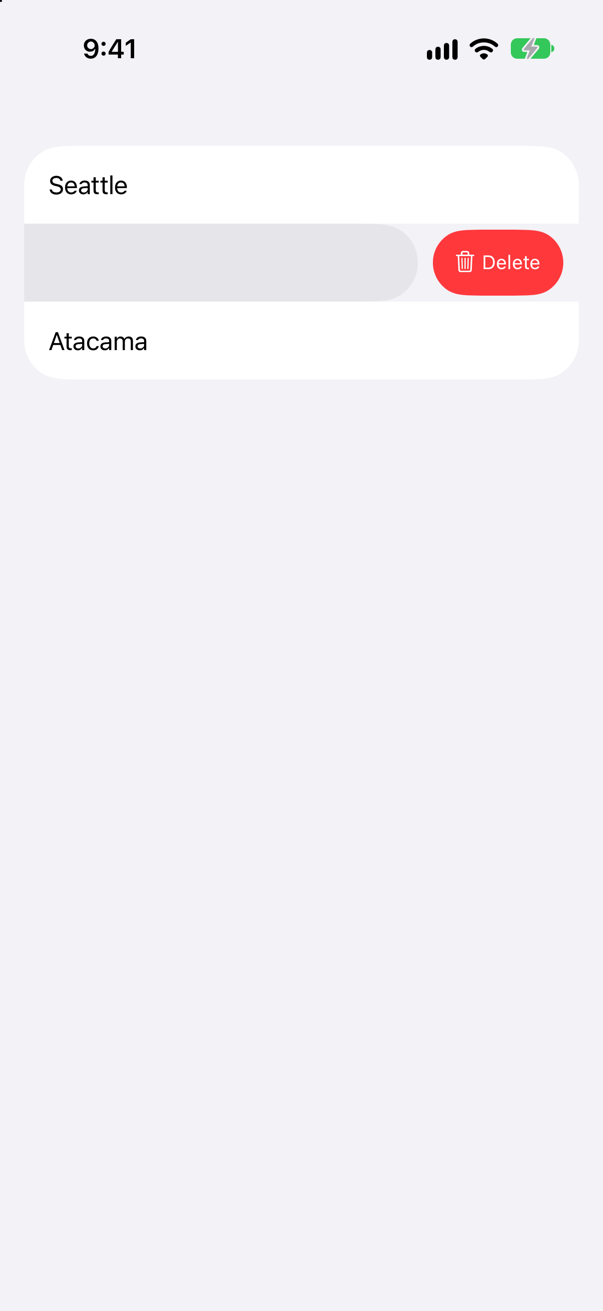
If both should be on the trailing edge, write Delete yourself among the swipe actions: Button("Delete", systemImage: "trash", role: .destructive) { … }. Apple's documentation shows exactly that pair, Delete and Flag, and notes that "actions appear in the order you list them, starting from the swipe’s originating edge" — and that the first can be performed with a full swipe, which makes the order matter.
Where this comes from: swipeActions(edge:allowsFullSwipe:content:) · onDelete(perform:) — Apple, swipeActions(edge:allowsFullSwipe:content:): "By default, the user can perform the first action for a given swipe direction with a full swipe."
.onDelete is written, but its action only logs, perhaps waiting for a server to agree. The user swipes Vancouver and taps Delete. What does the list show? And after something unrelated makes the screen redraw?
Show the answer
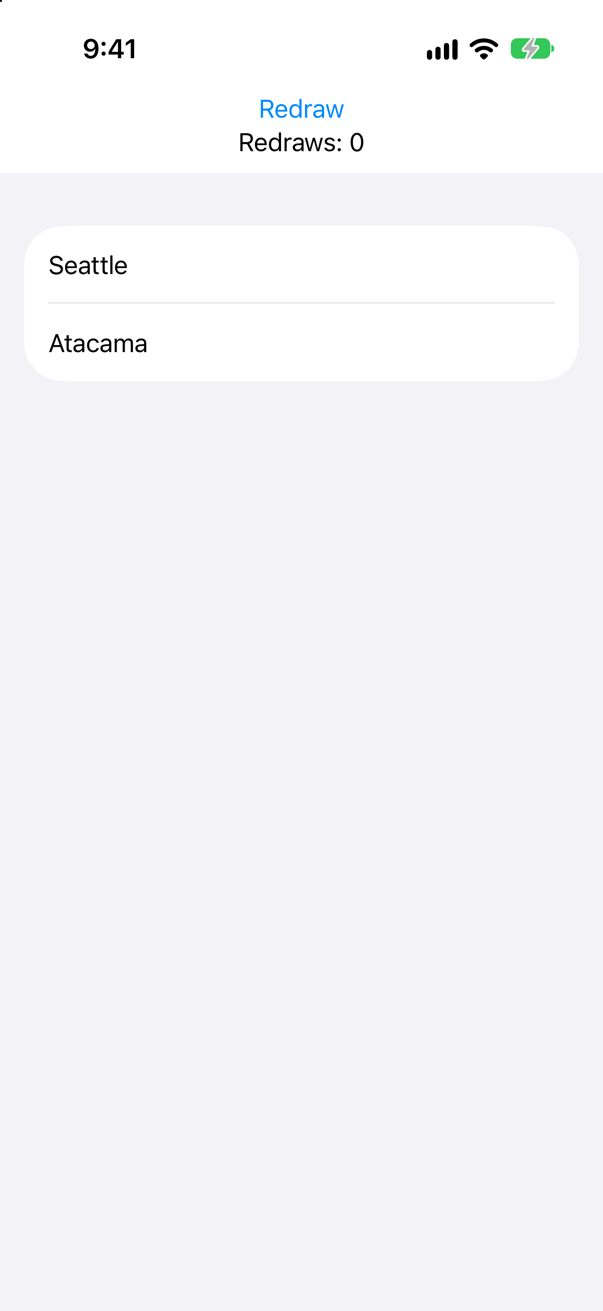
Vancouver's row is gone, though Vancouver is still in cities:
The console
asked to delete ["Vancouver"]Apple's documentation is blunt about it: "You must delete the corresponding item within action, as it will be called after the row has already been removed from the List." The list removed the row first and then asked you to make the data agree. You did not, so the screen and the data now disagree — until something makes the screen redraw. A tap on Redraw, which changes only a counter:
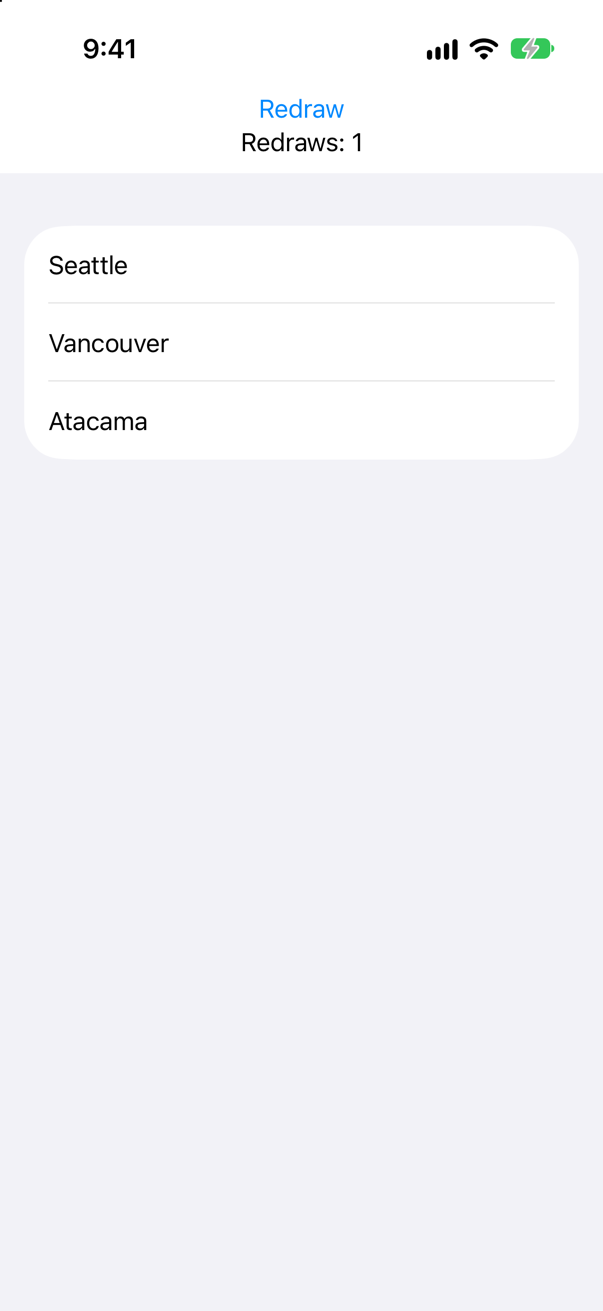
Vancouver came back out of nowhere: the list drew what the data says.
So an action that needs permission — a server, an "are you sure?" — cannot live in onDelete. Use a swipe action instead: .swipeActions { Button("Delete", role: .destructive) { … } } runs your code first, and the row goes only when your code removes the item. Lesson 23's sheets and alerts give the "are you sure?" itself.
Where this comes from: onDelete(perform:) · swipeActions(edge:allowsFullSwipe:content:) — Apple, onDelete(perform:): the action "will be called after the row has already been removed from the List."
A screen with a big title, a List of trips, and a footer, all inside a ScrollView so that they scroll together. What does it show?
Show the answer
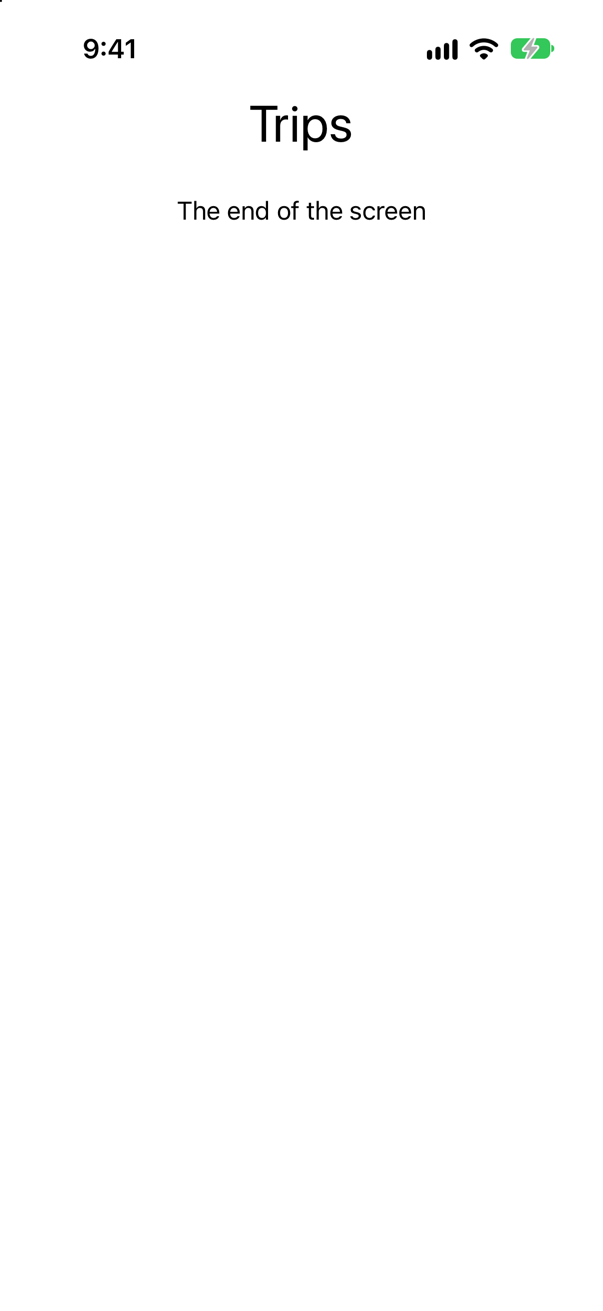
The title and the footer, and no trips. A List is a scroll view itself, and takes the height it is offered. Inside a ScrollView, which measures its content along the scrolling axis without limit, the list is offered no particular height, and it ends up with next to none — not one of its rows appeared. No error and no warning: an empty space where the list should be.
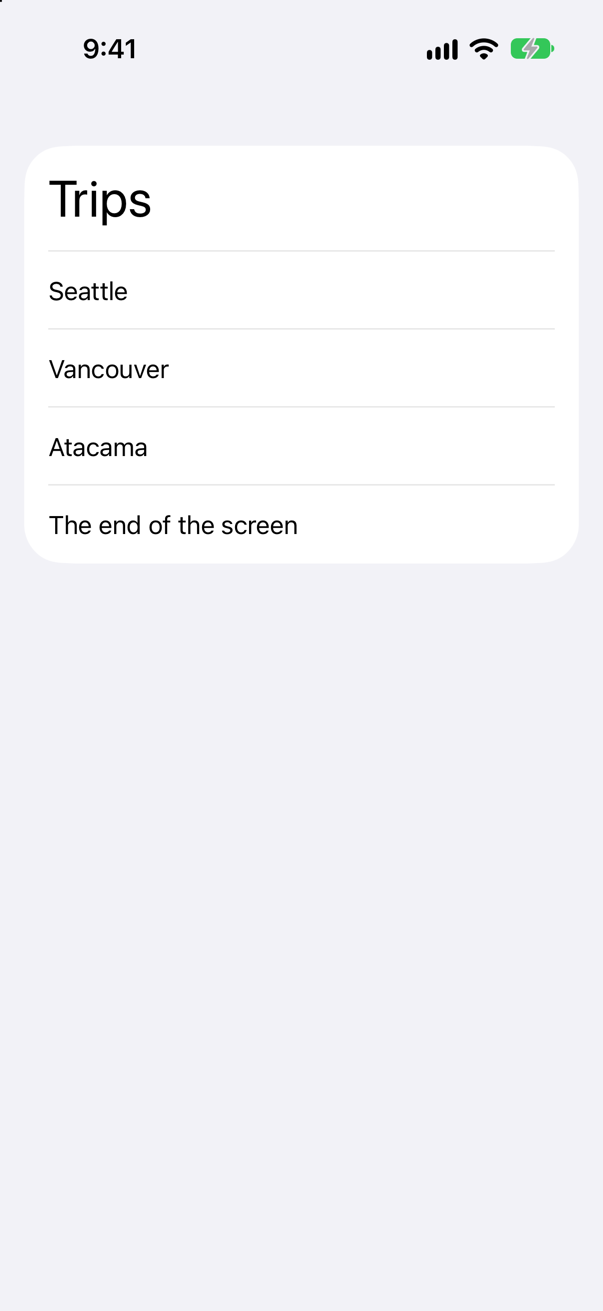
Make everything rows of the one List:
Or, if the screen is not really a list, keep the ScrollView and put the rows in a LazyVStack, as Trips' overview does. What does not work is one scrolling container inside another along the same axis, each expecting the other to decide its height.
Where this comes from: List · Creating performant scrollable stacks — Measured on iOS 27: the List inside the ScrollView drew none of its rows.
Two ways to write a list from data: List(cities) { … } and List { ForEach(cities) { … } }. They draw the same thing. Add .onDelete to the first. Does it compile — and when does the difference matter?
Show the answer
It does not compile. Xcode reports
value of type 'List<Never, ForEach<[String], String, Text>>' has no member 'onDelete'It does not compile, and the message says why: List has no onDelete. .onDelete, .onMove and the reordering modifiers belong to ForEach — to dynamic content, which knows how its rows map to a collection. List(data) keeps its ForEach inside, out of reach.
So the one-line form is for lists you only read. As soon as rows can be deleted or moved, or the list mixes fixed rows with data, or has sections, write List { ForEach(…) { … } } — which is also what the one-line form does for you, minus the handle.
Where this comes from: List · ForEach · onDelete(perform:) — Apple: onDelete(perform:) is declared on DynamicViewContent, the protocol ForEach conforms to.
A row of a List holds a city name and two buttons, Share and Delete. The user taps the name. Which buttons run?
Show the answer
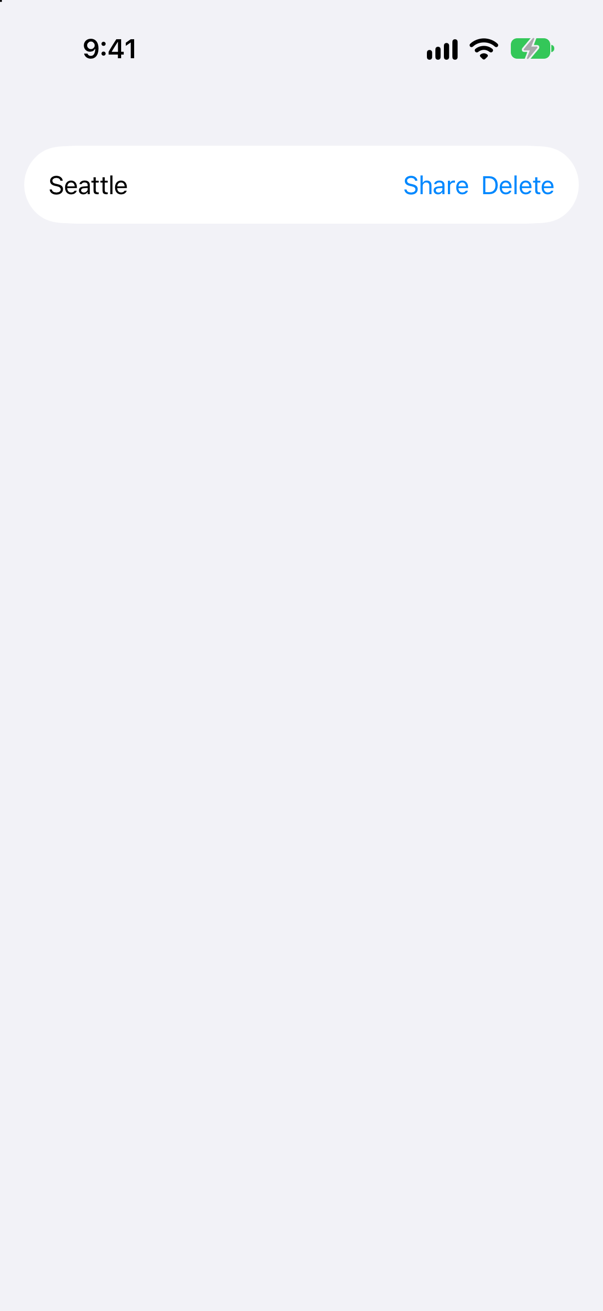
Both — and the user tapped neither. The console:
The console
Share tapped
Delete tapped
In a List, a button with the default style turns its whole row into one tappable cell, the way a single button in a table cell would. With two in a row, the row answers for both: a tap anywhere on it runs every one. Here that is a share sheet and a deletion, from a tap on a name.
Give each button a style that keeps it to itself:
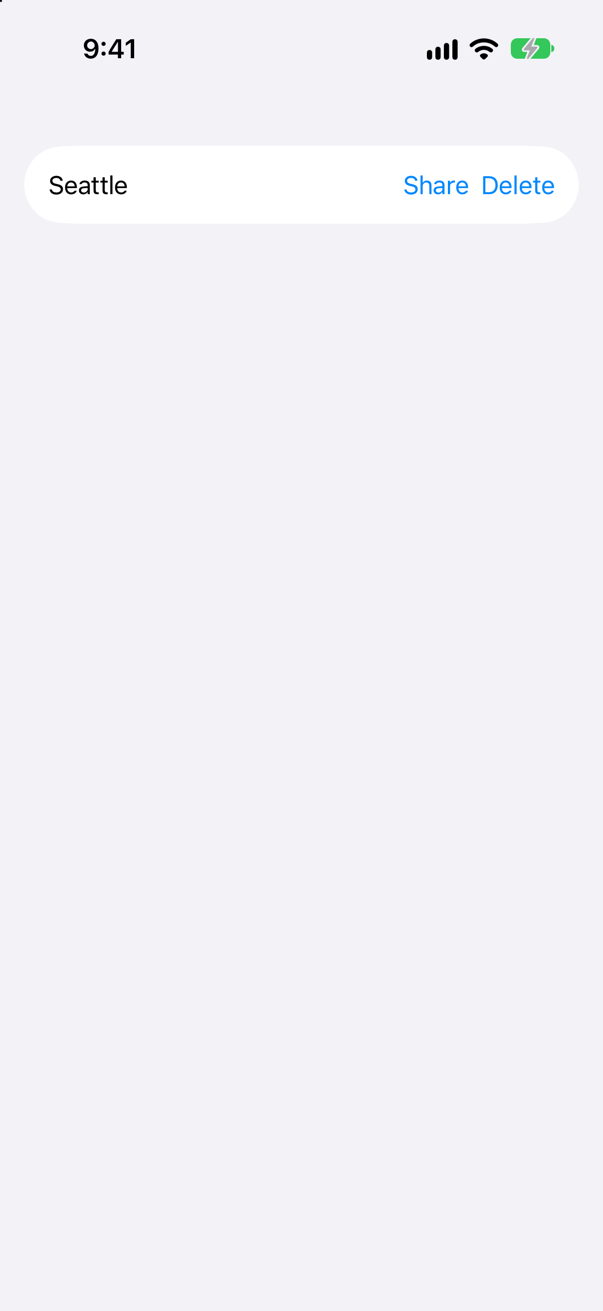
A tap on the name, then a tap on Share
Share tappedThe tap on the name ran nothing; the tap on Share ran Share. This is one of the most-reported SwiftUI surprises, and it says something general: inside a List, a row is a cell first, and its contents second.
Where this comes from: List · buttonStyle(_:) — Measured on iOS 27: a tap on the row's text ran both buttons' actions.
List(cities, selection: $selected) with selected a Set — multiple selection. On an iPhone, the user taps Vancouver, then Seattle. What is selected? And after tapping an Edit button first?
Show the answer
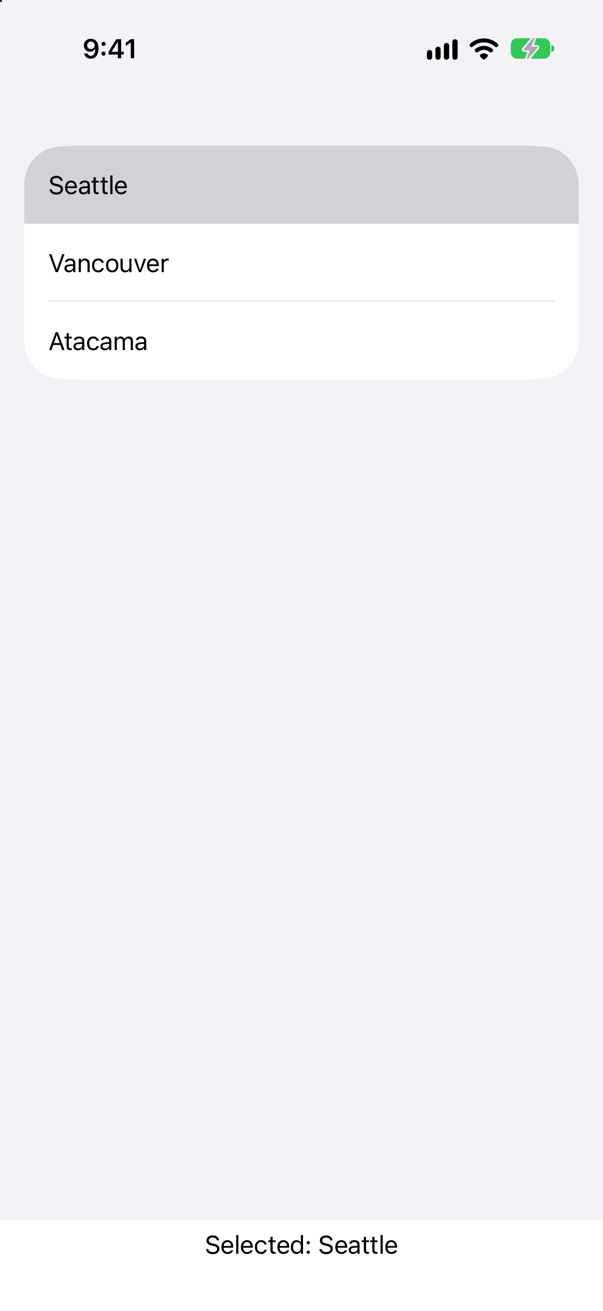
Only Seattle. On an iPhone, outside edit mode, a tap selects one row, replacing the last — a Set binding makes no difference. Apple: "To enable multiple selections with tap gestures, put the list into edit mode by either modifying the editMode value, or adding an EditButton to your app’s interface."
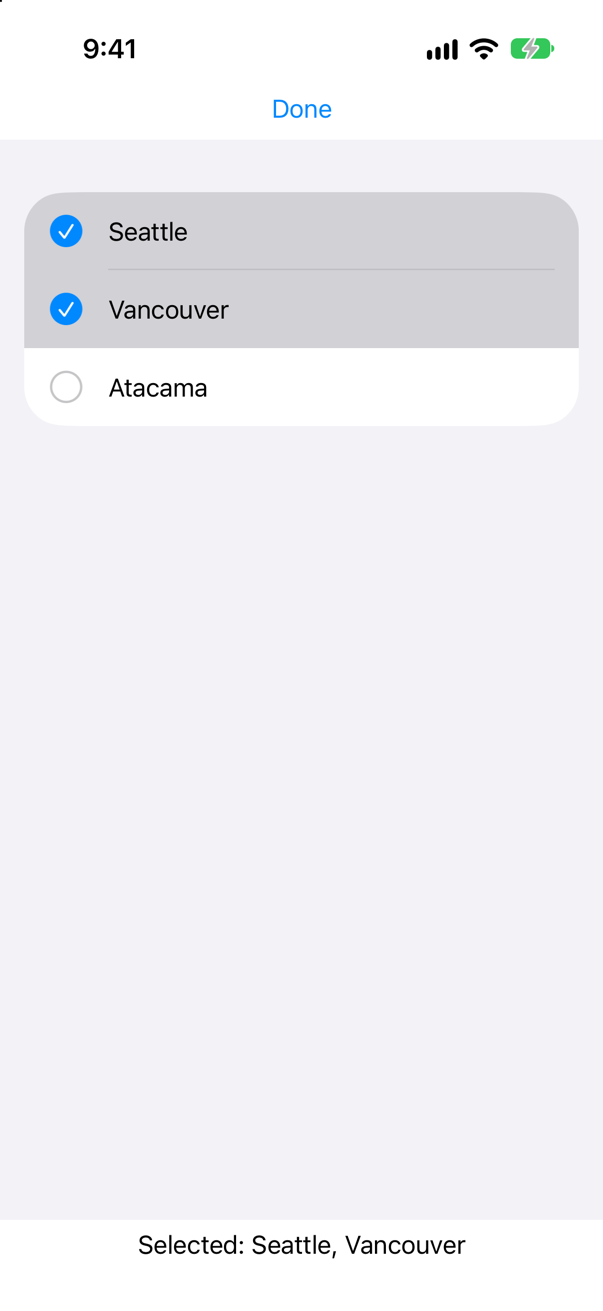
With the Edit button on, each row shows a circle, and both taps were kept. On iPad and Mac, Apple adds, people can select several rows without edit mode, using the keyboard and pointer — so the same code behaves differently by device, which is worth saying in an interview.
Where this comes from: List · EditButton — Apple, List: "People can make multiple selections without needing to enter edit mode on devices that have a keyboard and mouse or trackpad, like Mac and iPad."
iOS 27 lets rows in a ScrollView have swipe actions. Two rows are swiped open, one after the other. Is the first still open — with .swipeActionsContainer() on the scroll view, and without it?
Show the answer

With the container, only the second. Opening Atacama's actions closed Vancouver's. Without it:

Both stayed open. The swipe actions themselves work either way; .swipeActionsContainer() adds the manners a List has built in. Apple lists them: "Only one row’s swipe actions are revealed at a time. Scrolling the container dismisses any open actions. Tapping outside the active row dismisses its actions." And on a List it does nothing, because a list already behaves that way.
So the new answer to "can I have swipe-to-delete without a List?" is yes, since iOS 27, with two modifiers rather than one — and an older app that hand-built swipe gestures on cards can delete them.
Where this comes from: swipeActionsContainer() (iOS 27) · swipeActions(edge:allowsFullSwipe:content:) — Apple, swipeActionsContainer(): "Applying this modifier to a List is a no-op, since List already provides this coordination."
A counter in the first tab of a TabView. Tap it twice, switch to the second tab, and come back. What does it say — and why is that different from an if?
Show the answer
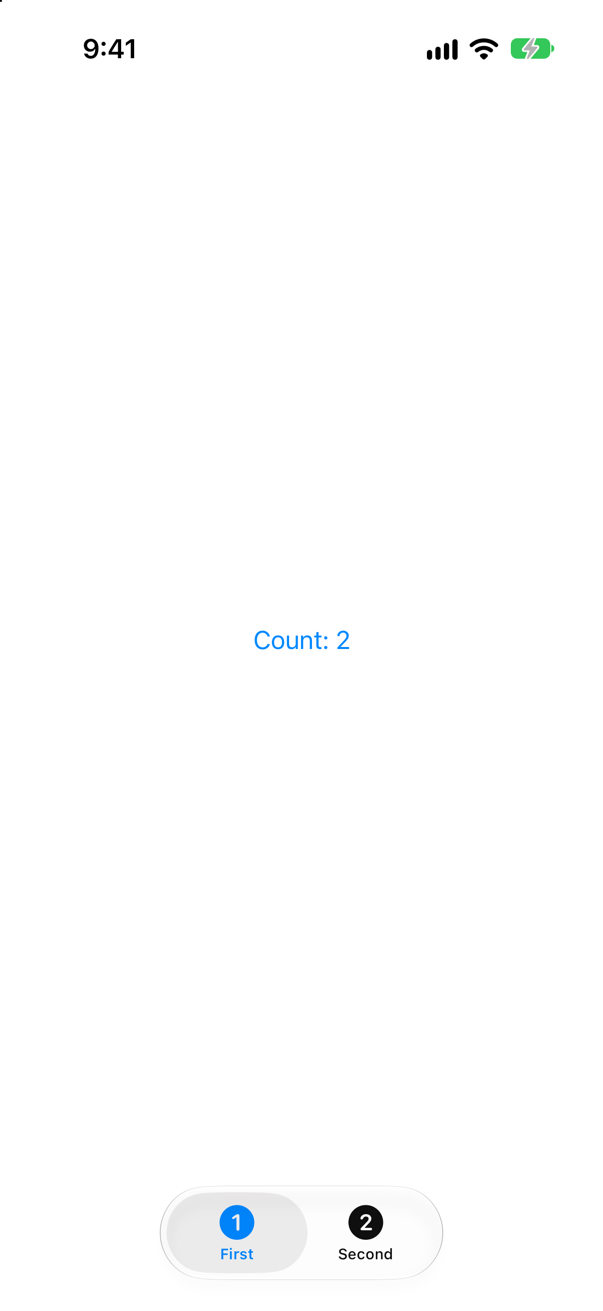
Count: 2. A TabView keeps every tab it has shown alive while another is in front: its views keep their identity, so their state, scroll positions and navigation stacks wait where they were. An if that swapped the two screens would end one and start the other, and the count would be 0 (lesson 20).
It cuts both ways. A tab that has been shown is not cleaned up when the user leaves it — its state stays — so a timer or a subscription started in one tab keeps going while another is in front. And because tabs keep their own navigation stacks (the next lesson), "go back to the top of every tab" has to be done on purpose, by resetting each tab's path.
Where this comes from: TabView · WWDC21: Demystify SwiftUI (2021 — still the reference on identity) — Measured on iOS 27: the first tab's count survived a visit to the second.